




Accessing your Comcast wireless router helps you change Wi Fi settings, review connected devices, and secure your home network. You can use a browser or the Xfinity app to reach your router, even if you use a third-party device. This guide walks you through the steps to follow to effortlessly access your Comcast router with extras like troubleshooting steps for common errors and tips to improve your device's efficiency.
Table of contents
Check what type of router you have
Your steps change based on whether you use an Xfinity Gateway or a personal router. The login address and default credentials differ across models.
How to confirm you have an Xfinity Gateway
Look for an Xfinity or xFi label on the device or check the model name on the bottom panel. You can also open the Xfinity app to verify the gateway model detected on your account.

How to confirm you are using a personal router
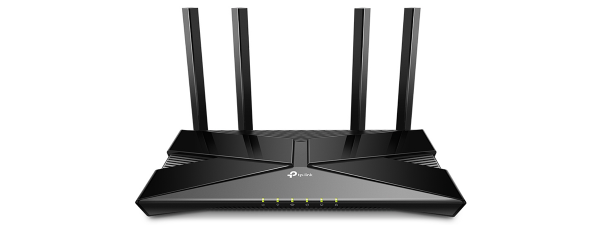
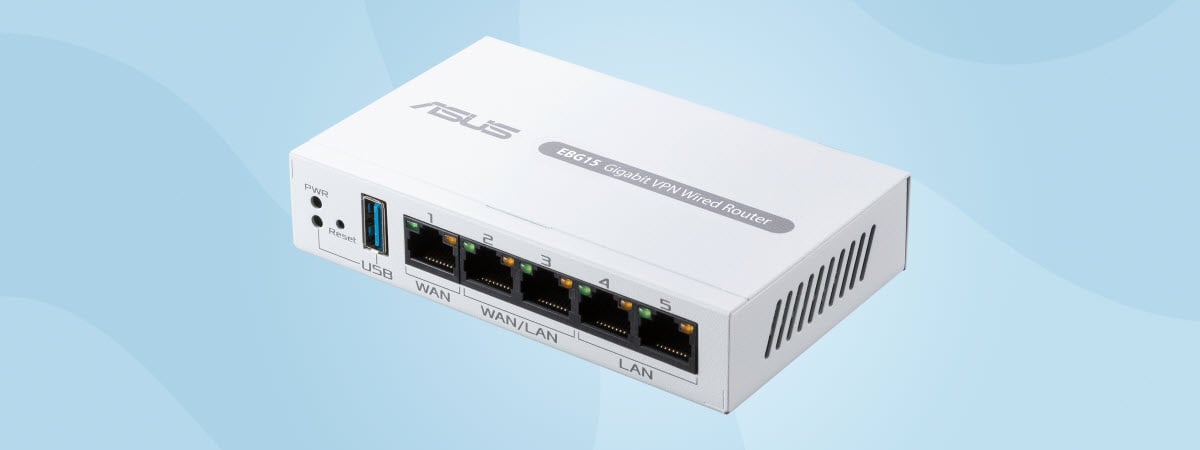
Brands like Netgear, TP Link, Asus, or Linksys indicate that you use your own router. These devices use different admin pages and credentials printed on the router label.
Access your Comcast router using a browser
A browser gives you full control over router settings. This method works on Windows, macOS, iOS, and Android.
Default IP addresses for Xfinity and third party routers
Most Xfinity Gateways use 10.0.0.1, while third party routers often use 192.168.0.1 or 192.168.1.1. Checking the label helps confirm the right address.
Steps to log into the Xfinity Admin Tool
- Connect your device to the Wi-Fi or plug in using Ethernet.
- Open a browser and enter 10.0.0.1.


- Type the router admin username and password.
- Select Log in to open the settings panel.
You can change your Wi Fi password or update the network name after signing in.
Accessing third party router interfaces
- Connect to the router Wi Fi.
- Enter the default IP printed on the router label.
- Sign in using the admin credentials shown on the sticker.


Most routers require you to change the admin password during first time setup.
Access your Comcast router with the Xfinity app
The Xfinity app offers a fast way to adjust Wi Fi settings without using a browser.
View and manage your gateway in the app
- Open the Xfinity app and sign in.
- Tap the Wi-Fi tab to view your gateway.
- Select your network name to change the password or device access rules.
You can quickly pause Wi Fi for children devices or rename connected devices for easier tracking.
Access advanced Comcast settings
Advanced settings help you fine tune security, control devices, and set rules for online games and services.
Change Wi Fi security and network passwords
Use WPA2 or WPA3 for better protection. Updating the Wi Fi password removes unknown devices and improves security.

Manage connected devices
From the dashboard, view active devices and remove unknown connections. You can also pause devices during homework hours or limit access during late nights.
Open advanced options like port forwarding and bridge mode
Port forwarding improves gaming and streaming apps that need open ports. Bridge mode lets you use your own router for stronger coverage and more customization.
Troubleshoot issues when you cannot reach 10.0.0.1
- Check your network connection: Make sure your device connects to the home Wi Fi, try Ethernet if Wi Fi fails, and avoid guest networks because they block router access.
- Confirm the router actual gateway address: On Windows, press Windows + R, type cmd, press Enter, then run
ipconfigand note the Default Gateway value. On macOS, open System Settings, select Network and choose your connection. Finally, view Router under Details, and use that gateway value in the browser address bar. - Clear browser issues and blocked access: Clear your cache, try a different browser, or disable VPNs that reroute your connection. Browser extensions that block local IP traffic can also prevent access.
- Reset forgotten admin credentials: If the username or password no longer works, press and hold the router reset button for 10 to 15 seconds. This restores factory defaults and clears custom settings.
Tips for secure and reliable router access
- Change default admin credentials: Update the admin username and password after your first login. This prevents attacks that target factory defaults.
- Keep firmware updated: Firmware updates improve security and fix bugs. You can check the firmware version inside the router dashboard.
FAQs
What is the default Comcast router login? Most Xfinity Gateways use admin as the username and password as the default password unless it was changed.
Why cannot I reach 10.0.0.1 on my network? You may not be connected to the correct Wi Fi network, or your router might use a different gateway address.
Can I access my router from my phone? Yes, you can use a mobile browser or the Xfinity app for quick access to Wi Fi settings.
Does router access work if I use bridge mode? You can only access the third party router when bridge mode is enabled. The Xfinity interface handles fewer settings.
Summary
- Identify whether you use an Xfinity Gateway or a personal router.
- Log in using a browser with the correct gateway address.
- Use the Xfinity app for quick Wi Fi changes.
- Fix login failures by checking your network and gateway address.
- Adjust advanced settings or enable bridge mode when needed.
Accessing your Comcast router gives you better control over your home network and helps you secure your devices. These steps work even if you use a personal router or run into login issues, and most settings update instantly once you sign in.

Discussion (0)
Be the first to comment.