




Visual voicemail lets you see and manage voice messages right from your Phone app. Instead of calling a number, you can tap, read transcriptions, or replay messages instantly. In this guide, we will show you the steps to follow to set up the Visual Voicemail on different Android products, including Samsung, Google Pixel, and Motorola.
1) Turn on Visual Voicemail on Android
Launch the default Phone app and tap the Voicemail tab or the three-dot menu. The location may differ by device and Android version. Next, tap Settings → Voicemail. This menu controls the voicemail number, notifications, and the visual voicemail toggle.

From here, turn on Visual Voicemail. If you’re prompted, grant necessary permissions or download your carrier’s voicemail app. Finally, if your carrier sends a text confirmation or request a voicemail password, follow the on-screen steps until activation completes.
Tip: To know that it worked, you’ll see voicemail messages listed in your Phone app. Try leaving yourself a test voicemail to confirm everything displays correctly.
2) Set Up Visual Voicemail on specific devices
For Samsung Phones
Go to Phone → Voicemail → Visual Voicemail → Turn On. Samsung’s One UI places voicemail settings inside the call options panel.
For Google Pixel
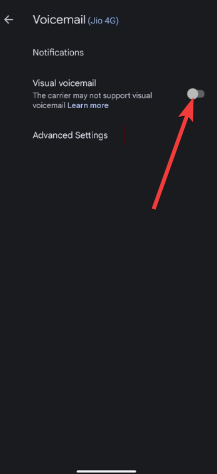
Open Phone → Settings → Voicemail → Visual Voicemail. Many carriers activate automatically after toggling.
For OnePlus, Motorola, and Others

Open the dialer’s Settings, then Voicemail. Some models need you to install your carrier’s Visual Voicemail app manually.
3) Troubleshooting Visual Voicemail
- Visual Voicemail not showing up: Restart your phone, clear the Phone app cache, or toggle Airplane mode to refresh the network. This resolves most activation delays.
- Can't activate or see messages: Check that call forwarding is set correctly and that data is on. Visual Voicemail needs a mobile data connection to sync.
- Error messages or Voicemail not updating: Update carrier settings and your Phone app. If issues persist, contact your carrier to re-provision your voicemail.
Tips for using Visual Voicemail efficiently
- Delete old messages to free storage.
- Enable transcriptions for quick scanning.
- Back up important voicemails to email or the cloud.
- Keep cellular data on to sync instantly.
FAQs
Does Visual Voicemail use data? Yes, it uses small amounts of mobile data to download messages and transcriptions.
Can I use Visual Voicemail without a data plan? No, a data connection is required. Some carriers may allow Wi-Fi data for voicemail sync.
Why is Visual Voicemail missing on my unlocked phone? Unlocked phones often lack carrier-specific apps. Install your carrier’s version from the Play Store to enable it.
Is Visual Voicemail free? Most major carriers include it for free, but premium features like transcription may cost extra.
Summary
- Check if your carrier and Android phone support visual voicemail.
- Open the Phone app and access the Voicemail settings.
- Toggle Visual Voicemail on and follow any on-screen prompts.
- Complete the activation steps required by your carrier.
- Test your voicemail by leaving and playing back a message.
- Install your carrier’s voicemail app if the feature isn’t available by default.
Conclusion
Setting up visual voicemail on Android takes only a few minutes and gives you full control over your messages. Once activated, you can view, read, and play voicemails directly from your Phone app. If your device doesn’t support it, carrier apps or Google Voice are reliable alternatives to keep your voicemail organized and accessible.
Discussion (0)
Be the first to comment.