




Setting up Cash App takes only a few minutes when you prepare the right details. You install the app, create your account, link your bank, and verify your identity to unlock full features. This guide walks you through every step on iPhone and Android with simple, clear instructions.
But before you start, note that Cash App works best when you have the required information ready. This prevents signup issues or verification delays. You only need a phone, a US address, your legal name for verification, and a supported debit card.
Once you have these details ready, you can now proceed to the steps in this guide.
Install Cash App on your device
You need to install the official Cash App from the App Store or Google Play. This ensures you avoid fake clones and malware that mimic the brand.
Download Cash App on iPhone
Open the App Store and search for Cash App. Confirm the publisher is Block, Inc. Then tap Get to install it.
Download Cash App on Android
Open Google Play and search for Cash App. Confirm the correct developer and check the download count. Tap Install to set it up.

Create your Cash App account
The first step is to create a new Cash App account. You can set up your account with a phone number or a valid email. Cash App sends a verification code that you enter to confirm access.
Enter your phone number or email
Type your phone number or email when prompted. Cash App sends a code you enter in the next step. If the code does not appear, request a new one.

Add your legal name
Cash App requires your real legal name for identity verification. Enter your details exactly as they appear on your ID to prevent future issues.
Link your debit card or bank account
You need a payment method to send and receive money. Cash App supports most US debit cards and many bank accounts.
Add a debit card
Enter your card number, expiration date, CVV, and ZIP code. Unsupported prepaid cards will not work. Make sure the name on the card matches your account name.

Link a bank account through Plaid
Plaid connects Cash App to your bank securely. Choose your bank, log in, and grant access. You can enter routing and account numbers manually if Plaid fails.
Verify your identity in Cash App
Verification removes limits on sending, receiving, and withdrawing money. It also increases the security of your account.
Submit your personal information
Cash App asks for your full name, date of birth, and the last four digits of your SSN. Enter the information carefully to avoid verification issues.
Complete the photo ID and selfie verification
Cash App may request a government ID and a selfie. Hold your ID steady and follow the on-screen prompts. Good lighting helps ensure fast approval.
Set up your $Cashtag and profile
Your $Cashtag gives people a simple way to send you money. Pick a clear name that is easy to remember. You can also add a profile photo for quick recognition.

Enable security features
Security settings help protect your balance and prevent unauthorized transfers. Cash App includes several built-in safeguards.
Set a PIN or biometric lock
Open Settings and enable a PIN or Face ID. This adds a required step before sending money.
Enable notifications and email alerts
Turn on push notifications to track activity. Alerts help you catch suspicious transactions early.
Order and activate your Cash Card
Cash Card is optional, but many users prefer a physical card for in-store spending. You can order one directly from the app.
Customize and order your Cash Card
Select a card design and customize it if available. Cash App ships cards after confirmation. Shipping times vary by location.
Activate the Cash Card
You activate the card using the QR code that arrives with it. If the code is missing, you can enter the card details manually.
Start sending and receiving money
Your account now supports quick payments. You only need the recipient’s $Cashtag, phone number, or email.
Send your first payment
Tap Pay, choose a contact, enter the amount, and confirm the transfer. Add a short note if needed.
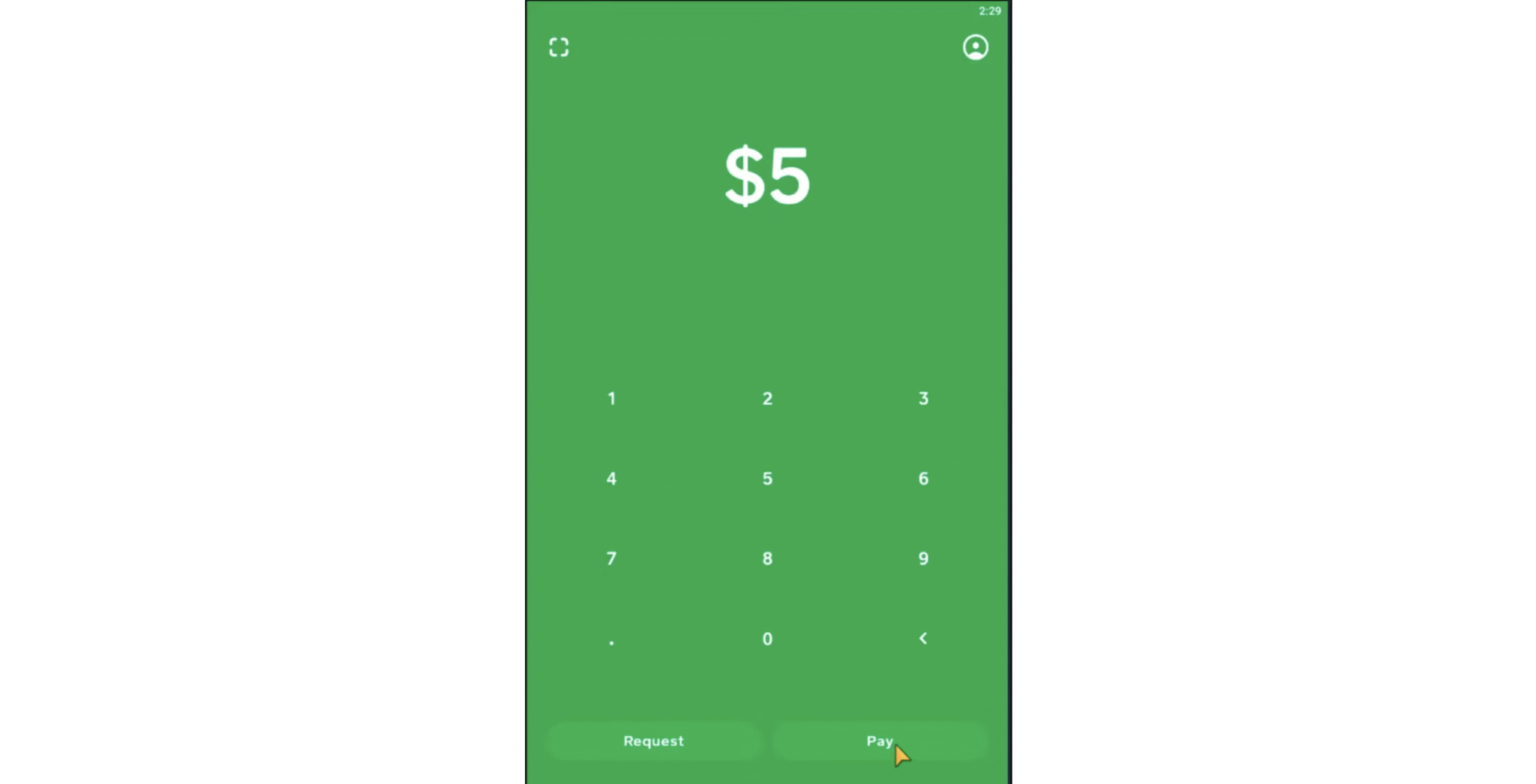
Receive a payment
Others can pay you using your $Cashtag or your chosen contact details. Payments appear instantly in your balance.
Troubleshoot common setup problems
- Verification code not arriving: Check your SMS settings or email spam folder. Request another code or switch between email and phone.
- Debit card not accepted: Some prepaid cards are unsupported. A name mismatch or incorrect ZIP code can also block the card.
- Identity verification failure: Resubmit your information with the correct details. Ensure your ID photo is clear and your selfie matches your ID.
Tips for using Cash App safely
- Turn on PIN or Face ID for extra protection
- Avoid sending money to people you do not know
- Confirm $Cashtags before paying
- Monitor notifications for unusual activity
FAQs
How old do you need to be to use Cash App? You must be at least 13 and have a parent or guardian's approval until you turn 18.
Does Cash App charge fees? Most transfers are free, but instant withdrawals can include small fees.
Can I use Cash App without a bank account? You can receive money, but sending and withdrawing require a linked debit card or bank account.
Why does Cash App ask for my SSN? This helps verify your identity and prevents fraud.
Summary
- Install Cash App on your phone.
- Create your account using your email or phone.
- Link a debit card or bank account.
- Verify your identity for higher limits.
- Start sending and receiving payments.
Cash App setup takes only a few minutes when you follow the required steps. You install the app, create your account, verify your identity, and secure it with a PIN or biometric lock. Most users can start sending money right away.


Discussion (0)
Be the first to comment.