




If you want stronger privacy on every device, switching to DuckDuckGo as your default browser is one of the fastest ways to control tracking and limit unwanted data sharing. Modern versions of Windows, macOS, Android, and iOS let you change the system browser in a few taps.
The steps below show exactly how to install DuckDuckGo, set it as the default, and fix problems when the system refuses to save your choice.
1) Set DuckDuckGo as the default browser on Windows 10/11
Windows lets you assign DuckDuckGo as the default browser, so all links, apps, and web files open through it.

Open your preferred browser, go to the official DuckDuckGo website, and download the Windows installer for the browser. When the installer finishes downloading, double-click it, and follow the onscreen instructions to complete the installation.
Next, press the Windows + I keys to open Settings and go to Apps > Default apps. Now, choose DuckDuckGo and assign the browser to all web-related file types.

Tip: If Windows reverts to Edge after an update, repeat the steps above again to make DuckDuckGo your default browser.
2) Set DuckDuckGo as the default browser on macOS
Open Safari or another browser and go to the Official DuckDuckGo website. Next, download the macOS version of the installer and install it like you would any other app.
Now, click the Apple menu and choose System Settings. From here, go to Desktop & Dock > Default web browser and select DuckDuckGo.
Tip: If macOS will not save your selection, a preference file may be stuck. Restart your Mac, try setting the default again, disable Screen Time restrictions if they apply, and check for profiles under System Settings > Privacy & Security > Profiles.
3) Set DuckDuckGo as the default browser on Android
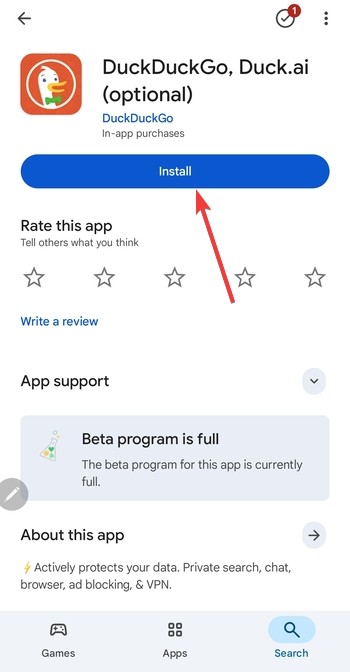
Open Google Play Store, search for DuckDuckGo, select the official app, and click the Install button. Wait for the installation to complete, and it will appear among your apps.

Now, open Settings > Apps > Choose default apps > Browser app and select DuckDuckGo. This makes the browser your default for any web activity.
Tip: Some Android skins override default apps. To fix this, reset default app preferences under Settings > Apps, disable other browser apps that force automatic switching, and Clear defaults for competing browsers.
4) Set DuckDuckGo as the default browser on iPhone and iPad
Open the App Store, search for the browser, and install the DuckDuckGo Privacy Browser. Launch it once so iOS registers the app.

Next, open Settings, scroll down, select Apps, and tap DuckDuckGo. Next, tap Default Browser App and select DuckDuckGo.

Tip: If iOS is not saving the default browser, disable Screen Time restrictions, update iOS to the latest version, and reinstall DuckDuckGo if the option disappears.
5) Troubleshooting: When DuckDuckGo will not stay default
- OS resetting default browser after update: Reassign each protocol under default apps, restart the device, and try opening a link to confirm the correct browser appears.
- Profile restrictions or admin policies: Check if the device uses a work profile, remove configuration profiles that force browser defaults, and reset the default browser after changes.
- Conflicts from other browsers or extensions: Disable competing browsers temporarily, remove extensions that override search engines, and reset browser settings if needed.
Privacy benefits when using DuckDuckGo
DuckDuckGo blocks trackers automatically, clears data on exit, and avoids profiling your searches. Using it as your default browser or search engine reduces targeted ads and improves privacy without changing your daily workflow.
FAQs
Can I set DuckDuckGo as the default on a work device? Only if the administrator has not locked the browser settings.
Is DuckDuckGo available as a full browser on desktop? Yes, it provides a standalone privacy browser for Windows and macOS.
Does switching the default browser change my search engine? No, you must set the search engine to DuckDuckGo inside each browser.
Why does DuckDuckGo not appear in the list? The browser must be installed and launched before the OS recognizes it.
Summary
- Install DuckDuckGo on your device.
- Change the default browser in Windows, macOS, Android, or iOS.
- Fix issues by checking restrictions, resetting defaults, or updating the OS.
Conclusion
Setting DuckDuckGo as your default browser gives you stronger privacy with minimal setup across every major platform. Windows, macOS, Android, and iOS all support browser switching, and most issues clear up with a quick reset or permissions fix. Once you complete the steps, every link and search runs through a privacy-focused environment that protects your personal data.

Discussion (0)
Be the first to comment.