




You can use Cash App to send money funded by a credit card as long as the card is supported and you accept the extra fee. This gives you another way to cover bills, split expenses, or send emergency cash when your bank balance runs low. Knowing exactly how to send money using a credit card on Cash App helps you avoid surprises and keep costs under control.
At the time of writing, Cash App supports most U.S.-issued Visa, Mastercard, American Express, and Discover credit cards, along with many prepaid cards. However, the app charges an extra percentage when you pay someone with a card instead of your Cash balance or debit card, so you should treat this option as a paid convenience rather than your default method.
This guide walks through the full process step by step: setting up Cash App, linking and verifying your card, choosing it as the funding source, and understanding the Cash App credit card fee and potential bank cash-advance charges.
What You Need Before You Pay With A Credit Card
Before you send money through Cash App with a credit card, make sure your account and card meet a few basic requirements.
- A Cash App account with your real name and contact details.
- A U.S.-issued credit card from Visa, Mastercard, American Express, or Discover.
- A compatible device running the latest Cash App version.
- Good standing on your card account, with available credit.
- Awareness that Cash App charges a percentage-based fee for card-funded payments and that your card issuer may treat some transfers as cash advances.
If you have not installed Cash App yet, you should set that up first so you can link your bank and card cleanly.
How To Set Up Cash App
Cash App works best when you connect both a bank account or debit card and your credit card. That way you choose the cheapest option for each transfer.
- Download Cash App from the iOS App Store or Google Play Store.
- Open the app and create an account with your email address or mobile number.
- Choose a unique $Cashtag so people can send you money easily.
- Go to the banking or “Linked Accounts” section and connect your main bank account or debit card.
- Turn on extra security, such as a PIN, Face ID, or Touch ID, so nobody else can send payments from your phone.
After you finish this basic setup, you can add your credit card as an extra payment method.
How To Add A Credit Card To Cash App
To send money with a credit card on Cash App, you first need to link the card in your profile. This step answers the common question, “Can you use a credit card on Cash App?”
- Open Cash App and tap your profile icon.
- Select Linked Banks or the section that lists your existing cards and accounts.
- Choose the option to add a new card.
- Enter your credit card number, expiration date, CVV, and ZIP code exactly as shown on the card.
- Save the card and wait for Cash App to verify the details.
Cash App supports most standard credit cards, but some prepaid, gift, or business cards may fail during verification or may not support transfers. In that case, you may need to try a different card.
How To Send Money Using A Credit Card On Cash App
Once Cash App links your card successfully, you can choose it as the funding source whenever you send money. The process is almost identical to sending from your Cash balance or debit card.
- Open Cash App and tap the $ button on the home screen.
- Enter the amount you want to send.
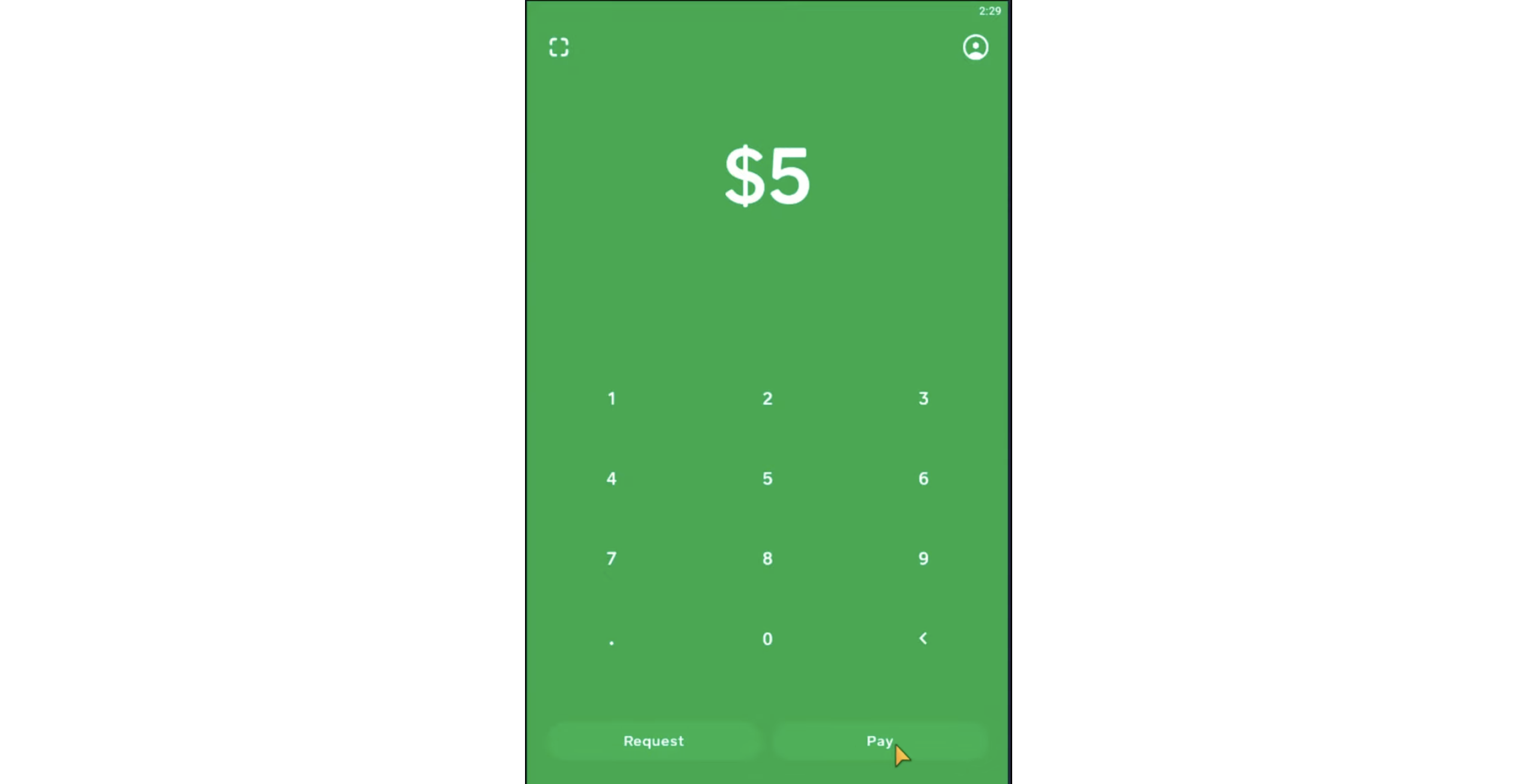
- Tap Pay.

- Enter the recipient’s $Cashtag, phone number, or email address, or scan their QR code.
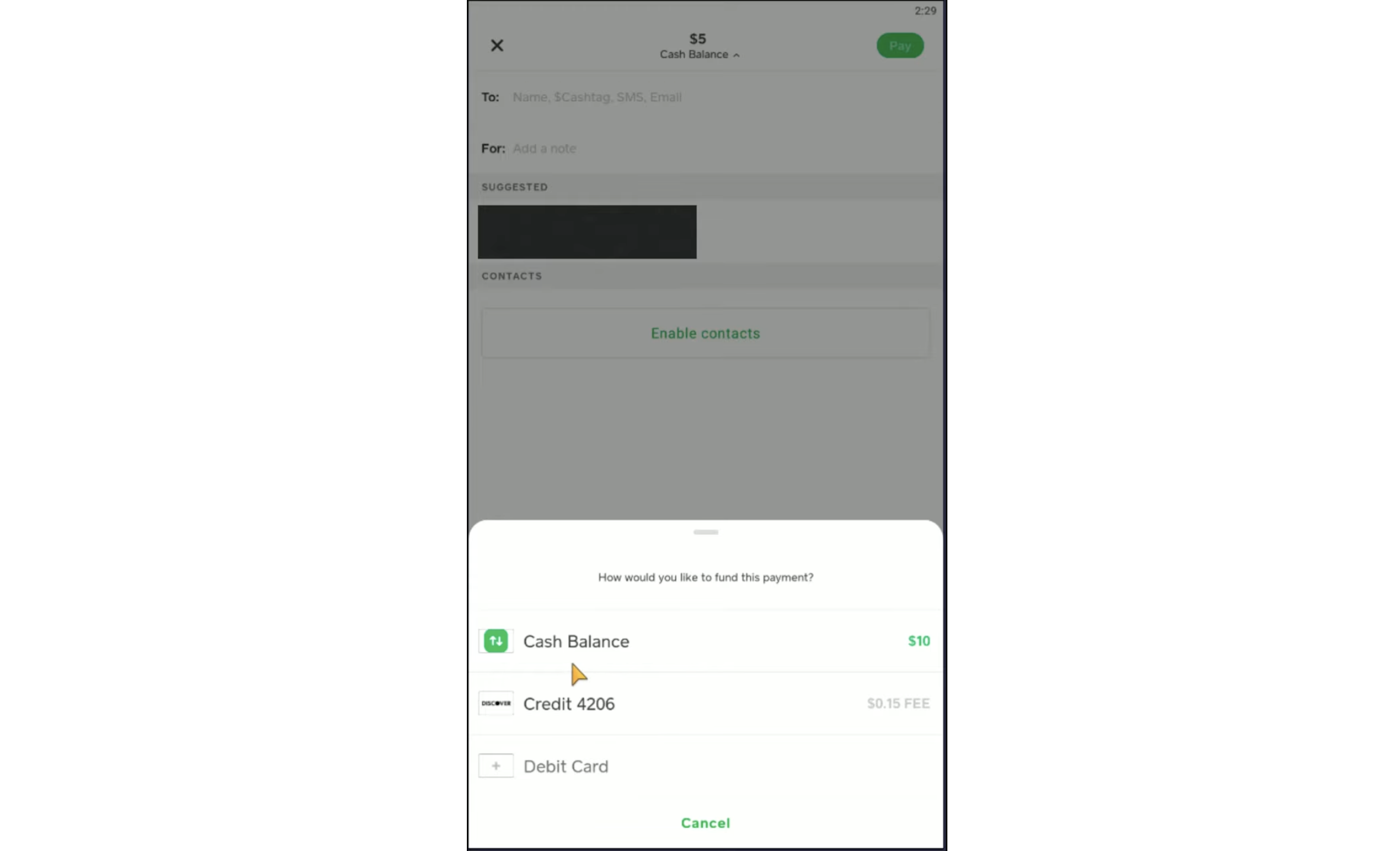
- Tap the payment source under the amount and switch it to your linked credit card.
- Add a short note if you want to label the payment.
- Review the amount, recipient, and fee, then confirm the payment.
Cash App sends the payment instantly in most cases. The recipient sees the money in their Cash App balance and can keep it there, spend it with their Cash Card, or cash out to a bank account.
How Cash App Credit Card Fees Work
Cash App does not charge a fee when you send money from your Cash balance or a linked debit card. When you fund a payment with a linked credit card, the app adds a percentage fee on top of the amount you send.
At the time of writing, Cash App charges a 3% fee for credit-card-funded payments. That means if you send $100 using a credit card, you pay $103 total and the recipient usually receives the full $100.
Because of this fee, you should reserve credit card transfers for situations where you really need the extra flexibility, not for everyday payments that your Cash balance or debit card can cover.
Is It A Cash Advance On Your Credit Card?
When you use a credit card to send money on Cash App, your card issuer may treat the transaction as a cash advance. Cash advances usually come with higher interest rates, no grace period, and an extra cash-advance fee.
Banks differ in how they categorize peer-to-peer app payments, so you should check your card’s terms or contact your issuer. Some credit card providers classify Cash App transfers as regular purchases, while others label them as cash advances, especially when you effectively move money from your credit line into cash.
- Review your card agreement for how it handles “money transfer,” “cash-like,” or “cash equivalent” transactions.
- Watch your next statement to see whether the issuer posts the payment as a purchase or cash advance.
- Factor in both Cash App’s 3% fee and any cash-advance fees and interest before you choose this method.
Common Problems And Fixes When Using A Credit Card
If your attempt to pay someone with a credit card on Cash App fails, one of a few common issues usually causes the error.
- Card Not Supported: Some prepaid or gift cards, non-U.S. cards, and business cards may fail. Try a different card or a debit card instead.
- Card Declined: Check that your details are correct and that your card has available credit and no fraud blocks.
- Unusual Activity: Your bank may flag the Cash App transaction. Respond to any fraud alerts or call the number on the back of your card.
- Cash App Error: Update the app, restart your phone, and try again over a strong internet connection.
- High Fees: If the total fee looks higher than expected, your issuer may treat the payment as a cash advance in addition to Cash App’s own fee.
If you still can’t link or use a card after these checks, you should contact Cash App support and your card issuer to see exactly why the transaction failed.
When Using A Credit Card On Cash App Makes Sense
Because of the 3% fee and potential cash-advance charges, using a credit card on Cash App should be the exception, not the rule. Still, it can make sense in a few scenarios.
- You need to send money quickly and you do not have enough in your bank account or Cash balance.
- You want to hit a one-time credit card spending requirement to earn a welcome bonus and you accept the fee as part of the cost.
- You split a large bill and prefer to put your portion on a credit card to track it separately.
- You treat the transfer as a short-term bridge and you plan to pay the card in full as soon as the statement posts.
For regular transfers to friends and family, you usually save money by using your Cash balance or a linked debit card instead of paying the extra fee.
Conclusion
Learning how to send money using a credit card on Cash App gives you another flexible way to handle transfers when your Cash balance or bank account cannot cover them. You only need to link a supported card, pick it as the funding source when you tap Pay, and confirm the fee before you send.
Because Cash App charges a percentage on credit card payments and some banks treat those payments as cash advances, you should use this feature thoughtfully. For everyday transfers, it usually makes more sense to stick with your Cash balance or a debit card and keep the credit card option in reserve for urgent situations.


Discussion (0)
Be the first to comment.