




Resetting an old Mac before selling it takes more than just erasing the drive. If you skip the right steps, your personal data can remain accessible, or the Mac can stay locked to your Apple ID and become unusable for the buyer.
This guide shows the exact reset process for Intel, T2, and Apple silicon Macs, so you can erase everything correctly and hand over a Mac that’s truly ready for resale.
Table of contents
- Why you must reset your Mac before selling it
- Check your Mac model and macOS version first
- What to do before erasing your Mac
- How to reset an old Intel Mac before selling it
- How to reset a T2 security chip Mac
- How to reset an Apple silicon Mac (M1, M2, M3)
- How to reset very old Macs that don’t support modern recovery
- What you should see when the reset is done
- Common mistakes that break resale Macs
- Tips for selling your Mac safely
- FAQs
- Summary
Why you must reset your Mac before selling it
Your Mac stores personal files, Apple ID data, and device authorizations tied to your account. A proper reset removes all data, disables locks, and ensures the next owner can set it up without issues.
Check your Mac model and macOS version first
Apple uses different reset methods depending on hardware and macOS. Identifying your Mac now avoids following the wrong steps later.
How to tell if your Mac uses Intel or Apple silicon
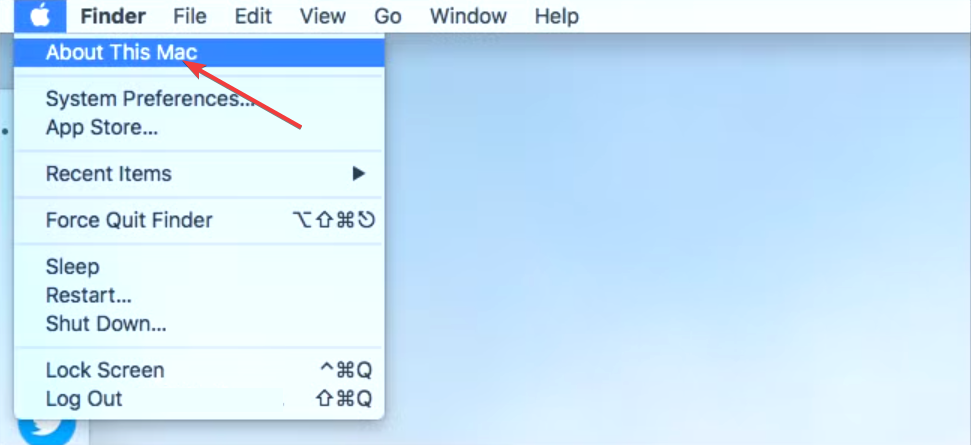
Click Apple menu → About This Mac. If you see “Intel,” you have an Intel Mac; if you see M1, M2, or M3, you have Apple silicon.
Why macOS version affects the reset process
Newer macOS versions include built-in erase tools. Older systems rely on Recovery Mode and manual reinstallation.
What to do before erasing your Mac
These steps prevent data loss and resale problems.
Back up your data (optional but recommended)
Use Time Machine or copy files manually if you plan to keep your data. Skip this step if you no longer need anything on the Mac.
Sign out of iCloud and turn off Find My
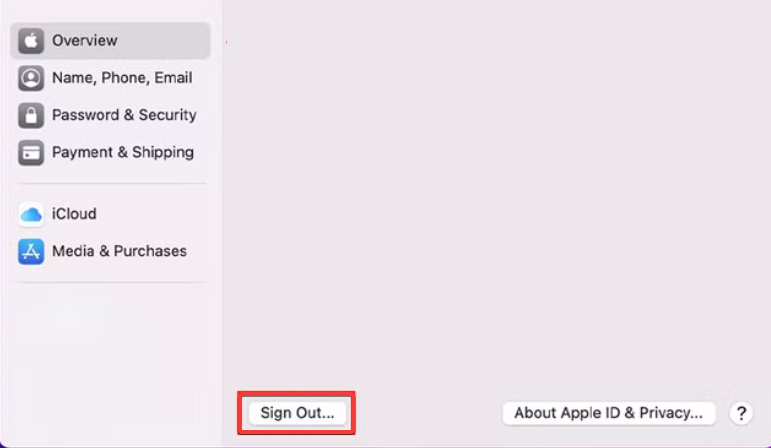
Open System Settings → Apple ID → Sign Out. This step removes Activation Lock, which blocks buyers from using the Mac.
Sign out of iMessage and FaceTime
Open Messages → Settings → iMessage → Sign Out, then do the same in FaceTime.
Deauthorize your Mac from Apple services
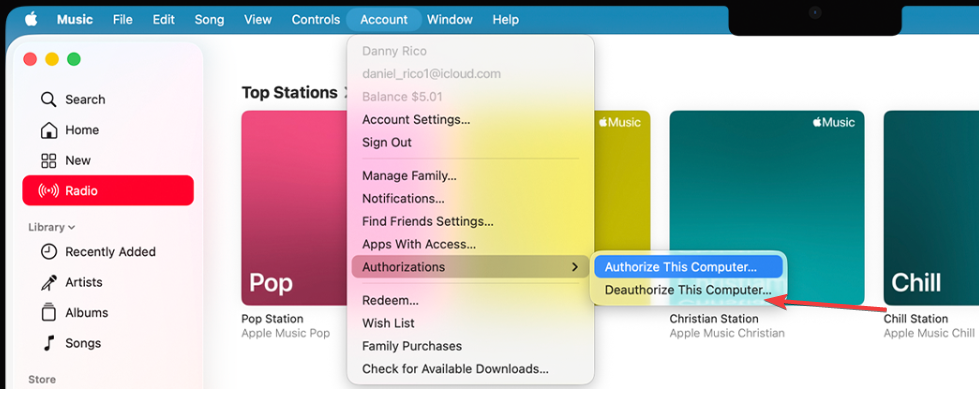
Open Music or TV → Account → Authorizations → Deauthorize This Computer to free up your Apple ID limit.
How to reset an old Intel Mac before selling it
Most older Macs use Intel processors and require Recovery Mode.
Erase the Mac using macOS Recovery
- Shut down the Mac.
- Turn it on and immediately hold Command + R.
- Open Disk Utility.
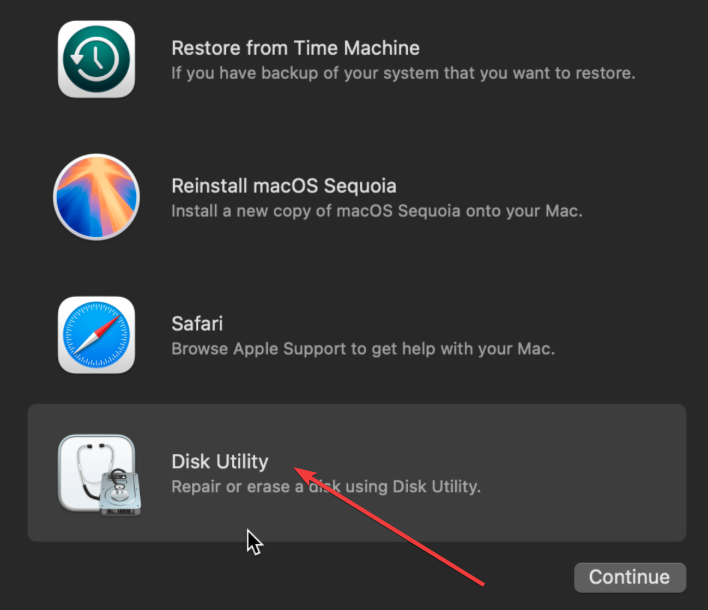

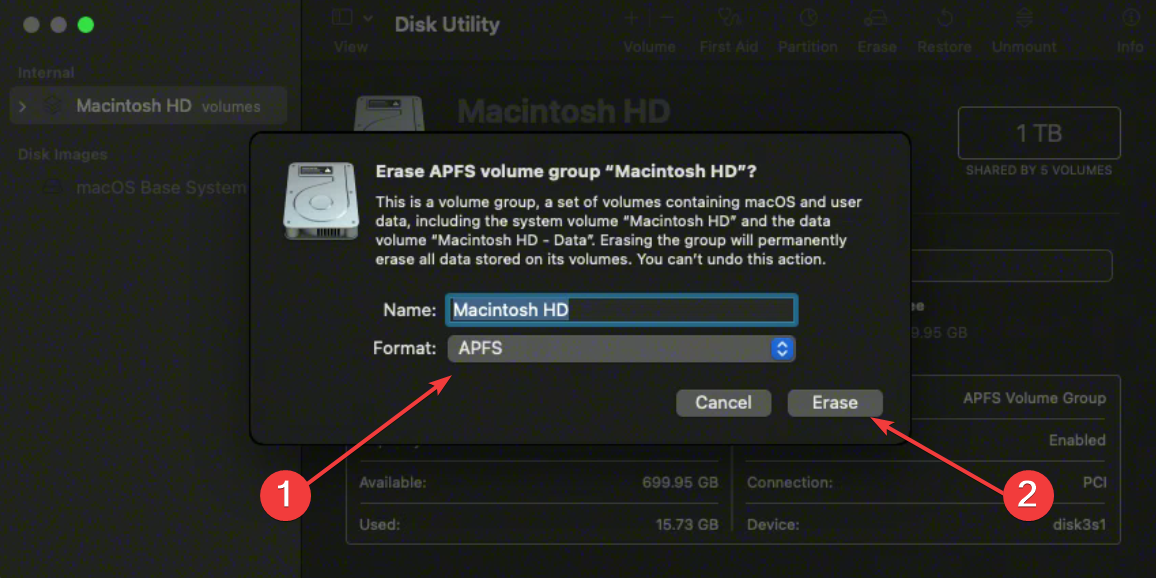
- Select your startup disk and click Erase.
- Choose APFS or Mac OS Extended, then click the Erase button.

Reinstall macOS cleanly
After erasing, select Reinstall macOS from Recovery. Install the system, then stop at the Setup Assistant screen.
How to reset a T2 security chip Mac
Some Intel Macs include Apple’s T2 chip, which adds security controls. The steps are virtually the same as above but with a few tweaks
When you need to adjust Startup Security Utility
If reinstall fails, open Startup Security Utility from Recovery and allow macOS reinstallations. Proceed with the erase and reinstall steps afterward.
How to reset an Apple silicon Mac (M1, M2, M3)
Apple silicon Macs include a faster reset option.
Use Erase All Content and Settings
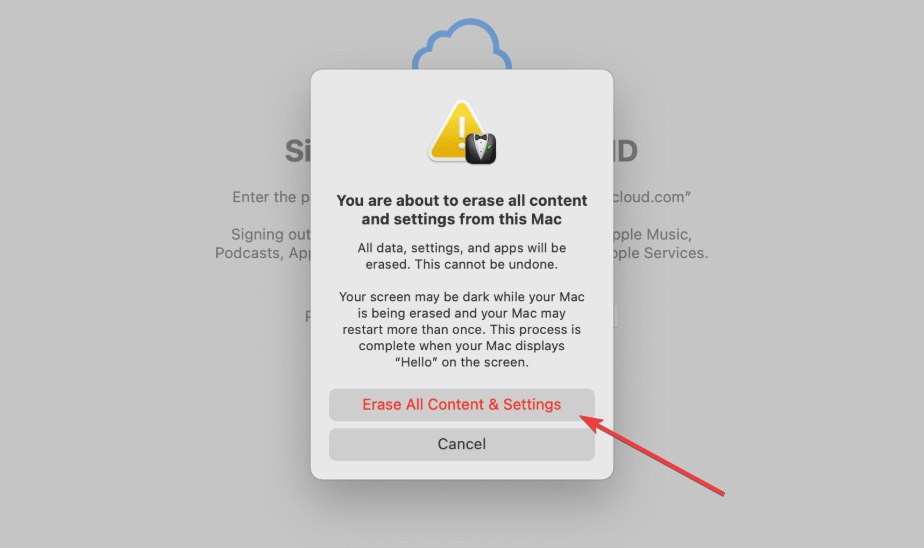
Open System Settings → General → Transfer or Reset → Erase All Content and Settings. Follow the prompts to remove data and sign out automatically.
How to reset very old Macs that don’t support modern recovery
Legacy Macs still work with manual methods.
Reset Macs running High Sierra or earlier
Use Command + R Recovery, erase the disk with Mac OS Extended, then reinstall macOS from Apple’s servers.
What to do if Recovery Mode does not load
Use Internet Recovery by holding Option + Command + R at startup, or create a bootable macOS installer.
What you should see when the reset is done
A successful reset ends at the Setup Assistant screen. The Mac should ask for language and region, not an Apple ID.
Confirm the Setup Assistant screen appears
If you see the welcome screen, the reset worked correctly.
Double-check that no Apple ID is linked
Restart the Mac once more to confirm no Apple ID prompt appears.
Common mistakes that break resale Macs
Skipping iCloud sign-out, stopping the process early, or handing over a Mac still logged into an account causes most resale failures.
Tips for selling your Mac safely
- Keep the Mac plugged in during the reset.
- Use the original charger when possible.
- Clean the Mac after resetting it.
- Take photos of the Setup Assistant screen for proof.
FAQs
Can I reset a Mac without the original password?
You need the Apple ID credentials to remove Activation Lock before selling.
Does resetting remove all personal data?
A proper erase deletes files, accounts, and settings from the Mac.
Should I reinstall macOS before selling?
Yes. Reinstalling ensures the buyer receives a usable system.
Summary
- Check your Mac model and macOS version.
- Sign out of iCloud, iMessage, and Apple services.
- Erase the startup disk using the correct reset method.
- Reinstall macOS and stop at the Setup Assistant screen.
A clean reset protects your data and avoids buyer issues. Once the Setup Assistant appears and no Apple ID remains, the Mac is ready to sell.
Finally, if you want to reset all settings on your iPhone and iPad too, or simply want to erase all contents on it, we have a guide that can help you do this in record time.

Discussion (0)
Be the first to comment.