




If you try to figure out how to play DVD on Windows 10 and nothing happens when you insert a disc, you are not alone. Microsoft removed built-in DVD movie playback, so you need the right app before any DVD menu or movie appears.
The good news is you can still play DVDs on Windows 10 with free tools like VLC, the paid Windows DVD Player app, or full-featured third-party players. This guide walks you through each option, plus quick fixes for when the disc does not show up or keeps stuttering.
What You Need Before You Play A DVD
Before you worry about software, make sure your PC can physically read discs. Many slim laptops ship without an optical drive.
- A built-in DVD drive or a USB external DVD drive that supports DVD-Video discs.
- A DVD video disc in good condition, without deep scratches or cracks.
- Compatible software such as VLC Media Player, Windows DVD Player, or another DVD player for Windows 10.
- Up-to-date graphics and audio drivers for smooth playback.
If your computer does not have an internal drive, you can plug in an external USB drive, and Windows 10 will detect it like any other storage device.
Method 1: Use VLC Media Player (Free And Recommended)
Most people should start with VLC Media Player because it is free, lightweight, and handles almost any DVD you throw at it. This method works well when you want to play DVDs on Windows 10 for free without paying for Microsoft’s app.
- Visit the official VLC website and download the Windows version of VLC Media Player.
- Run the installer, accept the license, and keep the default options unless you know you need changes.
- Insert your DVD into the internal or external drive and wait a few seconds.
- Open VLC, then click “Media” in the top menu and choose “Open Disc”.
- Check that VLC shows your DVD drive in the disc device field.
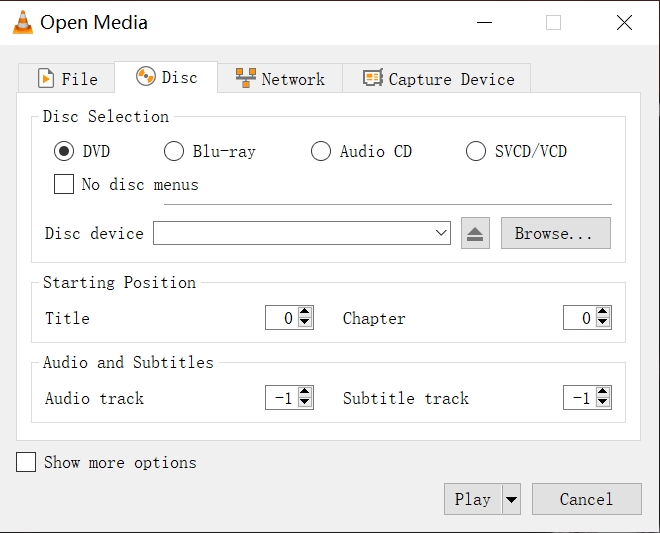
- Click “Play” to start the movie and use the controls to pause, change chapters, or adjust audio.
VLC often plays region-locked or slightly damaged discs better than the legacy Windows tools, which is why many guides call it the best DVD player for Windows 10 when you want a free solution.
You can also set VLC as your default video player so Windows 10 opens DVDs with it automatically when you insert a disc.
Method 2: Use Windows DVD Player From the Microsoft Store
Microsoft sells an official Windows DVD Player app in the Microsoft Store. It integrates cleanly with Windows 10, but it costs money and does not support Blu-ray discs.
- Open the Microsoft Store from the taskbar or Start menu.
- Search for “Windows DVD Player” and check that the publisher is Microsoft Corporation.
- Purchase and install the app if you agree with the price and reviews.

- Insert your DVD into the drive and wait for Windows DVD Player to prompt you.
- If it does not open by itself, launch Windows DVD Player from the Start menu.
- Select your DVD drive in the app and click play to start the disc.
This option fits users who prefer official Microsoft software and do not mind paying once for basic Windows 10 DVD playback. If the trial version fails to play your discs reliably, you should request support or choose another app before you buy.
Method 3: Use A Third-Party DVD Player For Windows 10
If you want menus, screenshots, or better Blu-ray support, you can install a richer DVD player for Windows 10 from a trusted vendor. Popular names include PowerDVD, PotPlayer, PlayerFab, and similar tools.
- Visit the official website of the DVD player you prefer (we'll be using CyberLink PowerDVD) and download the Windows installer.
- Run the installer and clear any bundled offers you do not want during setup.
- Insert your DVD and wait for Windows 10 to show the autoplay prompt.
- Pick CyberLink PowerDVD from the autoplay options, or open the player manually.
- Use the “Open Disc” or “Play DVD” option inside the program to start playback.

- Explore menus for subtitles, audio tracks, and picture settings to tune the experience.
These apps often include upscaling, surround sound options, and better support for newer codecs, which can be helpful when pairing a Windows 10 PC with a home theater or an external monitor.
Method 4: Convert The DVD To A Digital File (Optional)
If you prefer to keep movies on your drive or a NAS, you can convert discs into MP4 or MKV files and watch them with your usual player. Tools like WinX DVD Ripper and similar apps handle this, but you should only rip discs where the law in your region allows personal backups.
- Install a reputable DVD ripper on your Windows 10 PC.
- Insert your DVD and let the ripper scan the main movie title.
- Choose an output format such as MP4 and pick a folder with enough free space.
- Start the conversion and wait until the ripper finishes processing the disc.
- Open the new video file in VLC or your favorite player to confirm that it works.
This approach removes the need to keep a drive plugged in every time you watch, but it takes storage space and time up front.
How To Play DVD On Windows 10 With An External Drive
Many newer laptops ship without internal drives, so you may need an external USB model to play dvd on Windows 10. The setup stays simple as long as you use a drive that supports DVD-Video.
- Plug the USB cable from the external DVD drive into a powered USB port on your PC.
- Wait while Windows 10 installs the basic drivers automatically.
- Insert your DVD into the external drive tray and close it firmly.
- Open VLC, Windows DVD Player, or any installed DVD player for Windows 10.
- Select the external drive letter when you choose “Open Disc” or similar in the player.
If the drive does not appear, try another USB port, avoid unpowered hubs, and check the drive on a second computer to rule out hardware failure.
Fix Common Windows 10 DVD Playback Problems
Even with good software, discs sometimes stutter, appear as a black screen, or refuse to load. You can usually fix the most common issues with a few quick checks.
- No Disc Detected: Eject the DVD, wipe it with a soft cloth, and reinsert it. Check File Explorer to see if the drive shows a disc name.
- Black Screen or No Video: Update your graphics driver from the PC or GPU manufacturer and test another player, such as VLC.
- No Sound: Confirm that Windows audio is not muted, and select the correct output device in Windows Sound settings and in your player.
- Playback Stutters: Close heavy apps, such as games or video editors, then try again. If you use a laptop, plug in the charger so the system runs in performance mode.
- Region or Encryption Errors: Try VLC or a more advanced DVD player for Windows 10, since simple apps may not handle region-locked or copy-protected discs well.
- App Crashes: Update the player to the latest version or reinstall it, then test with a different DVD to rule out a bad disc.
If every disc fails across multiple apps and your drive does not appear in File Explorer, you likely have a hardware issue and should test another drive.
Conclusion
You now know how to play DVDs on Windows 10 using several reliable methods. You can install VLC Media Player for a free, flexible option, buy Windows DVD Player if you want a simple Microsoft-branded app, or choose a premium DVD player for Windows 10 when you need Blu-ray and home theater features.
Make sure your DVD drive works, keep your media software updated, and follow the quick fixes here whenever a disc behaves erratically. With the right setup, your Windows 10 PC can still handle a full DVD collection without any stress.
Discussion (0)
Be the first to comment.