Windows Media Player 12 allows computers with built-in CD and/or DVD burners to quickly and easily create audio CDs, data CDs and Data DVDs. This functionality makes creating mix CDs and copying audio CDs for playback in car stereos and other CD players incredibly simple. Alternately, Windows Media Player 12 can burn data CDs for playback in devices that support.mp3 and.wma playback. Windows Media Player 12 can also burn pictures, songs and videos onto Data DVDs. Read on how to find out how to burn CDs and DVDs with Windows Media Player 12.
Note: Windows Media Player 12 does not support burning of VCDs or DVD-Video (i.e. discs for video playback when inserted into a DVD player). In order to burn standalone video DVDs, you will have to purchase or download third-party software.
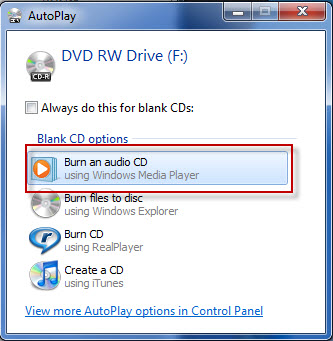
With Windows Media Player 12, you can burn mixes or entire CDs onto a CD-R, CD-RW or DVD. To begin, insert a blank CD or DVD into your disc drive. If the autoplay window pops up, choose 'Burn an audio CD'.
Windows Media Player 12
Otherwise, simply open Windows Media Player 12.
Step 1: Creating a Burn List
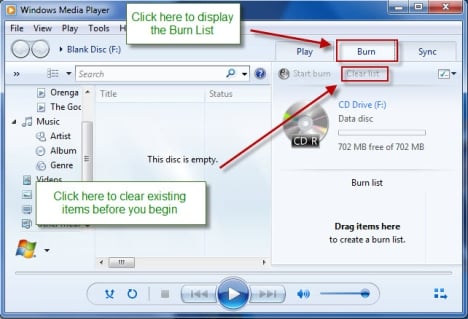
When you insert a blank disc, the Burn List should appear automatically. If it does not, click the Burn tab in the top-right. If there are items left over from the last time you were playing files, click 'Clear List' to start fresh.
Windows Media Player 12
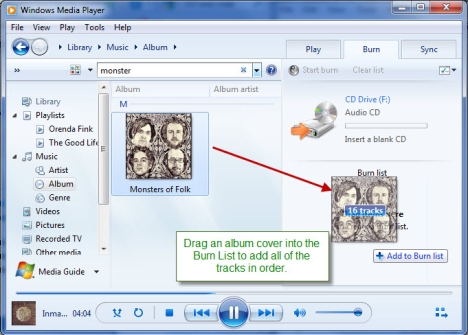
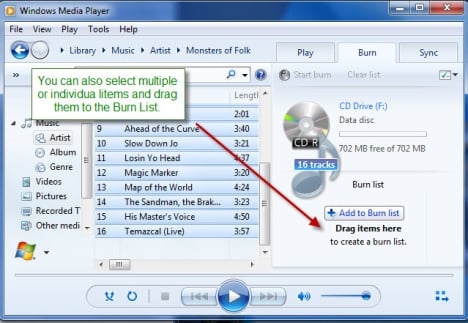
To add songs to your Burn List, locate them in your Library. The easiest way to add songs is to drag and drop the album into the Burn List. Don't worry - this won't delete them from your Library.
Windows Media Player 12
You can also select each track individually and drag it to add it to the Burn List or choose multiple tracks and drag them into the Burn List.
Windows Media Player 12
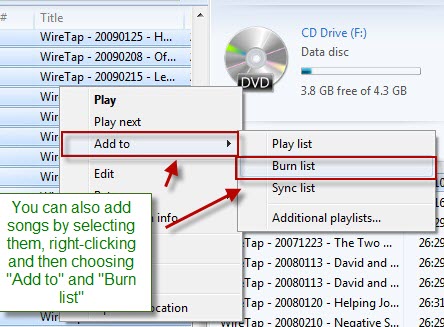
Lastly, you can also right-click a song or group of songs and click 'Add to' and choose 'Burn List'.
Windows Media Player 12
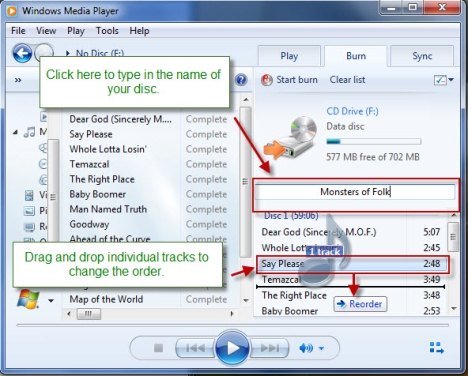
Click the text that reads 'Burn List' to name your disc. This will show up on CD players that support CD text. You can also drag and drop songs in your Burn List to reorder them.
Windows Media Player 12
Step 2: Choosing a Disc Type
With Windows Media Player 12, there are three different types of discs you can burn:
Audio CD - Audio CDs hold roughly 80 minutes of music regardless of file size in terms of megabytes. For example, it doesn't matter if your Burn List consists of 1 MB songs encoded at 96 Kbps or 3 MB songs encoded at 196 Kbps - all that matters is how long the songs are. Audio CDs are readable by computers and are playable in any CD player, regardless of which format the files were in before you burned the CD. For example, if you burn.wma files onto an audio CD, the disc will be playable in CDs and stereos even if they do not support digital audio files.
Data CD - Data CDs are readable by computers and CD players that support playback of digital audio files. These can hold significantly more songs than an audio CD, but the songs will not be playable on standard CD players. Data CDs tend to hold about 700 MB worth of data, regardless of the length of the song.
Data DVD - Data DVDs are readable by DVD players that support playback of digital audio files. You can also burn images and video files onto a DVD. However, these will not be readable by standard DVD players. Data DVDs are primarily intended to be readable by computers. Most DVDs hold about 4 GB of data, regardless of length.
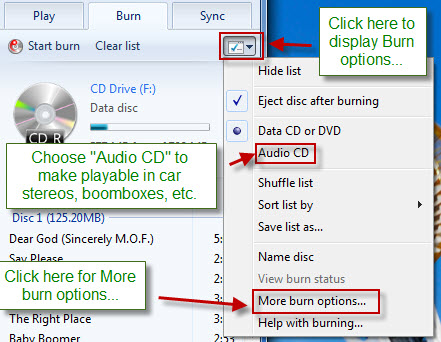
To choose which type of disc to burn, click the 'Burn options' icon in the upper-right hand corner and choose it from the drop-down menu. You may also want to adjust some of the burn options by clicking 'More burn options'.
Windows Media Player 12
Step 3: Choose Burn Options
In the 'Burn Options' window, there are a number of options:
Burn Speed - This changes how fast your disc is burned and will not affect the end product. We recommend choosing a slower burn speed, regardless of how fast your burner is. This takes a bit longer, but helps prevents skips and failed burns (which essentially waste a disc). Slower burn speeds are best for playback in car stereos or older devices with lesser skip protection capabilities.
Automatically eject the disc after burning - This is self-explanatory.
Apply volume leveling across tracks - This option attempts to normalize the volume levels so each track is about the same volume. This is useful when making mix CDs pulled from several different albums. This only applies to audio CDs.
Burn CD without gaps - By default, most burners will insert 1 to 2 seconds of silence between each song. Check this to omit these gaps. When selecting this option, keep in mind that not all burners support this feature. Gapless burning also increases the chances of skips and failed burns.
Add a list of all burned files to the disc in this format - Choose from.wpl or.m3u. In supported CD players, this will allow the device to read and display the track information, such as artist and album name. This only applies to data CDs.
Use media information to arrange files in folders on the disc - This option will arrange the songs into folders, similarly to how they are in your Library. This only affects data CDs and is convenient when burning data CDs with many, many songs, as it saves you from hitting skip over and over. However, note, that your CD player must support folder navigation for this to be a benefit.
Windows Media Player 12
Step 4: Burn Your Disc
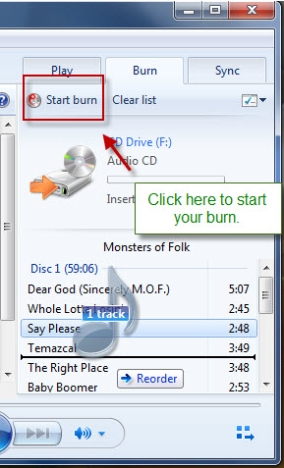
Once you're satisfied with your settings, click Apply and OK. Next, click 'Start burn' to begin.
Windows Media Player 12
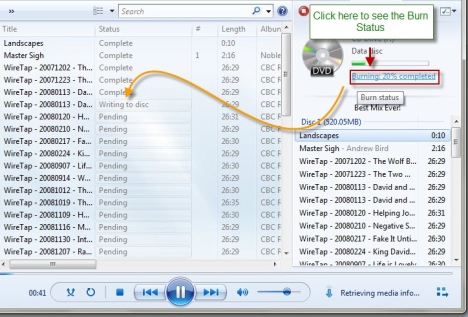
When the burn begins, the status will be displayed at the top of the Burn List. Click the blue underlined text to see the status of each individual track.
Windows Media Player 12
And that's it! Once your burn is completed, you'll be able to use your audio CD, data CD or data DVD in any compatible computer or device.
Conclusion
As you can see, Windows Media Player 12 makes burning discs incredibly easy. The discs you burn with Windows Media Player 12 can be played back in car stereos and standard CD players as well as disc players that support.mp3 and.wma playback. Once you choose your burn settings, you can burn discs with just a few clicks using any song from your Library.
when i create a movie (pictures with music) it looks fine till you go to replay the disc in the computer- then all the pictures are compressed – that is squeezed sideways.. how can i avoid this ??
Ian. ·
I tried burning my own songs to Audio CD using MediaPlayer12. The songs have burned onto CD but only in mono!
My songs are in good stereo in MP3 format – how do I get a stereo burn?
Shannon ·
When I burn an audio CD, the track name does not show up on the CD. It shows up on the player, but not on the CD.
Any way to fix this?
Using Windows Media Player 12
Armand ·
When I record mp3 on audio cd, the playlist does not show when played on car cd player. What setting should I click before burning?
Connie ·
I used to be able to burn cd audio discs but lately the cds only burn as data cds. I have been choosing the “burn an audio cd using Windows Media Player” option but still won’t play in cd players. I only use CD-R and I don’t have any issues burning workable DVDs so don’t think there is any issue with my burner. Please Help!
Liam ·
Hi, ive got a problem with burning songs on to these CD-RW. Firstly the disc size is 500mb, yet only lets me have 80mins on them. I can understand that, but i got an 1.15.0min mix. Why cant i burn that on to my 80min capable CD-RW?
Nick ·
What pisses me off now is that I used to make cds with 50+ songs on them now I can barely add 20 because they can’t be more the 80 min but when I put the 20 my cd isn’t even a quarter filled and basically has wasted money filling the other 500+ mb.
Sandy ·
We made a cd of us singing. We picked out our own artwork. Now when we load the playlist on our iPad and iPhone, the artwork doesn’t show, it shows on our MacPro. We have done this many times, this is the first time on iTipunes 12 and Yosemite
Betty ·
HELP!! I downloaded audio books for homeschooling..it automatically put the files into downloads, and I have tried several ways to move them to my music library to be able to burn them…the books are from librivox…and it would not let me extract files, so I opened them with WMP, they play but WILL NOT even show up in the media libraries… Any suggestions??
Keithp ·
Bloody brilliant! Solved all my problems. Molte grazie!
Kath ·
Hello, does anyone know what the speed (number) is that corresponds with “slow” on burn settings in media player 12? thanks.
JonB ·
Help. I have followed all the steps and I am having trouble playing discs in my car. I am running windows 7 and wmp 12 I tried both WPL and M3U. I put 7 albums on the disc but when it reaches the end of the first album it starts over. Any Ideas?
William Zhang ·
I am trying to burn many audio discs, but after the files are prepared, the disc is automatically ejected not writing or burning anything to the disc.
Keithp ·
Persevere – just shove it back and click Burn
vipin ·
Its amazing, looking at the time and effort you put into your blog and detailed information you provide. I’ll bookmark your blog and visit it weekly for your new posts.
Henry ·
Is there any way to burn a data CD of songs from a playlist that will play in the order I specified in that playlist? Basically, every way I’ve tried, the files get burned with a number prefix corresponding to its track position in the original CD it was ripped from. I.E. “01 Chinese Democracy; 02 Shackler’s Revenge; etc.”
Then whatever player I put it in will play it in numeric order so all the 01’s play, followed by all the 02’s, etc. This is not what the playlist specifies.
It doesn’t seem to matter if I add the playlist info to the CD, arrange things in folders, use MP3 or WMA formats. It works fine if I’m doing an audio CD, but if I want the higher song count capacity, I have to do data CD.
I could brute force it by painstakingly copying each song I want to a folder, manually changing the names, and then burning from there but that’s a pain with a 20+ song playlist. Especially since there’s no way I’ve found to just export all songs from a playlist.
What gets me really steamed is that I installed iTunes to experiment and iTunes does this perfectly. Arrange your playlist, tell it to burn CD of playlist, and it does all the numerical renaming for you while it burns. If there is truly no way for Media Player to do this, it is a terribly stupid oversight on Microsoft’s part. If there is a way to do this but it’s just buried under piles of options and commands, please hire some better programmers. MS should not be on the 12th version of Media Player and still have this problem.
Danielle ·
I am trying to figure out how to burn a data disc without the all the files being separated into folders? I want all my music one data disc. I have a disc i want all 93 songs on. How can this be done? I use windows media player.
Linda ·
I have been every place I can think of, scanned manuals at Hastings and now I’ve gone thru your great tutorial but nothing answers my question. Using Windows Media Player 12 can I print out a list of the songs that are on my newly-burned CD so I can keep it with the CD in the sleeve. I usually do this thru RealPlayer which is so so so so simple but now that we have a new computer I would like to use the W Media Player to burn my CDs but does it have the jewel case feature? HELP! I’m so frustrated.
Ciprian Adrian Rusen ·
Windows Media Player 12 does not have any printing features. You can only make a screenshot and print it. Or you create the list manually in WordPad, or… anything else that works for you.
Linda ·
Thank you so, so much Adrian. That’s what I was beginning to think but couldn’t find the answer. How dumb of WMP not to have that feature. Again, thannnnnnnnnnnk you. Now I can move on to my next frustration. *smile*
akki ·
I will love to follow your tutorial. Actually I am fed up of using this burner for creating my CDs. I was tired with the burn speed. It is too slow and sometimes even I used to get message of failed burn or even some times some of the data has been skipped. I tried gapless burning for this matter but it also really didn’t work for me. I had this problem in case of some of my CDs. Other audio CDs burnt well. I can now use it for my car stereo or even for my standard CD player. Even I was able to play the music of my library by just burning the discs with few clicks.
Derek Jones ·
As far as I know from the tutorial I previously downloaded by shared files SE by default, Windows Media Player 12 attempts to burn CDs and DVDs as fast as possible. However, in some cases your media burner may not be able to handle the high speed transfer. Perhaps the media burner is rated for a specific speed but errors in workmanship prevent it from running successfully unless it burns media at a slower rate. Or you may be using CDs or DVDs that are rated for a slower burn rate than what the media burner can support. Thus you can slow down Windows Media Player 12’s burn rate until you find one that works for your equipment / media.
Penny ·
Thank you so, so much Adrian. It’s amazing, looking at the time and effort you put into your blog and detailed information you provide. However, when I burn an audio CD, the track name does not show up on the CD. It shows up on the player, but not on the CD. I used other programs before, like https://goo.gl/PF0zSR, https://cdburnerxp.se/en/home, etc. But they enable the track name showing up on the CD.
Brian ·
Help, I am stuck on “To add songs to your Burn List, locate them in your Library.”
I don’t use the Library; I have music, video, etc, it another location.
How can I opt to locate add items from a different location than the Library?
I hope there is a way that is not apparent to do this.
Thanks for another great tutorial.
—-
I just found the way!; as you said, song can be dragged there.
I opened up the folder where my music was and simply dragged the songs to the right side.















Discussion (25)
thank u
when i create a movie (pictures with music) it looks fine till you go to replay the disc in the computer- then all the pictures are compressed – that is squeezed sideways.. how can i avoid this ??
I tried burning my own songs to Audio CD using MediaPlayer12. The songs have burned onto CD but only in mono!
My songs are in good stereo in MP3 format – how do I get a stereo burn?
When I burn an audio CD, the track name does not show up on the CD. It shows up on the player, but not on the CD.
Any way to fix this?
Using Windows Media Player 12
When I record mp3 on audio cd, the playlist does not show when played on car cd player. What setting should I click before burning?
I used to be able to burn cd audio discs but lately the cds only burn as data cds. I have been choosing the “burn an audio cd using Windows Media Player” option but still won’t play in cd players. I only use CD-R and I don’t have any issues burning workable DVDs so don’t think there is any issue with my burner. Please Help!
Hi, ive got a problem with burning songs on to these CD-RW. Firstly the disc size is 500mb, yet only lets me have 80mins on them. I can understand that, but i got an 1.15.0min mix. Why cant i burn that on to my 80min capable CD-RW?
What pisses me off now is that I used to make cds with 50+ songs on them now I can barely add 20 because they can’t be more the 80 min but when I put the 20 my cd isn’t even a quarter filled and basically has wasted money filling the other 500+ mb.
We made a cd of us singing. We picked out our own artwork. Now when we load the playlist on our iPad and iPhone, the artwork doesn’t show, it shows on our MacPro. We have done this many times, this is the first time on iTipunes 12 and Yosemite
HELP!! I downloaded audio books for homeschooling..it automatically put the files into downloads, and I have tried several ways to move them to my music library to be able to burn them…the books are from librivox…and it would not let me extract files, so I opened them with WMP, they play but WILL NOT even show up in the media libraries… Any suggestions??
Bloody brilliant! Solved all my problems. Molte grazie!
Hello, does anyone know what the speed (number) is that corresponds with “slow” on burn settings in media player 12? thanks.
Help. I have followed all the steps and I am having trouble playing discs in my car. I am running windows 7 and wmp 12 I tried both WPL and M3U. I put 7 albums on the disc but when it reaches the end of the first album it starts over. Any Ideas?
I am trying to burn many audio discs, but after the files are prepared, the disc is automatically ejected not writing or burning anything to the disc.
Persevere – just shove it back and click Burn
Its amazing, looking at the time and effort you put into your blog and detailed information you provide. I’ll bookmark your blog and visit it weekly for your new posts.
Is there any way to burn a data CD of songs from a playlist that will play in the order I specified in that playlist? Basically, every way I’ve tried, the files get burned with a number prefix corresponding to its track position in the original CD it was ripped from. I.E. “01 Chinese Democracy; 02 Shackler’s Revenge; etc.”
Then whatever player I put it in will play it in numeric order so all the 01’s play, followed by all the 02’s, etc. This is not what the playlist specifies.
It doesn’t seem to matter if I add the playlist info to the CD, arrange things in folders, use MP3 or WMA formats. It works fine if I’m doing an audio CD, but if I want the higher song count capacity, I have to do data CD.
I could brute force it by painstakingly copying each song I want to a folder, manually changing the names, and then burning from there but that’s a pain with a 20+ song playlist. Especially since there’s no way I’ve found to just export all songs from a playlist.
What gets me really steamed is that I installed iTunes to experiment and iTunes does this perfectly. Arrange your playlist, tell it to burn CD of playlist, and it does all the numerical renaming for you while it burns. If there is truly no way for Media Player to do this, it is a terribly stupid oversight on Microsoft’s part. If there is a way to do this but it’s just buried under piles of options and commands, please hire some better programmers. MS should not be on the 12th version of Media Player and still have this problem.
I am trying to figure out how to burn a data disc without the all the files being separated into folders? I want all my music one data disc. I have a disc i want all 93 songs on. How can this be done? I use windows media player.
I have been every place I can think of, scanned manuals at Hastings and now I’ve gone thru your great tutorial but nothing answers my question. Using Windows Media Player 12 can I print out a list of the songs that are on my newly-burned CD so I can keep it with the CD in the sleeve. I usually do this thru RealPlayer which is so so so so simple but now that we have a new computer I would like to use the W Media Player to burn my CDs but does it have the jewel case feature? HELP! I’m so frustrated.
Windows Media Player 12 does not have any printing features. You can only make a screenshot and print it. Or you create the list manually in WordPad, or… anything else that works for you.
Thank you so, so much Adrian. That’s what I was beginning to think but couldn’t find the answer. How dumb of WMP not to have that feature. Again, thannnnnnnnnnnk you. Now I can move on to my next frustration. *smile*
I will love to follow your tutorial. Actually I am fed up of using this burner for creating my CDs. I was tired with the burn speed. It is too slow and sometimes even I used to get message of failed burn or even some times some of the data has been skipped. I tried gapless burning for this matter but it also really didn’t work for me. I had this problem in case of some of my CDs. Other audio CDs burnt well. I can now use it for my car stereo or even for my standard CD player. Even I was able to play the music of my library by just burning the discs with few clicks.
As far as I know from the tutorial I previously downloaded by shared files SE by default, Windows Media Player 12 attempts to burn CDs and DVDs as fast as possible. However, in some cases your media burner may not be able to handle the high speed transfer. Perhaps the media burner is rated for a specific speed but errors in workmanship prevent it from running successfully unless it burns media at a slower rate. Or you may be using CDs or DVDs that are rated for a slower burn rate than what the media burner can support. Thus you can slow down Windows Media Player 12’s burn rate until you find one that works for your equipment / media.
Thank you so, so much Adrian. It’s amazing, looking at the time and effort you put into your blog and detailed information you provide. However, when I burn an audio CD, the track name does not show up on the CD. It shows up on the player, but not on the CD. I used other programs before, like https://goo.gl/PF0zSR, https://cdburnerxp.se/en/home, etc. But they enable the track name showing up on the CD.
Help, I am stuck on “To add songs to your Burn List, locate them in your Library.”
I don’t use the Library; I have music, video, etc, it another location.
How can I opt to locate add items from a different location than the Library?
I hope there is a way that is not apparent to do this.
Thanks for another great tutorial.
—-
I just found the way!; as you said, song can be dragged there.
I opened up the folder where my music was and simply dragged the songs to the right side.
BRIAN