




Group FaceTime lets you video or audio call multiple people at once using your Apple devices. You can start a Group FaceTime from the FaceTime app, Messages, or by sharing a FaceTime link, as long as everyone meets the basic requirements.
Table of contents
- Requirements before starting a Group FaceTime
- How to make a Group FaceTime from the FaceTime app
- How to start a Group FaceTime from Messages
- How to add people to a FaceTime call after it starts
- How to use a FaceTime link for group calls
- How Group FaceTime works on iPhone, iPad, and Mac
- Common problems when making a Group FaceTime call
- Tips for managing Group FaceTime calls
- FAQs
- Summary
Requirements before starting a Group FaceTime
Before you try to start a Group FaceTime, make sure your device and account support it. Most failures happen because of outdated software or missing prerequisites.
Supported devices and software versions
Group FaceTime works on iPhone, iPad, and Mac devices running recent versions of iOS, iPadOS, or macOS. If your device runs an older system, the Group FaceTime option will not appear.
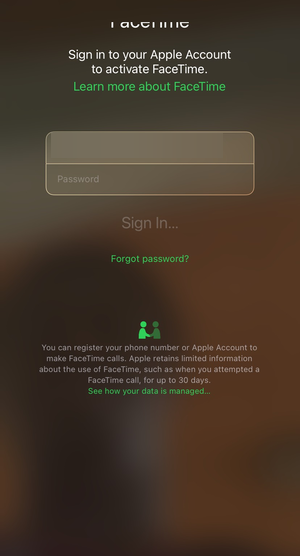
Apple ID and internet connection basics
Each participant needs an Apple ID signed into FaceTime. A stable Wi-Fi or cellular connection keeps the call running without freezes or dropouts.
How to make a Group FaceTime from the FaceTime app
The FaceTime app offers the fastest way to start a group call from scratch. This method works well when you want full control over who joins.
Start a new Group FaceTime call
- Open the FaceTime app on your iPhone, iPad, or Mac.
- Tap New FaceTime, then add multiple contacts by name, number, or email.


- Choose Video or Audio to start the Group FaceTime call.
How to start a Group FaceTime from Messages
Messages lets you turn an existing group chat into a Group FaceTime call. This option works best for families or teams that already chat together.
Turn an existing group chat into a FaceTime call
- Open a group conversation in Messages.
- Tap the group name at the top of the screen.
- Select FaceTime to start a group video or audio call.
How to add people to a FaceTime call after it starts
You can invite more people after the call begins. This feature helps when someone joins late or when you forgot a participant.
Invite contacts during an active call
- During the call, tap the screen to show controls.
- Tap Add People, then select the contact you want to invite.


- The person receives an invitation and can join instantly.
How to use a FaceTime link for group calls
FaceTime links offer the easiest way to invite many people at once. They work well for scheduled calls or casual group hangouts.
Create and share a FaceTime link
- Open the FaceTime app and tap Create Link.

- Share the link through Messages, Mail, or another app.
- Anyone with the link can request to join your Group FaceTime.
Join a Group FaceTime using a link
- Tap the FaceTime link you received.
- Enter your name and tap Join.
- The call host approves your request, and you join the group.
How Group FaceTime works on iPhone, iPad, and Mac
Group FaceTime works across Apple devices, but the interface changes slightly. Knowing these differences helps you find controls faster.
iPhone and iPad differences
iPad shows larger video tiles and makes managing participants easier. iPhone keeps controls compact for one-hand use.
Group FaceTime on Mac
On Mac, you start and join Group FaceTime calls from the FaceTime app. macOS places call controls in a floating window for quick access.
Common problems when making a Group FaceTime call
- Group FaceTime option not showing: Update your device to the latest software and restart it. Then check that FaceTime is enabled in Settings.
- Someone can’t join the call: Confirm that the person uses a supported device and signs in with an Apple ID. Ask them to check their internet connection and FaceTime settings.
Tips for managing Group FaceTime calls
- Use FaceTime links for large or recurring groups.
- Add participants after the call starts to avoid restarts.
- Mute your microphone when not speaking to reduce noise.
- Use Wi-Fi instead of cellular for better video quality.
FAQs
How many people can join a Group FaceTime call?
Group FaceTime supports up to 32 participants at once on supported devices.
Does Group FaceTime cost money?
Group FaceTime uses your internet connection and does not charge extra fees.
Can Android or Windows users join Group FaceTime?
They can join through a FaceTime link using a web browser, but they cannot start the call.
Summary
- Check device compatibility, software version, and Apple ID sign-in.
- Start Group FaceTime from the FaceTime app, Messages, or a FaceTime link.
- Add people during an active call if needed.
- Fix issues by updating software and checking FaceTime settings.
Group FaceTime gives you several simple ways to call multiple people at once. Choose the method that fits your situation, confirm everyone meets the requirements, and start the call without extra setup.
Finally, if you keep getting invites and you want to mute FaceTime calls on your Apple devices, check our guide on what to do.



Discussion (0)
Be the first to comment.