




If your iPhone suddenly shows the message “Cannot Get Mail: The Connection to the Server Failed,” it means the Mail app cannot reach your email provider. This error often appears when checking inboxes for Gmail, Outlook, Yahoo, or work accounts and usually relates to network issues, incorrect settings, or authentication problems.
The good news is that this iPhone Mail error is rarely permanent. In most cases, a few targeted fixes restore the server connection and allow emails to sync again.
Check Your Internet Connection First
The Mail app needs a stable internet connection to fetch messages. If Wi-Fi or cellular data is weak, the server connection fails.
- Open Settings and confirm Wi-Fi or Cellular Data is turned on
- If using Wi-Fi, switch to another network or reconnect to the same one
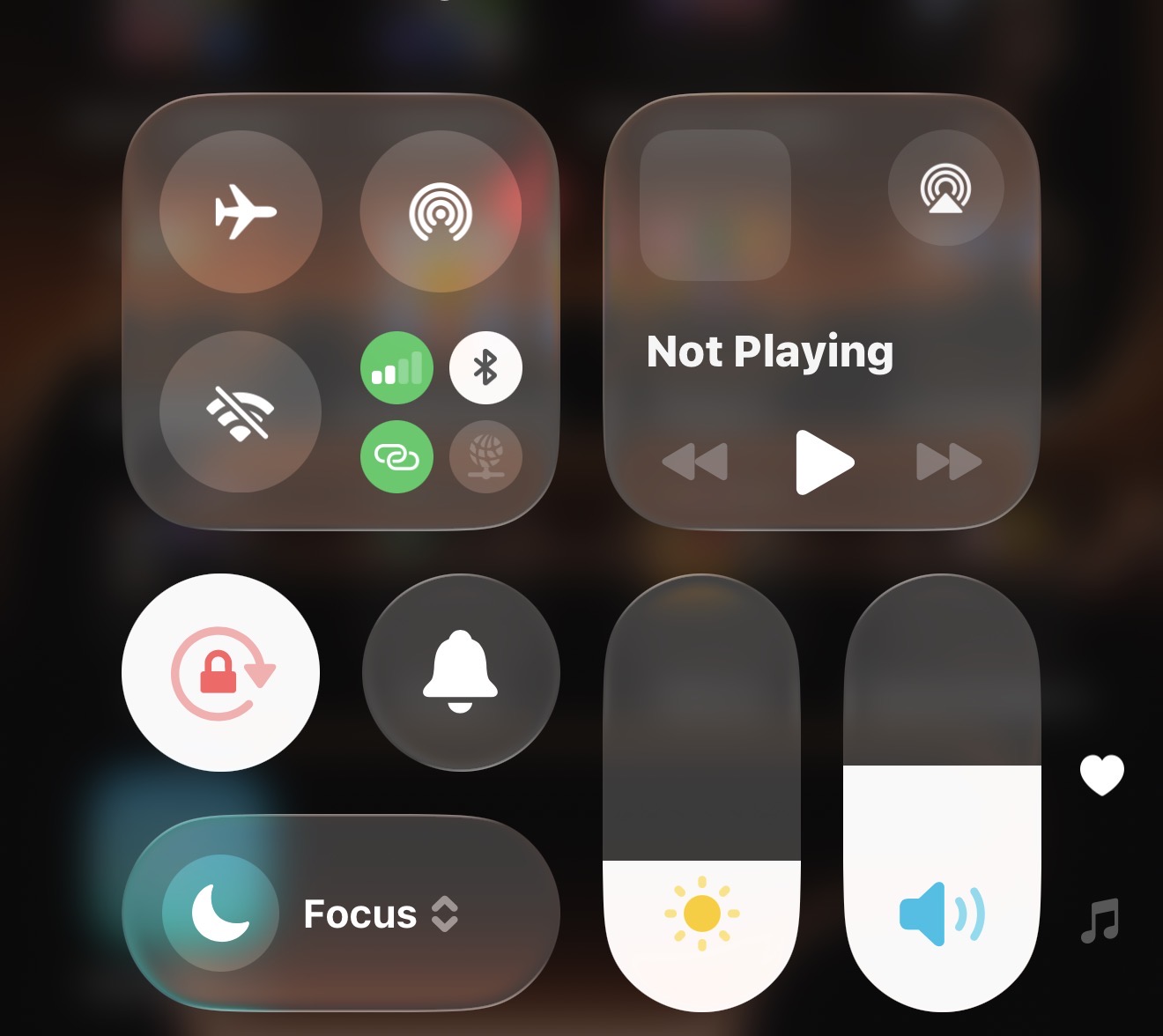
- If using cellular data, go to Settings > Cellular and make sure Mail is enabled
- Turn Airplane Mode on for 10 seconds, then turn it off to refresh the connection
Restart Your iPhone
A restart clears temporary system glitches that can interrupt mail syncing and block server communication.
- Press and hold the Side button and either Volume button
- Slide to power off
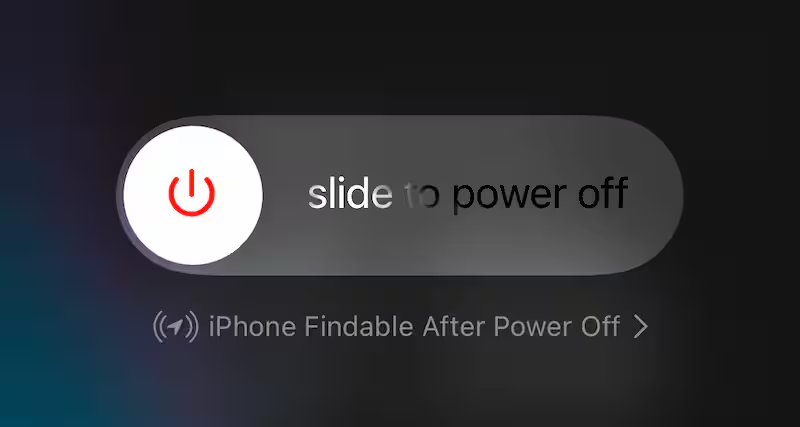
- Wait a few seconds, then turn the iPhone back on
- Open the Mail app and check for new messages
Set Date And Time Automatically
Email servers rely on accurate time settings for secure authentication. Incorrect date or time values can trigger the “Cannot Get Mail” error.
- Open Settings and tap General
- Select Date & Time
- Turn on Set Automatically
- Confirm the correct time zone appears
Re-Enter Your Email Password
If your email password changed recently, your iPhone may no longer authenticate with the server.
- Open Settings and tap Apps
- Select Mail, then Mail Accounts
- Tap the affected email account
- Enter your updated password when prompted
- Toggle Mail off and back on to refresh syncing
Remove And Re-Add The Email Account
Corrupted account data or outdated server settings can block mail access. Re-adding the account resets everything.
- Go to Settings > Apps > Mail > Mail Accounts
- Select the email account showing the error
- Tap Delete Account and confirm
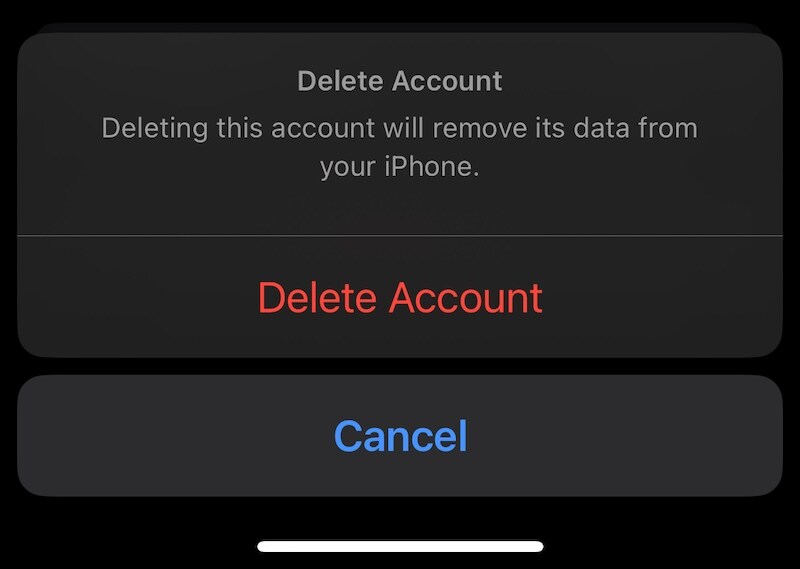
- Return to Mail Accounts and tap Add Account
- Sign in again and enable Mail syncing
Verify Incoming And Outgoing Server Settings
Custom email domains and work accounts often require precise server configuration. Incorrect ports or disabled SSL can cause connection failures.
- Open the email account settings in Mail Accounts
- Tap Account Settings, then SMTP
- Confirm the outgoing server is enabled
- Use port 465 or 587 for SMTP
- Under Advanced settings, enable SSL
- Use port 993 for IMAP or 995 for POP
Update iOS
Mail syncing bugs sometimes originate from iOS itself. Installing the latest update often resolves known connection issues.
- Open Settings and tap General
- Select Software Update
- Install any available update
- Restart your iPhone after installation
Reset All iPhone Settings
If the problem persists, system-level conflicts may interfere with email connectivity. Resetting settings removes those conflicts without deleting personal data.
- Open Settings and tap General
- Select Transfer Or Reset iPhone
- Tap Reset, then Reset All Settings
- Enter your passcode to confirm
Troubleshooting Common Problems
If the error continues, check whether your email provider is experiencing a server outage. Corporate accounts may also block access if security policies change or require re-authentication.
Tips
- Keep iOS updated to avoid known Mail app bugs
- Use IMAP instead of POP when available for better syncing
- Avoid VPN connections when troubleshooting mail errors
- Check mail provider security alerts for blocked sign-ins
FAQ
Why does my iPhone keep saying Cannot Get Mail?
This usually happens due to weak internet, outdated passwords, incorrect server settings, or temporary iOS issues.
Does deleting an email account remove messages?
No. Emails remain on the server and return once the account is added again.
Can this error affect Gmail and Outlook?
Yes. The Mail app error can appear with Gmail, Outlook, Yahoo, and custom domain accounts.
Summary
- The “Cannot Get Mail” error usually relates to connectivity or authentication
- Restarting and checking network settings fixes most cases
- Re-adding the email account resets broken server configurations
- Updating iOS can resolve Mail app bugs
Conclusion
The “Cannot Get Mail: The Connection to the Server Failed” message on iPhone looks serious but is almost always fixable. By checking your connection, correcting settings, and refreshing your email account, you can restore reliable mail syncing and get back to your inbox without losing data.


Discussion (0)
Be the first to comment.