




Installing Zoom on a laptop takes only a few minutes, but the steps vary depending on whether you use Windows, macOS, or Chromebook. This guide walks you through every method, including browser access, troubleshooting fixes, and quick performance tips for older devices.
1) System requirements to install Zoom
Zoom works on most modern laptops, but checking requirements helps prevent installation errors. Each platform has its own OS and hardware minimums.
Windows requirements
Zoom supports Windows 10 and Windows 11. It runs smoothly with at least a dual-core processor and 4 GB RAM.

Mac requirements
Zoom works on macOS 10.13 and newer. A modern Intel or Apple Silicon chip provides the best performance.
Chromebook requirements
Your Chromebook must support Google Play. ChromeOS 80 or later is recommended for full feature compatibility.
2) How to install Zoom on a Windows laptop
Go to the official Zoom download page and select the Windows desktop client. Save the file named ZoomInstaller.exe. Next, double-click the downloaded installer and approve the Windows security prompt so the app can install.

Finally, Launch Zoom and sign in or create an account. Test your microphone, speakers, and camera before joining a Zoom meeting or starting your first call.
3) How to install Zoom on Mac laptop
Download the Zoom.pkg file from the official Zoom website. Save it to your Downloads folder. Next, double-click Zoom.pkg.

If macOS blocks installation, open System Settings >Security & Privacy and click Allow next to the Zoom package message. Lastly, open Zoom, log in, and test audio and video to ensure permissions are working correctly.
3) How to install Zoom on Chromebook
Open the Google Play Store and search for Zoom. Tap Install to download and add it to your Chromebook.

When prompted, allow microphone and camera access. These permissions are required for meetings.
4) How to use Zoom without installing the app
Zoom offers a web version that works directly in your browser. This option helps when you cannot install software due to restrictions.
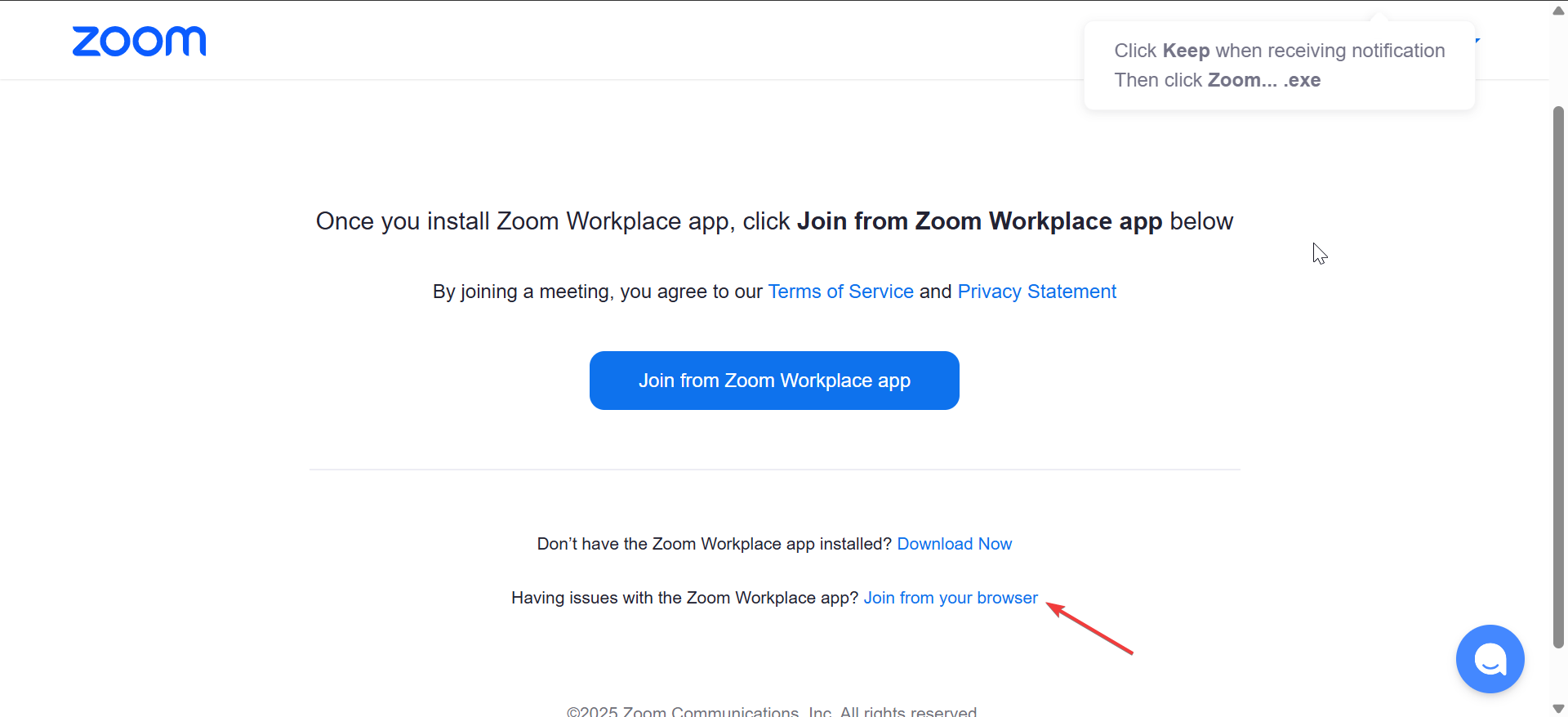
You only need to use your meeting link and select Join from your browser. You can also join calls without signing in. However, note that features like virtual backgrounds and breakout rooms may not work in the browser.
5) First-run optimization for low-end laptops
Tweaking a few settings improves video call performance. These settings reduce CPU load and free system resources.
- Reduce video quality
- Disable virtual backgrounds
- Enable hardware acceleration
6) Privacy and security settings to enable
Adjusting privacy options keeps your meetings safe and prevents accidental access.
Control camera and mic access
Review OS permissions to prevent Zoom from accessing your camera or microphone without approval.
Disable suspicious link previews
Turn off link preview features to avoid unwanted content during calls.
Enable waiting room and authentication
Using the Waiting Room and authenticated users adds two layers of meeting protection.
Troubleshooting common installation problems
- Installation failed on Windows: Re-download the installer, disable third-party antivirus temporarily, and run the file as administrator.
- macOS cannot verify developer: Open System Settings > Privacy & Security and click Open Anyway for the Zoom installer.
- Antivirus blocking installer: Add an exception for ZoomInstaller.exe in your antivirus app. Re-run the installer afterward.
Tips for smooth Zoom usage
- Restart your laptop before important meetings.
- Update Zoom regularly for the latest features.
- Use a wired connection if your Wi-Fi is unstable.
FAQs
How big is the Zoom installer? The Windows installer is a small EXE file under 100 MB.
Can I install Zoom without admin rights? Some systems require admin approval. Use the web version if installation is blocked.
Is Zoom free to install? Yes, Zoom offers a free plan with essential features.
Can I use Zoom on multiple laptops? Yes, you can sign in on multiple devices, but only one can host meetings at a time.
Summary
- Check system requirements for Windows, macOS, and Chromebook.
- Download Zoom from the official site or Google Play.
- Install the client and approve any OS permission prompts.
- Fix common installation errors using security and antivirus settings.
- Optimize performance and privacy settings after installation.
Zoom installs quickly on most laptops and works smoothly once permissions and settings are configured. Start with the desktop client for the best performance and switch to the web version when you need a lightweight alternative.
Discussion (0)
Be the first to comment.