




You can get the Spectrum TV app on an LG Smart TV either by installing it directly from the LG Content Store on supported webOS models or by using a streaming device like Roku or Apple TV when the native app does not appear. This guide shows you how to check compatibility, install the Spectrum TV app, and still watch Spectrum on LG when your TV does not support the app.
The walkthrough focuses on LG webOS in the U.S. and covers common Spectrum TV app issues on LG Smart TVs. You also see backup options like casting from a phone, using AirPlay, or connecting a streaming box so you never miss live TV or On Demand shows.
How To Get Spectrum TV App On LG Smart TV
Start by checking if your LG Smart TV supports the Spectrum TV app in the LG Content Store, since compatibility depends on webOS version and model year. If you do not see the app, you can still stream Spectrum on your LG TV with an external device or screen mirroring.
Use these quick steps to get Spectrum TV on an LG Smart TV:
- Open the LG Content Store and search for the Spectrum TV app on your LG Smart TV.
- Install the Spectrum TV app and sign in with your Spectrum username and password.
- Use a Roku, Apple TV, Fire TV, Xbox, or Chromecast if the app does not appear on your LG TV.
- Cast or mirror the Spectrum TV app from your phone, tablet, or computer as a backup option.
Check If Your LG Smart TV Supports The Spectrum TV App
You should verify compatibility before you spend time troubleshooting. LG and Spectrum limit the Spectrum TV app to specific webOS versions and regions, so older or certain mid-cycle models may not list the app.
- Press the Settings button on your LG remote and open All Settings.
- Go to Support or General > About This TV and note the webOS version.
- Confirm that your LG TV runs a recent webOS version that normally supports modern streaming apps.
- Return to the home screen and select the LG Content Store.
- Use the search field to type Spectrum TV and review the results on your LG Smart TV.
If you see the Spectrum TV app in the LG Content Store, your TV supports a native install and you can continue with the next section. If you do not see it, plan to use a streaming device or casting method instead.
Install The Spectrum TV App From The LG Content Store
When the Spectrum TV app appears in the LG Content Store, you can install it directly on the LG Smart TV and avoid any extra hardware. Make sure the TV connects to a stable home Wi-Fi or wired network first.
- Open the LG Content Store from the LG home screen.
- Select the Search option and enter Spectrum TV.
- Highlight the Spectrum TV app tile in the search results.
- Choose Install on the app page and wait for the download to finish.
- Press the Home button and look for the Spectrum TV icon in your app row.
- Launch the app and select Sign In.
- Enter your Spectrum username and password, then confirm to complete activation on the LG Smart TV.
After sign-in, you can watch live Spectrum channels, browse guide data, and play On Demand content from the Spectrum TV app on your LG TV, similar to a Roku or Samsung Smart TV experience.
Use A Streaming Device When Spectrum TV App Does Not Appear On LG
If your LG Smart TV does not show the Spectrum TV app, you can connect a supported streaming device to an HDMI port. This approach works well for older LG TVs or models with limited app support.
- Pick a supported device such as a Roku, Apple TV, Fire TV, Chromecast, or Xbox.
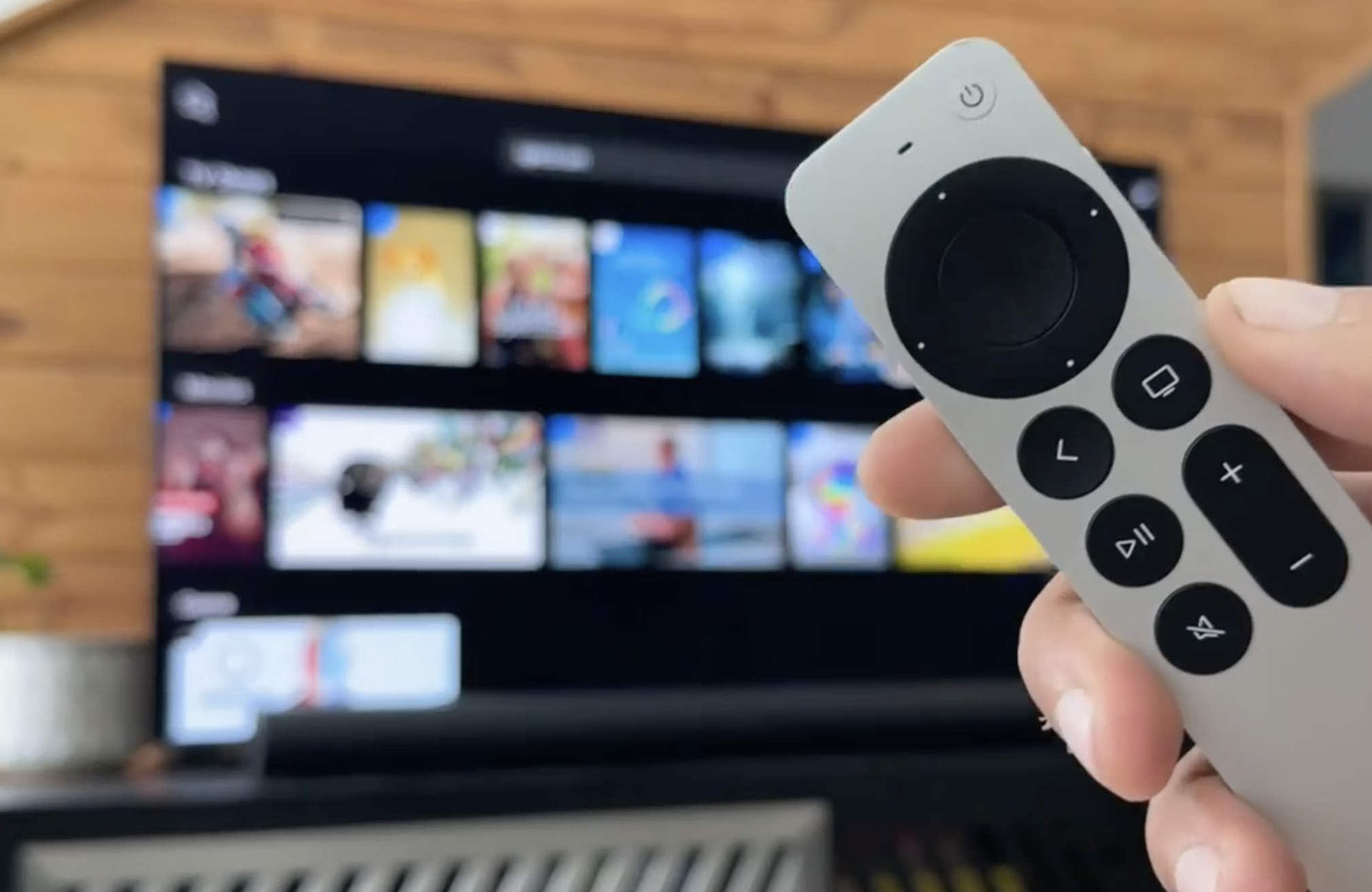
- Connect the device to an open HDMI port on the back or side of your LG Smart TV.
- Switch the LG TV input to that HDMI source with the Input or Source button.
- Complete the device’s initial setup and connect it to the same Wi-Fi network you use for Spectrum Internet, if applicable.
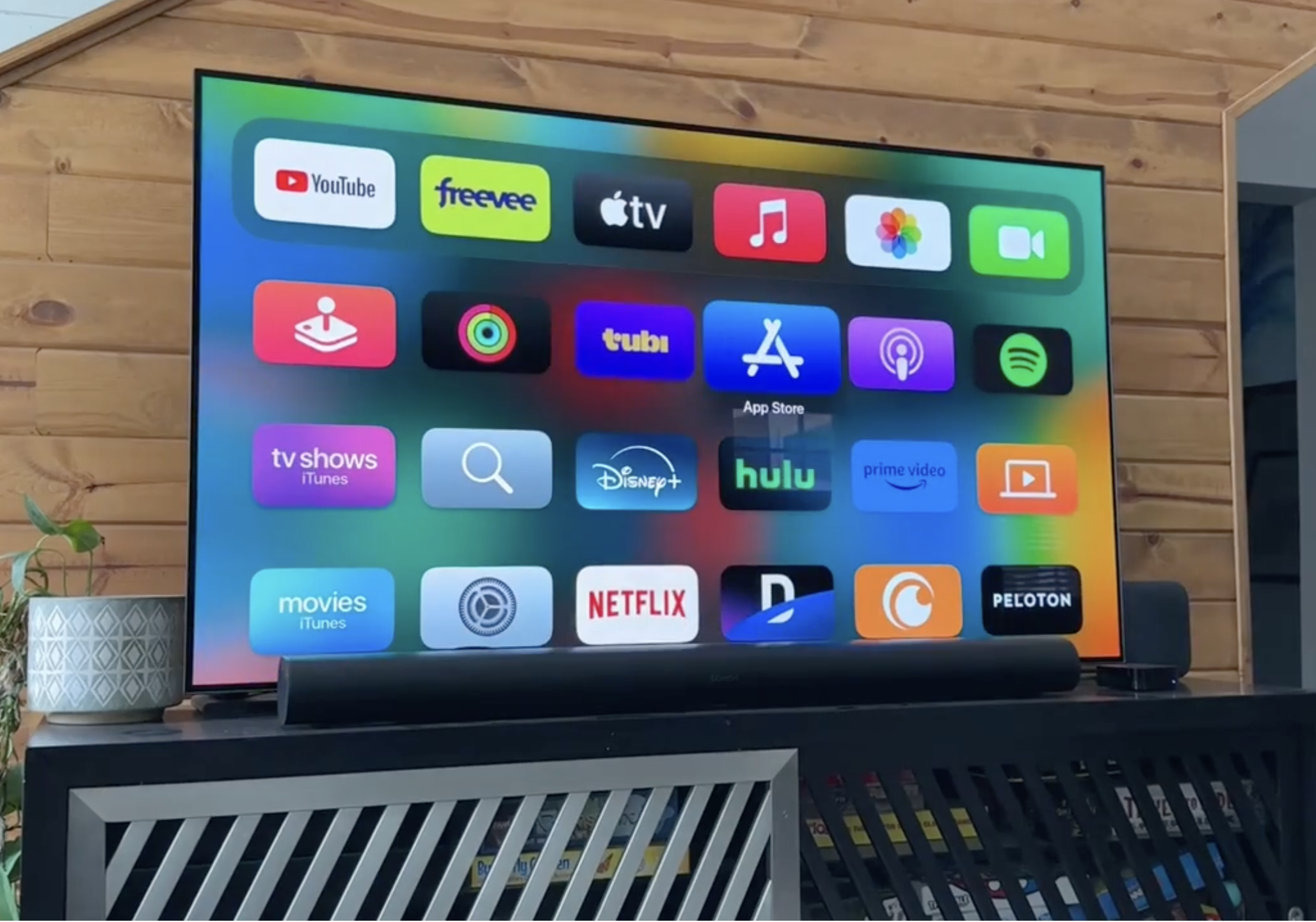
- Open the device’s app store.
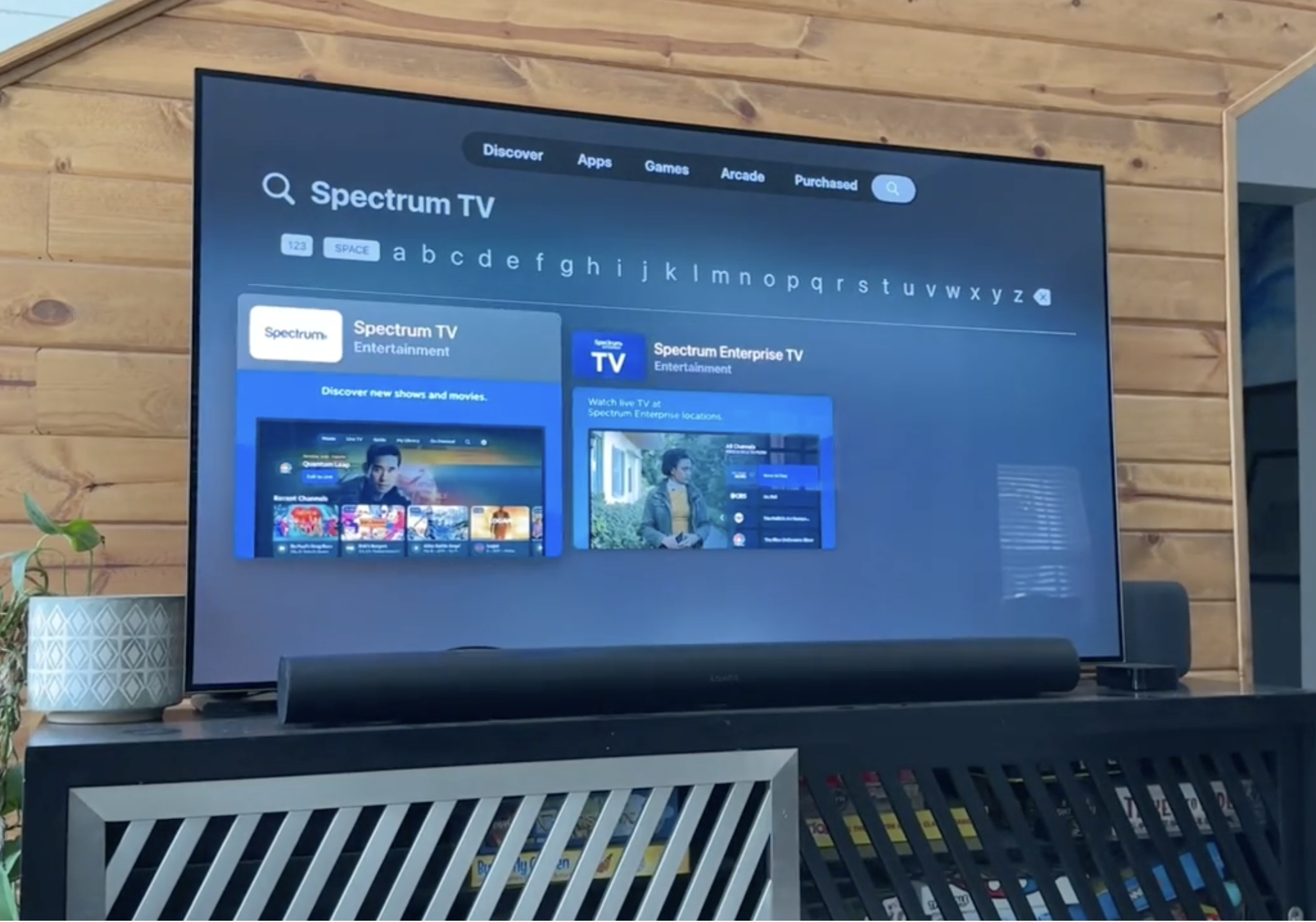
- Search for Spectrum TV.
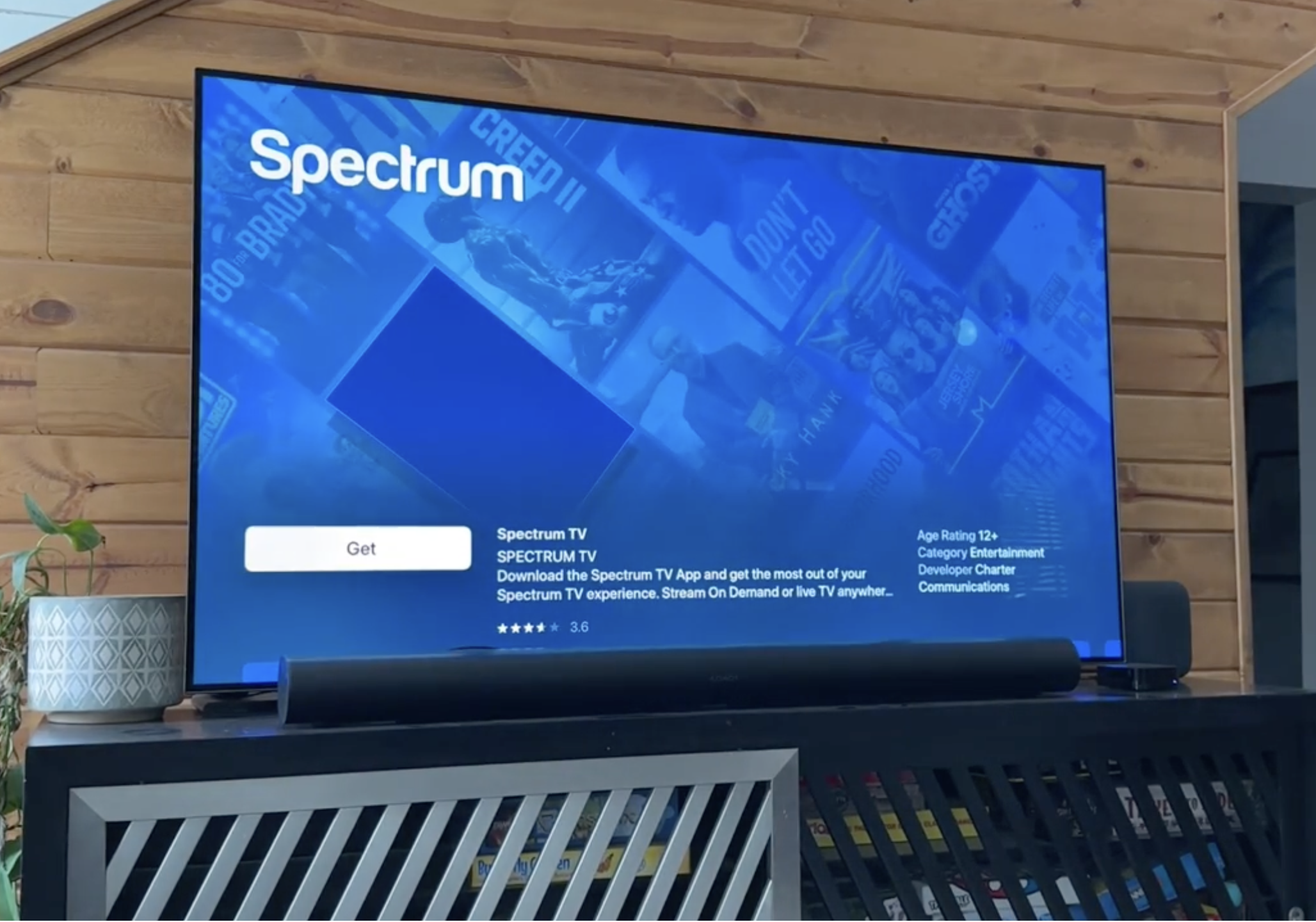
- Install the Spectrum TV app, launch it, and sign in with your Spectrum credentials.
This method turns the external device into your Spectrum streaming hub, while the LG Smart TV acts as the display. You also gain access to other streaming services through that same device.
Cast Or Mirror Spectrum TV To An LG Smart TV
You can still watch the Spectrum TV app on an LG Smart TV without a native app by mirroring from a phone, tablet, or computer. Performance depends on your Wi-Fi network and your device’s casting support.
- Install the Spectrum TV app on your iPhone, iPad, or Android device and sign in.
- Confirm that your LG Smart TV and mobile device use the same Wi-Fi network.
- On newer LG models that support AirPlay, open the Home Dashboard and confirm AirPlay settings.
- Start playing a channel or On Demand show in the Spectrum TV app on your phone or tablet.
- Use AirPlay on iOS or the Cast / Screen Mirroring option on Android to select your LG Smart TV.
- Wait for the LG TV to mirror your device screen and then watch the Spectrum stream in full-screen mode.
Screen mirroring usually adds a little delay and depends heavily on Wi-Fi strength, but it solves short-term viewing needs when you cannot install the Spectrum TV app directly on your LG Smart TV.
Troubleshooting Common Problems
If the Spectrum TV app will not install or stream correctly on your LG Smart TV, you can walk through some quick checks before you reset your hardware or call support. Most issues come from network problems, outdated software, or account limits.
- Spectrum TV app not showing in LG Content Store: Confirm your LG TV region is set to the U.S. in Settings > General > Location. If the app still does not appear, use a streaming device instead.
- App says your device is not supported: Check the LG TV’s webOS version in About This TV. If the TV runs an older webOS build that no longer receives app updates, install Spectrum on a Roku or similar device.
- Buffering or low quality streaming: Run a speed test on another device and restart your modem, router, and LG TV. Try a wired Ethernet connection when possible for more stable Spectrum streaming.
- Sign-in failures: Verify your Spectrum username and password by signing in on the Spectrum website or mobile app. Reset your password if you cannot sign in there either, then try again on the LG app.
- App crashes or freezes on LG: Power-cycle the LG Smart TV by unplugging it for 30 seconds, then plug it back in and relaunch the Spectrum TV app. Check for LG firmware updates under Settings > Support.
- No sound but video plays: Confirm the LG TV volume is not muted, disable Bluetooth audio devices, and check Sound Out settings to make sure the TV sends audio to the correct output.
Tips
These simple tips help you get smoother performance from the Spectrum TV app on an LG Smart TV and reduce streaming interruptions during live sports or prime time shows.
- Place your Wi-Fi router in the same room or one room away from the LG Smart TV to improve wireless strength.
- Use a modern streaming device with strong app support if your LG TV feels slow or dated.
- Log out of unused devices on your Spectrum account if you hit device limits while streaming.
- Turn off unused apps on phones and tablets when you cast or mirror to reduce Wi-Fi congestion.
- Enable parental controls inside the Spectrum TV app if kids also use the LG Smart TV.
- Schedule firmware updates for overnight hours so your LG TV and streaming device stay current without interrupting viewing.
FAQ
Can I Install Spectrum TV Directly On Every LG Smart TV?
No. Only certain LG Smart TVs running supported webOS versions can install the Spectrum TV app from the LG Content Store. Older models and some mid-cycle sets need a Roku, Apple TV, Fire TV, Chromecast, or game console instead.
Do I Need Spectrum Internet To Use The Spectrum TV App On LG?
You typically need an active Spectrum TV subscription, and many plans expect you to use Spectrum Internet at home for full channel access. Check your plan details to see how the app behaves on non-Spectrum internet connections.
Why Does The Spectrum TV App Look Different On My LG TV Than On My Phone?
Spectrum updates the app interface at different times across platforms, so the LG Smart TV version may not match the mobile app exactly. Core features like live TV, guide browsing, and On Demand usually remain consistent.
Can I Watch Spectrum TV On Multiple LG TVs At The Same Time?
You can sign in to the Spectrum TV app on several devices at once, but Spectrum may limit simultaneous streams per account. If you see errors about too many streams, sign out on unused devices and try again.
Is Casting From My Phone As Good As A Native Spectrum App On LG?
Casting works in a pinch but usually depends more on Wi-Fi strength and battery life on your phone. A native Spectrum TV app on the LG Smart TV or a dedicated streaming box usually delivers smoother, more reliable playback.
Summary
- You can get the Spectrum TV app on compatible LG Smart TVs directly from the LG Content Store.
- When the app does not appear, you can connect a Roku, Apple TV, Fire TV, Chromecast, or game console to stream Spectrum.
- Screen mirroring and casting offer backup options for short-term viewing on LG Smart TVs.
- Most problems come from network issues, outdated firmware, or unsupported LG webOS versions.
- Using a strong Wi-Fi connection or Ethernet and keeping devices updated improves the Spectrum TV experience on LG Smart TVs.
Conclusion
When you know how to get Spectrum TV app on LG Smart TV models, you can treat your LG screen like a full cable box replacement. Newer LG webOS sets often install the Spectrum TV app directly, while older or unsupported models work best with a streaming device or casting setup.
If the Spectrum TV app never appears in the LG Content Store, you still have flexible options with Roku, Apple TV, Fire TV, Chromecast, game consoles, or simple screen mirroring. Choose the path that fits your LG Smart TV, your home network, and how you prefer to watch live channels and On Demand shows.


Discussion (0)
Be the first to comment.