




The about:blank page in Google Chrome is an empty page that appears when you open a new tab or launch the browser. While it's not dangerous, it can disrupt your browsing experience. This guide explains why it happens and provides detailed steps to remove it effectively.
Step 1: Reset Chrome’s homepage
The most common cause of the about blank page is that Chrome’s homepage is set to about:blank. You can fix this by resetting your homepage settings. To do this, open Chrome and click the three vertical dots in the top-right corner.
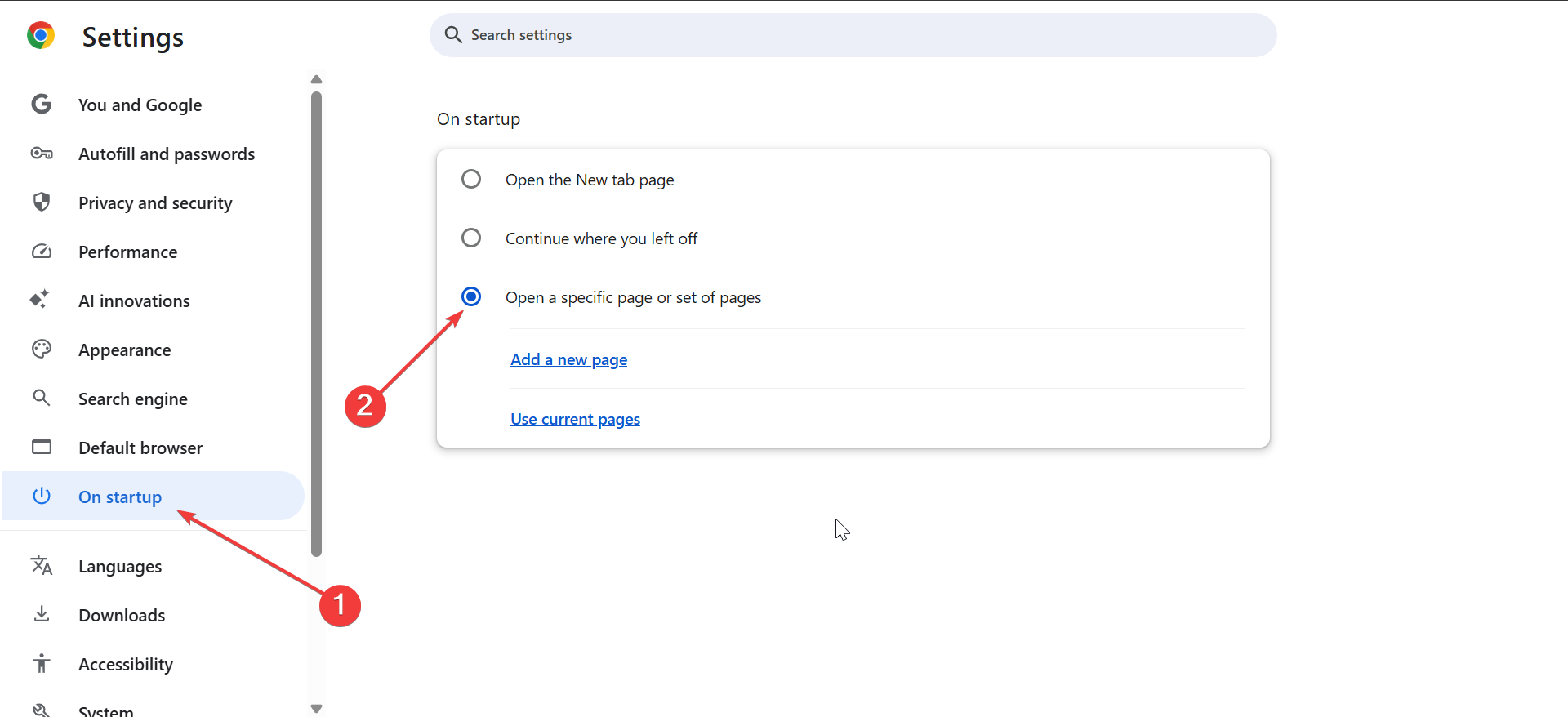
Select Settings and click On startup in the left pane. Now, choose Open a specific page or set of pages and enter the URL of your preferred homepage, like your favorite search engine or a personalized homepage.
Step 2: Disable or remove malicious extensions
Extensions, especially malicious or outdated ones, can hijack your browser settings and force the about:blank page to appear. You can fix this by clicking the three vertical dots in the top right corner on Chrome, then selecting Extensions.
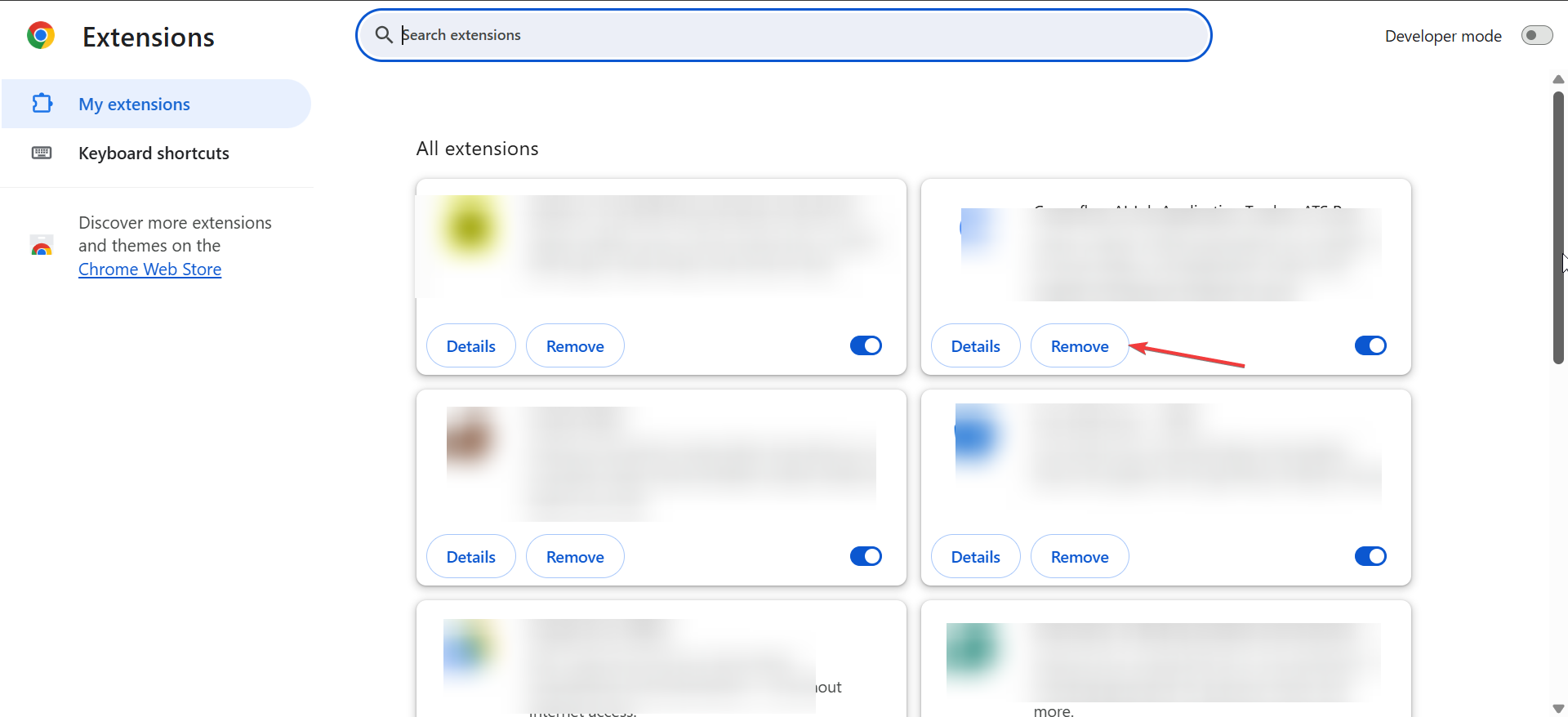
From here, disable extensions one by one by toggling off the switch next to each extension. If the issue stops after disabling a particular extension, remove it by clicking Remove.
Step 3: Clear browser cache and cookies
Corrupted data in your cache or cookies can cause the about blank issue. The fix is to clear quickly. To do this, go to Settings on Chrome and click Privacy and security.
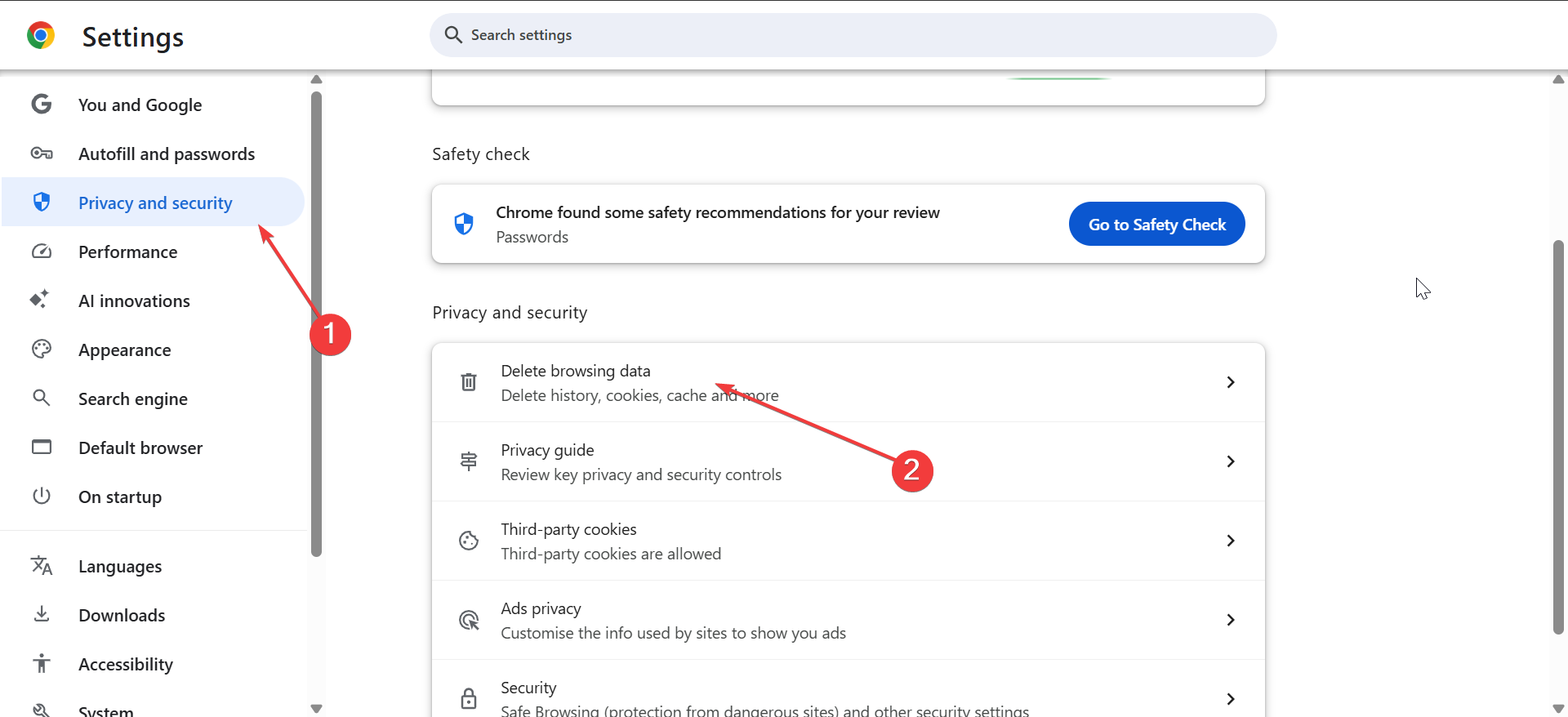
Next, select Clear browsing data, click the timeline dropdown and select All time, and tick the boxes for Cached images and files and Cookies and other site data. Finally, click the Delete data button.
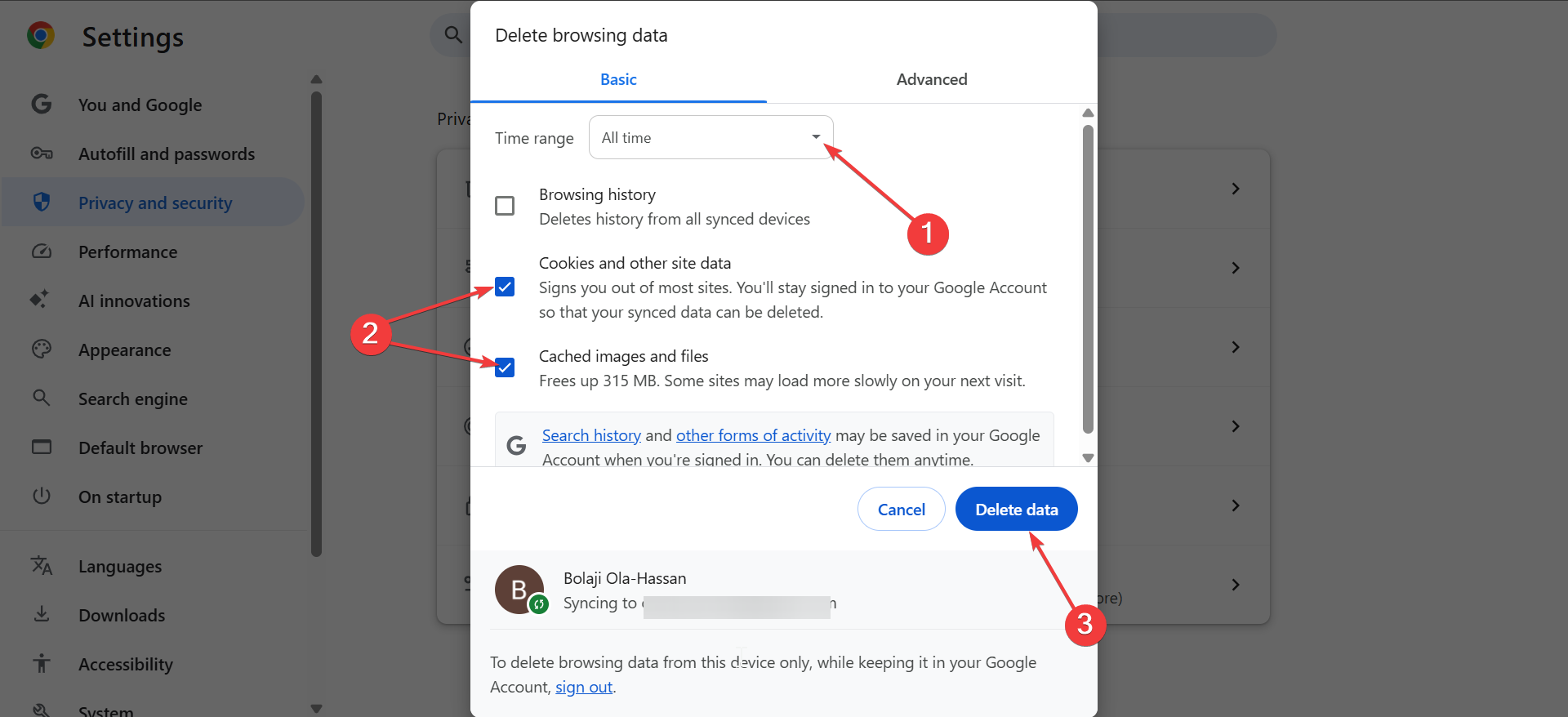
You can now restart your browser, and the issue will be fixed
Step 4: Reset Chrome to Default Settings
If the above steps didn’t work, resetting Chrome to its default settings will restore it to its original state. To do this, go to Settings on Chrome and select Reset Settings in the left pane.
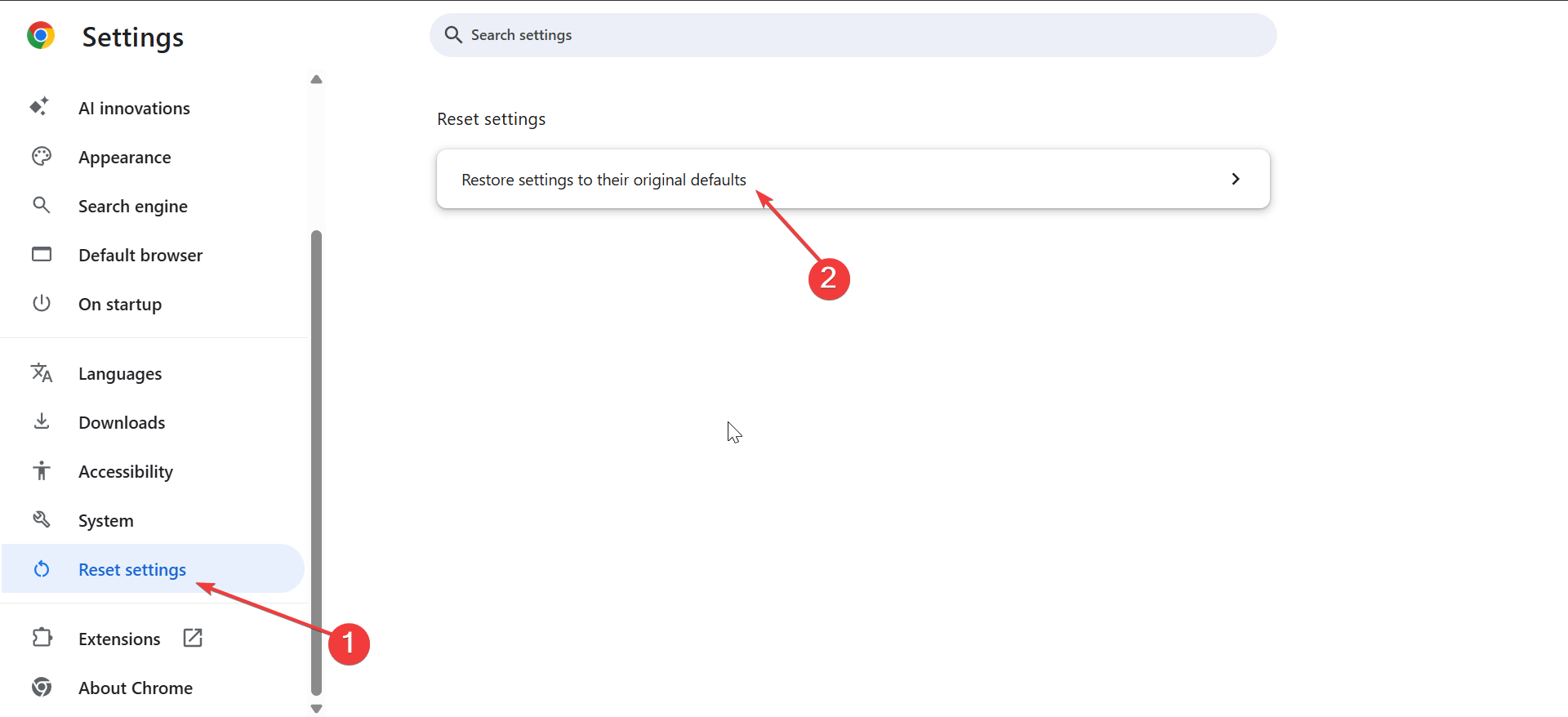
Under Reset settings in the right pane, click Restore settings to their original defaults. Finally, click the Reset settings button.
Additional troubleshooting tips
- Check for malware with anti-virus software: Run a full system scan with your anti-virus software to ensure no malicious software is affecting your browser.
- Create a new Chrome profile: Click the profile icon in the top-right corner of Chrome and select the Add new profile option. Now, follow the prompts to set up and customize the new profile.
- Update Chrome to the latest version: Open Chrome and click the three vertical dots in the top-right corner. Go to Help > About Google Chrome. Chrome will check for updates automatically and install them if available. Finally, restart your browser
Tips for preventing about blank in Chrome
- Install extensions only from the Chrome Web Store and regularly review them.
- Remove any extensions you no longer use or trust, and always keep them up-to-date to avoid security risks.
- Ensure your browser and operating system are updated regularly. Updates often contain security patches and bug fixes that prevent issues like about:blank from reoccurring. Set Chrome to update automatically so you never miss a new version.
FAQs
Why does about:blank keep appearing in Chrome? It may appear due to misconfigured homepage settings, malicious extensions, or corrupted browser data. These issues can usually be fixed by following the steps in this guide.
Can malware cause about:blank in Chrome? Yes, malware can hijack browser settings and force about:blank to load. Running an anti-virus scan and removing any unwanted programs will resolve the issue.
Why does about:blank keep appearing in Chrome? It may appear due to misconfigured homepage settings, malicious extensions, or corrupted browser data. These issues can usually be fixed by following the steps in this guide.
Can malware cause about:blank in Chrome? Yes, malware can hijack browser settings and force about:blank to load. Running an anti-virus scan and removing any unwanted programs will resolve the issue.
How can I tell if an extension is causing about:blank? By disabling extensions one at a time and checking if the problem persists, you can identify the culprit. If disabling a particular extension resolves the issue, it’s best to remove it.
Summary
- Reset Chrome’s homepage to your preferred page.
- Disable or remove any malicious extensions.
- Clear your browser’s cache and cookies.
- Reset Chrome if the problem persists.
- Run an anti-virus scan for malware.
- Update Chrome regularly and create a new user profile if needed.
Conclusion
To fix the about:blank page in Chrome, reset your homepage settings, clear cache, and remove any malicious extensions. If the issue continues, create a new profile or reset Chrome entirely. Regular updates and trusted extensions will prevent this problem from recurring.

Discussion (0)
Be the first to comment.