




If you prefer browsing in dark mode, you can force dark mode on websites using Microsoft Edge in Windows 11. This feature makes websites appear with darker backgrounds and lighter text, even if the website itself does not support dark mode.
Dark mode can reduce eye strain, especially when browsing at night or in low-light environments. Microsoft Edge includes a hidden setting that allows you to enable dark mode on almost any website. This guide explains how to force dark mode on websites using the Edge browser.
Why Use Dark Mode in Microsoft Edge?
Many users enable dark mode to make browsing more comfortable.
Benefits of dark mode include:
- Reduced eye strain in low-light conditions
- Improved readability for some users
- Lower screen brightness at night
- A consistent dark interface across websites
Even if a site does not support dark mode, Edge can apply a dark theme automatically.
Enable Dark Mode in Microsoft Edge
Before forcing dark mode on websites, make sure the Edge browser itself is using a dark theme.
Follow these steps:
- Open Microsoft Edge.
- Click the three-dot menu in the top-right corner.
- Select Settings.
- Click Appearance.
- Under Overall appearance, choose Dark.
This changes the browser interface to dark mode.
Force Dark Mode on Websites in Edge
Microsoft Edge includes an experimental feature that forces websites to display in dark mode.
Step 1: Open Edge Flags
- Open Microsoft Edge.
- In the address bar, type:
edge://flags
- Press Enter.
This opens the experimental settings page.
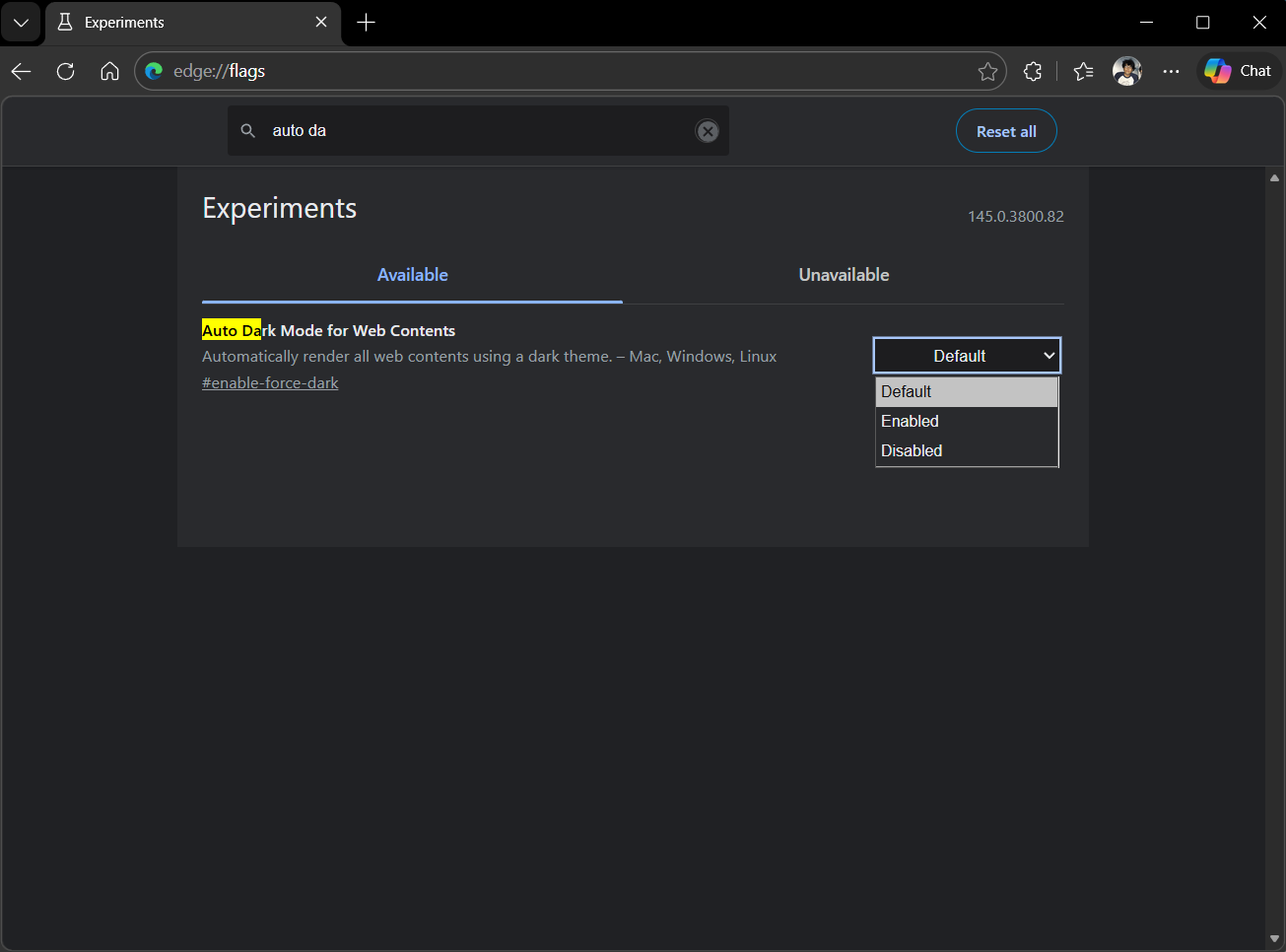
Step 2: Enable Auto Dark Mode for Web Contents
- In the search box, type Auto Dark Mode.
- Find Auto Dark Mode for Web Contents.
- Change the setting from Default to Enabled.
Step 3: Restart Microsoft Edge
- Click Restart when prompted.
After restarting, Edge will automatically apply dark mode to websites.
Disable Forced Dark Mode
If some websites do not display correctly in dark mode, you can disable the feature.
- Open edge://flags again.
- Search for Auto Dark Mode for Web Contents.
- Change the option to Default or Disabled.
- Restart Edge.
This restores normal website colors.
Alternative Method: Use a Dark Mode Extension
You can also force dark mode on websites using browser extensions.
Popular options include:
- Dark Reader
- Night Eye
- Midnight Lizard
These extensions provide more customization options compared to the built-in feature.
Possible Issues with Forced Dark Mode
While forcing dark mode works on many websites, some pages may display incorrectly.
Possible issues include:
- Images appearing inverted
- Text contrast problems
- Website elements looking distorted
If this happens, you can disable dark mode for specific websites.
Final Thoughts
Learning how to force dark mode on websites using Microsoft Edge in Windows 11 can make browsing more comfortable, especially at night. By enabling the Auto Dark Mode feature in Edge flags, you can apply dark themes to most websites automatically.
If you want more control, browser extensions can provide additional customization options. Either way, dark mode can make web browsing easier on your eyes and improve your overall experience.
FAQs
How do I force dark mode on websites in Microsoft Edge?
Open edge://flags, enable Auto Dark Mode for Web Contents, and restart the browser.
Does Microsoft Edge support dark mode?
Yes. Edge includes a built-in dark theme and experimental settings to force dark mode on websites.
Why do some websites look strange in dark mode?
Forced dark mode may alter colors on websites that are not designed for dark themes.
Can I disable forced dark mode in Edge?
Yes. Go back to edge://flags, disable Auto Dark Mode, and restart the browser.



Discussion (0)
Be the first to comment.