




If your PlayStation 4 shows a “No Signal” message or black screen on your TV, the HDMI port or cable is often the culprit. Before you panic, you can work through a few simple checks at home to rule out loose cables, TV input issues, or minor port damage. At the time of writing, these steps apply to all PS4 models and help you decide when you can fix the problem yourself and when you need professional HDMI port repair.
Check For Simple HDMI Issues On PS4
Start with quick checks that fix many “PS4 HDMI Port Not Working” problems without opening the console. You want to confirm the issue is not a bad cable or wrong TV input.
- Turn off your PS4 completely and unplug it from the wall.

- Turn off your TV and unplug it as well.
- Disconnect the HDMI cable from both the PS4 and the TV.

- Inspect the HDMI cable for cuts, kinks, or bent connectors.
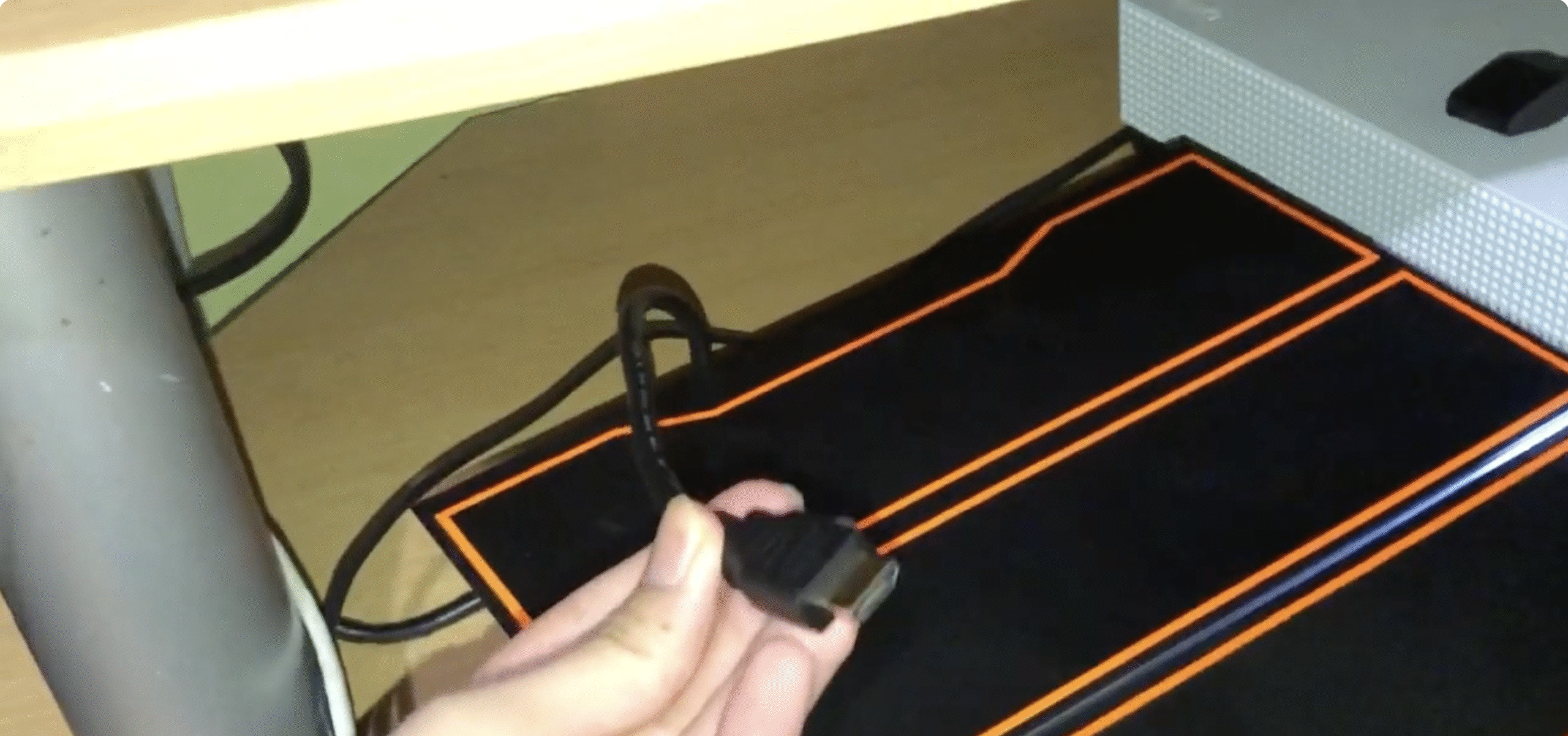
- Reconnect the HDMI cable firmly into the PS4 and the TV until it clicks into place.
- Turn on the TV first, then plug in and power on the PS4.
- Use your TV remote to select the correct HDMI input for the PS4.
Inspect The HDMI Port And Cable Safely
If you still see no picture, look closely at the HDMI port and cable for visible damage. Many “PS4 Broken HDMI Port” cases show up as bent pins or a loose, wobbly connection.
- Shine a flashlight into the PS4 HDMI port without inserting anything inside.
- Look for bent pins, cracked plastic, or metal pushed inward.
- Gently press the HDMI cable plug while it is connected and see if it feels loose.
- Try a different high-speed HDMI cable that you know works with another device.
- Test the same TV input with another device, such as a streaming box or Blu-ray player.
Use Safe PS4 Video Output Resets
Sometimes the signal problem is not a physically broken port but a resolution or handshake issue. A safe video reset can fix “PS4 No Signal HDMI” when the hardware is fine.
- Turn off the PS4 completely so the power light is off.
- Press and hold the power button until you hear a second beep, then release it.
- Connect your controller with a USB cable and press the PS button.
- On the Safe Mode menu, choose the option to change video output or use default settings.
- Test different resolutions that your TV supports, such as 1080p or 720p.
Decide When The HDMI Port Needs Professional Repair
If you see obvious damage in the port or still have no output after cable and TV checks, the HDMI connector on the PlayStation 4 may be damaged internally. Board-level “PS4 HDMI Port Repair” requires tools and skill most home users do not have.
- Do not push tools or metal objects into the HDMI port to try to bend pins back.
- Avoid opening the PS4 case if it is still under warranty or covered by a service plan.
- Contact Sony support or a trusted console repair shop if pins are visibly bent or missing.
- Ask the repair service if they have experience with HDMI port replacement on PS4 boards.
- Compare the repair cost with the age and condition of your current console before deciding.
Troubleshooting Common Problems
If your PS4 HDMI port still seems broken after basic checks, these extra troubleshooting steps can help isolate the problem before you invest in a repair.
- Test the PS4 on a different TV or monitor that you know supports HDMI.
- Use a shorter HDMI cable to reduce signal issues over long runs.
- Unplug other HDMI devices from the TV to rule out conflicts on shared ports.
- Turn off any HDMI-CEC or “Bravia Sync” features briefly to see if the signal stabilizes.
- Check that the PS4 power indicator turns solid white, not blue blinking, before blaming HDMI.
Tips
- Label your HDMI cable and port for the PS4 so it always uses the same TV input.
- Avoid pulling the PS4 by the HDMI cable when moving or cleaning around the console.
- Give the console a little space behind it so the cable does not bend sharply at the port.
- Use a right-angle HDMI adapter if your PS4 sits close to the wall to reduce stress on the port.
- Back up your save data regularly in case you need a longer repair or console replacement later.
FAQ
Can I Fix A PS4 HDMI Port At Home With No Experience?
Simple checks like swapping cables and resetting video output are safe at home, but full HDMI port replacement usually requires a professional repair technician.
How Do I Know If My PS4 HDMI Port Is Actually Broken?
Persistent “No Signal” on multiple TVs with different cables, plus a loose or visibly damaged port, usually points to a broken HDMI connector.
Is It Cheaper To Repair Or Replace A PS4 With A Broken HDMI Port?
Repair often costs less than a new console, but the value depends on the model, age, and labor rates in your area.
Can A Bad HDMI Cable Cause The Same Symptoms As A Broken Port?
Yes. A faulty cable can mimic a broken HDMI port, so always test with a known good cable before seeking hardware repair.
Summary
- Start with basic checks on HDMI cables, TV inputs, and power for your PS4.
- Inspect the HDMI port gently for bent pins, cracks, or a loose connection.
- Use Safe Mode video resets to fix resolution-related HDMI signal problems.
- Treat visible physical damage as a sign you need professional HDMI port repair.
- Protect the new or repaired port by handling cables carefully and avoiding sharp bends.
Conclusion
Learning how to fix a broken HDMI port on PS4 starts with simple, low-risk checks and ends with a clear decision about professional repair. By testing cables, TVs, and Safe Mode video settings first, you can rule out easy fixes before opening your wallet. When the port shows real physical damage, letting a qualified repair shop handle the HDMI connector is usually the safest way to get your PS4 back on the screen and into your gaming rotation again.


Discussion (0)
Be the first to comment.