




Connecting your PS4 controller over Bluetooth gives you a clean setup and more flexibility while gaming. The process works on Windows, macOS, Android, and iOS with only a few steps. This guide shows you how to pair the controller on each device and how to fix the most common pairing problems.
But before you start, ensure that your device runs a recent OS version and the controller is in pairing mode. To put your controller in pairing mode, hold the Share and PS buttons at the same time and release them when the light bar blinks rapidly.
Once everything is set and ready, proceed to the steps below.
Connect a PS4 controller to Windows 10 or Windows 11 via Bluetooth
Windows detects the controller quickly when you use the built-in Bluetooth settings. You only need to activate discovery mode before adding the device.
Below are the steps to follow:
- Open Settings.
- Select Bluetooth & devices.
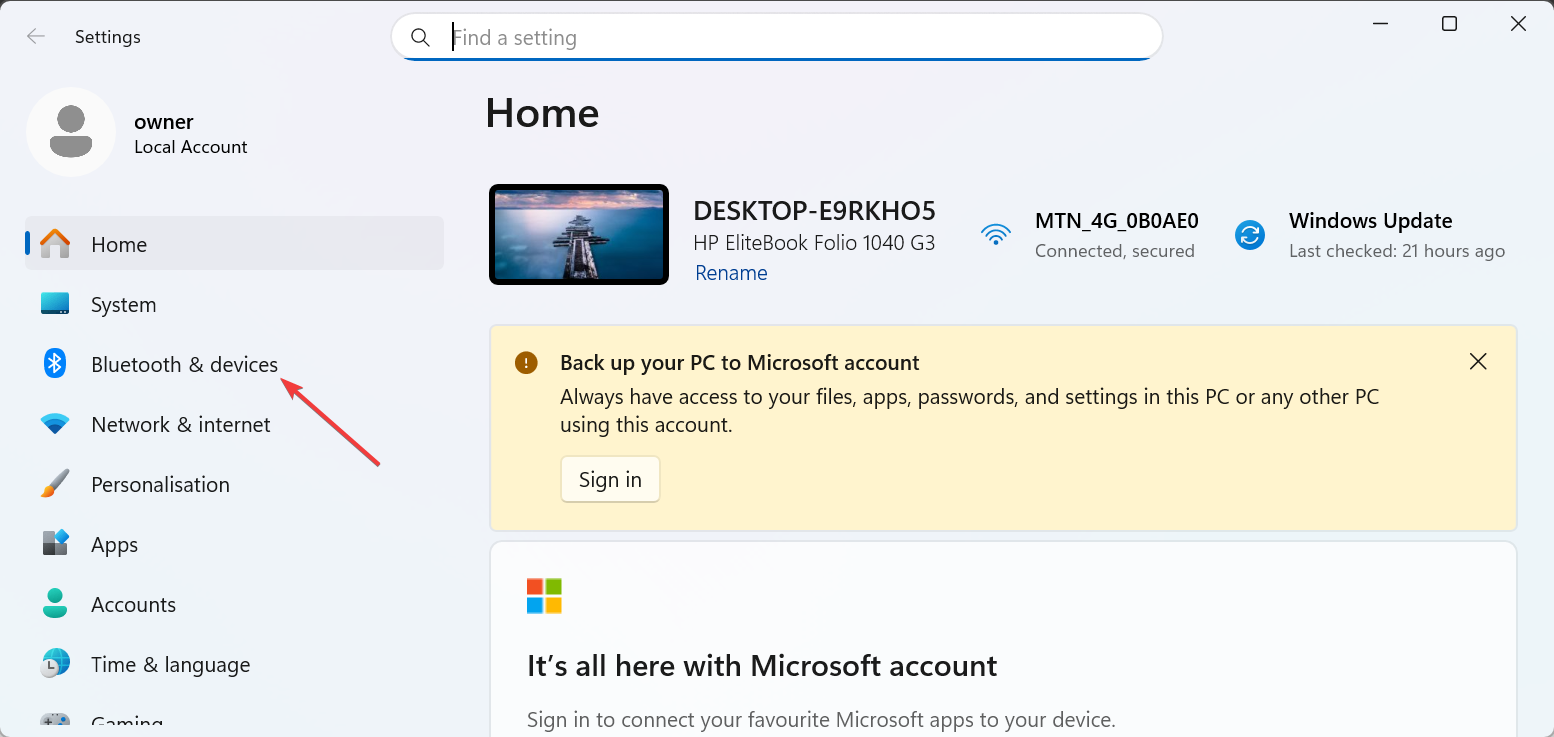

- Turn on Bluetooth.
- Click Add device.
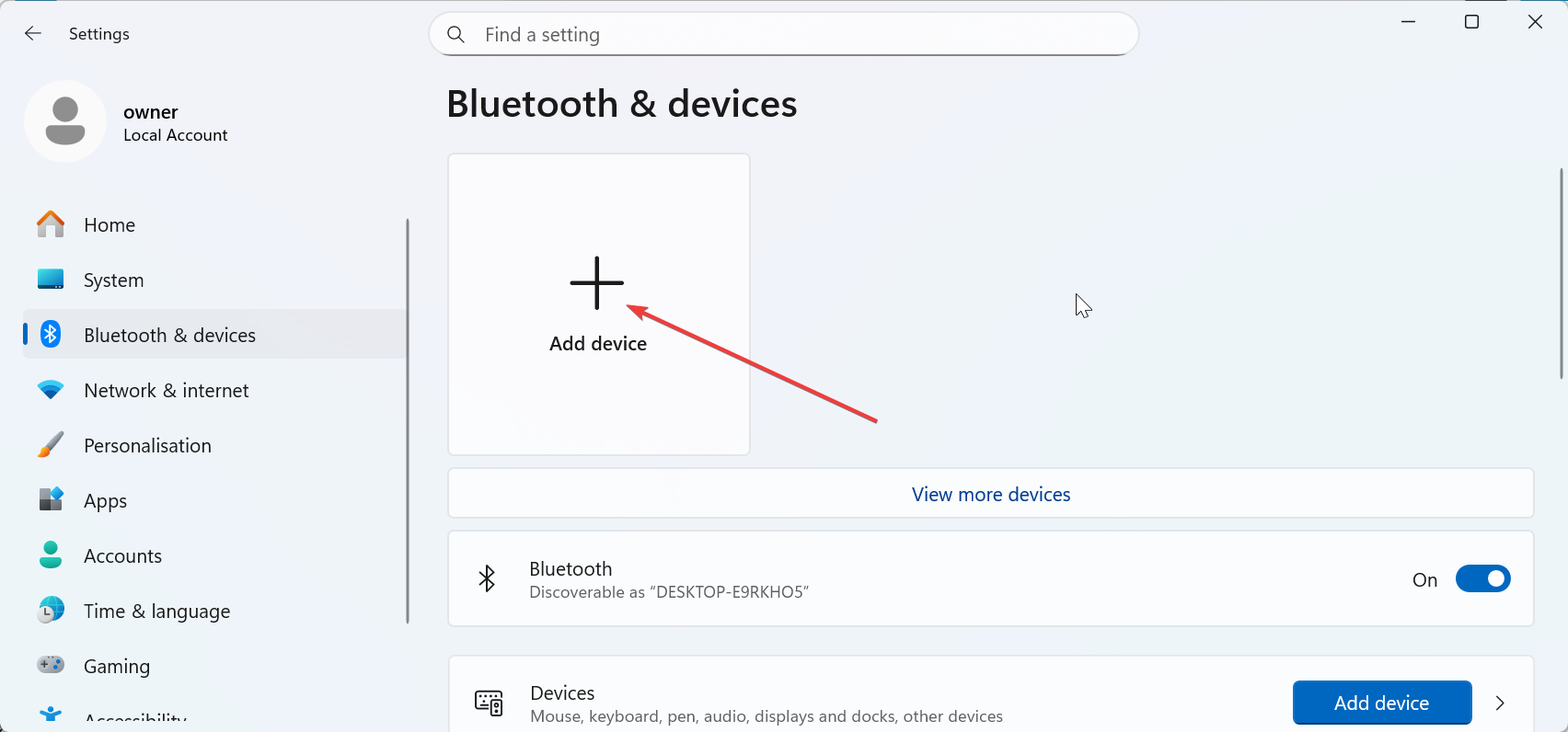

- Choose Bluetooth.
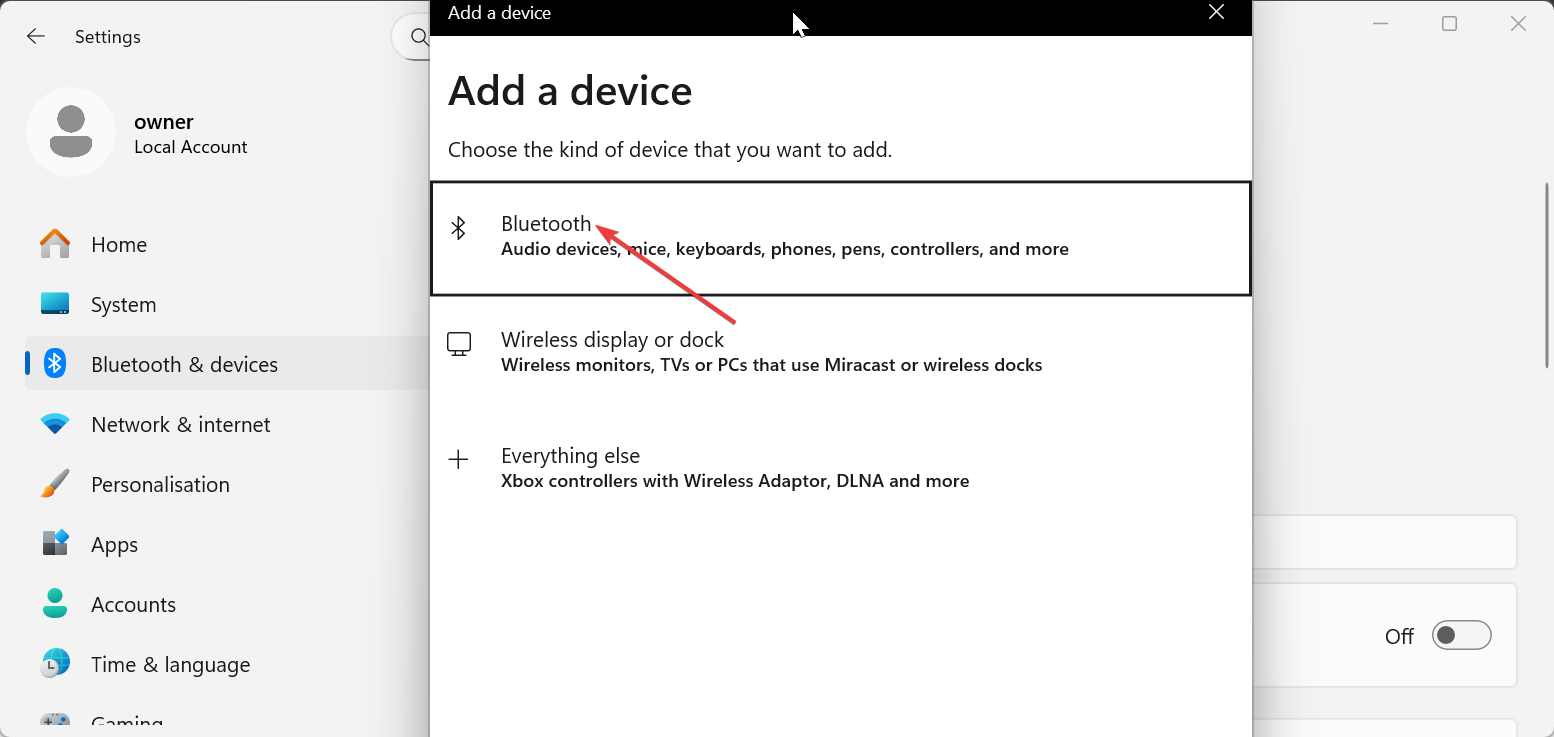
- Select Wireless Controller from the list.
- Confirm the pairing prompt.
Connect a PS4 controller to Mac or MacBook via Bluetooth
Mac devices offer native support for PlayStation controllers. Pairing only requires turning on Bluetooth and selecting the controller, as shown below:
- Open the Apple menu.
- Select System Settings.
- Click Bluetooth.
- Turn on Bluetooth if needed.
- Pick DUALSHOCK 4 Wireless Controller from the device list.
- Confirm the connection request.
Connect a PS4 controller to Android phones or tablets
Connecting to Bluetooth on Android is straightforward. The phone will recognize the controller once you turn on Bluetooth and discovery mode starts. Most devices with Bluetooth 5.x create a stable connection.
Follow the steps below for quick connection
- Open Settings.
- Select Connections.
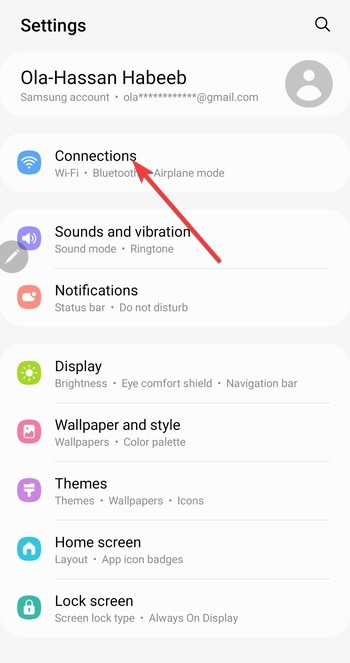

- Tap Bluetooth.
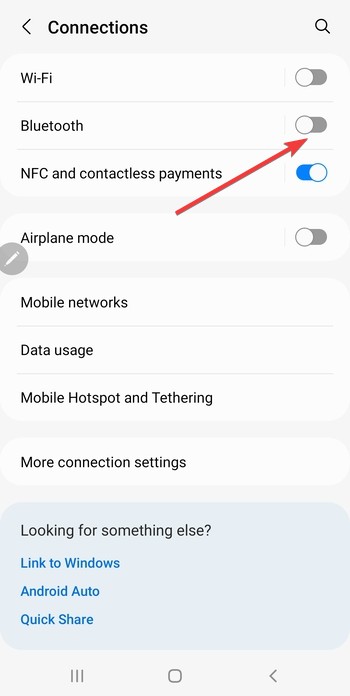

- Next, check the Available devices section and pick Wireless Controller when it appears.
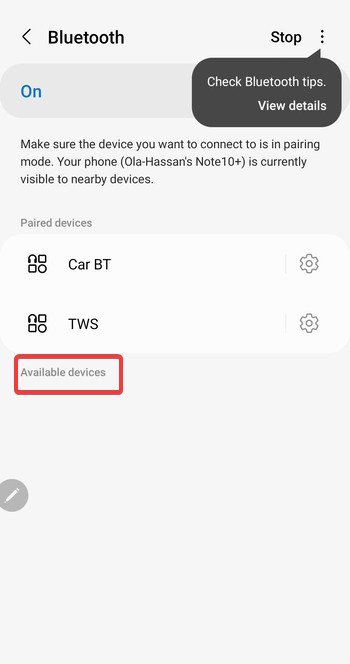

- Approve the Bluetooth pairing request.
Connect a PS4 controller to iPhone or iPad
iPhone and iPad models that run iOS 13 or newer connect to the controller without extra apps. Some games may need extra configuration to detect input.
- Open Settings.
- Tap Bluetooth.
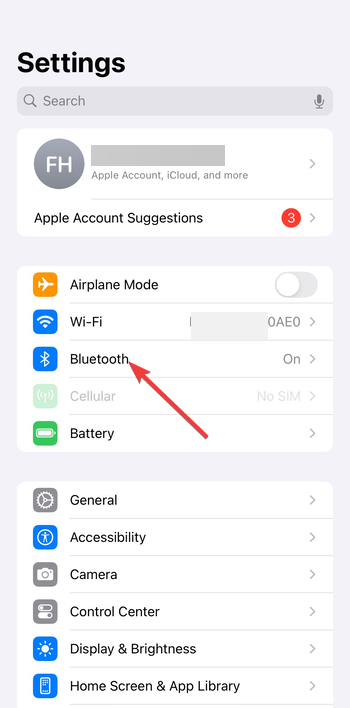

- Turn Bluetooth on.
- Now, check under the Other devices section and select DUALSHOCK 4 Wireless Controller.
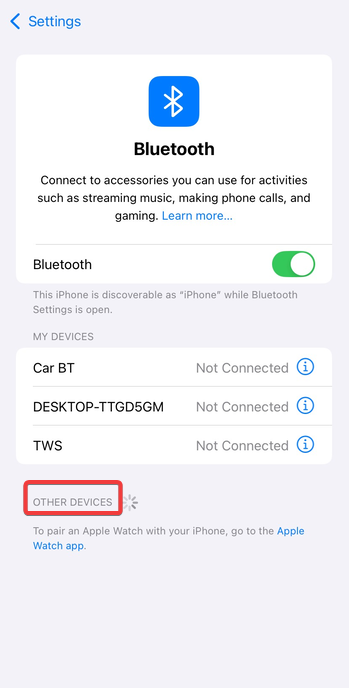

- Wait for the “Connected” status.
Connect a PS4 controller to Steam on PC
Steam includes full controller support and remaps actions for most games automatically. Enabling Steam Input gives you more customization. You can do this by following the steps below:
- Open Steam.
- Select Settings.
- Choose Controller.
- Click General Controller Settings.
- Enable PlayStation Configuration Support.
- Test the controller in Big Picture Mode.
Use a Bluetooth adapter for older or unsupported devices
A Bluetooth adapter helps older desktops or laptops that struggle with pairing. Bluetooth 5.0 adapters provide better range and reduce latency compared to older versions.
Recommended Bluetooth versions for gaming
Bluetooth 4.2 or newer works for most games. Bluetooth 5.x improves throughput and cuts down on input delay in fast paced titles.
Fix PS4 controller not showing up in Bluetooth settings
Pairing mode expires fast. If the controller does not appear in the list, restart discovery mode and refresh the Bluetooth menu on your device.
Reset the controller
Press the small reset button on the back of the controller. Hold it for two seconds. Try pairing again after the reset completes.
Remove old pairings
Previous connections block new ones. Remove older entries from Bluetooth settings on your PC or phone before reconnecting.
Restart Bluetooth services
Toggle Bluetooth off and on. If the device still fails to detect the controller, restart the computer or phone to refresh Bluetooth drivers.
Troubleshoot PS4 controller disconnecting or lagging over Bluetooth
Weak signals, low batteries, or interference cause random disconnects or input delays. Simple adjustments improve stability.
- Reduce Bluetooth interference: Move away from routers, metal surfaces, or USB 3.0 hubs that disrupt wireless signals. Keep the controller within 10 to 15 feet of the device.
- Update device Bluetooth drivers or OS: System updates improve support for wireless controllers. Install available updates to boost compatibility and reduce latency.
Tips for a stable wireless gaming experience
- Keep the controller charged.
- Update your device’s Bluetooth drivers.
- Use Bluetooth 5.0 adapters for best performance.
- Disable other paired controllers when troubleshooting.
- Store the controller separately from heat sources that affect battery life.
Summary
- Put your controller in Bluetooth pairing mode using Share + PS.
- Add the controller in Bluetooth settings on Windows, macOS, Android, or iOS.
- Use Steam Input on PC for full compatibility.
- Fix detection issues by resetting the controller or removing old pairings.
- Improve stability by updating drivers and reducing interference.
A stable Bluetooth connection lets you play wirelessly without cables cluttering your setup. After pairing the controller once, your device reconnects automatically when you turn the controller on. If you still experience lag or pairing issues, a modern Bluetooth adapter usually solves the problem.


Discussion (0)
Be the first to comment.