




The BIOS controls your Dell system’s startup process, boot devices, and hardware settings. You can enter it quickly with the right key, but fast startup, wireless keyboards, or timing issues often block access.
This guide explains every reliable way to enter the BIOS on Dell laptops, desktops, and tablets. It also covers troubleshooting and common reasons why the F2 or F12 key stops working.
1) Use the F2 key at startup
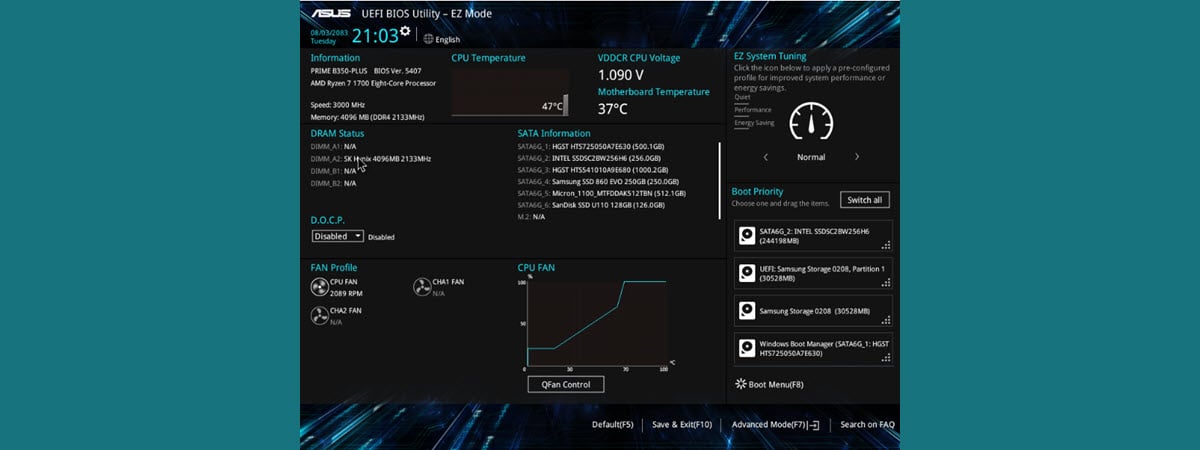
Turn off your Dell PC and press the power button to turn it back on. Next, tap F2 repeatedly as soon as the Dell logo appears. Now, stop tapping when the BIOS or UEFI setup screen loads.

This works on most Inspiron, Latitude, XPS, Vostro, OptiPlex, and Alienware models.
2) Use the F12 one-time boot menu
Power off your Dell system, then turn it back on after a few minutes. Next, press F12 repeatedly at the logo screen. Select BIOS Setup from the boot menu.

This method works well when fast startup interferes with normal key detection.
3) Enter BIOS from Windows advanced startup
Open Settings and select System > Recovery. Under Recovery options, choose Restart now. Next, pick Troubleshoot and select Advanced options.

Now, choose UEFI Firmware Settings and select Restart to load the BIOS. This option works even with wireless keyboards.
4) Use the volume buttons (select Dell tablets)
Turn off the device, then press and hold the Volume Up button when the device is completely off. Now, press the Power button while still holding Volume Up.
Release Power when the Dell logo shows, but keep holding Volume Up until BIOS loads. This applies to models like the Dell Venue and certain Latitude tablets.
5) Dell BIOS access keys by device type
Different Dell families use slightly different key prompts. Use the quick reference below to avoid guesswork.
Dell laptops (Inspiron, XPS, Latitude, Vostro)
Most laptops use F2 for BIOS and F12 for the boot menu. Older models may show a brief prompt during POST.
Dell desktops (OptiPlex, XPS Desktop, Alienware)
Desktops also use F2 for BIOS and F12 for boot options. Gaming models sometimes display additional diagnostic keys.
Older Dell systems with legacy BIOS
Legacy BIOS models require faster key tapping. The screen may not show prompts, so start tapping F2 immediately after pressing the power button.
What you can do after entering BIOS

- Change the boot order: Use this to boot from USB when installing Windows or running recovery media.
- Enable or disable Secure Boot: Turn this off when installing Linux or unsigned drivers, or turn it on for better security.
- Restore BIOS defaults: This resets misconfigured settings and fixes firmware-related boot failures.
Troubleshooting when the BIOS won’t open
- Disable fast startup in Windows: Open Control Panel > Power Options > Choose what the power buttons do and disable Turn on fast startup. Now, restart your PC and try F2 or F12 again.
- Use a wired keyboard: Disconnect wireless receivers, plug in a wired USB or PS/2 keyboard, restart, and tap F2 repeatedly at boot. This resolves most F2 not working situations.
- Reset BIOS or clear CMOS: Shut down the PC, unplug the power, and remove the CMOS battery or use the system’s reset jumper. Wait 30 seconds and reconnect the power. Now, try F2 again at startup.
- Disconnect external devices: Disconnect all USB storage devices, remove hubs and docking stations, and restart. Now, try entering BIOS again. This helps when boot priority forces the system to skip POST screens.
FAQs
Why does my Dell not respond to F2? Fast startup, wireless keyboards, or high-speed NVMe drives often shorten the BIOS access window. A wired keyboard or advanced startup usually resolves it.
What is the boot key for Dell? Most Dell systems use F12 for the boot menu and F2 for BIOS setup.
Can I enter BIOS without Windows? Yes. BIOS loads before Windows, so power-on key presses work even when Windows is corrupted.
Can I enter BIOS on a Dell with a broken keyboard? Yes. Use a wired USB keyboard or, on some tablets, the Volume Up + Power button method.
Summary
- Use F2 at startup for direct BIOS access.
- Use F12 for the one-time boot menu and BIOS entry.
- Use Windows Advanced Startup if your keyboard is not detected early.
- Dell tablets use Volume Up + Power to open BIOS.
- Disable fast startup when BIOS keys do not respond.
Conclusion
Accessing the BIOS on a Dell system becomes easy once you know the right key and method for your device. Most users can reach it with F2 or F12, but fast startup and keyboard timing issues can get in the way.
These steps help you bypass those blocks and adjust essential settings like boot order, Secure Boot, or firmware defaults so your Dell runs the way you need.

Discussion (0)
Be the first to comment.