




If you’ve used Linux before, you might be wondering how to enable sudo command in Windows. Traditionally, Windows uses “Run as administrator” instead of sudo, but newer versions of Windows 11 now include a built-in sudo feature.
This means you can run elevated commands directly from the terminal, similar to Linux.
What Is Sudo in Windows?
Sudo (superuser do) allows you to run commands with administrator privileges without opening a separate elevated window.
In Windows, this feature:
- Lets you run admin commands inline
- Works in Command Prompt and PowerShell
- Improves workflow for developers and power users
It brings a more Linux-like experience to Windows.
Requirements to Use Sudo in Windows
Before enabling sudo, make sure:
- You are using Windows 11 (recent versions)
- You have administrator access
- Your system is updated
Older versions of Windows do not support this feature.
How to Enable Sudo Command in Windows 11
Follow these steps to enable it.
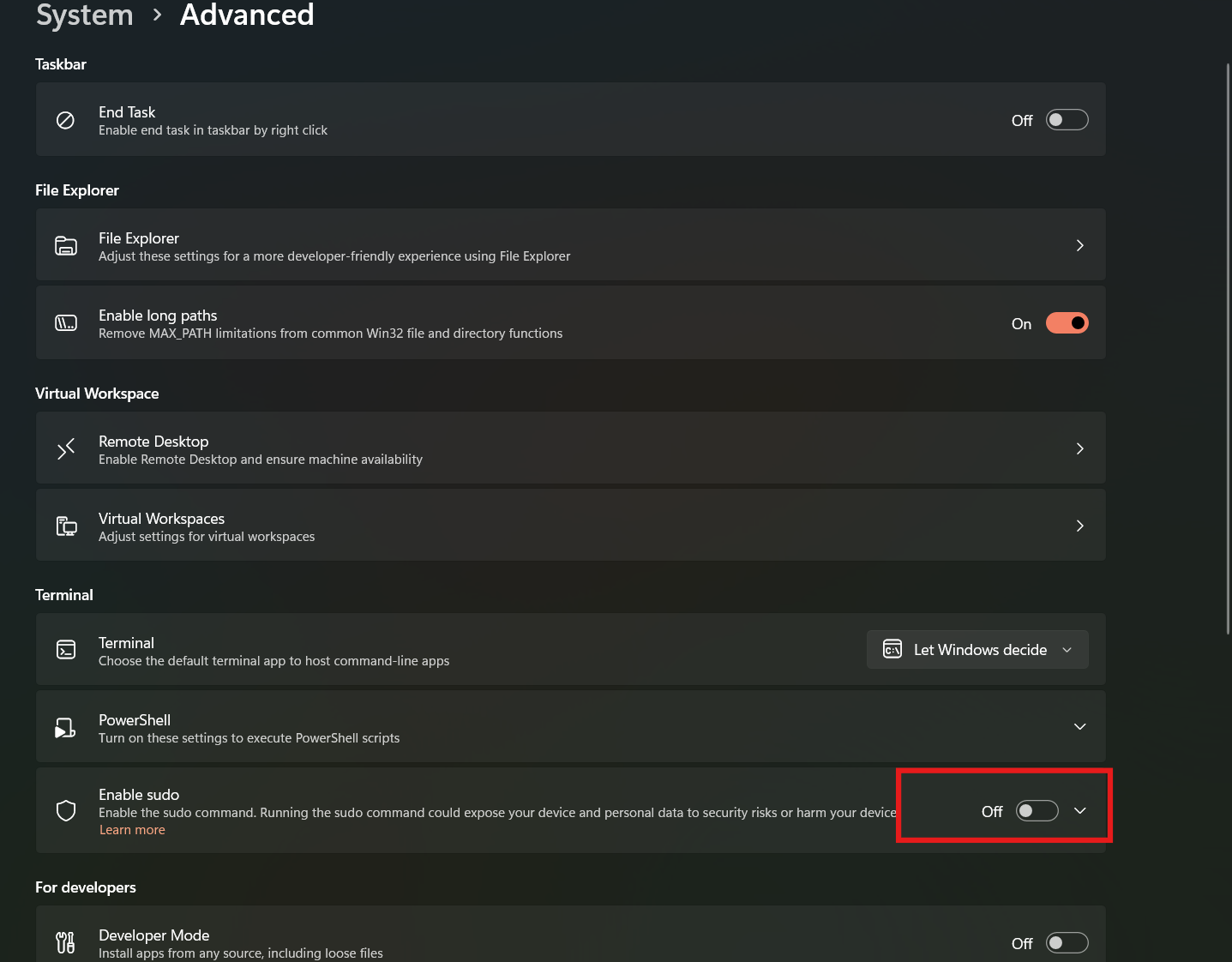
1: Open Settings
- Press Windows + I
- Go to System
2: Open Advanced
3: Enable Sudo
- Find Enable sudo
- Toggle it On
You may be prompted to confirm administrator access.
Choose Sudo Mode
Windows provides different sudo modes.
You can choose:
- Inline – Runs command in the same window
- New window – Opens a separate elevated window
- Disable input – Runs securely without input
Inline mode is closest to Linux behavior.
How to Use Sudo in Windows
Once enabled, you can use sudo in terminal.
Example:
sudo notepad
This will open Notepad with administrator privileges.
Another example:
sudo netstat -an
You can use sudo with most commands that require admin rights.
Alternative: Use Run as Administrator
If sudo is not available on your system, you can still:
- Right-click Command Prompt or PowerShell
- Select Run as administrator
This is the traditional Windows method.
When Should You Use Sudo?
Using sudo is helpful when:
- Running system-level commands
- Managing network settings
- Installing or configuring software
- Performing administrative tasks
It saves time by avoiding separate elevated windows.
Things to Keep in Mind
- Sudo requires admin permissions
- Use it carefully to avoid system changes
- Not all commands need sudo
- Feature availability depends on Windows version
Always double-check commands before running them.
Final Thoughts
Learning how to enable sudo command in Windows makes the command line more powerful and convenient, especially for users familiar with Linux. It simplifies administrative tasks and improves workflow.
While it is a newer feature, it is a useful addition for developers and power users working on Windows.
FAQs
Does Windows support sudo command?
Yes, newer versions of Windows 11 include built-in sudo support.
Do I need to install anything for sudo?
No. It is available in Windows settings.
Can I use sudo in PowerShell?
Yes. It works in both Command Prompt and PowerShell.
What if I don’t see sudo option?
Make sure your Windows version is updated to the latest build.


Discussion (0)
Be the first to comment.