




YouTube TV works on most smart TVs, and you can install it in a few minutes using each brand’s app store. The steps vary slightly across Samsung, LG, Android TV, Google TV, Roku TV, and Fire TV models, so this guide walks you through the exact menus you need to open.
If your TV does not show the app, you’ll find fixes and alternative access methods below.
Table of contents
Check if your smart TV supports YouTube TV
You save time when you confirm compatibility before downloading anything. Most modern Samsung, LG, Sony, TCL, Hisense, and Google TV models support YouTube TV, but older TVs may not.
Confirm your TV’s operating system
You need the correct OS version for the app to appear in the store. Open your TV’s Settings menu and check the software version to ensure it meets YouTube TV’s requirements.
Verify regional availability
The YouTube TV app only appears in supported regions. If the app is missing, your TV account or app store region might not match your physical location.
Download YouTube TV on major smart TV brands
These steps guide you through the exact menus for the most common smart TV platforms.
Samsung smart TVs (Tizen)
- Press Home on your remote.
- Open Apps.
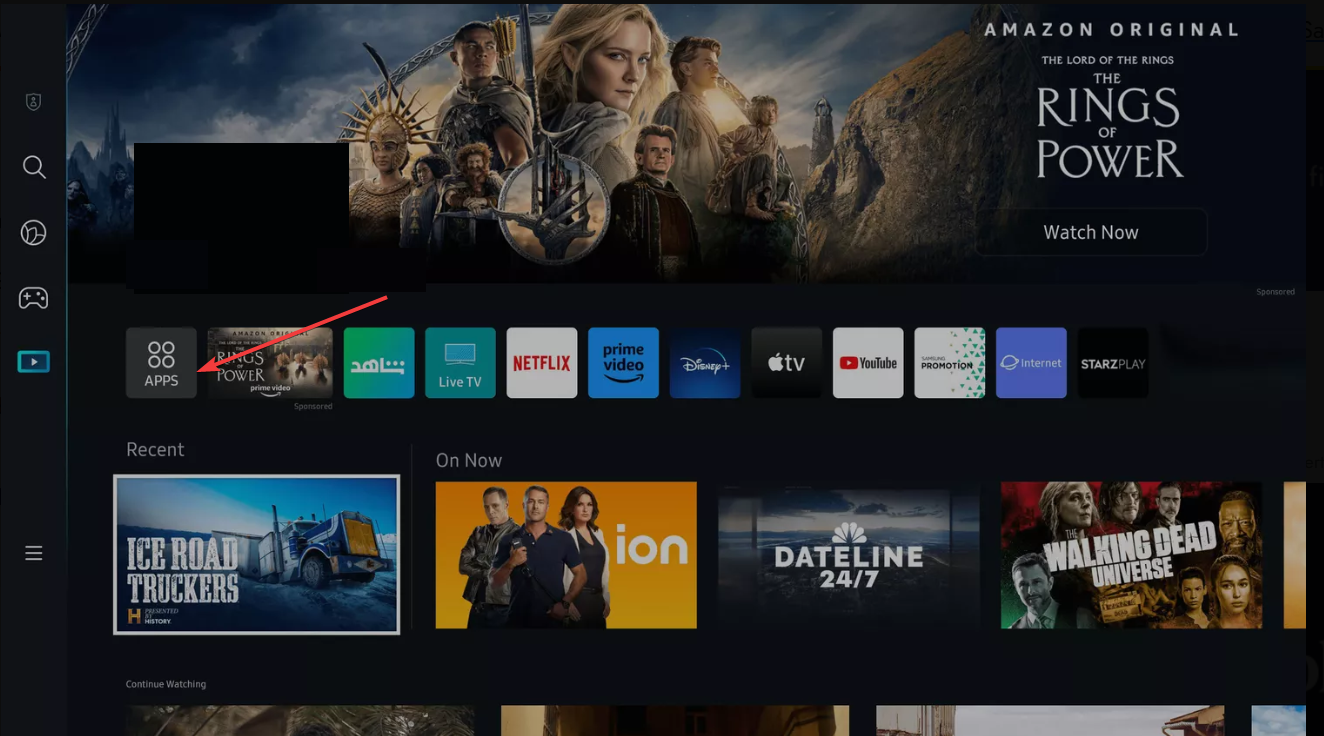

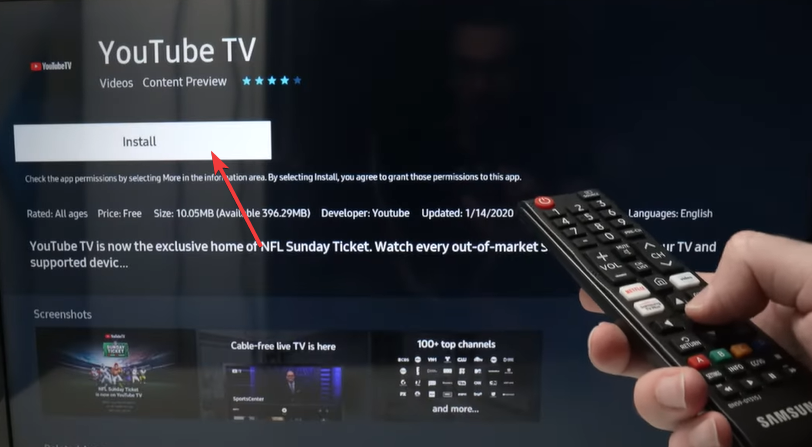
- Use the search bar and type YouTube TV.
- Select Install.

- Launch the app from your home screen.
LG smart TVs (webOS)
- Press Home and open the LG Content Store.
- Select Search and type YouTube TV.
- Choose the app and select Install.
- Start YouTube TV from your app ribbon.
Sony, Hisense, and TCL Android TVs
- Open Google Play Store from the home menu.
- Search for YouTube TV.
- Select Install.


- Open the app once the installation completes.
Google TV models
- Go to the Apps tab.
- Choose Search for apps and games.
- Enter YouTube TV.
- Select Install and launch the app.
Roku TV models
- Press Home and open Streaming Channels.


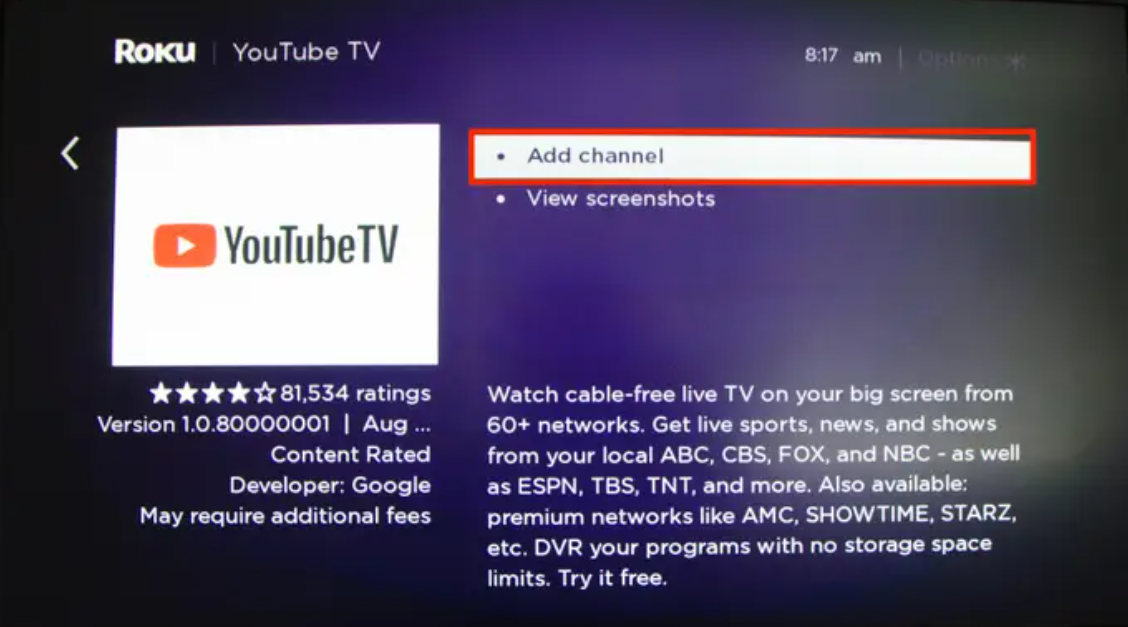
- Search for YouTube TV.
- Select Add Channel.
- Open YouTube TV from your channel list.
Fire TV Edition smart TVs
- Open the Amazon Appstore.
- Search for YouTube TV.
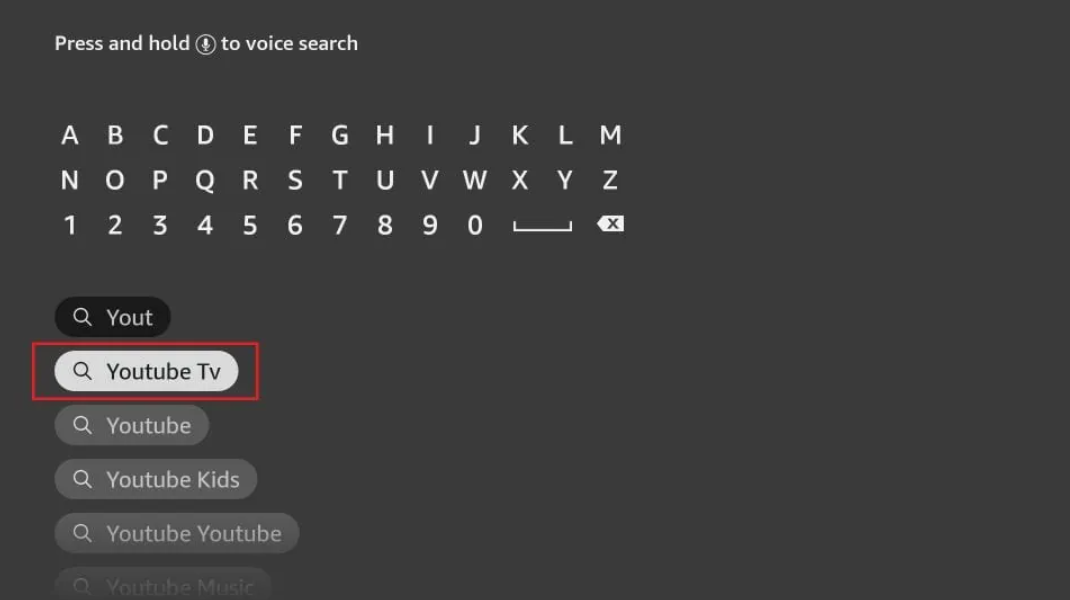

- Select Get to install.
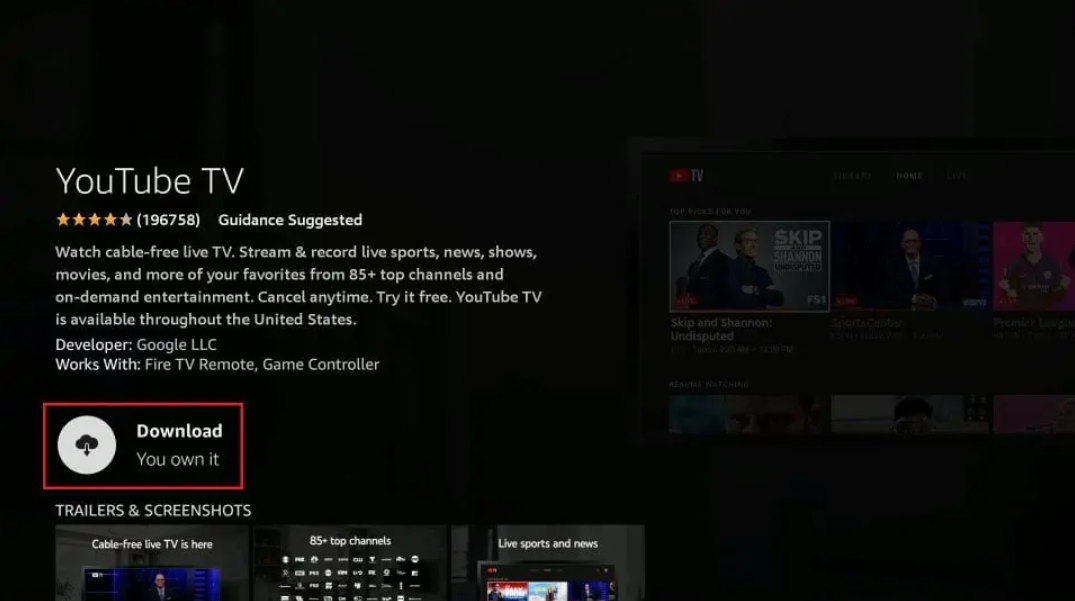

- Launch the app from Home.
After downloading and installing the app on your device, you can now look to download shows from YouTube TV.
What to do if YouTube TV isn’t available on your smart TV
If the app doesn’t appear, your TV may need an update or may fall outside the supported list.
Update your TV’s firmware
Firmware updates often restore missing apps. Open Settings, select Support, then choose Software Update.
Switch store location or region
Store region mismatches hide YouTube TV. Adjust your TV’s region in account settings if you use the wrong location.
Clear cache or restart the TV
Restarting your TV or clearing the cache refreshes the app catalog and fixes minor glitches.
Check if the TV model is too old
Older smart TVs stop receiving app updates. If your TV falls into this category, use casting or an external streaming device instead.
Alternative ways to watch YouTube TV on any TV
You can still watch YouTube TV even if your smart TV cannot install the app.
Cast from your phone or tablet
Open YouTube TV on your mobile device and tap the Cast icon. Select your TV to start streaming.
Use a streaming device
A Roku Stick, Fire TV Stick, Apple TV, or Chromecast with Google TV gives any HDMI TV full YouTube TV support.
Use a web browser on legacy TVs
Some older models let you open YouTube TV through the browser. Performance varies, but it works as a last option.
Fix common YouTube TV download and install issues
- Storage space issues: Your TV may block new apps when storage runs low. Remove unused apps to free space.
- Slow or unstable internet: A weak connection interrupts downloads. Restart your router or switch to a wired connection.
- Account sync problems: Sign out and back into your TV’s account to refresh app availability.
Tips for using YouTube TV effectively
- Update your TV regularly to improve speed and stability.
- Enable 4K playback if your plan and hardware support it.
- Customize your channel lineup for easier browsing.
FAQs
Why can’t I find YouTube TV in my app store? Your region or TV software version may not match YouTube TV’s requirements. Update your firmware or adjust your region settings.
Does YouTube TV work on older smart TVs? Some older TVs no longer receive app updates, so you may need a streaming device.
Why does YouTube TV freeze after opening? Slow internet or outdated firmware usually causes this. Update the TV and improve your connection.
Can I use YouTube TV without downloading the app? Yes. You can cast from your phone or use a streaming device.
Summary
- Check if your TV supports YouTube TV and confirm compatibility.
- Install the app from the app store for your specific TV brand.
- Update firmware or adjust regions if the app does not appear.
- Use casting or streaming devices when native installation fails.
- Apply basic troubleshooting when the app refuses to install or run.
You can install YouTube TV on almost any modern smart TV with just a few clicks. When your model does not support the app, casting or a streaming device gives you the same experience with minimal effort.


Discussion (0)
Be the first to comment.