




If you want to play your Wii library on a computer, you first need to understand how to download Wii games for Dolphin in a safe and legal way. Dolphin is a powerful Wii and GameCube emulator that lets you run your own game backups in HD, often with better performance than the original console.
This guide walks you through the full process: checking system requirements, installing the Dolphin emulator, backing up your own Wii discs into ISO or WBFS files, adding those games to Dolphin, and fixing common problems. The focus stays on legal backups, not pirated downloads.
Always follow the laws in your country and treat the phrase “download Wii games for Dolphin” as backing up games you already own, not grabbing random Wii ISOs from the internet.
What You Need Before You Download Wii Games For Dolphin
Before you create any Wii game backups for Dolphin, make sure your hardware and storage can handle them. This helps avoid slow performance or corrupted dumps later.
- A 64-bit PC running Windows, macOS, or Linux that meets Dolphin’s basic system requirements.
- A modern CPU with at least four cores for smooth Wii emulation in most games.
- A dedicated or recent integrated GPU that supports modern graphics APIs for HD rendering.
- At least 4 GB of RAM, though 8 GB or more leaves more room for multitasking.
- Free storage space on an internal or external drive, as each Wii game can use several gigabytes.
- A Wii console (or compatible system) that you can homebrew for disc dumping, plus an SD card or USB drive.
- A reliable SD card or USB drive with at least 4.7 GB free per single-layer Wii disc and more for dual-layer discs.
You also need a bit of patience. Dumping your Wii games for Dolphin is mostly hands-off, but each disc can still take some time to back up properly.
Install Dolphin Emulator On Your Computer
Next, install the Dolphin emulator itself. You should always download Dolphin from its official source to avoid bundled malware or outdated builds.
- Open your web browser and go to the official Dolphin emulator website.
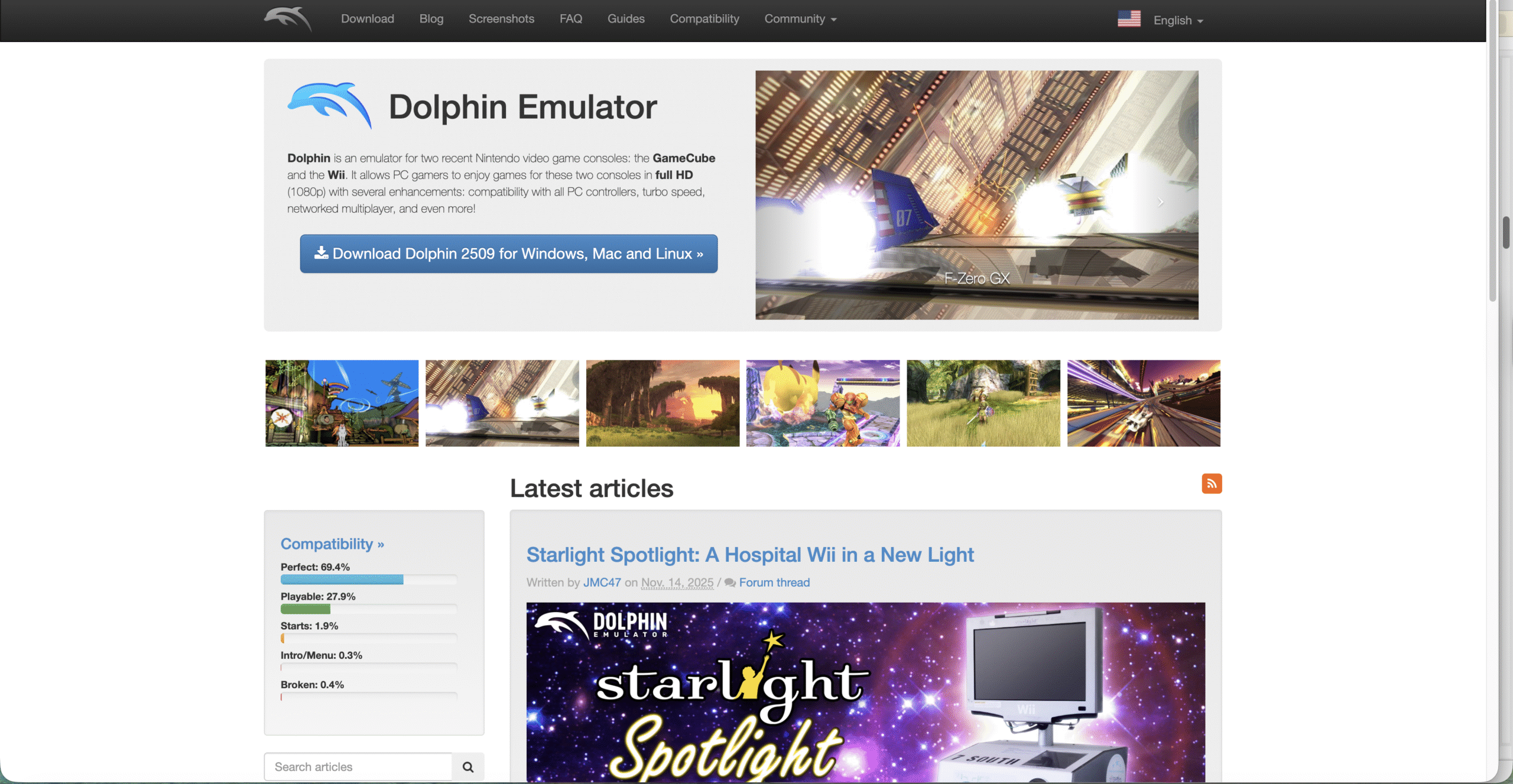
- Choose your operating system, such as Windows, macOS, or Linux, and pick the recommended build.
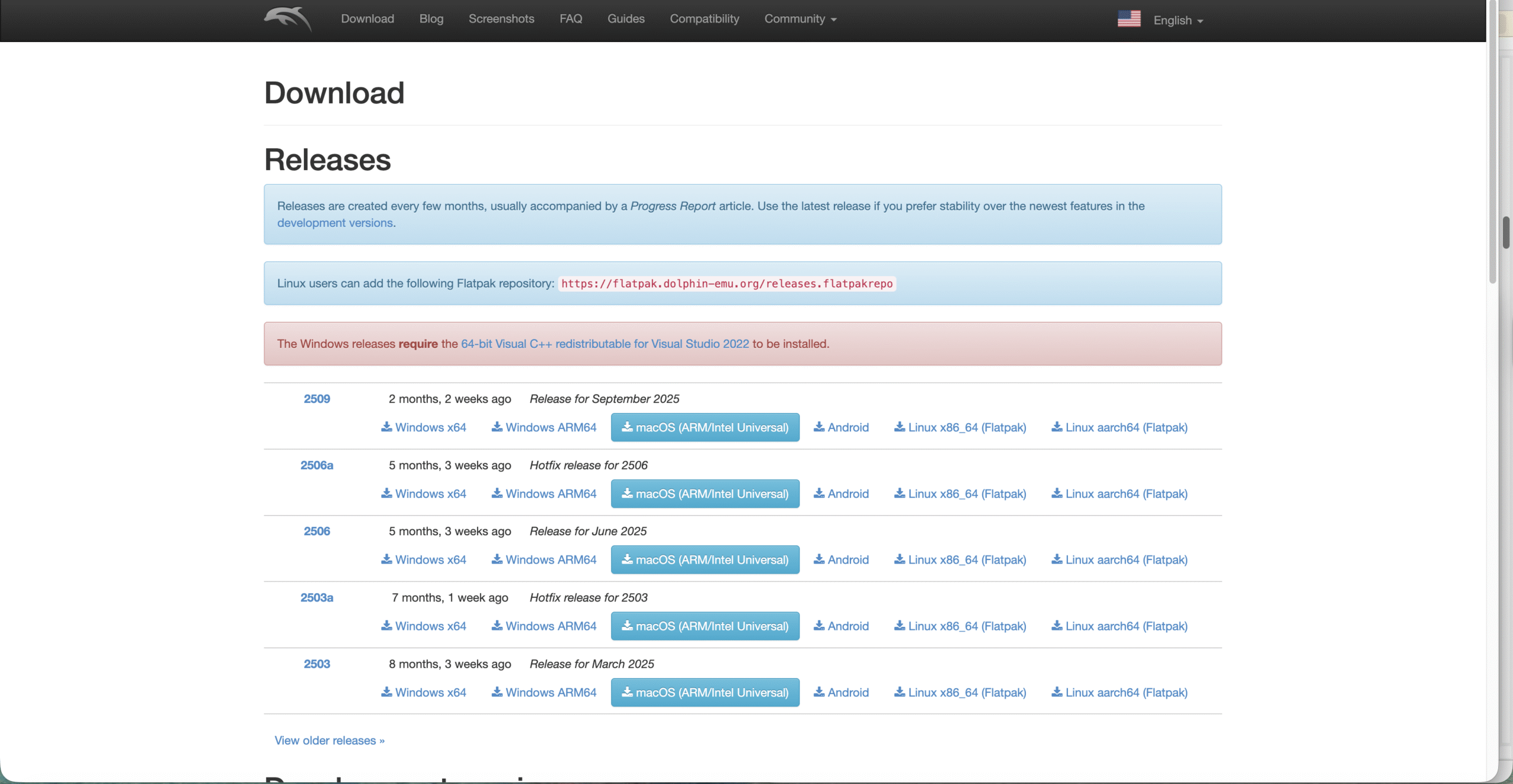
- Download the latest stable or rolling release so you get current performance improvements and bug fixes.
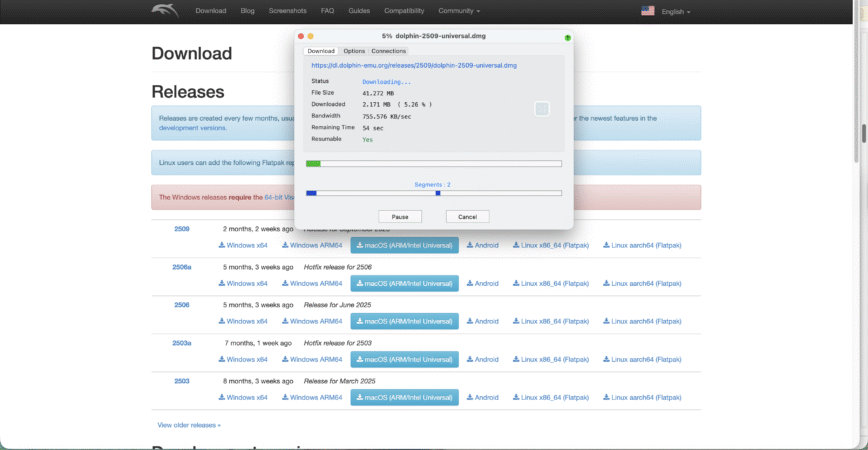
- Run the installer on Windows and macOS or extract the downloaded archive on platforms that use a portable build.
- Launch Dolphin once to confirm that it opens correctly and note where it stores its configuration files.
At this point, your Dolphin Wii emulator is ready, but it still does not have any Wii games to run. You now need to move your own discs into files that Dolphin can read.
Legally Download Wii Games For Dolphin From Your Own Discs
When people search how to download Wii games for Dolphin, they often mean backing up their physical discs into ISO or WBFS files. You should only create these backups from games you own, and you should check your local laws before you start.
The typical process uses a homebrewed Wii console and a tool such as CleanRip to copy each disc to an SD card or USB drive, then to your PC. This keeps your Dolphin Wii games library tied to the discs you purchased.
Set Up Your Wii Console For Game Dumping
You first need to prepare your Wii so it can run homebrew software that reads the game discs and writes them to storage.
- Back up any important save data on your Wii before you modify anything, just in case something goes wrong.
- Use a current, reputable Wii homebrew guide that matches your system’s firmware, and follow it to install the Homebrew Channel.
- Prepare an SD card or USB drive with enough free space for at least one full Wii game, ideally more.
- Download the CleanRip application on your computer and copy it to your SD card or USB drive in the location your homebrew guide recommends.
- Insert the SD card or USB drive into your Wii and launch CleanRip from the Homebrew Channel.
Once you see CleanRip’s interface on your TV, you are ready to start ripping your Wii discs into files that Dolphin can understand.
Rip Your Wii Discs To ISO Or WBFS Files
Now you can start the actual process of downloading your Wii games for Dolphin by creating complete disc images.
- Insert a clean, scratch-free Wii game disc into your Wii console so CleanRip can read it reliably.
- In CleanRip, choose your storage device, either SD or USB, as the destination for the dump.
- Confirm settings such as single-layer or dual-layer disc type, file system options, and output format when prompted.
- Start the ripping process and leave the Wii alone while CleanRip reads the entire disc and verifies the data.
- Wait until CleanRip reports that it has finished successfully before you exit and remove the disc or power down the console.
This process creates an ISO or similar image file of your Wii game. You can then reuse that file with Dolphin without touching the disc again.
Copy Your Wii Game Files To The Computer
After you dump your Wii games, move those files from the console’s storage to the PC where the Dolphin Wii emulator runs.
- Remove the SD card or USB drive from your Wii and plug it into your computer.
- Open the drive and locate the folder where CleanRip stored the ISO or WBFS files for your Wii games.
- Create a dedicated folder on your computer, such as “Wii Games For Dolphin,” to keep all your backups organized.
- Copy the ripped ISO or WBFS files from the SD card or USB drive into that folder on your PC.
- Eject the SD card or USB drive safely once the copy operation completes so you do not corrupt the files.
These copied files are now the Wii games that Dolphin will load. They behave like virtual discs for the emulator.
Avoid downloading Wii ISOs from random websites that promise ready-made ROM sets. Besides the obvious legal issues, those downloads often carry malware or bad dumps that crash Dolphin.
Add Your Downloaded Wii Games To Dolphin
With your Wii ISOs or WBFS files on the computer, you can now point Dolphin at that folder so it shows your Wii library in its game list.
- Open the Dolphin emulator on your computer and wait for the main window to appear.
- Select the Config button in the toolbar and switch to the Paths tab.
- Choose Add, browse to the folder where you stored your Wii games, and select it.
- Confirm your selection so Dolphin scans the folder and adds those Wii game backups to its list.
- Return to the main Dolphin window and verify that your Wii game titles appear with their icons and banners.
- Double-click any Wii game in the list to start playing it in Dolphin and confirm that the dump worked.
You have now completed the core part of learning how to download Wii games for Dolphin and make them playable on your PC.
Optimize Dolphin Settings For Smooth Wii Gameplay
Once your Wii games run, you can tweak Dolphin settings to balance performance and image quality. Smart tuning helps your downloaded Wii ISOs for Dolphin feel closer to native hardware or even better.
- Open the Graphics settings in Dolphin and choose a backend such as Direct3D, Vulkan, or OpenGL that works best with your GPU.
- Increase the internal resolution to 2x or 3x native if your graphics card can handle it for cleaner HD visuals.
- Experiment with anti-aliasing and anisotropic filtering, raising them slowly until you hit a smooth frame rate limit.
- Disable heavy enhancements like extreme supersampling if you see slowdowns or stuttering during gameplay.
- Open the Controllers settings and configure an emulated Wii Remote or GameCube controller that matches your setup.
- Map buttons on your gamepad or keyboard carefully so menus and in-game controls feel natural and responsive.
- Adjust audio backend and sample rate under Audio settings if you notice crackling or lag in sound.
Keep your Dolphin build updated over time, because newer versions often bring better performance, new features, and fixes for specific Wii games.
Troubleshooting Common Problems
Even if you follow every step correctly, you might still hit issues when you download Wii games for Dolphin and try to run them. These quick checks solve most everyday problems.
- Dolphin Does Not Show My Wii Games – Open Config > Paths and confirm the Wii games folder is still listed and accessible. Make sure you copied complete ISO or WBFS files, not partial dumps.
- Game Crashes Or Freezes On Startup – Try a different Dolphin build, verify the ISO by re-dumping from the disc, and reset video settings to default in case an enhancement breaks compatibility.
- Performance Is Slow Or Stutters – Lower the internal resolution, reduce or disable anti-aliasing, and close other apps using CPU or GPU resources in the background.
- Audio Crackles Or Lags Behind Video – Switch the audio backend in Dolphin, reduce the sample rate, and disable audio stretching if it introduces audible artifacts.
- Controller Inputs Feel Wrong Or Do Not Register – Re-open Controllers, pick the correct profile, and remap buttons. Check that your gamepad drivers are current and that the OS sees the controller.
- Games Run But Look Visually Broken – Turn off advanced hacks and enhancements in the Graphics settings one by one. Many glitches result from aggressive graphics tweaks.
If a single Wii title keeps misbehaving, search for game-specific configuration tips from trusted communities and compare them to your current Dolphin setup.
Tips For Using Dolphin With Wii Games
Once your basic Dolphin Wii emulator setup works, a few small habits can keep your library safer and your gameplay smoother over time.
- Keep your original Wii discs in a safe place and treat your Dolphin downloads as backups, not replacements.
- Use descriptive file names for your Wii ISOs so you can quickly see region, version, and language in Dolphin’s list.
- Create per-game configuration profiles in Dolphin for titles that need custom settings instead of changing global options every time.
- Use save states sparingly and rely on in-game saves for long-term progress to avoid corrupted state files.
- Back up your Wii game folder and Dolphin configuration to an external drive so you can restore everything if your PC fails.
- Test new Dolphin updates with a copy of your configuration in case a fresh build introduces regressions for certain games.
Good housekeeping makes it easy to grow your Wii library for Dolphin over time without losing track of what you own and how each game behaves.
FAQ
Can I Download Wii ISOs For Dolphin From Random Websites?
No. In most regions, downloading commercial Wii games you do not own is illegal, even if Dolphin can technically run those files. You should only use the emulator with backups you made from discs you purchased.
Do I Need A Real Wii To Download Wii Games For Dolphin?
The most common and recommended method uses a real Wii console with homebrew tools to dump your discs. Other methods exist, but they tend to be more complex and still assume you own the original games.
Which File Formats Work Best For Wii Games In Dolphin?
Dolphin works well with ISO and WBFS files for Wii titles. ISO files match the full disc, while WBFS can shrink file size by trimming unused data without affecting gameplay.
Can Dolphin Also Run GameCube Games?
Yes. The Dolphin emulator supports both Wii and GameCube games. The process is similar, but you dump GameCube discs instead and select them from Dolphin’s game list.
Is Dolphin Emulator Itself Legal To Use?
At the time of writing, emulators like Dolphin are generally legal in many countries, but using copyrighted game images that you did not create from your own discs can break copyright law. Always follow the rules where you live.
Summary
Here is a quick recap of how to download Wii games for Dolphin and get them running smoothly on your PC.
- Check that your PC meets Dolphin’s basic system requirements and has enough storage for Wii ISOs or WBFS files.
- Install the latest official Dolphin emulator build for your operating system and confirm that it launches correctly.
- Homebrew your Wii, run CleanRip or a similar tool, and dump your own Wii game discs to an SD card or USB drive.
- Copy the dumped Wii game files to a dedicated folder on your PC and add that folder under Dolphin’s Paths settings.
- Fine-tune graphics, controller, and audio settings in Dolphin, then troubleshoot performance or compatibility issues as needed.
If you follow these steps, you can turn your physical Wii collection into a clean, organized set of backups in Dolphin.
Conclusion
Learning how to download Wii games for Dolphin is really about taking control of the games you already own. By dumping your own discs, organizing those backups, and feeding them into Dolphin, you get a smoother, often sharper experience without relying on aging hardware.
Stay mindful of copyright rules, keep your emulator and backups in good shape, and keep experimenting with settings for each title. With a bit of setup work, Dolphin lets you enjoy your Wii library on modern hardware while preserving it for years to come.


Discussion (0)
Be the first to comment.