




If you want to play Xbox 360 games on a Windows PC, learning how to download games for Xenia Emulator is a key step. Xenia is a free, open source Xbox 360 emulator for Windows that can run many commercial titles at the time of writing. With the right setup, you can enjoy your library on modern hardware instead of relying on an aging console.
This guide walks you through everything from installing Xenia, preparing legal game files, and organizing your folders, to loading and troubleshooting games. The focus stays on safe Xenia downloads, correct formats such as ISO files, and simple steps that a beginner can follow.
What You Need Before Downloading Xenia Games
Before you start downloading Xbox 360 games for Xenia Emulator, make sure you have the basics in place.
- A Windows PC that meets or exceeds Xenia recommended specs.
- A recent build of the Xenia Emulator for Windows.
- Legally obtained Xbox 360 games, either on disc or as digital copies.
- Enough free storage for large ISO files, since Xbox 360 games can be several gigabytes each.
- A basic understanding that downloading games you do not own may violate copyright law in your region.
Always use Xenia Emulator with game copies you legally own. This guide does not endorse piracy and focuses on correct technical setup only.
Step 1: Download And Install Xenia Emulator
Start by installing the Xbox 360 emulator itself. Xenia only runs on supported versions of Windows, so make sure your system is compatible.
- Search for the official Xenia Emulator project using your web browser.
- Download the latest recommended build for Windows, not experimental versions unless you know what you are doing.
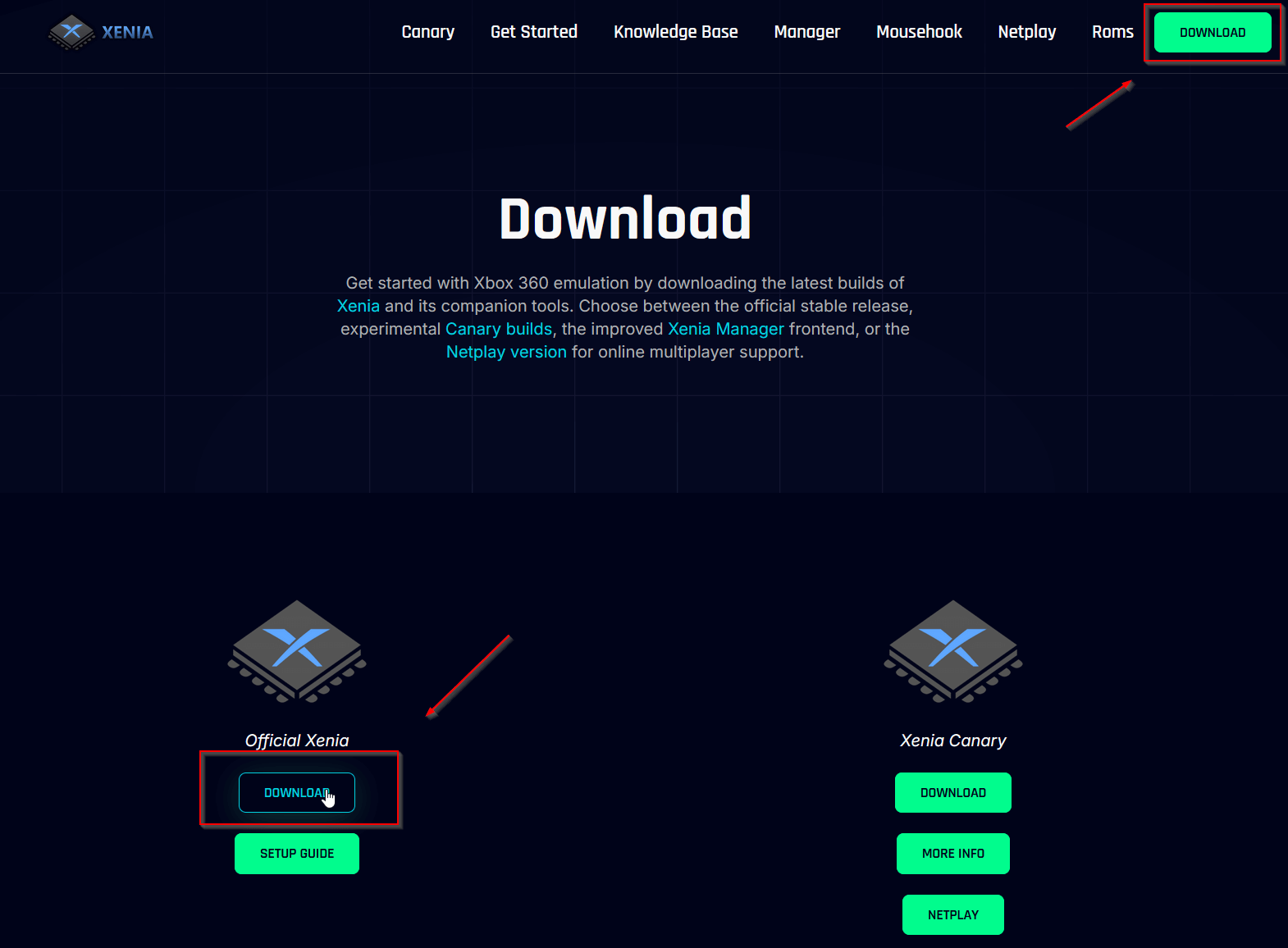
- Extract the downloaded archive to a folder that you can find easily, such as a Games or Emulators folder.

- There is no installer in most builds, so you simply run the executable named xenia.exe from that folder.
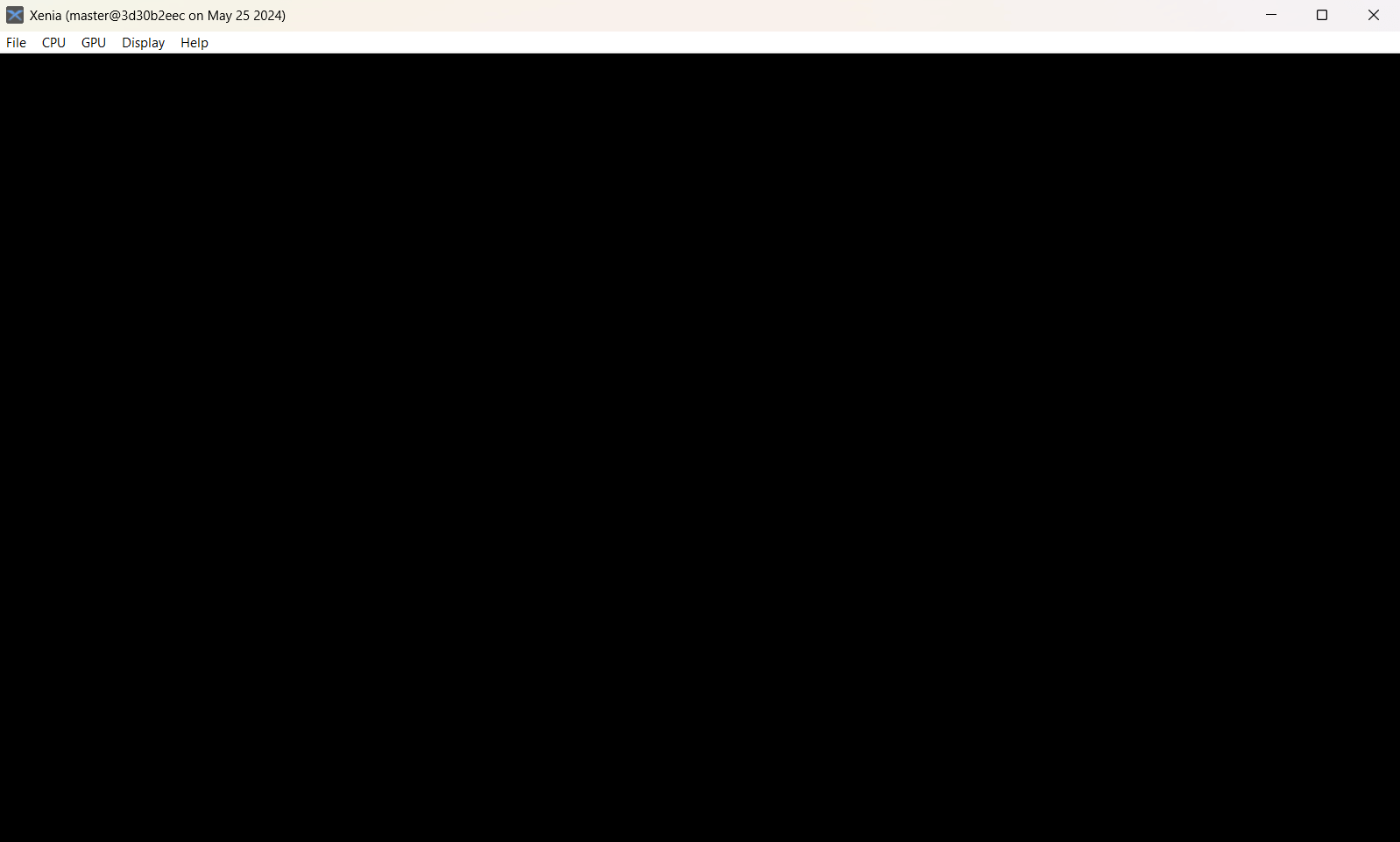
At this stage you have Xenia installed. The next step in how to download games for Xenia Emulator is preparing game files in a format that Xenia can read.
Step 2: Prepare Legal Xbox 360 Game Copies
Xenia uses game images or extracted game folders instead of reading directly from the Xbox 360 disc drive. How you obtain those files depends on whether you own physical discs or digital copies.
Using Original Game Discs
- Make sure you own the game disc you want to back up.
- Use a compatible DVD drive and disc ripping tool that can create a full Xbox 360 ISO image.
- Save each ISO to a dedicated folder such as C:\Xenia\Games.
- Keep the file names clear so you can recognize each title later.
Using Digital Xbox 360 Copies
- If you have access to legally obtained digital game backups, verify that they are complete and unmodified.
- Store them in a separate folder from other downloads so you do not mix them with unrelated files.
- Make sure you are not downloading Xenia ROMs from random sites that provide pirated content.
Regardless of your source, the goal is to produce a clean ISO file or extracted game folder from media you legally own, so you can load it in the Xenia Xbox 360 Emulator.
Step 3: Extract Or Convert Xbox 360 Game Files
Many Xenia users prefer to convert Xbox 360 ISOs into extracted folders, since some games run more reliably that way. This step is optional but helpful for organization and compatibility.
- Use a tool that can open or extract Xbox 360 ISO images.
- Create a subfolder for each game under your main Xenia games directory.
- Extract the contents of the ISO into that game’s folder, keeping the folder structure intact.
- Verify that the default.xex or similar executable file is present inside the extracted folder.
Some users stick with ISO files and load those directly in Xenia. Others prefer extracted folders for faster access. Xenia game download formats you will see most often are ISO, XEX based folder layouts, and occasionally container formats from real console installs.
Step 4: Organize Your Xenia Game Library
Good organization makes it much easier to find and test games, especially when you are experimenting with Xenia compatibility.
- Create a main folder such as C:\Xenia\Games.
- Create a subfolder for each title, using the game name as the folder name.
- Place either the ISO file or the extracted game folder inside each title folder.
- Avoid special characters in folder names to reduce potential path issues.
This structure keeps all your Xenia game downloads in one place and simplifies backup or migration to another drive.
Step 5: Configure Xenia Emulator On Windows
Before you load your first game, it is worth spending a moment configuring Xenia so that performance and compatibility are as good as possible for your hardware.
- Open the folder where you extracted Xenia and run xenia.exe.
- Review any configuration files that come with your build. Many settings are controlled by text configs rather than a graphical menu.
- Check for options related to graphics backend, such as Direct3D or Vulkan, and pick the one that works best on your GPU.
- Close Xenia once you are comfortable that the basic video and audio settings are correct.
Xenia setup is still evolving, so at the time of writing, not every option is exposed in a friendly menu. Check for updated builds periodically to improve performance and game support.
Step 6: Load A Game In Xenia Emulator
Once you have installed the emulator and prepared your Xbox 360 game files, you are ready to actually play.
- Launch xenia.exe from your Xenia folder.
- Click File at the top of the window.
- Select Open.
- Browse to your C:\Xenia\Games folder or wherever you stored your games.
- Select either the ISO file or the default.xex file inside an extracted game folder.
- Click Open and wait while Xenia loads the game.
Depending on the title, load times may be longer than you expect on first boot. This is normal when Xenia builds shader caches and prepares assets.
Step 7: Fix Common Xenia Game Download And Load Issues
Even if you understand how to download games for Xenia Emulator, some titles may not run smoothly or at all. Here are common problems and simple checks.
- If a game crashes immediately, verify that the ISO or extracted folder is complete and was not corrupted during download or ripping.
- If Xenia reports that the file is not a valid Xbox 360 game, confirm that you used a true Xbox 360 game image and not a different platform file.
- If performance is poor, try switching the graphics backend if your build supports multiple options, or test a newer Xenia build.
- If controls do not work, map your controller or keyboard again using Windows game controller settings and make sure XInput is installed correctly.
Not every game is compatible with Xenia, so a title that fails might simply not be supported yet. Check compatibility lists from the community when in doubt.
Tips For Safe Xenia Downloads And Legal Use
Downloading Xbox 360 games for Xenia Emulator can be risky if you ignore copyright and security concerns. These best practices help you stay safer.
- Only download or rip games you legally own, and avoid sites that specialize in pirated content.
- Scan all files with reliable antivirus software before extracting them.
- Keep your Xenia folder and your Xenia game download folder separated from random downloads to avoid confusion.
- Back up important game ISOs and save data so you do not lose progress during testing.
Using Xenia as an Xbox 360 emulator for Windows is most enjoyable when you combine good performance with respect for legal boundaries and security.
Conclusion
Learning how to download games for Xenia Emulator is mostly about preparing the right game files and organizing them correctly, not just clicking random download links. Once you have legal Xbox 360 ISOs or extracted folders, Xenia makes it possible to play many console titles directly on your Windows PC. By following the steps in this guide, from installing Xenia and preparing game images to loading and troubleshooting games, you can build a stable, enjoyable Xenia setup and focus on playing rather than fighting with configuration problems.


Discussion (0)
Be the first to comment.