




Unreal Engine 5 is one of the most powerful game engines you can install on a PC or Mac. If you want to learn game development, real-time 3D, or virtual production, knowing how to download Unreal Engine 5 correctly saves you a lot of time and frustration.
This guide shows you how to download Unreal Engine 5 through the Epic Games Launcher, install it on Windows or macOS, and create your first project. You also get tips on system requirements, storage space, and common download errors.
What You Need Before You Download Unreal Engine 5
Before you download Unreal Engine 5, make sure your computer and account are ready. The engine is free to download, but it is hardware-intensive.
Check Unreal Engine 5 System Requirements
Unreal Engine 5 runs best on a 64-bit system with a modern GPU and a fast SSD. If your PC just meets the minimum requirements, the editor may still feel slow, especially in complex scenes.
As a general rule, try to have at least these specs or better when you install Unreal Engine 5:
- 64-bit Windows 10 or Windows 11, macOS, or Linux, updated to a recent version
- Quad-core Intel or AMD CPU around 2.5 GHz or higher
- Dedicated DirectX 11 or DirectX 12 compatible GPU for Windows, or a recent Apple GPU on macOS
- 16 GB RAM for comfortable editing, with 32 GB recommended for heavy projects
- Fast SSD with dozens of gigabytes of free space for the Unreal Engine 5 download and your projects
If you plan to work with Nanite meshes, Lumen lighting, or large open worlds, treat these as a baseline and aim higher where possible.
Make Sure You Have Enough Disk Space
The Unreal Engine 5 download and installation can easily take tens of gigabytes once you add templates and sample content. Do not install it on a nearly full drive.
- Check that your SSD or hard drive has plenty of free space before you install Unreal Engine 5.
- Keep extra room for marketplace assets, source control, and temporary build files.
- Use a fast internal SSD as the first choice for both the engine and active projects.
Create Or Prepare Your Epic Games Account
You cannot download Unreal Engine 5 without an Epic Games account. If you already play games from the Epic Games Store, you can use the same login.
- Go to the Epic Games website in your browser.
- Create a free Epic Games account with your email, or sign in with a trusted provider.
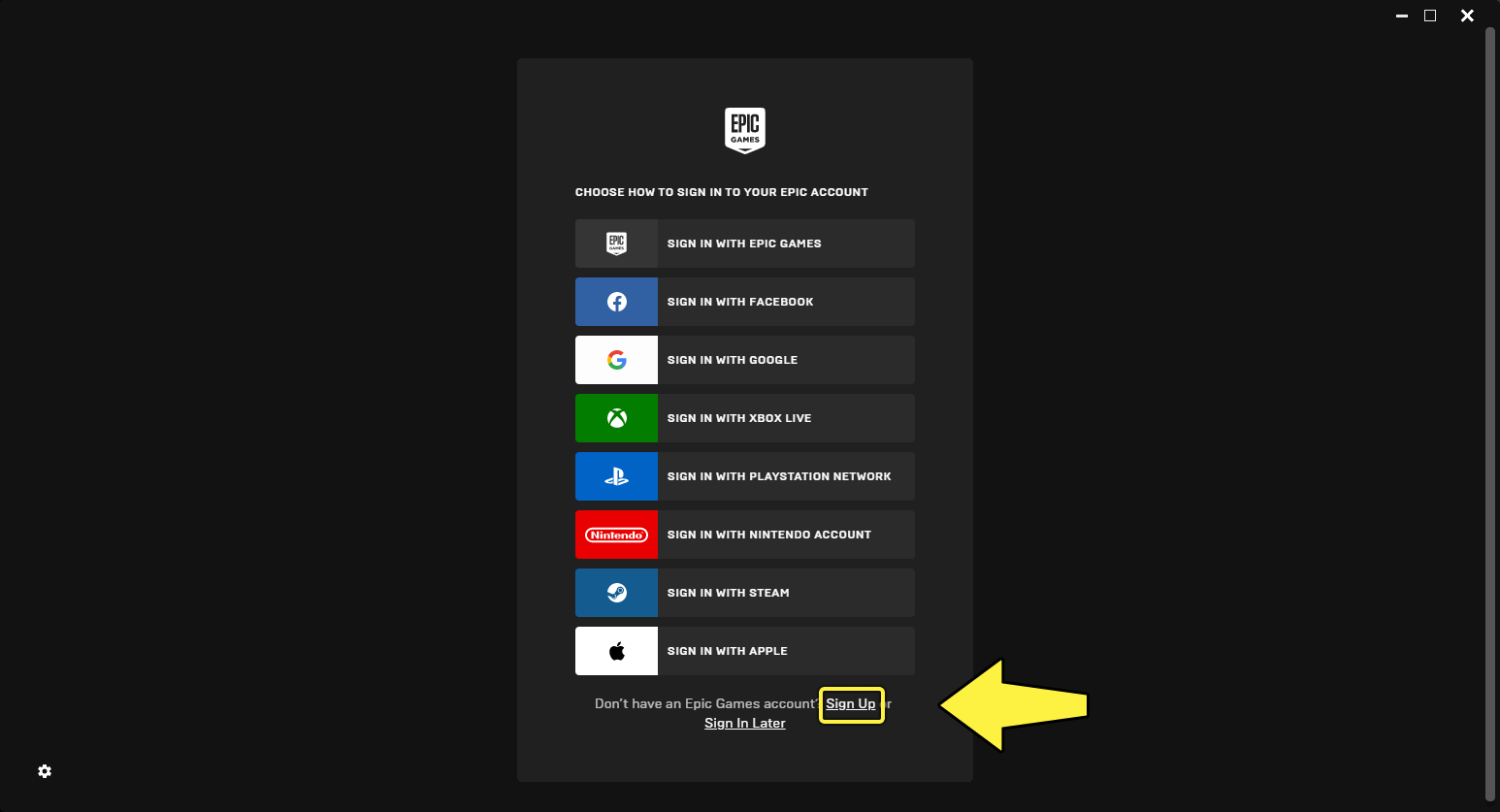
- Verify your email so you can sign in to the Epic Games Launcher without issues.
Download And Install The Epic Games Launcher
The only supported way for most users to download Unreal Engine 5 is through the Epic Games Launcher. You install the launcher once, then use it to manage your Unreal Engine versions.
Download Epic Games Launcher On Windows Or Mac
Follow these steps to download the launcher you need to access Unreal Engine 5:
- Open your web browser and visit the official Unreal Engine download page.
- Click the button that says “Download Launcher” or “Download Epic Games Launcher.”
- Save the installer file to your computer, usually in the Downloads folder.
- Once the download finishes, open the installer file.
- Accept the terms and choose the destination folder for the Epic Games Launcher.
- Finish the setup wizard and wait for the installation to complete.
Sign In To The Epic Games Launcher
After you install the Epic Games Launcher, you must sign in before you can download Unreal Engine 5.
- Launch the Epic Games Launcher from your desktop or Start menu.
- When prompted, sign in with your Epic Games account.
- Optionally, turn on multi-factor authentication to protect your projects and purchases.
- Wait for the launcher to update itself if it offers an automatic update.
How To Download Unreal Engine 5 Through Epic Games Launcher
Now you are ready to download Unreal Engine 5 itself. The launcher lets you choose which Unreal Engine 5 version you want and where to install it.
Select The Unreal Engine Tab And Library
The Epic Games Launcher mixes Unreal Engine tools and games in one app. Make sure you are in the right section before you try to install Unreal Engine 5.
- In the Epic Games Launcher, click the “Unreal Engine” option in the left sidebar.
- Select the “Library” tab at the top of the window.
- Look for the “Engine Versions” or “Engine” area at the top of the Library page.
Add A New Unreal Engine 5 Version
To download Unreal Engine 5 for the first time, you add a new engine version slot, then pick the exact 5.x release you want.
- Click the “Add” or plus icon next to “Engine Versions.”
- Check the new engine tile that appears with the default Unreal Engine 5 version.
- Open the version drop-down if you want an older Unreal Engine 5 release instead of the latest one.
Start The Unreal Engine 5 Download
Once the engine tile shows an Unreal Engine 5 version, you can begin the download and install process.
- Click the “Install” button on the Unreal Engine 5 tile.

- Choose the install location for the Unreal Engine 5 editor if the launcher asks.

- Review and accept the Unreal Engine license terms and any pricing notes.
- Optionally, choose or deselect extra components like starter content or platform-specific support.
- Click “Install” again to confirm and start the Unreal Engine 5 download.
- Leave the launcher open while the download and install complete.
The Epic Games Launcher handles the full Unreal Engine 5 install for you. You can track progress in the Downloads section or at the bottom of the window.
Install Unreal Engine 5 And First Launch
After the download finishes, the launcher installs Unreal Engine 5 and prepares it for the first run. You do not need a separate installer, but you should check a few details.
Verify The Unreal Engine 5 Installation
When the install completes, your Unreal Engine 5 tile changes and shows a Launch button.
- Confirm that the Unreal Engine 5 tile in the Library shows “Launch” instead of “Install.”
- Click the small gear icon on the engine tile if you want to see or change the install directory.
- Make sure the engine version number matches the Unreal Engine 5 version you expected to download.
Launch Unreal Engine 5 For The First Time
The first time you launch Unreal Engine 5, it may take longer than usual while shaders compile and plugins initialize.
- Click “Launch” on the Unreal Engine 5 tile in the Epic Games Launcher.
- Wait while the Unreal Editor opens and prepares default components.
- Select your language and region if Unreal Engine 5 prompts you.
- Review any first-run tips and close the welcome screen when you are ready.
Create Your First Unreal Engine 5 Project
Knowing how to download Unreal Engine 5 is only the first step. Creating a simple test project helps you confirm that everything works as expected.
Use A Starter Template For Your First Project
Starter templates give you a playable level and basic controls without extra setup. They are perfect when you first install Unreal Engine 5.
- From the Unreal Project Browser, choose a category such as “Games” or “Film, Video, And Live Events.”
- Select a Blueprint template like “Third Person” or “First Person” if you do not want to write code yet.
- Make sure the target platform matches your main goal, such as “Desktop / Console.”
Name And Save Your Unreal Engine 5 Project
Good project organization matters as soon as you start working with Unreal Engine 5.
- Enter a descriptive project name, such as “UE5_First_Project” or “Prototype_Shooter.”
- Choose a project location on a fast SSD with plenty of space.
- Enable starter content if you want sample materials and meshes to play with.
- Click “Create” to generate the project and open it in Unreal Engine 5.
Fix Common Unreal Engine 5 Download And Installation Problems
Sometimes the Unreal Engine 5 download fails, stalls, or throws an error in the Epic Games Launcher. Most issues come from network problems, permissions, or antivirus tools.
Resolve Slow Or Stuck Unreal Engine 5 Downloads
If the engine download hangs at a low percentage, try a few quick checks before you reinstall the launcher.
- Pause the Unreal Engine 5 download in the Epic Games Launcher, then resume it.
- Restart the launcher and sign in again to refresh your session.
- Temporarily disable any VPN or proxy that might slow down large downloads.
- Switch from Wi Fi to a wired Ethernet connection for a more stable transfer.
Fix Unreal Engine 5 Install Permission Issues
On Windows, the Epic Games Launcher might need elevated permissions to install Unreal Engine 5 into certain folders.
- Close the Epic Games Launcher completely.
- Right-click the launcher icon and choose “Run As Administrator.”
- Try the Unreal Engine 5 install again in a folder your user account can fully access.
- Exclude the Epic Games folders from real-time antivirus scans if they keep interrupting the install.
Free Up Space For Unreal Engine 5
Running out of disk space during the Unreal Engine 5 installation often leads to corrupted files or incomplete installs.
- Uninstall unused games or applications from the same drive.
- Move large media files to an external drive before you download Unreal Engine 5.
- Empty the recycle bin and remove temporary files to reclaim extra space.
FAQs About Downloading Unreal Engine 5
Is Unreal Engine 5 Free To Download?
Yes, Unreal Engine 5 is free to download and install through the Epic Games Launcher. You can use it for learning, personal projects, and many commercial projects, subject to the current licensing terms from Epic Games.
Can I Download Unreal Engine 5 Without The Epic Games Launcher?
Most users download Unreal Engine 5 through the Epic Games Launcher. Advanced users can also build Unreal Engine 5 from source using GitHub, but that process is more complex and is not required for typical game development work.
How Long Does It Take To Download Unreal Engine 5?
The Unreal Engine 5 download time depends on your internet connection and the exact engine components you select. On a fast broadband connection, the main Unreal Engine 5 editor may download in under an hour, but slower connections can take significantly longer.
Can My Laptop Run Unreal Engine 5?
Many modern laptops can run Unreal Engine 5, especially gaming models with a dedicated GPU and enough RAM. Thin and light laptops with integrated graphics might still open the editor, but they may struggle with large scenes, Nanite meshes, or real-time Lumen lighting.
Do I Need Visual Studio To Use Unreal Engine 5?
You can use Unreal Engine 5 with Blueprint-only projects and never open an IDE. If you plan to write C++ code, you should install Visual Studio on Windows or a supported IDE on your platform so you can compile and debug C++ projects properly.
Conclusion
Learning how to download Unreal Engine 5 the right way gives you a stable base for all your future projects. Once you install the Epic Games Launcher, add an Unreal Engine 5 version in the Library, and launch the editor, you are ready to experiment with templates, assets, and new tools.
At the time of writing, the easiest and most reliable method is to download Unreal Engine 5 through the official Epic Games Launcher and keep it updated from there. With a capable PC, enough disk space, and a bit of patience during the first install, you can start building interactive worlds, prototypes, and full games in Unreal Engine 5 in no time.


Discussion (0)
Be the first to comment.