




Removing old games frees up valuable disk space and helps Windows run smoothly. Large titles often store gigabytes of data across Program Files, AppData, and launcher folders. This guide shows you the fastest ways to delete Windows, Steam, Epic Games, Xbox, or Microsoft Store, and other launcher titles, plus how to remove leftover files and save data.
Method 1: Remove games using Windows Settings
Press the Windows + I keys and select Apps. Choose Installed apps or Apps & features and scroll to the game you want to remove. Finally, select Uninstall and confirm the action.

Method 2: Delete Steam games
Open Steam and click the Library option. Now, right-click the game and select Manage > Uninstall.

Note that Steam Cloud keeps most save files unless you change the sync settings. To disable the sync settings, right-click the game in Library and select Properties. Now, open General and disable Steam Cloud if you want to stop or remove cloud backups.
Alternatively, you can delete the game and the local files at once. Just go to Library and right-click the game you want to delete. Next, select Delete Local Content and click the Delete button on the net page to confirm the action.
Method 3: Remove Epic Games Launcher titles
Open Epic Games Launcher and select Library. Click the three-dot menu on the game and choose Uninstall.
To remove leftover files, open File Explorer and search for the game name under AppData, Local, or Roaming. Delete any remaining folders linked to the game.
Method 4: Delete Microsoft Store / Xbox app games
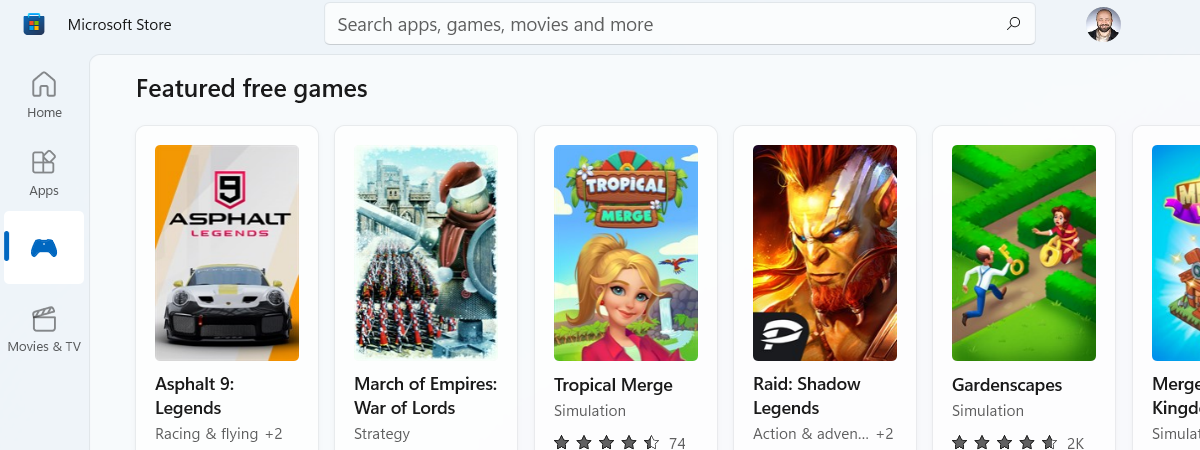
Open Start and right-click the game tile or entry. Select Uninstall and wait for the process to complete.

Note that Game Pass installs sometimes leave restricted folders that show as empty but still occupy space. Resetting the Xbox app or related components helps you reclaim that storage. To do this, go to C:\Program Files\WindowsApps in File Explorer.
If access is restricted, open the Xbox app settings. Use the Repair or Reset options for affected games or the app itself.
Method 5: Remove Ubisoft Connect, EA App, GOG Galaxy, and Battle.net games
Open the relevant launcher and navigate to the game’s details or page. Next, select the menu option for Uninstall or Remove.

To clear the secondary files, go to File Explorer and search for the game name in Documents, AppData\Local, and AppData\Roaming. Now, delete leftover folders named after the game or publisher.
Advanced: Delete registry entries safely
Broken entries can leave games stuck in the Windows Apps list. Cleaning them helps Windows show only apps that still exist on your PC.
Press Windows + R, type regedit, and press Enter. Next, navigate to HKEY_LOCAL_MACHINE\Software\Microsoft\Windows\CurrentVersion\Uninstall.
Now, remove keys for games you fully deleted. Note that careful changes prevent registry damage and system issues.
Troubleshooting steps when a game won’t uninstall
- Game missing from uninstall menu: Reinstall the game to restore missing files, use the launcher’s repair or verify option, and run the uninstall again from Settings or the launcher.
- Error: game in use or process running: Press Ctrl + Shift + Esc to open Task Manager and right-click processes related to the game. Next, select End task and retry the uninstall.
- Launcher stuck on uninstalling: Close and restart the launcher, clear the launcher cache or temporary files in its settings, and try uninstalling the game again.
Tips for deleting games on PC
- Use Storage Sense regularly
- Sort apps by size before uninstalling
- Back up saves before deleting anything
- Check each launcher’s install path
- Restart Windows before a stubborn uninstall
- Uninstall unused DLC
FAQs about deleting games on Windows
Does uninstalling a game delete my saves? Some platforms remove them, while others keep them for cloud sync. Always check the launcher’s save-data settings before you uninstall.
Can I reinstall purchased games later? You keep your license even after you uninstall games. Your library remains accessible in all supported launchers as long as the account stays active.
What if I want to remove all traces of a game? You should combine launcher uninstall, leftover folder cleanup, cloud save removal, and careful registry cleanup.
Summary
- Uninstall games using Windows Settings or the correct launcher.
- Clean leftover folders in Program Files and AppData.
- Manage cloud saves separately on Steam, Epic, and Xbox.
- Remove registry leftovers only when necessary.
- Use Storage Sense to free additional space.
Conclusion
You can free up significant storage by removing games you no longer use. Windows, Steam, Epic, Microsoft Store, and other launchers each offer reliable uninstall options, and manual cleanup ensures nothing stays behind. After you complete these steps, your PC gains more usable drive space and better performance for the games you actually want to keep.


Discussion (0)
Be the first to comment.