




Xbox Play Anywhere lets you buy a game once and install it on both your Xbox console and Windows PC. Most issues happen when the account doesn’t sync or when the game’s Store page doesn’t load correctly on Windows 10 or Windows 11.
This guide shows the exact steps to install your Play Anywhere titles, fix missing games in the Xbox app, and troubleshoot download errors.
But before you start the download, note that Xbox Play Anywhere is only supported on Windows 10 and 11. You also need to enable the Microsoft Store on your PC and make sure you sign in with the same Microsoft account on your PC and Xbox for proper syncing
1) Download through the Xbox app
Open the Start menu and select Xbox. Next, sign in with the same Microsoft account used on your Xbox console and select My Library in the left sidebar. Now, choose the Play Anywhere game you purchased and click Install.
Finally, pick your preferred drive to complete the process. The Xbox app handles updates, patches, and cloud saves automatically.
2) Install through the Microsoft Store
Use this method when the Xbox app doesn’t refresh your license. Open the Microsoft Store from the Start menu and search for your Play Anywhere title. Next, click Get to begin the download.
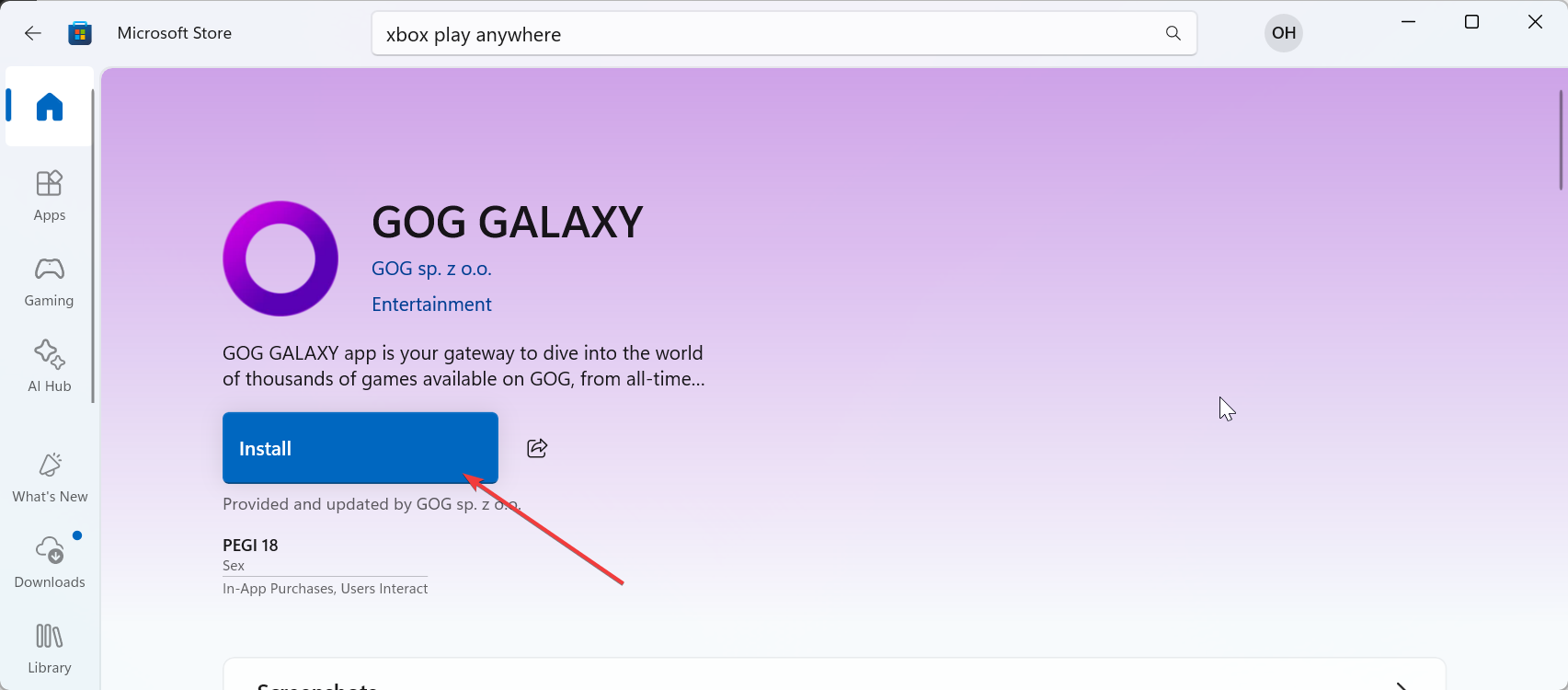
Lastly, wait for the progress meter to finish. This option works well when the Store page updates before the Xbox app.
3) Choose your install drive
Large games like Forza Horizon and Halo Infinite need plenty of space. When prompted, choose a drive with enough free storage or move the install to another drive after installation.
4) Fix games not showing up in your library
Missing games usually happen because of account mismatches, region problems, or purchase confusion.
- Verify your Microsoft account: Make sure the Microsoft Store and Xbox app use the exact same account. If needed, sign out of both apps and sign back in.
- Confirm you bought the digital version: Play Anywhere only works with digital purchases. Disc copies won’t unlock a PC version.
- Check region and Store issues: Games may fail to appear if your console and PC use different regions. Match your region settings under Windows Settings with the ones in Store and sign in again.

5) Troubleshooting download or install errors
If the installation hangs or fails, these steps fix the most common issues.
- Reset the Microsoft Store or Xbox app: Open Settings > Apps > Xbox or Microsoft Store and select Advanced options. Next, click Reset and reopen the app.
- Update Windows and Gaming Services: Open Settings, select Windows Update, and install all pending updates. Now, open the Microsoft Store, search Gaming Services, and install updates if available.
- Free up space or change install location: Low storage causes incomplete downloads. Move the game to a different drive or clear large temporary files using Windows Storage settings.
Tips for smoother downloads
- Use a wired connection for big game files.
- Pause other downloads to speed up your install.
- Restart the Xbox app if the queue freezes.
- Keep Windows and the Xbox app updated for best results.
FAQs
Do I need Xbox Game Pass to install Play Anywhere titles? No. Play Anywhere only requires a digital purchase of the supported title.
Do my saves sync between Xbox and PC? Yes. Play Anywhere supports cloud saves when you use the same Microsoft account.
Is Cloud Gaming the same as Play Anywhere? No. Cloud Gaming streams games online, while Play Anywhere installs a full copy on your PC.
Why does the Store show a price again? Check your account. If the wrong Microsoft account is active, the Store won’t detect your purchase.
Summary
- Confirm the title supports Play Anywhere.
- Sign in with the same Microsoft account on Xbox and PC.
- Install the game through the Xbox app or Microsoft Store.
- Fix missing games by checking the account, region, and purchase type.
- Resolve install errors with reset, updates, or more storage.
Conclusion
Xbox Play Anywhere works reliably once your account and game eligibility match. After installation, your saves sync automatically between Xbox and PC, and updates download through the Xbox app or Microsoft Store without extra steps.

Discussion (0)
Be the first to comment.