




Skate 3 was never released as a native PC title, but you can still play it by using a PlayStation 3 emulator. This guide walks you through the safest way to download and run Skate 3 on your computer, along with setup tips and performance fixes.
A successful installation requires the right tools, legal game files, and basic emulator tweaks. The steps below show you everything you need.
But before you start, you need a mid-range CPU, a modern GPU, and at least 8 GB of RAM for smooth playback. A solid-state drive improves load times and shader caching. Also, you need RPCS3, the official PlayStation 3 firmware, and a legal copy of Skate 3.
Step 1: Download RPCS3 safely
RPCS3 is the only reliable way to run Skate 3 on PC today. Make sure you install the latest stable build for better compatibility and performance.

Go to the official website and click the Download button. On the next page, click the Download button for the Windows version of the app and wait for the download to complete. Next, right-click the downloaded zip file and select Extract All.
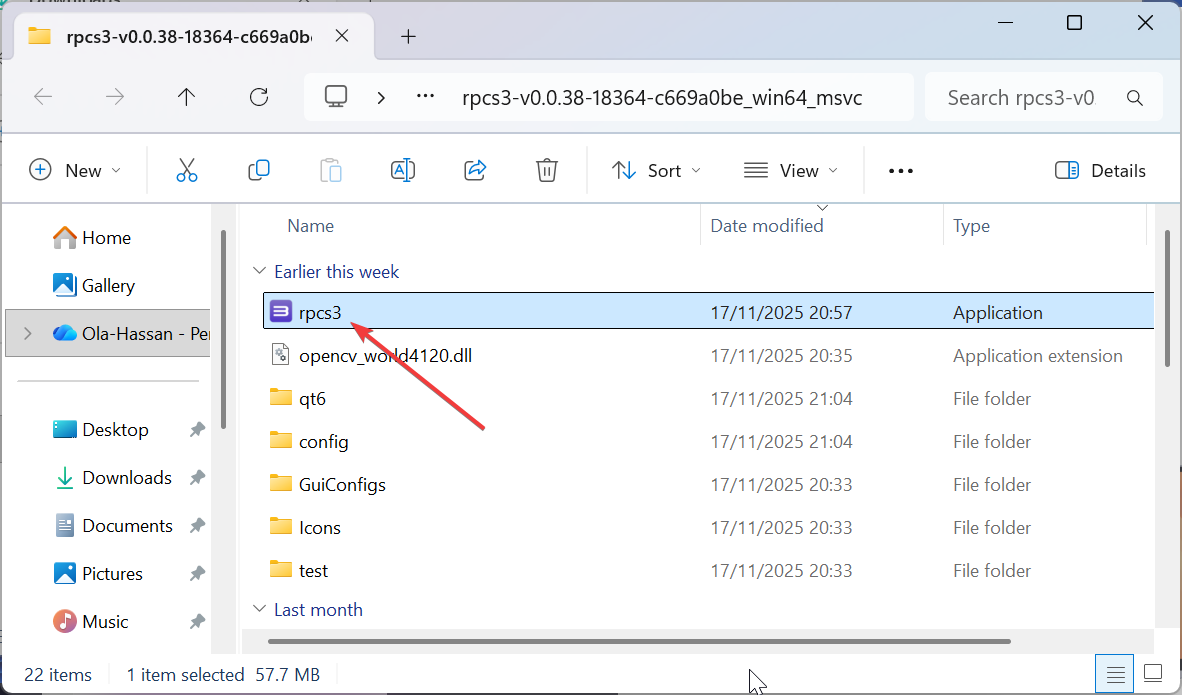
Finally, double-click the RPCS3 installer and follow the onscreen instructions to complete the installation process.
Step 2: Add PlayStation 3 firmware
Use the firmware file you downloaded and import it by opening File, then selecting Install Firmware. RPCS3 will process the file and restart itself with full PS3 system support.

Step 3: Download Skate 3 for RPCS3
You need your own Skate 3 disc or a backed-up digital copy from a PS3 console. Once you dump the game, place the folder in your RPCS3 dev_hdd0/game directory.
Next, open RPCS3 and click Open to add the Skate 3 directory. The game appears in your library once the path is recognized. Finally, set the GPU renderer to Vulkan, enable resolution scaling, and activate shader caching.
Step 4: Set up your controller
RPCS3 supports Xbox, PlayStation, and most generic USB controllers. Wired controllers usually produce fewer input issues.
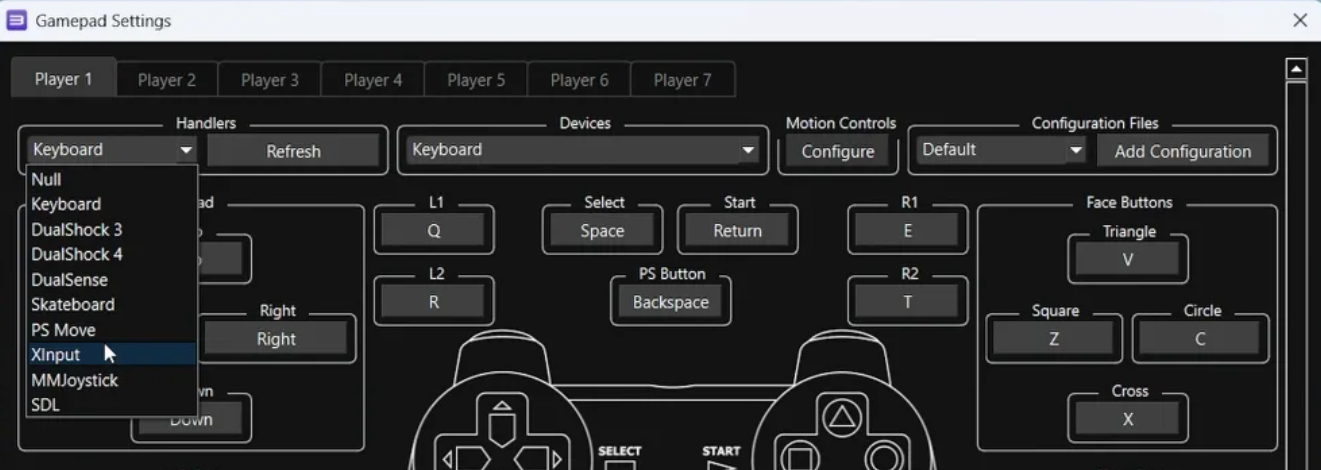
Open the controller settings in RPCS3 and map each button based on your preference. Fine-tuning your setup makes the game feel closer to real console play.
Step 5: Launch Skate 3 on PC
Select the game inside RPCS3 and start it. The first launch may take longer because the emulator builds shaders in the background.
Tip: If you see a black screen, reimport the firmware and clear shader caches. If your controller does not respond, switch the input handler to XInput.
Troubleshooting
- Black screen when launching: A black screen usually appears when the firmware is not installed correctly. Reinstall the PS3 firmware, restart RPCS3, and try again. Clearing shader caches also fixes early-launch freezes.
- Low FPS or heavy stutter: If performance drops, lower your resolution scaling and switch to Vulkan. Enable shader caching, disable anti-aliasing, and close background programs to free CPU and GPU resources.
- Controller not working: When the controller fails to respond, open the RPCS3 pad settings and change the handler to XInput or DualShock depending on your device. For Bluetooth controllers, reconnect the device and restart RPCS3.
- Game missing from library: If Skate 3 does not appear in your list, confirm that the game folder is inside the correct RPCS3 directory. Refresh your game list and make sure the folder name has not been altered.
Performance tips for smooth gameplay
- Best settings for low-end PCs: Lower resolution scaling, disable anti-aliasing, and use the Vulkan renderer. These changes help reduce stutters and keep gameplay stable.
- Best settings for high-end PCs: Increase resolution scaling to 150–200 percent and enable anisotropic filtering. A modern GPU handles these enhancements easily.
FAQs
Can I download Skate 3 directly for PC? No. There is no native PC version, so you must use an emulator or cloud gaming.
Is RPCS3 safe to use? Yes. RPCS3 is safe when downloaded from its official source and used with legal game files.
Can I use keyboard controls instead of a controller? RPCS3 supports keyboards, but the game controls feel better with a gamepad.
Why is my game lagging? Enable shader caching, lower resolution scaling, and update your GPU drivers.
Summary
- Skate 3 requires RPCS3 because it was never released on PC.
- Gather firmware, legal game files, and required hardware.
- Install RPCS3 and import PlayStation 3 firmware.
- Add your Skate 3 dump and configure performance settings.
- Set up a controller for smoother gameplay.
- Use cloud gaming if you prefer not to download or emulate.
Conclusion
Skate 3 runs well on PC as long as you use the correct emulator, firmware, and game files. Once you download RPCS3 on your PC and tune a few performance settings, the game plays smoothly with modern controllers.
If your hardware cannot handle emulation, cloud gaming offers a simple alternative. Either method delivers a reliable way to enjoy Skate 3 without waiting for an official PC release.

Discussion (0)
Be the first to comment.