




Downloading RPCS3 lets you play your legally owned PlayStation 3 games on a Windows, macOS, or Linux PC. The process takes only a few minutes once you know where to get the official files and how to set up the firmware.
This guide walks you through everything from system requirements to the first launch. Each section uses simple steps so beginners can follow along without confusion.
1) How to download RPCS3 on Windows
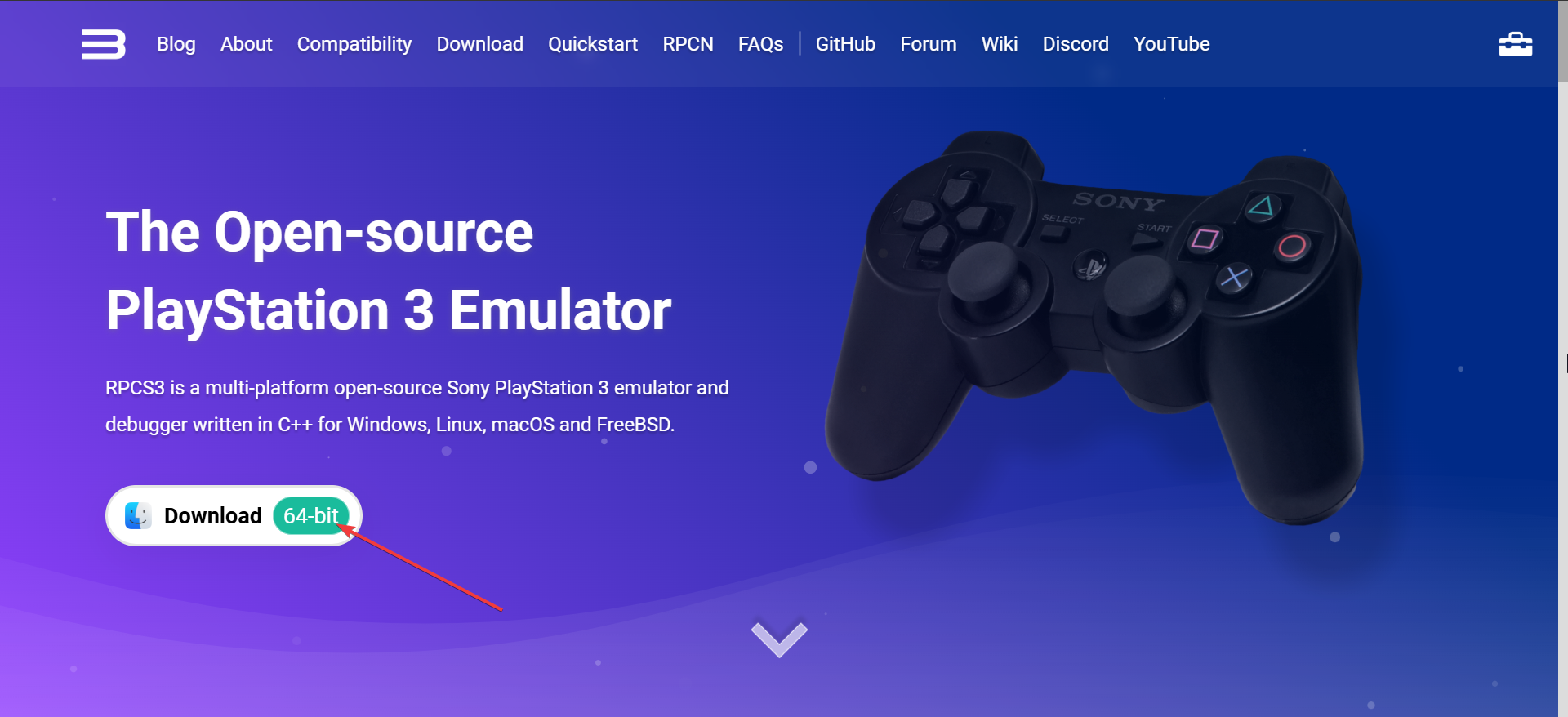
Open your browser and go to the official RPCS3 download section. Select the Windows build and save the zip file to your computer. Next, right-click the downloaded file and choose Extract All.
Now, place the extracted folder in a location where you keep apps, such as Documents or a dedicated Games folder. Finally, double-click rpcs3.exe. The app creates its support folders automatically and prepares for firmware installation.

2) How to download RPCS3 on macOS
Go to the RPCS3 download page and choose the macOS version. Save the .app bundle to your Applications folder.
If macOS blocks the app, open System Settings, select Privacy & Security, and allow the app to run. This step removes the “app from an unidentified developer” warning.
3) How to download RPCS3 on Linux
Save the latest AppImage to your Downloads folder. AppImages require no installation and run from any directory. To make the AppImage executable, right-click the file, open Properties, and allow execution. You can also run chmod +x filename.AppImage in the terminal.

4) How to install PS3 firmware in RPCS3
Download the PS3 firmware update file (PUP) from the official PlayStation source. The file installs the system software RPCS3 needs for game compatibility. Next, open RPCS3 and select File, then Install Firmware. Choose the PUP file and wait for the installation to finish.

5) How to add games after downloading RPCS3
RPCS3 supports game folders, ISO-style dumps, and PKG files. Always dump games from your own PS3 to stay compliant with copyright laws.
To install disc or PKG games, choose File, then Install .pkg or boot a folder-format game directly. RPCS3 creates each game entry in your library automatically.
6) How to update RPCS3 safely
RPCS3 releases updates frequently. Downloading new builds improves stability and adds support for more games.
To replace your old files without losing data, move your old folder aside and replace it with the new one. Keep the original dev_hdd0 and config folders to preserve saves.
7) Troubleshooting common install problems
- Missing DLL or GPU driver errors: Install the latest graphics drivers and Visual C++ redistributables. These components allow the app to run correctly.
- Firmware installation fails: Check that the firmware file uses the correct PUP format. Modified or repacked firmware files do not work.
- RPCS3 doesn’t open: Move the RPCS3 folder out of protected directories like Program Files. Some antivirus tools may block new apps until approved.
Safe download practices
- Verify the download source: Only download RPCS3 from the official website. This prevents malware-infected versions from third-party sites.
- Optional integrity checks: Advanced users can verify file hashes to confirm integrity. This step ensures the package wasn’t tampered with.
FAQs
Is RPCS3 legal to download? Yes. The emulator is legal, but you must use your own PS3 firmware and game dumps.
Can I use a controller? RPCS3 supports DualShock controllers, Xbox controllers, and most generic gamepads.
Does RPCS3 work on Steam Deck? Yes, through Linux builds, though performance depends on the game.
Summary
- Check system requirements.
- Download the correct RPCS3 build for your OS.
- Extract or open the app.
- Install official PS3 firmware.
- Add your legally dumped games.
- Keep RPCS3 updated for best performance.
Conclusion
Downloading RPCS3 takes only a few steps when you use the official build for your operating system. After installing the firmware and adding your games, the emulator delivers solid performance with regular updates improving compatibility over time. With everything set, you can now play NCAA 14 on PC, as well as other PS3 games.



Discussion (0)
Be the first to comment.