



Ryujinx is a Nintendo Switch emulator that lets you play your legally owned games on a PC. If you’ve just installed it and can’t see your titles, you probably haven’t added your firmware, keys, or game files correctly. This guide covers everything you need to download and add games safely so you can start playing without errors.
But before delving in, ensure you have the following:
- A legal copy of your Switch game (you’ll need to dump it as NSP or XCI).
- The latest version of Ryujinx installed on Windows, macOS, or Linux.
- Product keys and firmware files were extracted from your own console.
Having these ready ensures the following steps are effortless and error-free.
Step 1: Download and install Ryujinx
Head to the official Ryujinx site and download the newest build of the emulator. Next, go to the Downloads folder, right-click the .zip file, and select Extract all. On the pop up, click the Extract button, wait for the process to complete, and double-click Ryujinx.exe to open it.

Tip: If you want to keep the emulator self-contained, create a dedicated Ryujinx folder for portable use.
Step 2: Set up keys and firmware
Open Ryujinx, then go to File > Open Ryujinx Folder. Next, navigate to the system subfolder and copy your prod.keys and title.keys files here.

Back in Ryujinx, go to Tools > Install Firmware > From XCI/ZIP and select your dumped firmware file. Once installed, close and relaunch Ryujinx to apply changes.
Step 3: Add games to Ryujinx
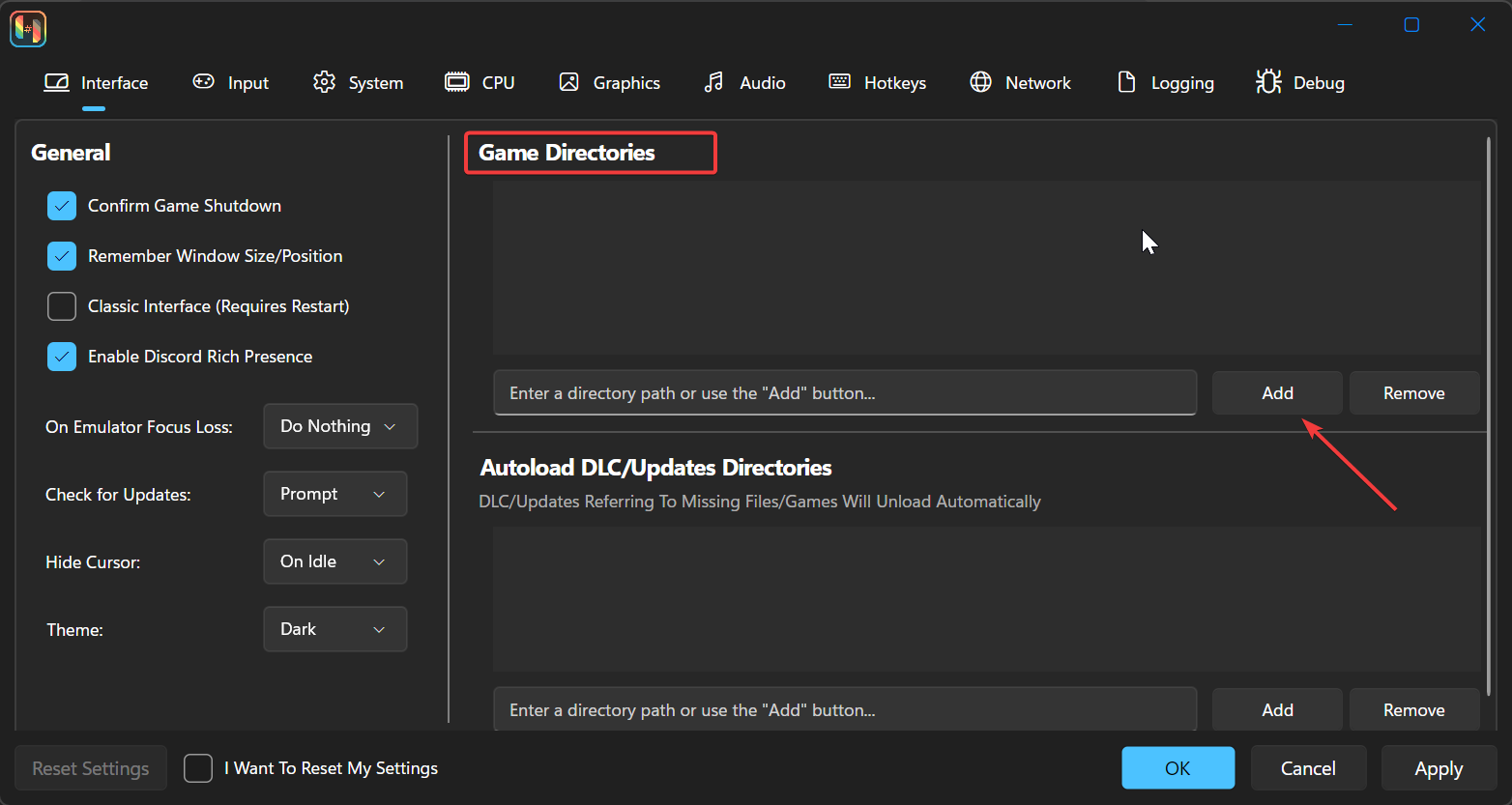
Open Options > Settings and go to the Game Directories tab. Now, click Add under the Game Directories section, then select the folder that holds your NSP or XCI files. Finally, press the Save button and your games should now appear in the main Ryujinx library.
If you want to add game updates and DLCs, right-click a game in the list and choose Manage > Add Update/DLC. Next, select the corresponding NSP file and wait for the installation to finish. The new version number will show beside the game title once complete.
Step 4: Launch and play your game
Double-click your game in the main window. Ryujinx will compile shaders during the first launch, so loading might take a bit longer.
You can connect an Xbox or DualShock controller directly. Open Options > Settings > Input to configure buttons and profiles.
Step 5: Understand game file formats
Knowing the difference between file types helps avoid confusion and errors. Below are file types and what they represent:
- NSP: Standard eShop package (supports updates/DLC).
- XCI: Cartridge dump (often standalone).
- NCA: Core data inside NSP/XCI files.
Stick with NSP or XCI for easier library management and better compatibility.
Troubleshooting Ryujinx game errors
- Game not showing up: Re-add the folder in Settings > Game Directories.
- Black screen or freeze: Reinstall firmware and verify your keys.
- Crashing during load: Clear the shader cache from the Ryujinx folder.
- Corrupted file: Redump the game and confirm its checksum.
Tips to optimize Ryujinx performance
- Switch between Vulkan and OpenGL under Options > Graphics.
- Enable Asynchronous Shader Building for fewer stutters.
- Lower resolution scaling if you experience lag.
- Use portable mode to separate settings per build and keep things stable.
- Only play games you personally own or dumped from your own console.
- Avoid sites that offer pre-packaged ROMs, as these may contain malware or pirated content.
FAQs about Ryujinx games
Can I use mods? Yes. Place mod folders under the game’s ID directory in Ryujinx’s mod folder.
Can I transfer saves? Go to File > Open Ryujinx Folder > bis > user > save and copy the save folder.
Does Ryujinx support online play? No, official Nintendo servers are not supported.
Do I need to update firmware often? Only when a new game requires a higher version to run.
Summary: Quick steps
- Download and install Ryujinx.
- Add
prod.keysand firmware. - Set your game folder in Settings.
- Install updates/DLCs if needed.
- Launch, configure your controller, and play.
Conclusion
Downloading and adding games to Ryujinx is a straightforward process once you have your firmware, keys, and game files in place. By following the steps outlined above, you can enjoy your legally owned Nintendo Switch games directly on your PC.
Remember to always use legal methods to obtain and dump your games to ensure a safe and smooth experience. If you encounter any issues, refer to our troubleshooting steps or optimize your settings for better performance. Enjoy your gaming experience with Ryujinx!

Discussion (0)
Be the first to comment.