



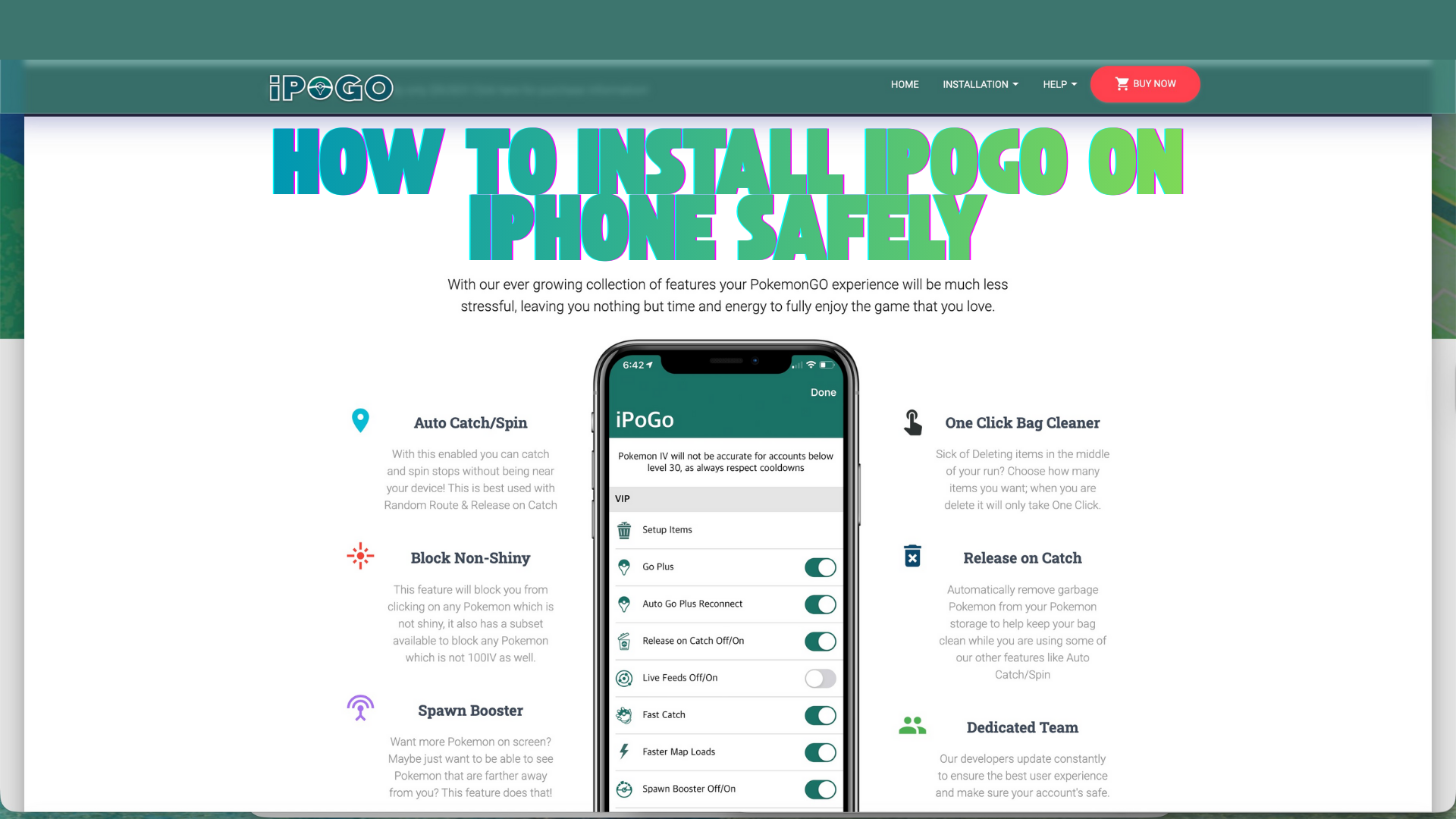
If you want to learn how to download iPogo on iOS safely, you need to understand how this modified Pokémon Go client works and why it requires a different installation method. Apple blocks unofficial apps by default, so installing iPogo on an iPhone requires extra steps such as trusting a developer certificate and sideloading the app outside the App Store. At the time of writing, iPogo still works on iOS, but availability depends on certificate status and signing windows.
Before you begin, remember that iPogo provides features like GPS spoofing, joystick movement, enhanced map tools, raid feeds, and catching assistance. These features violate Pokémon Go’s Terms of Service. Using iPogo involves a risk of warnings or bans, so proceed only if you fully understand the consequences. With that in mind, here’s how to install iPogo on iOS using the current reliable methods.
Prepare Your iPhone
Your iPhone must meet basic requirements to avoid installation errors. These include modern iOS support and enough storage for the iPogo iOS app. Make sure your internet connection is stable, since certificate downloads can fail if the connection drops.
- Use an iPhone running iOS 14 or later.
- Have at least 500MB of free storage.
- Disable automatic Pokémon Go updates to prevent overwriting iPogo.
- Use Wi-Fi for a more stable download.
Disable Automatic App Store Updates
Disabling updates prevents the official Pokémon Go app from replacing iPogo after installation. This is a common issue for users trying to download iPogo on iPhone for the first time.
- Open Settings.
- Tap App Store.
- Turn off App Updates.
Trust The iPogo Certificate
To install iPogo on iOS, you need to trust the app’s enterprise certificate. Without this step, your iPhone will block the app and show an “Untrusted Developer” message.
- Open Settings.
- Go to General.
- Tap VPN & Device Management.
- Select the iPogo developer profile.
- Tap Trust.
Download iPogo On iOS
You can download iPogo through its signed installer when certificates are live. When certificates are revoked, you may need to wait until signing is restored. This is the most common challenge users report when searching how to download this iPhone app version.
- Open Safari on your iPhone.
- Go to the official iPogo download page.

- Tap the Download option.

- Accept the configuration profile when prompted.
- Wait for the download to finish.

Install iPogo On iOS
Once the file finishes downloading, you can complete the installation. If the certificate is active, the app should install without errors. If you see a greyed-out icon, the certificate might be down.
- Open the downloaded profile in Settings.
- Tap Install.
- Wait for iPogo to appear on your Home Screen.
Allow iPogo Permissions
To function correctly, iPogo needs permissions such as location access. These allow features like joystick movement and real-time overlays.
- Open iPogo.
- Allow location access.
- Allow notifications.
- Grant additional permissions if requested.
Configure iPogo Settings
iPogo includes configurable tools that customize your experience. Adjust them carefully to avoid triggering suspicious behavior in Pokémon Go.
- Set joystick sensitivity.
- Customize GPS spoofing behavior.
- Enable or disable raid feeds.
- Adjust catching tools as needed.
Troubleshooting Common Problems
If iPogo is not installing or crashes at launch, these solutions resolve most issues users face when downloading iPogo on iOS.
- Revoke and reinstall the certificate in VPN & Device Management.
- Retry installation when iPogo’s signing status is restored.
- Restart your iPhone after installation errors.
- Delete the official Pokémon Go app before reinstalling.
- Check for storage space issues.
Tips
- Use Wi-Fi during installation for better reliability.
- Avoid aggressive teleporting to reduce ban risk.
- Keep iPogo updated when new signing options go live.
- Use an alternate account for safer testing.
FAQ
Is iPogo safe? It works, but it violates Pokémon Go’s rules. There is always ban risk.
Why won’t iPogo install? The signing certificate may be revoked. Try again when it becomes active.
Does iPogo work on all iPhones? It works on most models running iOS 14 and newer.
Do I need to jailbreak? No, iPogo installs without jailbreaking.
Summary
- Prepare your iPhone and disable App Store updates.
- Trust the iPogo enterprise certificate.
- Download the iPogo installer via Safari.
- Install and launch iPogo.
- Grant permissions and configure settings.
Downloading iPogo on iOS requires a few extra steps, but once installed, it unlocks advanced gameplay tools for Pokémon Go. Just remember to use it responsibly and understand the risks before enabling enhanced features.


Discussion (0)
Be the first to comment.