




Google Chat gives Android users an easy way to stay connected with coworkers, friends, and family. Many people struggle to find the right app in the Play Store or deal with installation errors. This guide shows you the fastest way to download Google Chat, set it up, and fix common issues.
1) Check if your Android device supports Google Chat
A quick device check saves time, especially if the Play Store shows compatibility errors. Google Chat works best on modern Android builds. You can check your version under Settings > About phone > Android version to make sure the app installs correctly.

Also, some regions or device configurations hide certain apps. If Google Chat does not appear when you search the Play Store, your Play Store region or account settings may need attention.
2) Download Google Chat from the Google Play Store
The Play Store remains the safest and fastest way to install Google Chat. Open the Google Play Store, tap the Search bar at the top, and search for Google Chat. Now, select the correct version from the official Google LLC app and click Install.

Finally, wait for the installation to complete and click the Open button.
3) Sign in and set up Google Chat
You sign in using your personal or Workspace Google account. Start by picking the account you use for work or personal messaging. This ensures your conversations and Rooms match what you see on desktop.
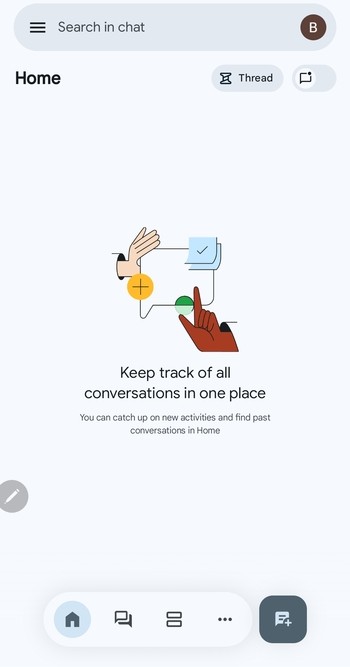
You can also enable message alerts when prompted. Notifications keep you updated on new chats, and the app uses basic permissions to run reliably.
4) What to do if you can’t find Google Chat on the Play Store
Some users never see the app due to region settings or account restrictions. These checks often resolve the problem.
Change Play Store region restrictions
If you recently moved or travel often, your Play Store region may differ from your device location. Updating your region helps the app appear in search results.
Check Google Workspace admin settings
Workspace administrators control whether Chat is enabled. If you use a work account, switching to a personal Google account may allow installation.
5) Alternative ways to use Google Chat on Android
Enable Google Chat inside the Gmail app
You can turn on Chat directly inside Gmail. Just Open Gmail and tap Menu > Settings. Next, select your account and tick the box for Chat.
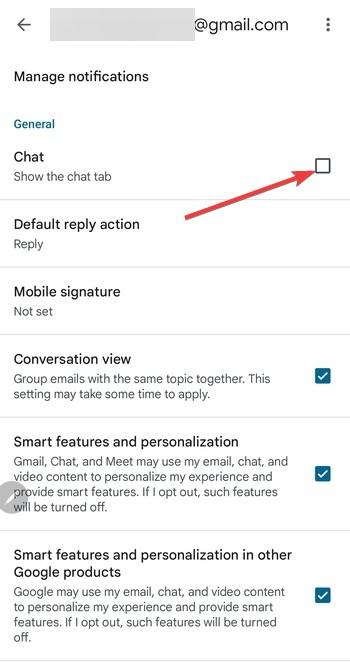
This lets you use Google Chat without downloading a separate app.
Use Google Chat in the browser
Opening Chat in your mobile browser works as a temporary fallback. It’s useful if your device lacks storage or the Play Store blocks installation.
6) Troubleshooting common Google Chat installation issues
- Device not compatible: Your Android version may be too old. Check for updates under Settings > System > System update and install any available updates.
- App keeps stopping: Clearing Google Chat’s Storage & cache resets the app and often fixes crashing issues. Reinstalling also helps.
- Stuck on downloading: Refreshing your Wi-Fi connection or restarting your device resolves slow downloads. Clearing the Play Store cache also helps.
FAQs
Is Google Chat free on Android? Yes. All personal Google accounts can use Google Chat without fees.
Do I need a Gmail account to use Google Chat? You need a Google account, but it doesn’t have to be a Gmail address. Workspace accounts also work when Chat is enabled by your admin.
Can I use Google Chat without the app? Yes. You can use Chat inside the Gmail app or through your mobile browser.
Why can’t I receive notifications? Battery optimization may block alerts. Adjust settings under Apps > Google Chat > Battery to allow background activity.
Summary
- Check your Android version and Play Store access.
- Search for Google Chat in the Play Store.
- Install and open the app.
- Sign in and enable notifications.
- Use Gmail Chat or browser Chat if installation fails.
Conclusion
Google Chat installs quickly on most Android devices and offers reliable messaging for personal and work communication. Once you download it from the Play Store and sign in, you can start chatting, sharing files, and joining Spaces without extra setup.

Discussion (0)
Be the first to comment.