



Downloading TikTok videos without a watermark helps you reuse clips for editing, social posts, or offline viewing. Most methods work quickly once you know where to tap and how to copy the link.
This guide shows the fastest ways to save watermark-free TikTok videos on iPhone, Android, Windows, and Mac. It also covers tool comparisons, safety notes, and fixes for common download errors.
1) Use a reliable online downloader
Browser-based tools offer the easiest way to download a TikTok video without installing anything. They work on iPhone, Android, Windows, and Mac. You only need to copy the link to the video you want to download, and these tools will handle the rest.
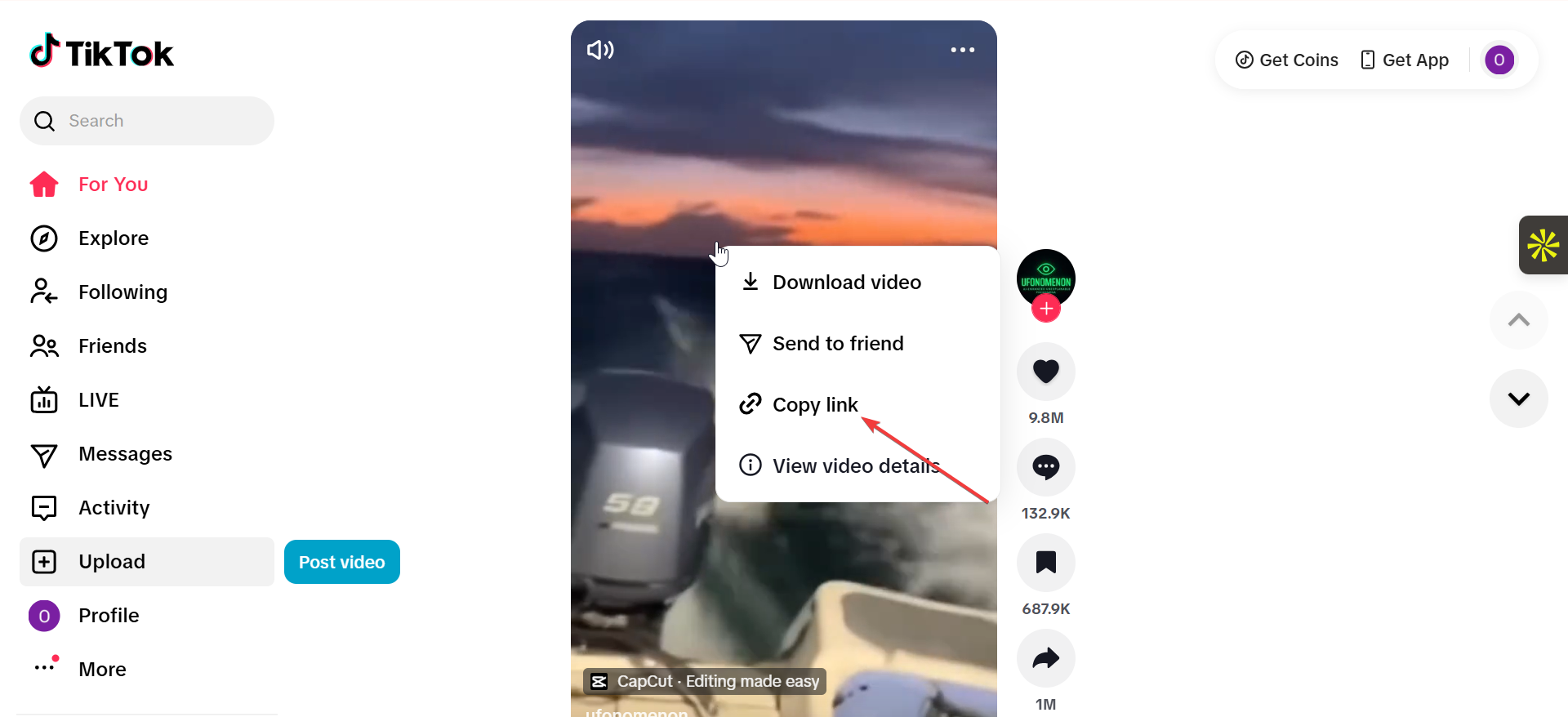
To copy the link on mobile, open the TikTok app and select the Video you want to download. Next, tap Share and select Copy link. On a desktop browser, go to the TikTok website, right-click the video you want to download, and select Copy link.
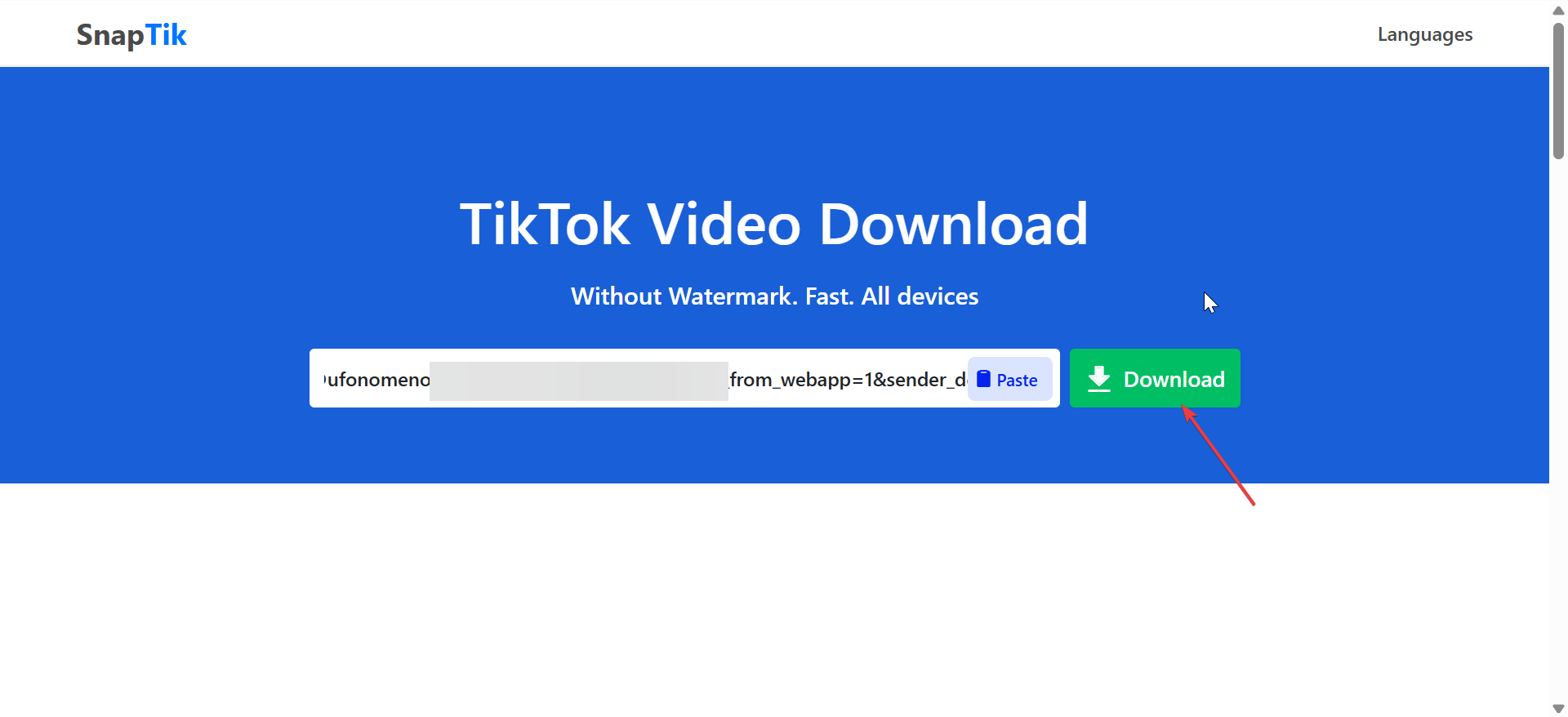
Now, go to the page of the downloader you want to use, paste the link in the provided box, and click Download. This will download the video on your device without a watermark.
2) Use an Android app
Android users can choose from apps that save watermark-free TikTok videos directly to local storage. These tools give you quick access and offline playback.
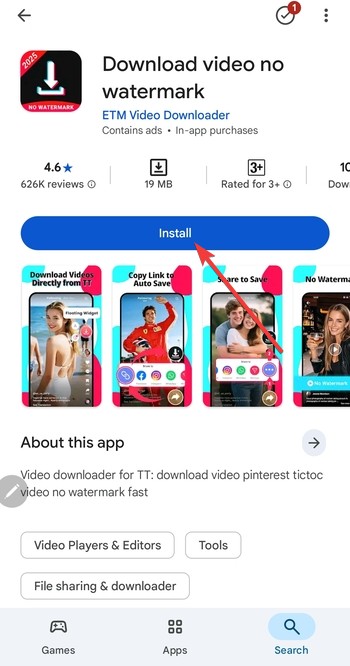
Install a trusted TikTok video saver from the Play Store and copy the video link from TikTok. Next, open the Saver app and paste the link. Lastly, tap Download and check your Gallery or Downloads folder.
3) Use a desktop app or browser extension
Desktop utilities can download videos in bulk and manage files more easily. Many offer higher quality controls than mobile apps.
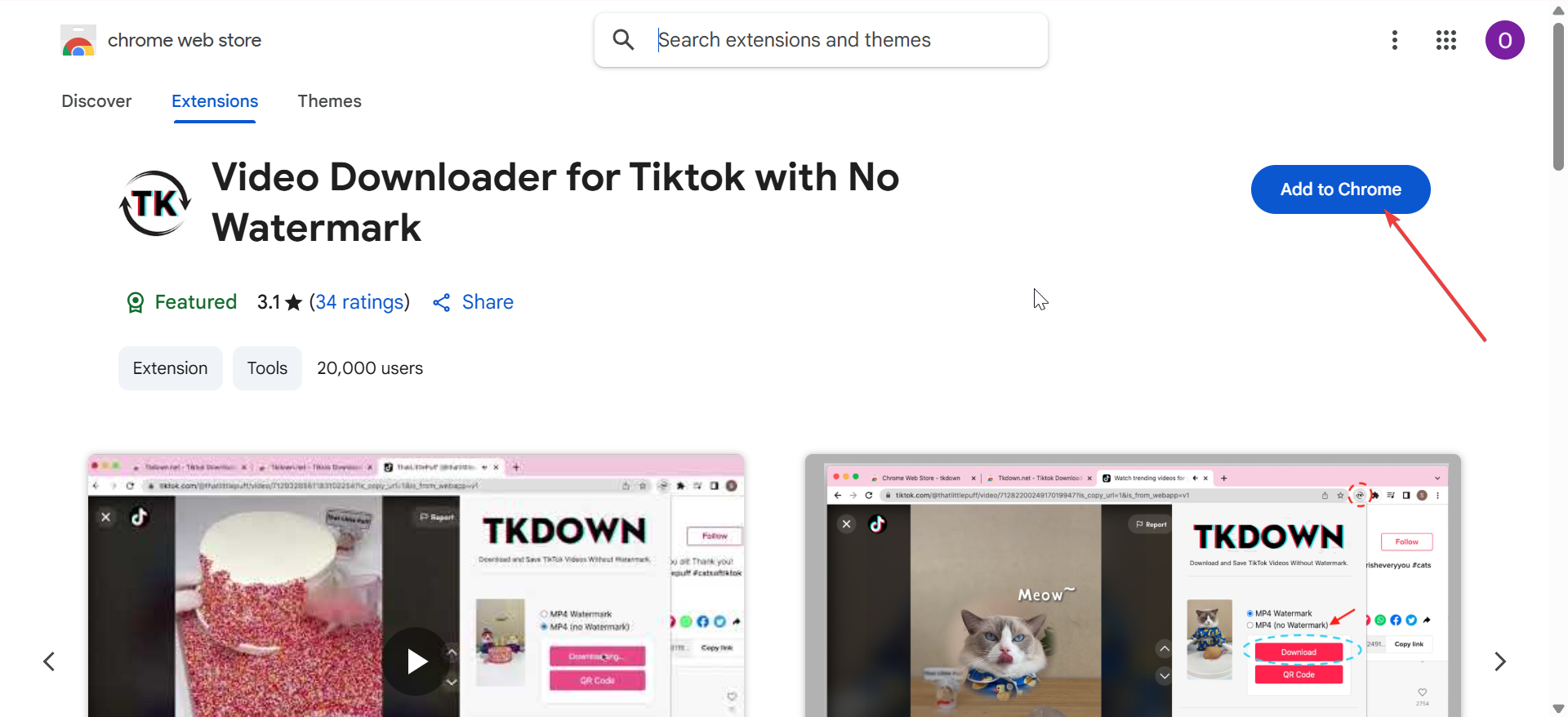
Go to the Chrome Web Store and install a reputable TikTok download extension. Next, open TikTok in your browser and click the extension icon. From here, choose Download to save the video locally.
4) Legal and safety considerations
TikTok content remains the property of the original creator. Downloading videos for personal use generally stays safe, but redistributing them introduces risks.
When it’s safe to download
Saving your own videos or clips for personal offline viewing doesn’t raise issues. Light educational use also stays low-risk.
When you need creator permission
Any reposting or commercial reuse requires the original creator’s approval. Always verify permissions before publishing edited clips.
5) Troubleshooting common download problems
- Video downloads with a watermark: If a tool still adds a watermark, switch to another downloader or update your app. Some tools lose functionality when TikTok updates its code.
- Download button not working: Enable pop-ups in your browser and refresh the downloader page. Try another browser if the issue repeats.
- File won’t save on iPhone or Android: On iPhone, enable Photos or Files access in Settings. On Android, confirm that Chrome or your downloader app has storage permissions.
Tips to save TikTok videos in the highest quality
TikTok quality depends on the original upload, your connection, and the downloader you use. A good tool preserves bitrate and resolution.
Also, copy the link directly from the video instead of forwarding it from messages or other apps. Save using a downloader that supports HD output and choose the highest available option when prompted.
FAQs
Can I download TikTok videos on PC? Yes. Copy the link and paste it into a browser-based downloader.
Is it legal to download TikTok videos? Downloading for personal use is fine. Reposting requires permission from the creator.
Why is my saved video low-quality? The original upload quality and downloader limits affect resolution.
Why does the link sometimes fail? TikTok occasionally updates its link structure, causing older tools to break.
Summary
- Copy the TikTok link and use an online downloader for the quickest results.
- iOS shortcuts and Android apps offer platform-specific workflows.
- Desktop extensions help with batch downloads and file management.
- Use high-quality downloaders to preserve resolution.
Conclusion
You can download TikTok videos without a watermark using online tools, mobile apps, shortcuts, or desktop extensions. Each method works well as long as you choose trusted downloaders and keep device permissions enabled.
With the right workflow, you can save clean, high-quality clips for editing, offline viewing, or creative projects without dealing with distracting overlays.


Discussion (0)
Be the first to comment.