




Adobe Fonts lets you add professional typefaces to your desktop apps with a quick activation process. Many users expect a traditional download, but Adobe uses sync technology instead of raw OTF or TTF files. This guide shows how the service works, how to activate fonts on your device, and how to fix common sync issues.
Table of contents
- Understanding how Adobe Fonts works
- How to activate and use Adobe Fonts on your device
- Where synced Adobe Fonts are stored on Windows and macOS
- Can you download Adobe Fonts as OTF or TTF files?
- How to use activated fonts in creative apps
- Troubleshooting Adobe Fonts not downloading or syncing
- Tips for using Adobe Fonts effectively
- FAQs
- Summary
Understanding how Adobe Fonts works
Adobe Fonts uses activation to place fonts on your device through the Creative Cloud app. You can use these fonts in Adobe software and many non-Adobe apps. This system protects licensing while keeping the setup simple.
Activation vs. downloading font files
Adobe Fonts does not give permanent OTF or TTF downloads. The service activates fonts in a protected folder managed by Creative Cloud. You get full usage in apps without handling actual font files.
Requirements for Adobe Fonts activation
You need an active Creative Cloud account and the Creative Cloud desktop app running in the background. Your apps must stay updated to avoid activation failures.
How to activate and use Adobe Fonts on your device
You can activate any font from the Adobe Fonts site or through Creative Cloud. Both methods sync the files to your system.
Adding individual fonts
Open the Adobe Creative Cloud desktop app and click the Fonts icon. To view more fonts from the Adobe Fonts website, click the Browse more fonts button at the top.
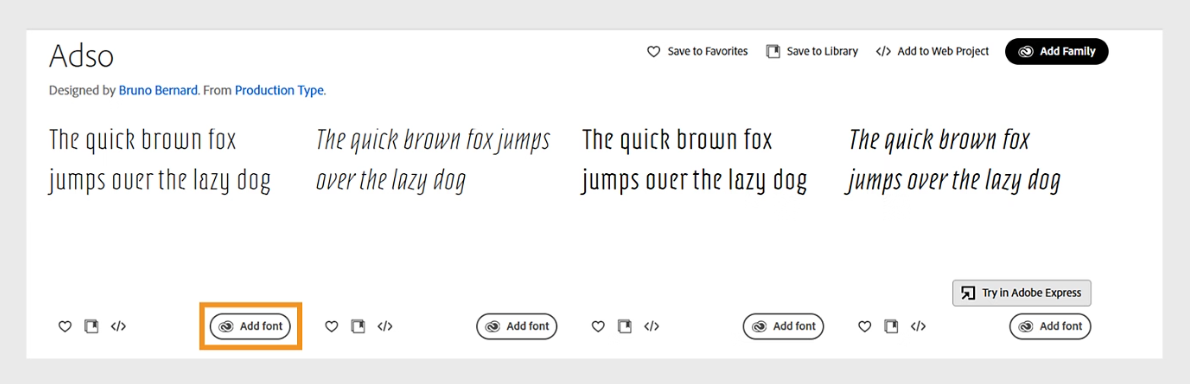
Now, select and open the Font Family you want and click the Add font button to add it. Creative Cloud syncs the font automatically.
Adding a font family.
Open the Creative Cloud app and select Fonts on the left panel. Browse the Font list and select your desired font. Lastly, click the Add Family button.

Where synced Adobe Fonts are stored on Windows and macOS
Adobe writes activated fonts into secure system folders. These folders help Creative Cloud manage licensing and syncing.
Font file locations on Windows
Windows stores Adobe Fonts in the CoreSync runtime folder. The path looks like: C:\Users<username>\AppData\Roaming\Adobe\CoreSync\plugins\livetype\runtime\data\fonts\
You should not edit these files.
Font file locations on macOS
macOS stores synced fonts in: /Users/<username>/Library/Application Support/Adobe/CoreSync/plugins/livetype/runtime/data/fonts/

These files stay managed by Creative Cloud.
Can you download Adobe Fonts as OTF or TTF files?
Adobe does not offer direct downloads of font files. The service restricts local export to protect licensing.
Adobe’s licensing restrictions
You can use activated fonts in supported apps, but you cannot export, copy, or install them manually outside the sync system. This keeps fonts commercially safe and compliant with Adobe’s agreements.
Workarounds and legal alternatives
If you need self-hosted web fonts or long-term file control, choose a source where you can download fonts in OTF or TTF files with full rights. This approach stays within legal guidelines.
How to use activated fonts in creative apps
Activated fonts become available in Adobe apps within seconds. The fonts show up in type menus and behave like regular installed fonts.
Using fonts in Adobe software
Illustrator, Photoshop, and InDesign detect activated fonts automatically. You do not need to restart your apps in most cases. The fonts sync in the background as long as Creative Cloud is running.
Using synced fonts in non-Adobe apps
Activated fonts often appear in Word, PowerPoint, and Figma. If the app loads system fonts, it should detect your synced fonts after activation.

Troubleshooting Adobe Fonts not downloading or syncing
- Creative Cloud stuck on “activating fonts”: Restart Creative Cloud from the system tray or menu bar. Check your internet connection and ensure you are signed in. Update Creative Cloud if the sync still hangs.
- Fonts not showing in design apps: Confirm that the font shows as active in Creative Cloud. Close and reopen your design app to refresh the font list. If the issue continues, sign out of Creative Cloud and sign back in.
- Offline activation limitations: Adobe Fonts needs periodic online validation. If you stay offline for too long, sync may pause until you reconnect.
Tips for using Adobe Fonts effectively
- Keep Creative Cloud running to avoid activation delays.
- Use Favorites to track font families you need across projects.
- Update your Adobe apps often to prevent compatibility issues.
- Remove unused activated fonts to keep menus clean.
- Use font classifications and tags to find styles faster.
FAQs
How do I download Adobe Fonts to my computer? Adobe Fonts activates fonts through Creative Cloud. You cannot download OTF or TTF files directly.
Do Adobe Fonts work offline? Yes, but only after initial activation. You must reconnect occasionally so Creative Cloud can validate your license.
Can I use Adobe Fonts in Microsoft Word? Most Adobe Fonts sync to Word automatically. If the font does not appear, restart Word or re-check activation in Creative Cloud.
Can I export Adobe Fonts to use on a website? Adobe Fonts does not support exporting synced fonts. Use a font provider that offers self-hosted web font licenses.
Summary
- Adobe Fonts syncs fonts instead of offering direct downloads.
- Activate fonts from the website or Creative Cloud.
- Synced fonts live in protected folders on Windows and macOS.
- You can use fonts in Adobe and many non-Adobe apps.
- Troubleshooting steps fix most sync and visibility issues.
Adobe Fonts gives you a fast, legal way to use high-quality typefaces across your apps. Activation handles all technical work, so you can focus on design. If you need exportable font files, choose a provider that offers full licensing and downloadable formats.



Discussion (0)
Be the first to comment.