




Adobe Flash used to be one of the most widely used technologies for displaying media-rich content on the web. However, as web content creators moved away from it and towards the faster and more secure open web technologies, even Adobe threw in the towel, announcing they would stop supporting Flash at the end of 2020 and determining major tech companies like Google to do the same. Flash’s phase-out from Chrome and any other web browser has now reached the stage where it is blocked by default. Starting with January 12th, 2021, Adobe Flash Player has been terminated: you can’t download it from Adobe’s website, and you can no longer use it if you need to access websites that rely on it. However, in this tutorial, we will show you how to unblock Adobe Flash Player on Chrome using a browser extension called Ruffle, so that you can still use Flash on the sites you trust:
NOTE: Since December 31, 2020, Adobe stopped supporting Flash Player, and starting with January 12, 2021, the company also started blocking Flash content from running. According to the Adobe Flash Player EOL General Information Page, the company also strongly recommends you to uninstall Flash Player from your computers and devices to remove the security issues that came with having this software installed.
 Adobe Flash Player is blocked in Chrome
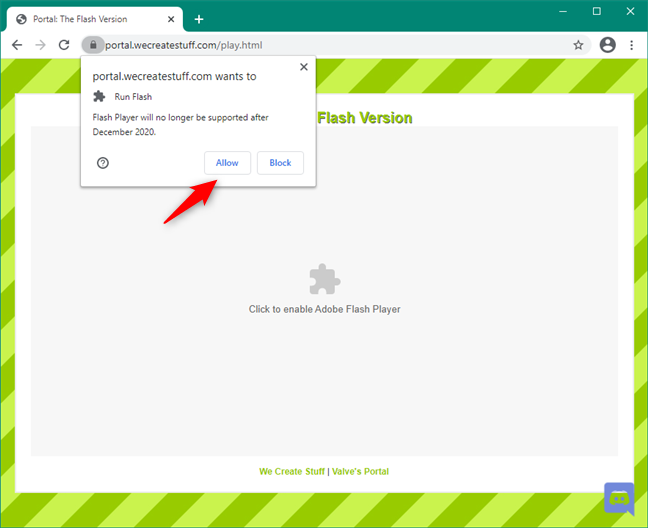
When you tell Chrome that you want to run Flash content, the browser lets you know that “Flash Player will no longer be supported after December 2020.” Then, it gives you two options: Allow or Block. Choosing to allow Flash Player to load might appear to be exactly what you want.
Adobe Flash Player is blocked in Chrome
When you tell Chrome that you want to run Flash content, the browser lets you know that “Flash Player will no longer be supported after December 2020.” Then, it gives you two options: Allow or Block. Choosing to allow Flash Player to load might appear to be exactly what you want.
 Adobe Flash Player: Plugin blocked
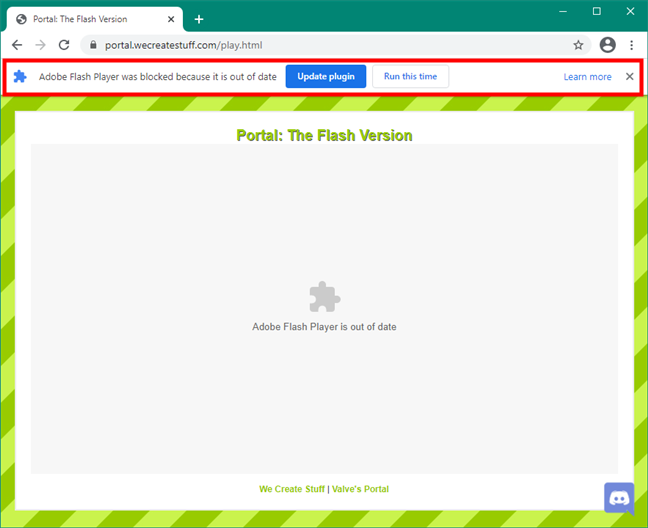
However, even if you choose to allow Flash to run, Google Chrome will still block it, saying that “Adobe Flash Player was blocked because it is out of date.” At the same time, it gives you another two options: Update plugin and Run this time.
If you click/tap on the Update plugin button, you’re taken to Adobe’s Flash Player webpage, where you’re told that it reached its End of Life and that you can longer use it.
Adobe Flash Player: Plugin blocked
However, even if you choose to allow Flash to run, Google Chrome will still block it, saying that “Adobe Flash Player was blocked because it is out of date.” At the same time, it gives you another two options: Update plugin and Run this time.
If you click/tap on the Update plugin button, you’re taken to Adobe’s Flash Player webpage, where you’re told that it reached its End of Life and that you can longer use it.
 Adobe Flash Player was blocked because it is out of date
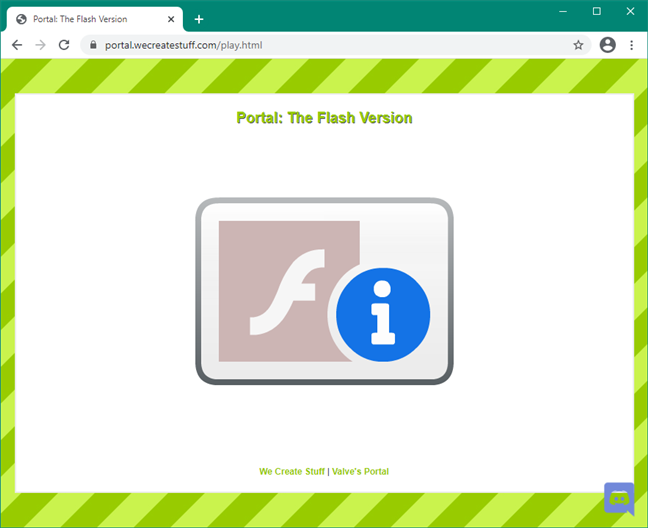
If you click/tap Run this time, Chrome displays a F(lash) I(nformation) picture that links to the same Adobe Flash Player EOL webpage mentioned earlier.
Adobe Flash Player was blocked because it is out of date
If you click/tap Run this time, Chrome displays a F(lash) I(nformation) picture that links to the same Adobe Flash Player EOL webpage mentioned earlier.
 Adobe Flash Player link
In case you’re wondering, this is what the Adobe Flash Player EOL General Information Page looks like:
Adobe Flash Player link
In case you’re wondering, this is what the Adobe Flash Player EOL General Information Page looks like:
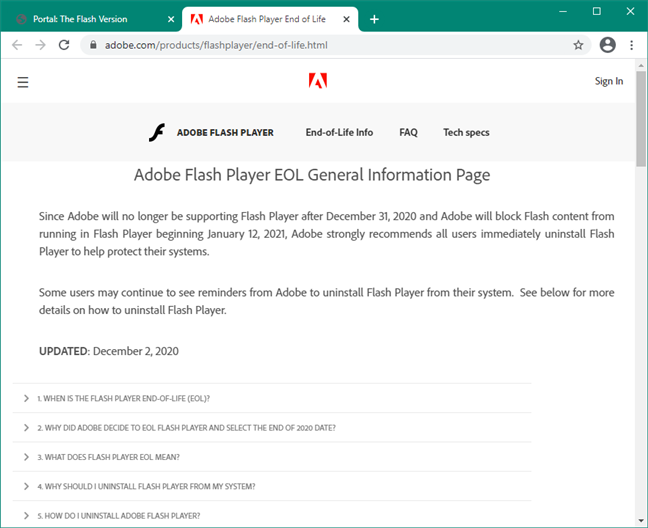 Adobe Flash Player EOL General Information Page
It appears that both options offered by Chrome for running Flash content are dead ends. So what can you do to continue running Flash content? Read on and find out:
Adobe Flash Player EOL General Information Page
It appears that both options offered by Chrome for running Flash content are dead ends. So what can you do to continue running Flash content? Read on and find out:
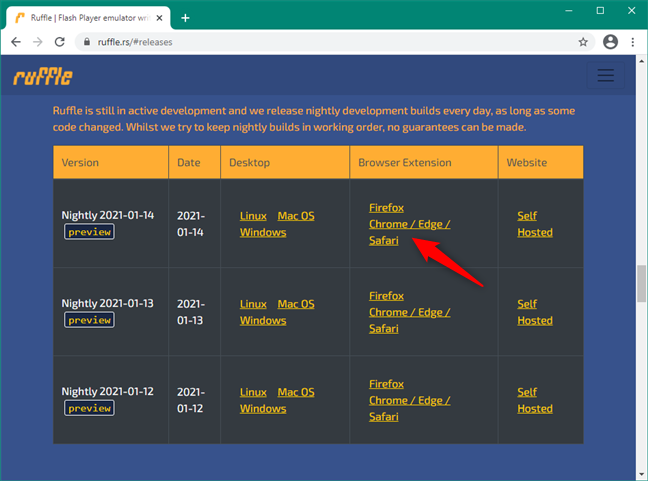
 The Ruffle Chrome extension for Flash
Save the Ruffle browser extension on your computer, and then extract its contents somewhere on your PC. Any location will do, including your Desktop or Downloads folder.
The Ruffle Chrome extension for Flash
Save the Ruffle browser extension on your computer, and then extract its contents somewhere on your PC. Any location will do, including your Desktop or Downloads folder.
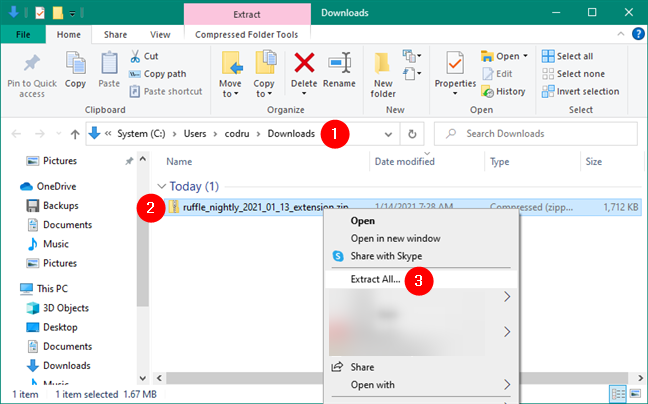
 Extracting the Ruffle Flash browser extension
Go back to your Google Chrome browser, or open it again if you closed it. In its address bar, type chrome://extensions and press Enter on your keyboard.
Extracting the Ruffle Flash browser extension
Go back to your Google Chrome browser, or open it again if you closed it. In its address bar, type chrome://extensions and press Enter on your keyboard.
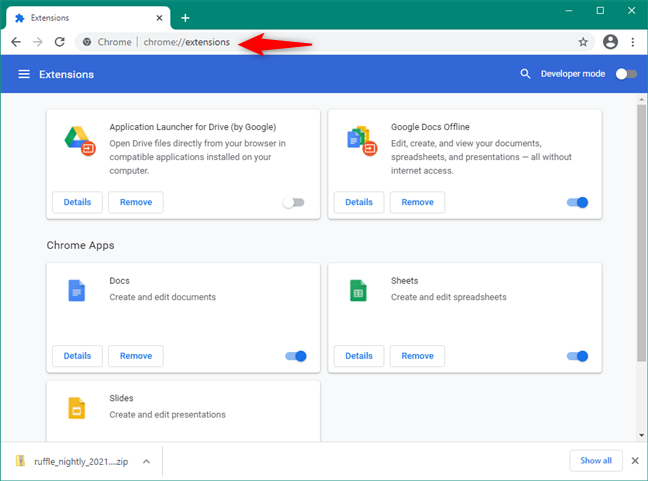 The chrome://extensions page
On Chrome’s Extensions page, enable the Developer mode using its switch from the top-right corner of the window.
The chrome://extensions page
On Chrome’s Extensions page, enable the Developer mode using its switch from the top-right corner of the window.
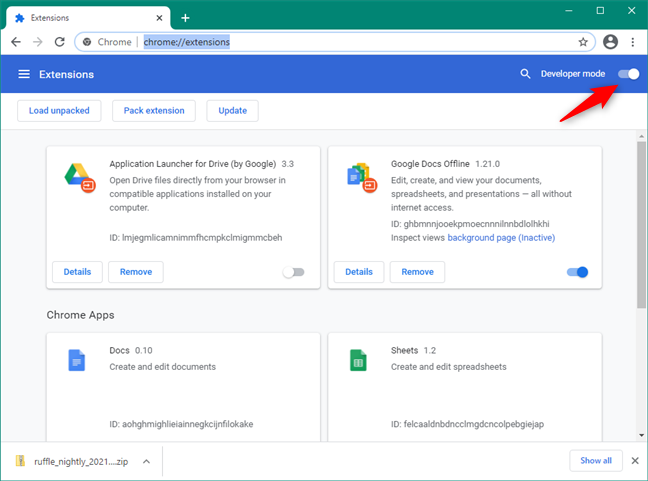 Turning on the Developer mode in Google Chrome
Click or tap the Load unpacked button from the top-left area of the Extensions page.
Turning on the Developer mode in Google Chrome
Click or tap the Load unpacked button from the top-left area of the Extensions page.
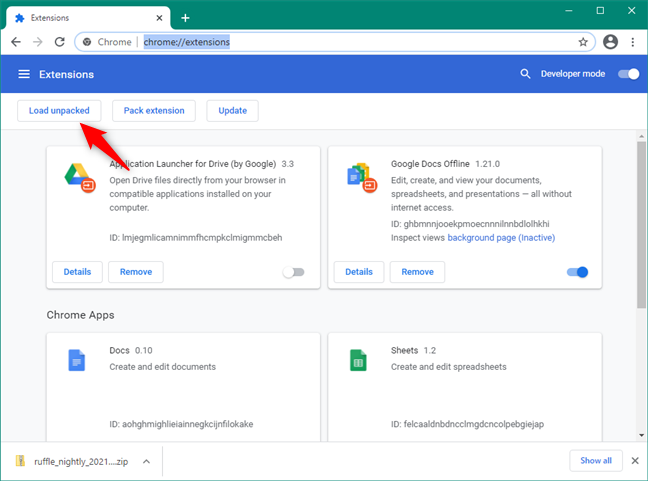 Load unpacked Ruffle Flash extension
The previous action opens a new window called “Select the extension directory.” Use it to browse through your computer or device to locate the folder where you extracted the Ruffle browser extension. Click or tap on it to select it, and then press the Select Folder button.
Load unpacked Ruffle Flash extension
The previous action opens a new window called “Select the extension directory.” Use it to browse through your computer or device to locate the folder where you extracted the Ruffle browser extension. Click or tap on it to select it, and then press the Select Folder button.
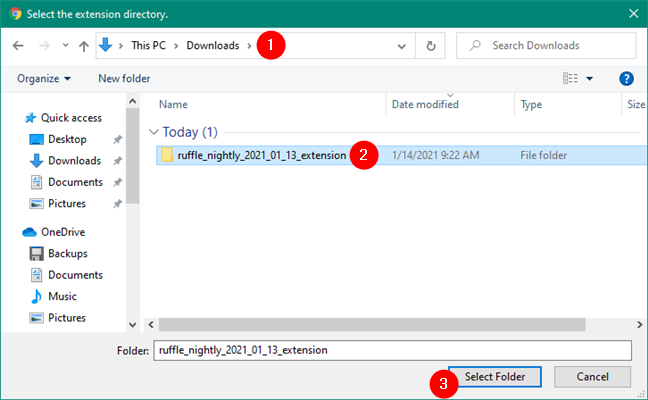
 Select the extension directory
Chrome should instantly load and install Ruffle. You can then see it listed on the Extensions page. It should also be enabled by default, but if it’s not, make sure that its switch is turned on.
Select the extension directory
Chrome should instantly load and install Ruffle. You can then see it listed on the Extensions page. It should also be enabled by default, but if it’s not, make sure that its switch is turned on.
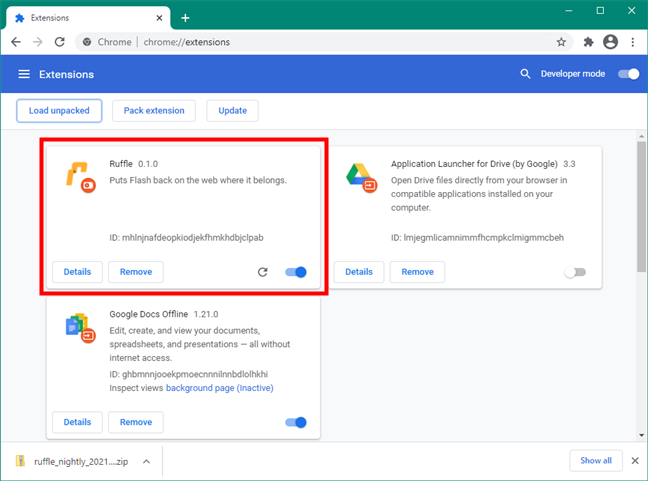 The Ruffle Flash Chrome extension is installed and enabled
Next, try to visit a website that relies on Flash content. Instead of the link to the Adobe Flash Player EOL webpage, you should now see a large Play button. Click or tap on it.
The Ruffle Flash Chrome extension is installed and enabled
Next, try to visit a website that relies on Flash content. Instead of the link to the Adobe Flash Player EOL webpage, you should now see a large Play button. Click or tap on it.
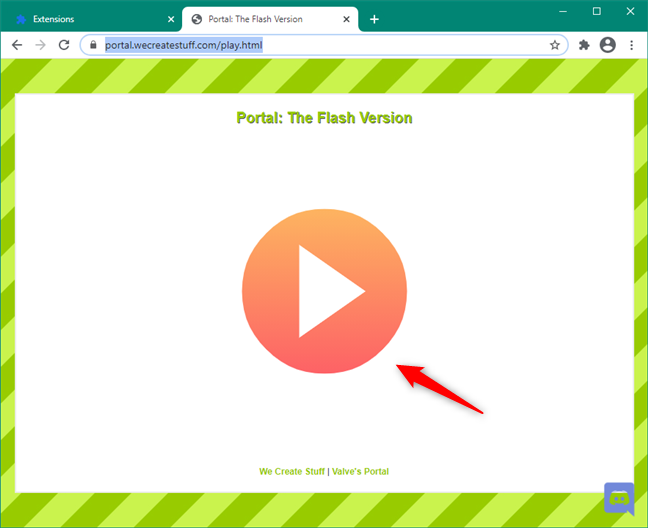 Unblock Adobe Flash Player on Chrome
If everything’s right, Chrome should now be able to load the website correctly.
Unblock Adobe Flash Player on Chrome
If everything’s right, Chrome should now be able to load the website correctly.
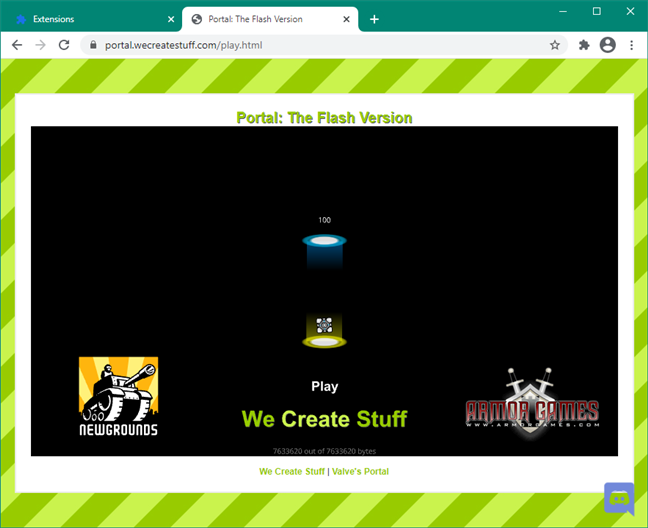 Adobe Flash Player: plugin unblocked
You’ve managed to unblock Adobe Flash Player in Chrome. However, keep in mind that the Ruffle browser extension is in an early development stage, so it might not always work as expected. Hopefully, it will do the job for the Flash websites you’re interested in.
Adobe Flash Player: plugin unblocked
You’ve managed to unblock Adobe Flash Player in Chrome. However, keep in mind that the Ruffle browser extension is in an early development stage, so it might not always work as expected. Hopefully, it will do the job for the Flash websites you’re interested in.
Adobe Flash Player is blocked and officially dead. What happens if you visit a Flash website in Chrome?
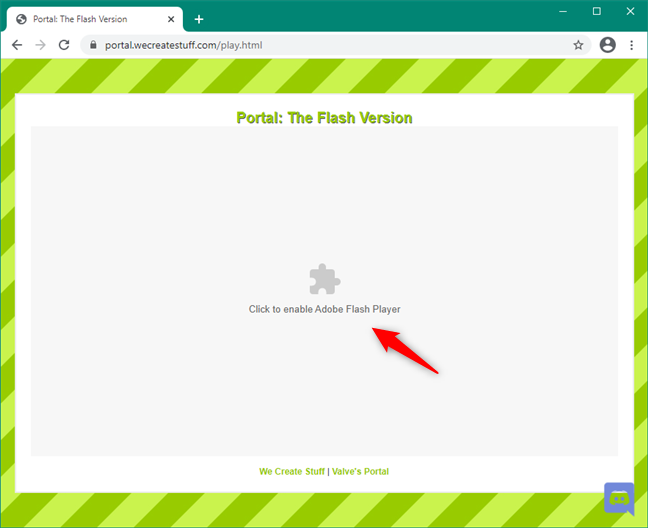
If you’re trying to open a website that uses Flash, Chrome might tell you that you have to “Click to enable Adobe Flash Player,” like in the screenshot below. In other cases, you might see a popup with a similar message. As you want to see that website, you’re going to click or say yes when running Adobe Flash Player.How to unblock Adobe Flash Player
The best way to unblock Adobe Flash Player and run Flash content in Google Chrome right now is to install and use a browser extension called Ruffle. Unfortunately, it’s not yet available in the Chrome Web Store, so there are a couple of manual steps you must take to get it. Use Chrome to go to Ruffle’s Releases webpage and download the latest Chrome / Edge / Safari browser extension.

Discussion (28)
heico.gensuite.com
tried ruffle video is just white page
I have some iMerge equipment which uses Flash to display its GUI interface.
I normally enter the network address i.e. 19.168.1.10 and I used to get the Web interface.
However, I have added ruffle to Chrome via the developer option but all I get is a black screen.
Is there something else I need to do to get Ruffle to work on the GUI?
Petero
Hi,
My Wifi network controller is managed through a web interface using Flash.
Flash is now blocked, so I can no longer manage my network…
It’s a completely aberrant situation !
Who should I blame for it ?
Hello, there’s no one to blame actually.
You could try to contact the manufacturer of your WiFi controller and ask whether a new web interface based on HTML5 is available.
Otherwise, the only option besides Ruffle, is using an old version of your favorite web browser, that had Flash support (not safe).
I can’t… Chrome does not allow RuffleFlash…
It does allow Ruffle as long as Developer Mode is on. Make sure you follow the steps in our guide exactly.
It might also be worth checking if you have the latest version of Chrome installed.
Tried to access site http://www.bridgebase.com/client/client.php and message says “This SWF contains Action Script 3 which is not yet supported by Ruffle. And site doesn’t load.
Hello! As I’ve mentioned in the article, Ruffle is in an early development stage so not everything works perfectly. It’s likely that not all Flash websites will work with it, but most are. In the end, right now, it’s the best method of running Flash content.
Hi. I did everything listed here. however, I still face the same problem on Twitter. The Twitter videos don’t play even after I have Allowed Flash for that website and also reloaded the page for that site.
if you have any suggestions, please let me know
Thank you because i was struggling in making that
The National Oceanic and Atmospheric Administration (N.O.A.A.) – a.k.a “The National Weather Service” Radar uses Flash for animation – STILL. Even though Flash is going away, they haven’t gotten around to updating this. Hopefully, we won’t need this “help” subject any more.
Didn’t work; the app icon never appeared when I opened the flash-player page.
Yes, you do need Adobe Flash Player. I don’t know why you want to take it away. Every time something works, you remove it.
its a good tips
I am using Chrome less and less because of this. Hope you’re happy about that, Chrome developers!
Yes, there is a solution that will allow Google Chrome to retain Flash preferences:
In the address bar, type: chrome://flags/
Scroll or search for: “Enable Ephemeral Flash Permissions”
Change from Default to Disabled
Relaunch Chrome, and you’re good to go.
They have completely changed the setting pages and this is no longer accurite
Thanks for the feedback. We will update the article in the coming weeks.
This no longer works since chrome’s last update. The global choices in chrome’s settings no longer have “Allow” as an option, just Ask or Block. If you use an individual’s site settings to Allow, chrome will change it back as soon as you quit chrome.
This is clearly problematic, but Google doesn’t care, I guess.
My settings page in Chrome does not look like the one shown. There is no add on for adobe flash. (Current Chrome)
I just checked using the latest version of Google Chrome: 65.0.3325.181.
The steps are identical. All the settings are there and look the same. Did you click on Advanced? The Content Settings are in the Privacy and Security section. Look carefully. It is there.
This fix doesn’t work. I have researched it for weeks to no avail. Trying to stream television and every time I have to manually allow.
This is approximately the 8th set of instructions I have looked at in the last hour which didn’t help one fucking bit. Every single set of ‘instructions’ tells me to click on something that is not on the screen. EVERY. SINGLE. ONE.
What is up with all you experts? Do you honestly know anything about computers, or is this part of a scam?
Have you considered that you are using a very old version of Google Chrome, that maybe does not have this feature built-in? It is entirely possible.
Hello,
What if my setting section doesn’t have the Always Allow option…now I only see the option for Black flash or Ask first…where did the other option go?
Thank you.
Hello
The same issue with me also. I have no “allow flash to run” option under settings. Even though I have enabled “Ask first”, Flash is always blocked on all the sites, even though I have added them under Allow list.
thanks
Google is a private company and can choose what to do with that company and its resources as it sees fit. In my opinion this should have been done long ago. To have continued to have allowed a product such as flash to use their systems they knowingly potentially allowed its customers to become victims of hackers. It has been known for some time now that hackers use flash as a gateway to our computers and therefore into our wallets.