




Nexus Mods is a large community-driven website that hosts thousands of mods for various games, including Fallout 4. While downloading the mods might be straightforward, you still need a bit of guidance to install them. In this guide, we will walk you through the entire process step-by-step and help you take your game to the next level.
Before you start
- Create a Nexus Mods account
- Understand mods description and requirements
- Know your Fallout 4 version
Step 1: Download Fallout 4 mods on Nexus
Go to the official Nexus Mods website and sign in to your account. Once logged in, use the search bar at the top of the page to search for "Fallout 4 mods."
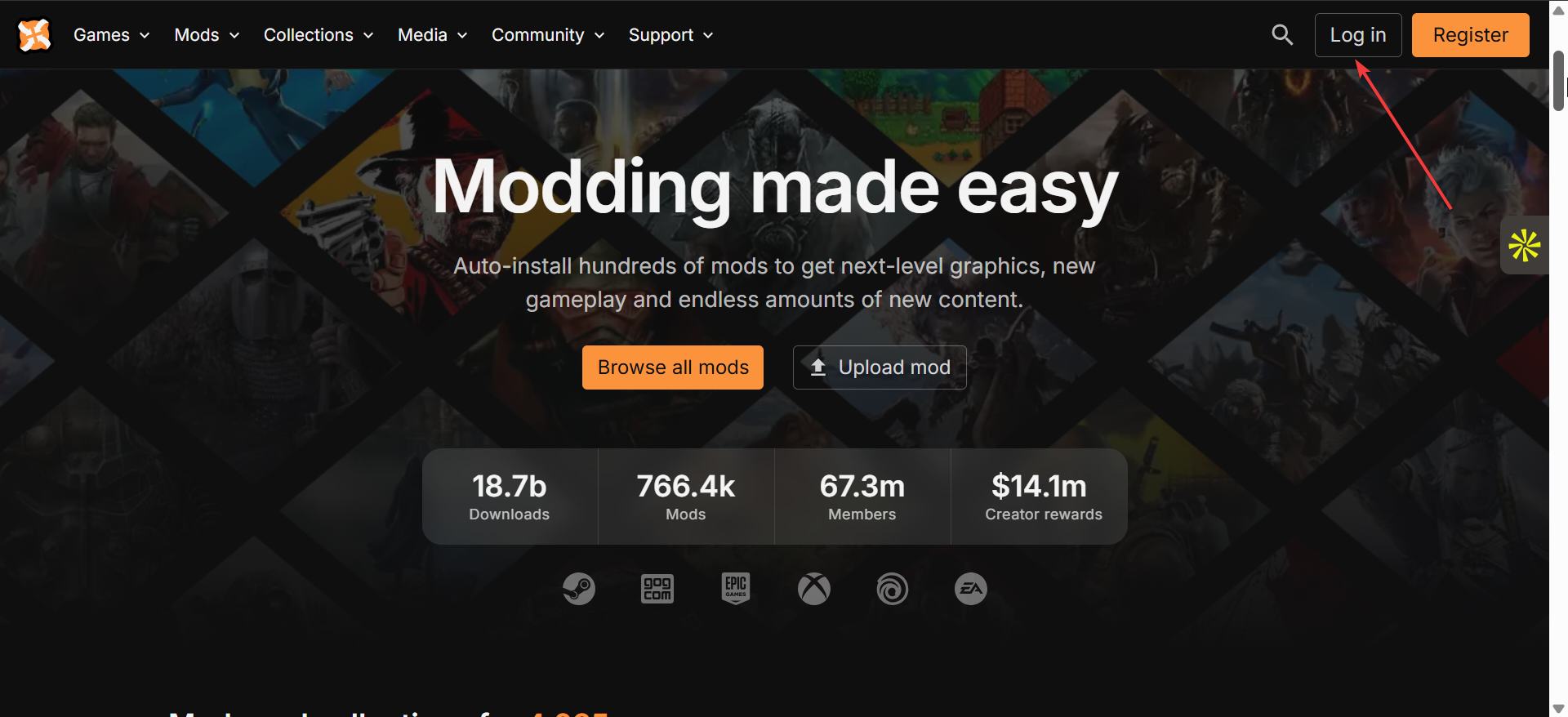
Once you’ve found a mod you want to download, scroll to the "Files" section on the mod page. Most mods will have multiple download options, such as a manual download or a Vortex download.
Choose the manual method if you want to download the mod files directly and place them into the game’s data folder. However, if you’re new to modding, using a mod manager like Vortex is recommended, as it automatically organizes and installs your mods, making it easier to keep track of updates and manage conflicts.
Tip: Understand the mod description, including installation instructions, mod requirements, and compatibility information. Always read through the entire description to ensure the mod is compatible with your version of Fallout 4 and won’t conflict with any other mods you plan to use.
Step 2: Installing Fallout 4 Mods
Manual Installation

If you chose the Manual download option, locate your Fallout 4 installation folder on your device. Inside the folder, find the Data folder. Extract the mod files into this folder. Make sure to check the mod’s instructions for any additional steps or specific folder placements.
Using Vortex for easier installation
If you used the Vortex download option, open the Vortex program after installing it and link it to your Fallout 4 installation directory. Now, the mods will automatically install on your game.
Also, whenever you want to download a mod through Nexus Mods in the future, choose the "Vortex" download option. Vortex will automatically download and install the mod for you, keeping your mods organized and up to date.
Step 3: Managing mods

Once your mods are installed, you’ll need to activate them. In Vortex, simply click on the mod and toggle the Enabled option. If you’re manually installing mods, make sure the mod files are in the correct folder and check the box in your game’s launcher to enable them.
Troubleshooting common modding issues
- Fallout 4 not launching after modding: Start by disabling mods one by one to see if a specific mod is causing the problem. Ensure all mods are compatible with the version of Fallout 4 you’re running.
- Mod conflicts and overwrites: This happens if two mods try to alter the same game files. To avoid this, use a mod manager like Vortex to organize your mods and check for conflicts. If you’re installing mods manually, pay attention to any mod instructions regarding compatibility and ensure your load order is correct.
Tips to Securely Download Fallout 4 Mods from Nexus
- Ensure you are downloading mods directly from the official Nexus Mods website. Avoid third-party sites, as they might host malicious files.
- Mods that have been rated and endorsed by the community are usually safer. Pay attention to reviews and comments for any issues other users have encountered.
- Always verify that the mod is compatible with your version of Fallout 4 and doesn’t conflict with other mods you plan to use.
- Before installing mods, back up your Fallout 4 save files and the game’s installation files. This allows you to restore the game if anything goes wrong.
- A mod manager helps you keep track of mods and their load order, reducing the chance of conflicts or errors. It also enables easy uninstallation if something goes wrong.
- After downloading mods, scan the files with antivirus software before extracting them. This adds an extra layer of protection against malicious content.
FAQs
Can I use mods in Fallout 4 without an account on Nexus Mods? No, you need to create an account on Nexus Mods to download mods.
What if my Fallout 4 crashes after installing a mod? Crashes can occur due to mod conflicts or incorrect installation. Try disabling recently installed mods one by one to pinpoint the issue. You can also check for mod updates or reinstall the mod following its installation instructions.
Can I install mods for Fallout 4 on consoles? Yes, you can install mods on Fallout 4 for consoles, but the process is different. Console players must use the in-game mod menu to download and install mods directly from the Bethesda.net mod platform.
How can I keep my mods up to date? If you’re using a mod manager like Vortex, it will notify you when updates are available for your installed mods. You can also check the mod’s Nexus Mods page for any updates manually.
Are mods safe to use? Most mods on Nexus Mods are safe if downloaded from trusted sources and have positive user feedback. However, there’s always a risk with any third-party content.
Summary
- reate a Nexus Mods account to access and download Fallout 4 mods.
- Search for and choose mods from the Fallout 4 section on Nexus Mods, ensuring compatibility and reading reviews.
- Download mods either manually or using a mod manager like Vortex for automatic installation.
- Organize and activate mods in your mod manager, or manually place mod files in the game’s Data folder.
Conclusion
Downloading and installing mods for Fallout 4 from Nexus Mods is quite easy, but it’s important to follow the steps carefully to avoid issues.
Whether you choose manual installation or use a mod manager like Vortex, managing your mods properly will ensure a smoother, more enjoyable experience. Be sure to regularly check for mod updates, read user reviews, and back up your game files to keep your game running without any hiccups.

Discussion (0)
Be the first to comment.