




Google Docs gives you an easy way to create and share documents online, but some situations still require a full Microsoft Word file. Whether you want to send a DOCX file to a colleague, upload a report to a platform that only accepts Word documents, or save an offline copy for editing later, converting your Google Doc takes only a few clicks.
This guide explains how to download a Google Doc as a Word document without breaking formatting or losing access to key features. At the time of writing, Google still supports direct DOCX exporting, so you can move between Google Docs and Microsoft Word smoothly.
Why Download A Google Doc As A Word Document
Downloading your Google Doc as a Word document helps you work with people or apps that depend on the DOCX format. Many business workflows, desktop editors, and document-submission systems still prefer or require Microsoft Word files. Exporting your Google Doc to Word also gives you a stable offline copy you can open anytime, even without internet access.
How To Download A Google Doc As A Word Document
You can download any Google Doc as a Word document using the built-in tools inside Google Docs. Follow the steps below to save your file in DOCX format.
Step 1: Open Your Google Doc
- Go to Google Docs and sign in to your Google account.
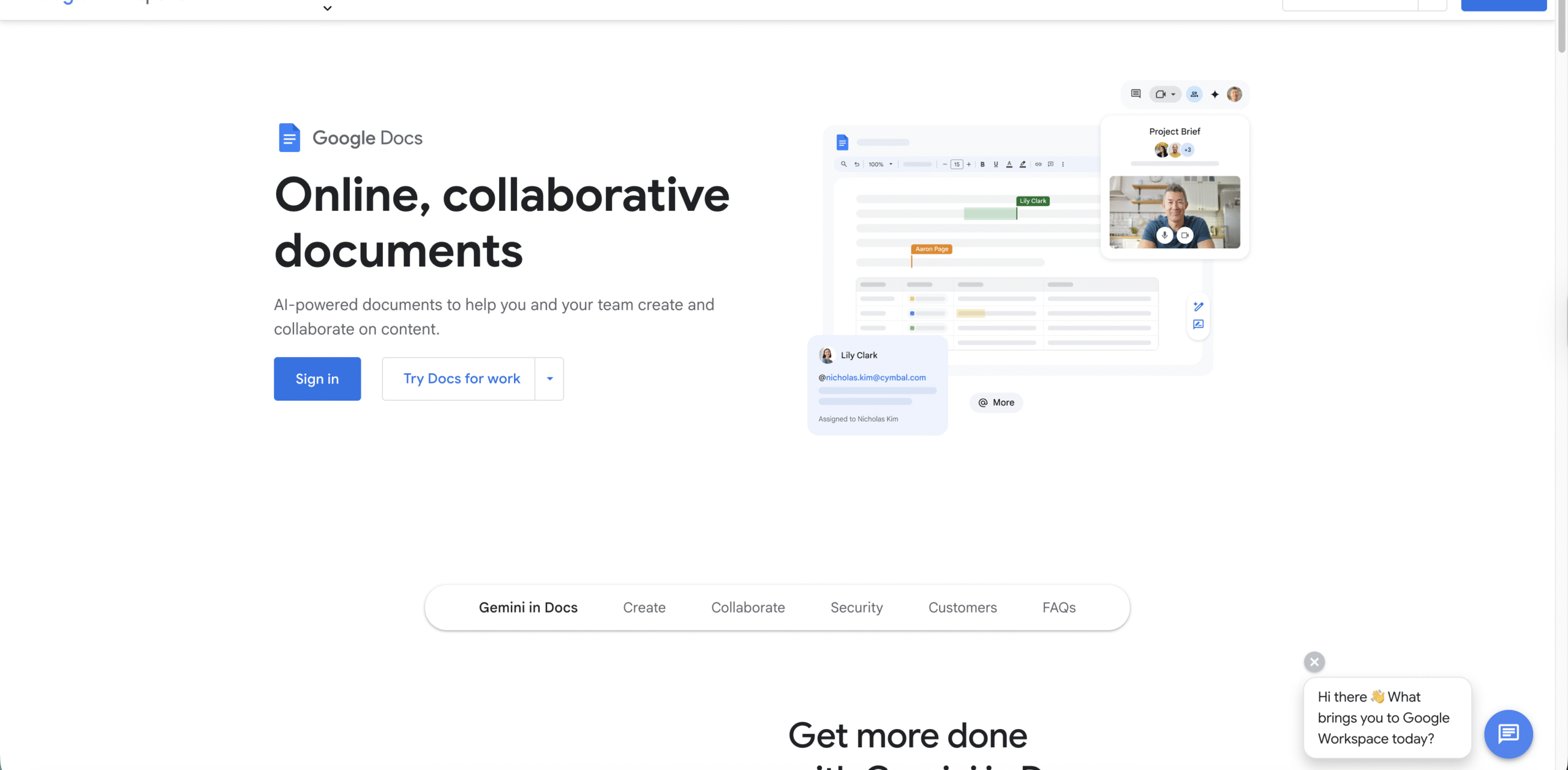
- Open the document you want to convert.
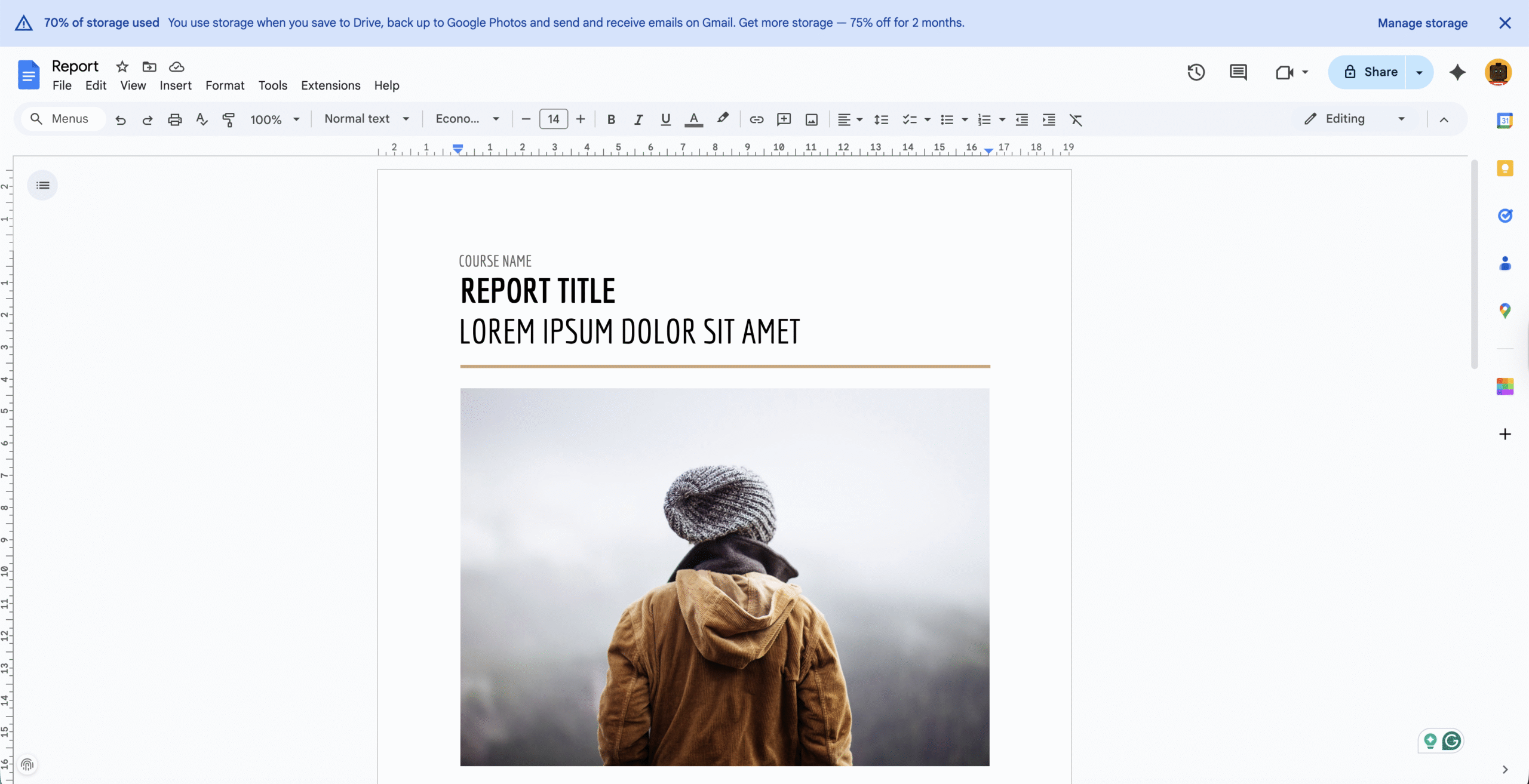
- Confirm that the file loads properly before exporting it.
Step 2: Click The File Menu
- Select File in the top-left corner of the Google Docs toolbar.
- Wait for the dropdown menu to appear.
Step 3: Choose The Download Option
- Hover over Download in the File menu.
- Look for the list of available export formats.
Step 4: Select Microsoft Word (.docx)
- Click Microsoft Word (.docx) from the download options.

- Google Docs starts preparing the file for export.
Step 5: Save The Word Document To Your Device
- Choose a folder on your computer when the save window appears.
- Click Save to store the DOCX file locally.
- Open the exported file in Microsoft Word or any compatible editor.
Troubleshooting Download Issues
If the download option does not appear or the DOCX file will not open, try the following:
- Refresh the Google Docs page before exporting.
- Sign out and sign back in to your Google account.
- Try using another browser such as Chrome, Edge, or Firefox.
- Clear your browser cache and reload the document.
- Download the file as another format first, then convert it using Word.
Conclusion
Downloading a Google Doc as a Word document takes only a few clicks and ensures broad compatibility across devices and platforms. Whether you work in Google Docs every day or only use it occasionally, exporting your document as a DOCX file helps keep your workflow flexible, portable, and compatible with Microsoft Word. Following the steps above guarantees a clean and accurate conversion every time.

Discussion (0)
Be the first to comment.