




If you want to delete a wallpaper on iPhone, iOS works differently than most users expect. You don’t delete wallpaper image files directly. Instead, you remove Lock Screen setups that use those wallpapers.
This guide shows exactly how wallpaper deletion works on modern iPhones, why some wallpapers seem impossible to remove, and how to fix common issues.
Table of contents
How to delete Lock Screen wallpapers on iPhone (iOS 16 and newer)
Apple added Lock Screen galleries in iOS 16. This is the only place where wallpaper deletion happens.
Delete a Lock Screen wallpaper from the Lock Screen gallery
This is the fastest and most reliable method.
- Wake your iPhone and stay on the Lock Screen.
- Tap and hold the Lock Screen until the gallery appears.
- Swipe to the wallpaper you want to remove.
- Swipe up on the wallpaper.
- Tap Delete, then confirm.
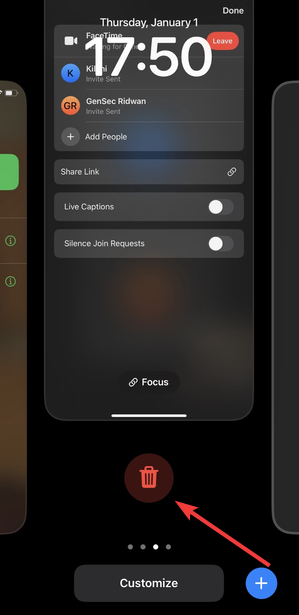

iOS immediately removes that wallpaper and its Lock Screen setup.
Remove multiple Lock Screen wallpapers you no longer use
If you created several wallpapers, remove them one by one.
Swipe through the Lock Screen gallery and repeat the delete gesture for each wallpaper. iOS does not support bulk deletion.
How to delete photos from a Photo Shuffle Lock Screen wallpaper
If you use a Photo Shuffle album as your Lock Screen wallpaper, deleting the wallpaper alone will not remove the photos inside it. You must edit the Photo Shuffle selection directly.
Remove photos from a Photo Shuffle album on the Lock Screen
- Unlock your iPhone using Face ID or Touch ID.
- Tap and hold the Lock Screen until the Lock Screen gallery appears.
- Tap Customize under the active wallpaper.
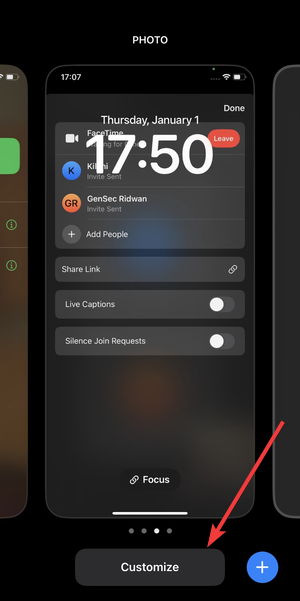

- Next, select Lock Screen.
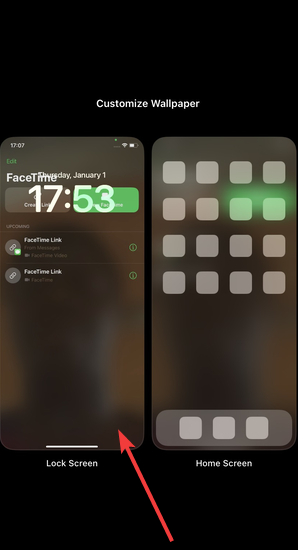

- Now, tap the Photo Shuffle icon in the bottom-left corner.
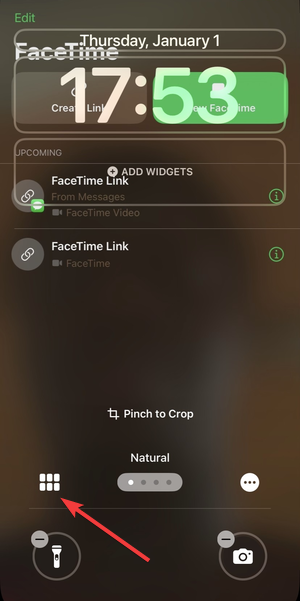
- Tap Select in the bottom-right corner.
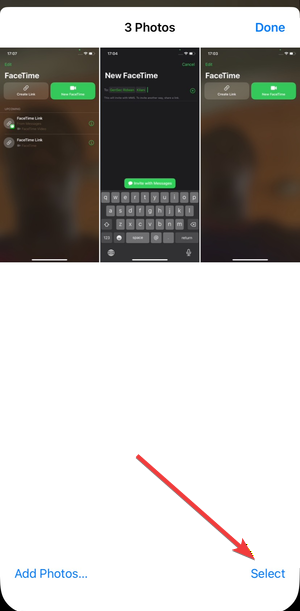

- Choose the photos you want to remove.
- Tap Delete to remove them from the Photo Shuffle album.
iOS updates the Photo Shuffle immediately. The removed photos no longer appear on the Lock Screen.
Delete an entire Photo Shuffle Lock Screen
If you want to remove the whole Photo Shuffle setup, return to the Lock Screen gallery, swipe up on the Photo Shuffle wallpaper, and tap Delete. This removes the entire Lock Screen configuration, including the shuffle album.
Replace iPhone Home Screen wallpaper using Settings
If managing wallpapers from the Lock Screen feels confusing, you can replace and customize the Home Screen wallpaper directly from Settings. This method works well when you only want a new background.
Change the Home Screen wallpaper from Settings
- Open Settings.
- Tap Wallpaper.
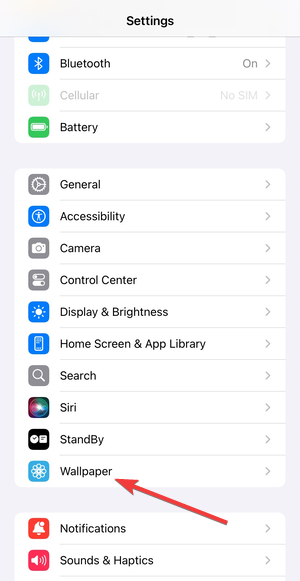

- Tap Customize under the current wallpaper, or swipe to another setup.
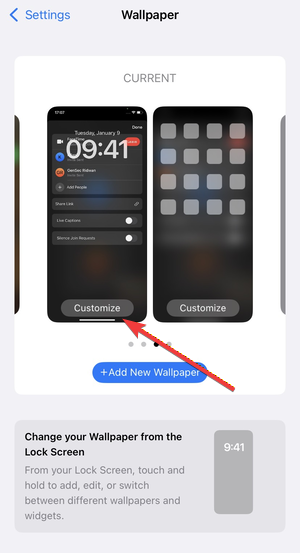

- Select Home Screen.
- Tap the Photos icon to choose a new image.
- Adjust the image as needed.
- Tap Done to save changes.
This replaces the Home Screen wallpaper without deleting any Lock Screen setups.
How Focus modes affect wallpaper deletion
Focus modes can assign specific wallpapers automatically. This often causes deleted wallpapers to reappear.
Remove wallpapers linked to a Focus mode
To fully remove a wallpaper, unlink it from Focus.
- Open Settings.
- Tap Focus.
- Select the Focus mode you use.
- Tap Lock Screen or Home Screen.
- Remove the assigned wallpaper.
After unlinking it, delete the Lock Screen wallpaper again.
How wallpaper deletion works on older iOS versions
On iOS 15 and earlier, Lock Screen galleries do not exist. You cannot delete wallpapers at all.
You can only replace the current wallpaper with another image. iOS automatically overwrites the previous one.
Common issues when deleting wallpapers and how to fix them
- No delete option appears: This usually happens when you open wallpapers through Settings. Always start from the Lock Screen and long-press to access the gallery. The delete gesture does not appear elsewhere.
- Wallpaper comes back after deletion: This behavior almost always involves Focus modes or iCloud syncing. Check Focus wallpaper assignments and disable them if needed. Restart your iPhone if the wallpaper persists.
Tips to manage wallpapers more easily on iPhone
- Avoid creating multiple Lock Screens unless you actually use them.
- Name Focus modes clearly so wallpaper links stay obvious.
- Delete unused wallpapers as soon as you stop using them.
- Keep iOS updated to avoid UI bugs affecting the Lock Screen gallery.
FAQs
Can I delete default Apple wallpapers?
No. Apple’s built-in wallpapers stay available, but you can remove any Lock Screen using them.
Does deleting a wallpaper remove the photo from Photos?
No. iOS never deletes the original image from your Photos library.
Can I delete wallpapers from Settings?
No. Wallpaper deletion only works from the Lock Screen gallery.
Summary
- iOS deletes wallpapers by removing Lock Screen setups.
- Long-press the Lock Screen to access the gallery.
- Swipe up on a wallpaper and tap Delete.
- Unlink Focus modes if wallpapers reappear.
Deleting a wallpaper on iPhone works once you understand how Lock Screens control everything. After removing unused setups and Focus links, wallpaper issues usually stop immediately.


Discussion (0)
Be the first to comment.