




Stickers on iPhone can quickly pile up, especially if you create custom stickers, use Memoji, or install third-party sticker packs. While stickers add personality to Messages, too many can clutter the sticker drawer and slow down everyday use.
At the time of writing, iOS lets you delete, hide, or manage stickers in different ways depending on the sticker type. The steps below cover custom stickers, emoji keyboard stickers, message stickers, and third-party sticker packs.
How To Delete Custom Stickers In Messages
Custom stickers are usually created from photos or Live Photos and stored inside the Messages sticker drawer. You can remove them individually or delete several at once using edit mode.
- Open the Messages app.
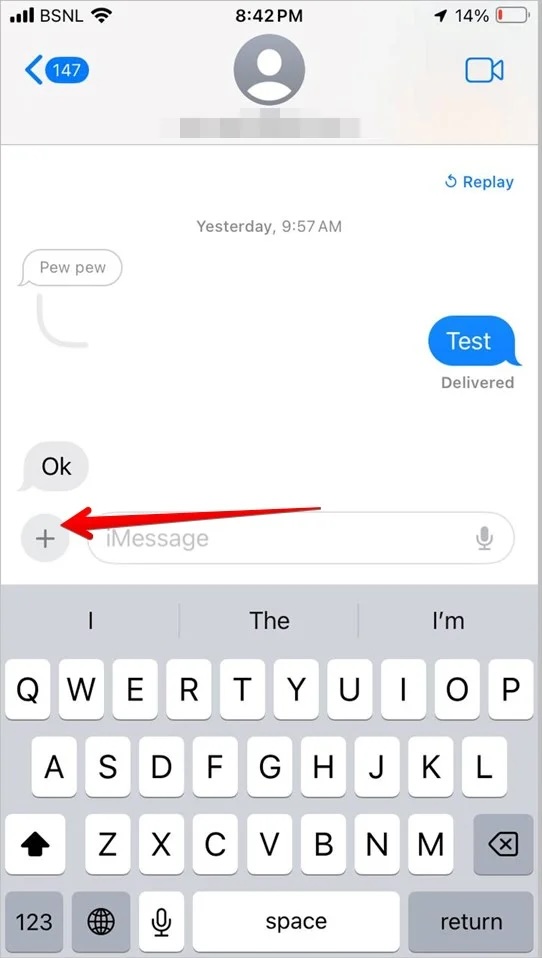
- Tap the Plus (+) button next to the text field.
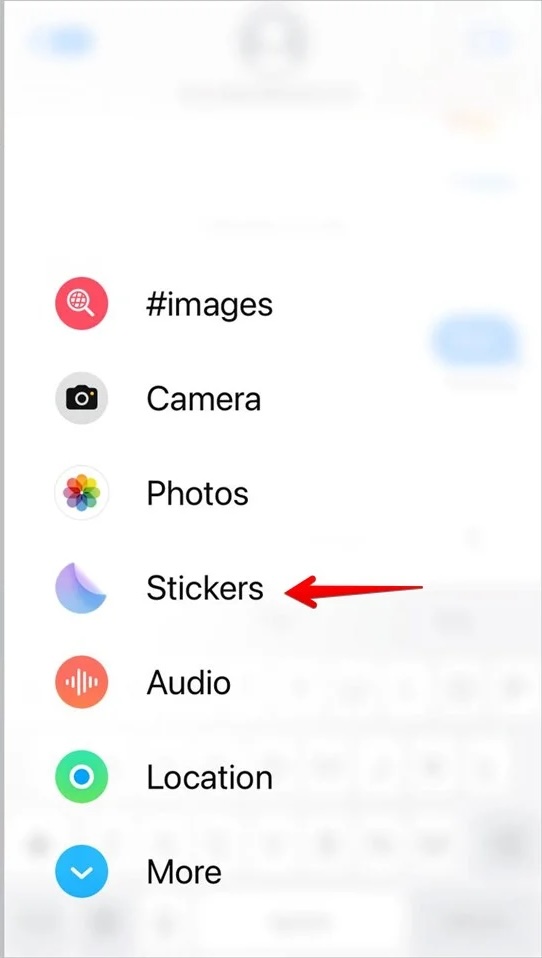
- Select Stickers.
- Switch to the custom stickers tab, not the Recent section.
- Tap and hold the sticker you want to remove.
- Release your finger and tap Delete.

To delete multiple custom stickers faster, long-press any sticker, choose Rearrange, then tap the minus (–) icon next to each sticker you want to remove.
How To Delete Stickers From The Emoji Keyboard
Stickers also appear in the emoji keyboard across apps like Messages, WhatsApp, and Instagram. These usually mirror your custom sticker collection.
- Open the keyboard in any app.
- Tap the Emoji icon.
- Select the Stickers icon.
- Switch away from the Recent tab.
- Tap and hold the sticker you want to remove.
- Tap Delete when the menu appears.
If the delete option does not appear, make sure you are pressing the sticker without dragging it.
How To Remove Stickers From Messages Or Photos
You can remove stickers placed on message bubbles, photos, or reactions, but this only removes them from your view. Other participants will still see the sticker.
- Open the conversation in Messages.
- Press and hold the message bubble or photo containing the sticker.
- Tap More from the menu.
- Open Sticker Details.
- Select Delete Message.
If Sticker Details does not appear, long-press the message bubble itself rather than the sticker.
How To Delete Or Hide Third-Party Sticker Packs
Third-party sticker packs cannot be edited individually, but you can remove or hide entire packs from Messages.
- Open Messages and tap the Plus (+) button.
- Select Stickers.
- Swipe through sticker packs and tap Edit.
- Tap Edit again in the top corner.
- Tap the minus (–) icon next to the sticker pack.
- Tap Delete or toggle the pack off.
Deleting the pack removes it completely, while toggling it off hides it from the sticker drawer.
How To Disable Stickers From The iPhone Keyboard
If you prefer not to use stickers at all, you can turn off sticker suggestions entirely from the keyboard settings.
- Open the Settings app.
- Go to General.
- Tap Keyboard.
- Scroll down and turn Stickers off.
Troubleshooting Common Problems
If stickers do not delete, confirm you are not using the Recent tab, which does not support removal. Restarting the Messages app can also refresh the sticker drawer.
If changes do not sync, check that iCloud is enabled for Messages, as sticker data syncs across devices.
Tips
- Delete unused sticker packs regularly to reduce clutter.
- Remove custom stickers made from private photos.
- Use Rearrange mode to clean up stickers faster.
- Disable stickers entirely if you never use them.
- Review sticker packs after installing new apps.
FAQ
Where are stickers stored on iPhone? Stickers are tied to Messages and iCloud, not visible in the Files app.
Does deleting a sticker remove it from old conversations? No, previously sent stickers remain visible in past chats.
Can deleted stickers be restored? Third-party stickers can return if you reinstall the app, but custom stickers must be recreated.
Summary
- Custom stickers can be deleted directly from Messages.
- Emoji keyboard stickers follow the same deletion rules.
- Message stickers can only be removed from your view.
- Sticker packs can be deleted or hidden.
Conclusion
Deleting stickers on iPhone is straightforward once you know where each type is managed. Whether you want a cleaner Messages experience or better privacy, iOS gives you full control over sticker removal and visibility.

Discussion (0)
Be the first to comment.