




Telegram channels let individuals and businesses broadcast messages to an unlimited audience. Unlike Telegram groups, channels focus on one-way communication, making them ideal for announcements, content distribution, and brand updates.
If you want to create a Telegram channel and start reaching subscribers at scale, the steps below walk you through the process on Android, iPhone, and desktop.
How To Create A Telegram Channel On Android
Creating a Telegram channel on Android takes only a few minutes. You can choose between a public channel that anyone can find or a private channel accessible by invite link.
- Open the Telegram app on your Android phone.
- Tap the pencil icon in the bottom-right corner.
- Select New Channel from the menu.
- Enter a channel name and optional description.
- Tap the camera icon to upload a channel photo, if desired.
- Tap the checkmark in the top-right corner.
- Choose Public Channel or Private Channel.
- If public, set a unique channel link.
- Optionally add subscribers from your contacts.
- Tap the arrow icon to finish creating the channel.
How To Create A Telegram Channel On iPhone Or iPad
The Telegram iOS app offers the same channel creation features with a slightly different layout.
- Open the Telegram app on your iPhone or iPad.
- Tap the new message icon in the top-right corner.
- Select New Channel.
- Tap Create Channel on the introduction screen.
- Enter a channel name and description.
- Tap Next.
- Select Public or Private channel.
- If public, create a channel username.
- Choose whether to restrict saving content.
- Add contacts if needed, then tap Next.
How To Create A Telegram Channel On Desktop
You can also create a Telegram channel using Telegram Desktop on Windows or macOS.
- Open Telegram Desktop.
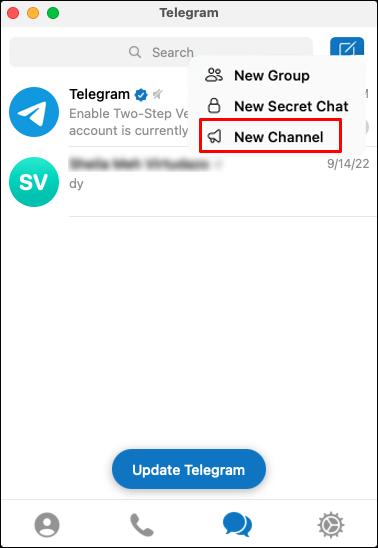
- Click the menu or compose icon in the top-right corner.

- Select New Channel.
- Enter a channel name and description.

- Upload a channel image, if desired.
- Click Next.
- Choose Public or Private channel.
- If public, set a permanent channel link.
- Click Done to finish.
Troubleshooting Common Problems
If you can’t create a Telegram channel, ensure your app is updated to the latest version. Restarting the app or signing out and back in can also resolve temporary issues.
If a public username is unavailable, try adding numbers or underscores until Telegram accepts it.
Tips
- Choose a clear channel name that reflects your content or brand.
- Write a short description explaining what subscribers can expect.
- Use a square image for better display across devices.
- Start with a private channel if you want to test content first.
- Post consistently to keep subscribers engaged.
FAQ
What is the difference between a Telegram channel and a group?
Telegram channels allow one-way broadcasting to unlimited subscribers, while groups support two-way conversations with limited members.
How many subscribers can a Telegram channel have?
Telegram channels can have unlimited subscribers.
Can I change a private channel to public later?
Yes, you can switch between public and private channel settings at any time.
Can multiple admins manage a Telegram channel?
Yes, you can assign admins with specific permissions.
Summary
- Telegram channels are ideal for broadcasting messages to large audiences.
- You can create a channel on Android, iPhone, or desktop.
- Public channels are searchable, while private channels use invite links.
- Channel setup takes only a few minutes.
Conclusion
Creating a Telegram channel is a simple way to share updates, content, or announcements with unlimited subscribers. Once your channel is live, focus on consistent posting and clear messaging to grow and retain your audience.


Discussion (0)
Be the first to comment.