




Connecting a VGA device to an HDMI display can be confusing because they use different signal types. VGA sends analog video only, while HDMI carries digital audio and video. To make them work together, you need a VGA to HDMI adapter or converter.
This guide shows you how to connect a VGA computer, laptop, or other device to an HDMI TV or monitor, step by step. You’ll also find a comparison of adapter types, troubleshooting advice, and practical tips for achieving clear, stable output.
Understanding VGA and HDMI Compatibility
VGA (Video Graphics Array) is an older analog interface that transmits video signals only. HDMI (High Definition Multimedia Interface) is a newer digital standard that carries both audio and video in one cable. Because analog and digital signals are not directly compatible, connecting them requires a conversion process handled by an adapter or converter.
Without this conversion, a simple VGA-to-HDMI cable will not work. The adapter changes the VGA analog output into an HDMI digital format that modern TVs and monitors can recognize. So, for the next few pages, you'll see how to connect VGA to HDMI.
Comparison of VGA to HDMI Adapter Types
There are several types of VGA to HDMI adapters available, and each one differs in power needs, audio capability, and supported resolution. Here’s a quick comparison of the most common options and when to use each.
Basic VGA to HDMI Adapter: This is the simplest option and requires no external power source. It only transfers video signals, so it does not support audio. Most models handle resolutions up to 1080p, making them ideal for basic video connections such as linking a PC to a monitor or projector that accepts HDMI input.
Audio-Enabled VGA to HDMI Adapter: This version draws power from a USB port or the connected device and includes audio support via a 3.5mm input jack. It also supports up to 1080p resolution. This type is great when you need both video and audio output from an older computer or laptop to a modern HDMI display or TV.
Powered VGA to HDMI Converter: These adapters come with an external power source—either USB or AC—and support both video and audio. They can output at resolutions up to 4K, providing the best image quality. This option is ideal for connecting high-resolution monitors, TVs, or projectors that require a strong and stable signal conversion.
In summary, choose a basic adapter for quick video-only setups, an audio-enabled adapter for combined sound and video, or a powered converter for the best performance and 4K compatibility.
Why it matters: Choosing the right VGA to HDMI adapter ensures smooth signal conversion, sharper images, and reliable performance without flickering or lag.
Step 1: Choose a Compatible Adapter
Identify whether you need video only or both video and audio. If you’re connecting a PC to a TV, pick an adapter with audio input so you can transfer sound along with the display. Make sure the adapter supports your display’s resolution—1080p or 4K for most modern screens.
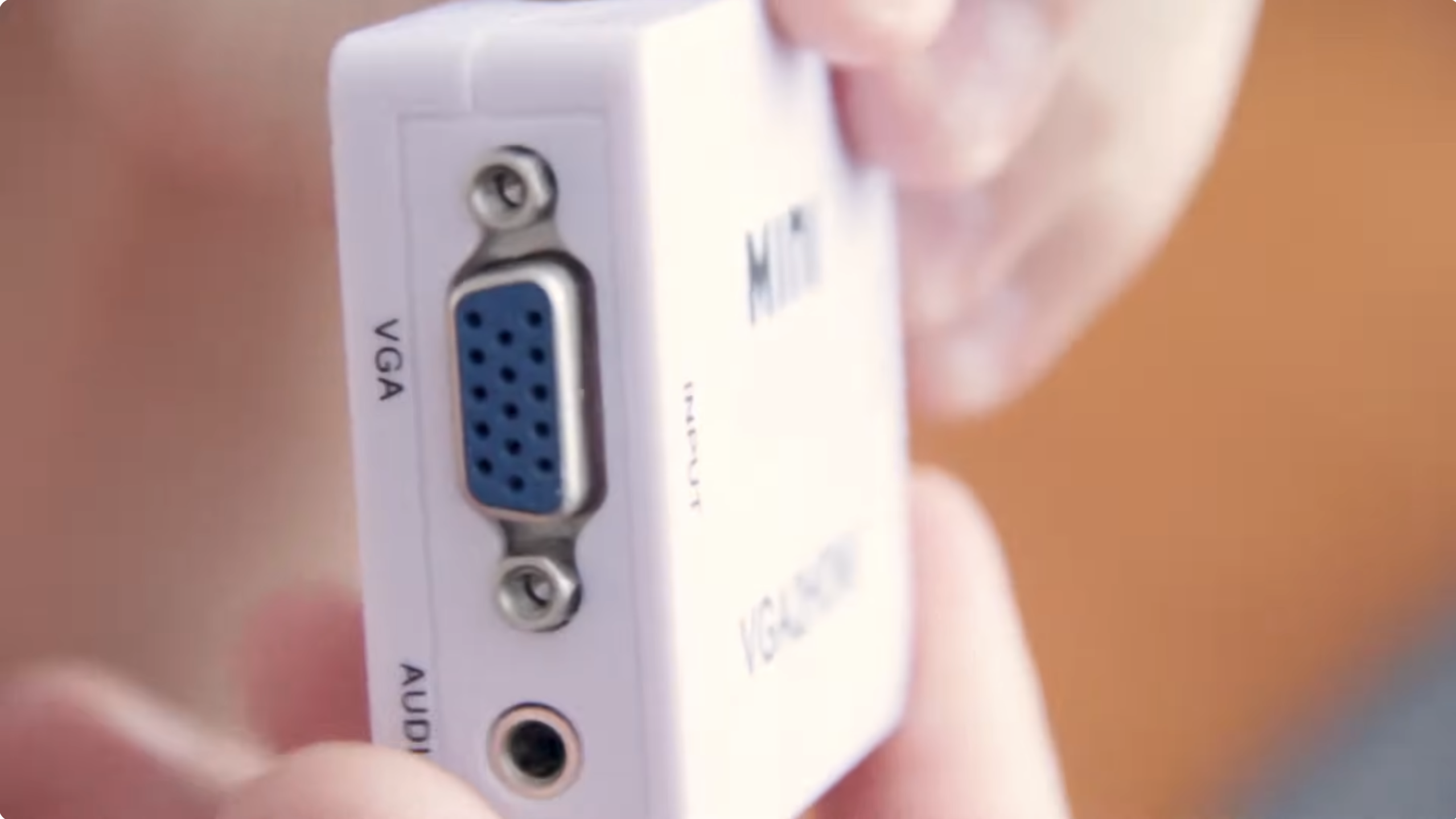
Step 2: Connect the VGA Cable to the Adapter
Power off both your computer and the HDMI display before connecting. Insert one end of the VGA cable into your computer’s VGA port and the other into the adapter’s VGA input. If your VGA to HDMI adapter includes an audio port, connect it to your PC’s headphone jack with a 3.5mm cable.
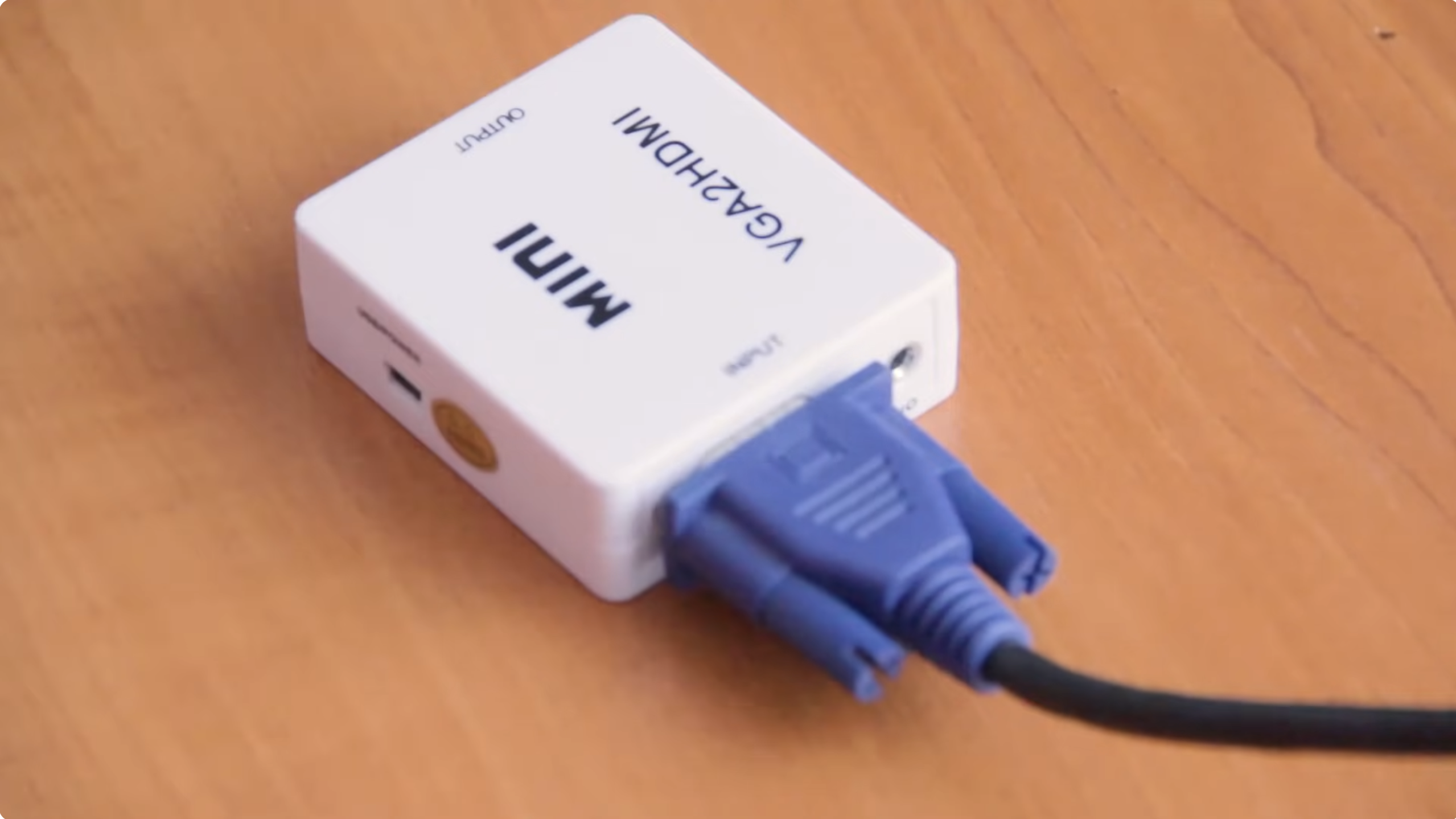
Step 3: Connect the Adapter to the HDMI Display
Plug one end of an HDMI cable into the adapter’s HDMI output and the other into the HDMI input on your TV or monitor. If your VGA to HDMI converter or adapter needs power, connect its USB power cable to your computer or a wall adapter. Then, turn on both devices.
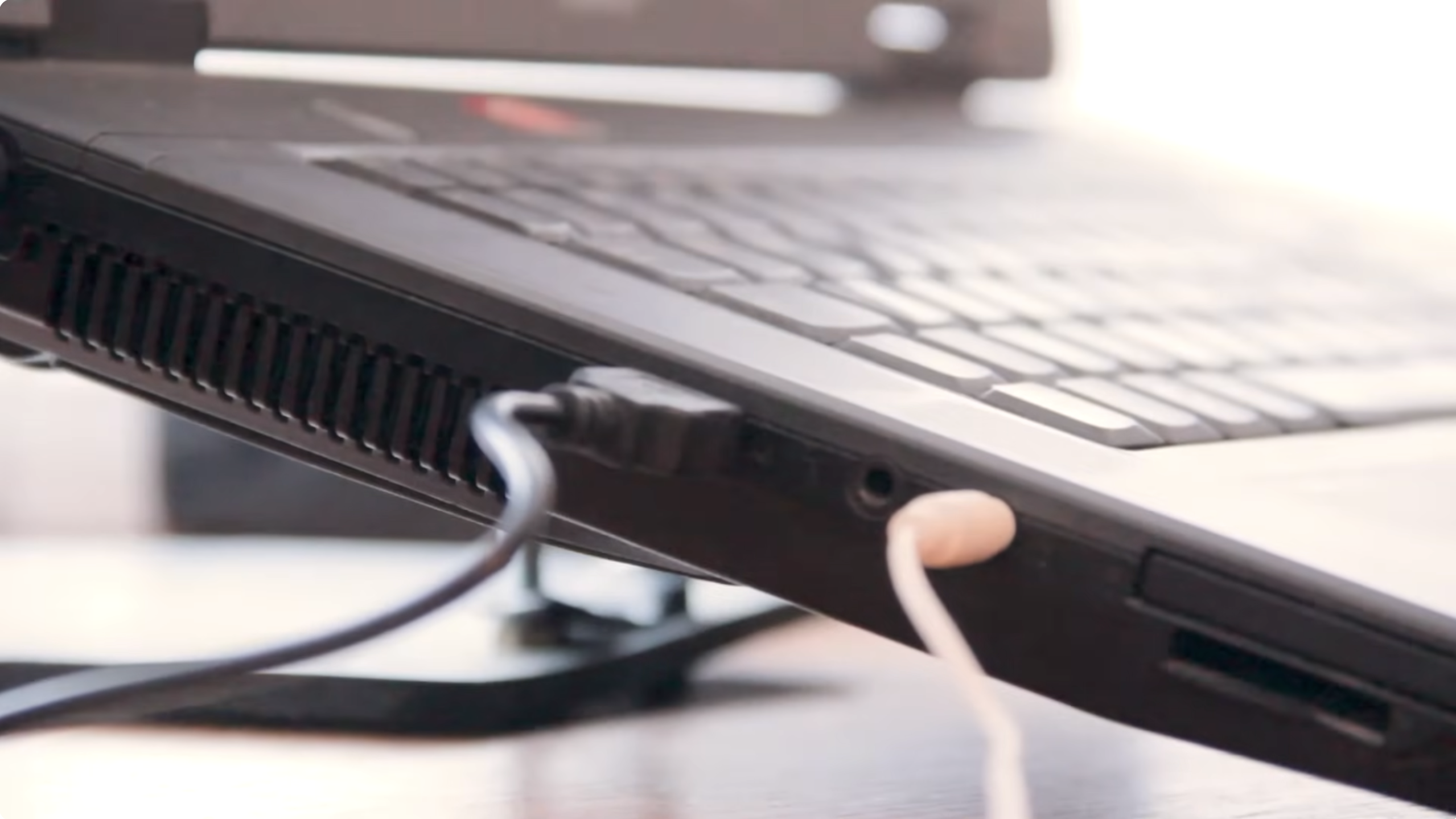
Step 4: Configure Display Settings on Windows
Once both devices are on, right-click anywhere on your desktop and select Display settings. Under Multiple displays, choose between Duplicate (same screen on both) or Extend (extra workspace). Adjust the resolution to match your HDMI display to prevent distortion or black borders.
If there’s no picture, verify that the HDMI input source on your TV or monitor matches the port used. Double-check that all cables are firmly connected and the adapter’s power source is active.
Tips for Best VGA to HDMI Performance
- Use short, high-quality VGA cables to reduce signal degradation.
- Keep the VGA to HDMI converter firmware updated if the manufacturer provides updates.
- Choose a powered adapter for high-resolution or long-distance connections.
- Ensure your computer’s graphics driver is up to date.
- Always match output and display resolutions for the clearest picture.
Troubleshooting Common Issues
- No signal: Confirm the adapter is powered (if required) and the correct HDMI input is selected.
- No audio: VGA doesn’t carry sound. Use an adapter with a 3.5mm input or connect external speakers.
- Blurry or stretched image: Adjust your PC’s resolution to match the display’s native resolution.
- Adapter not recognized: Try another USB port or restart your computer. Some converters need driver installation.
- Intermittent connection: Replace low-quality or damaged VGA/HDMI cables.
FAQ
Can I connect VGA to HDMI without an adapter?
No. VGA is analog, and HDMI is digital, so a VGA to HDMI converter is required to translate the signal correctly.
Why is my HDMI to VGA connection not working?
HDMI output to VGA input also requires a converter. Check that your adapter supports the correct direction (HDMI-to-VGA or VGA-to-HDMI).
Can I use a VGA to HDMI cable to connect my PC to my TV?
Only if it includes an active converter chip. Passive VGA-to-HDMI cables don’t process the signal and won’t work properly.
How do I connect my old computer to an HDMI TV?
Use a VGA-to-HDMI adapter with audio support, connect the cables, and then adjust display settings in Windows to mirror or extend your screen.
Does a VGA to HDMI adapter affect picture quality?
Some signal loss may occur due to analog-to-digital conversion. High-quality adapters minimize distortion and maintain clarity.
Summary of Steps
- Choose a compatible VGA to HDMI adapter.
- Connect the VGA cable and optional audio cable.
- Attach the adapter to the HDMI display.
- Power on devices and adjust display settings.
- Test and troubleshoot if necessary.
Conclusion
If you don't know how to connect VGA to HDMI, these are the simplest steps you can follow. All you need is the right adapter. Since VGA sends analog signals and HDMI expects digital input, using a proper converter ensures reliable video and audio transmission. With correct setup and display configuration, you can connect older computers or projectors to modern TVs and monitors with clear visuals and synchronized sound.

Discussion (0)
Be the first to comment.