




Some Ubotie keyboard models support more than one connection method, which helps users who prefer a stable, wired-like experience or devices that lack Bluetooth. If your Ubotie keyboard includes a 2.4 GHz USB receiver or a charging port that works as a wired connection, you can set it up quickly without relying on wireless pairing. This guide explains both alternative connection methods and what to do when your device does not detect the keyboard.
These instructions follow the current behavior of Ubotie keyboards at the time of writing and work across Windows, macOS, Chromebooks, and many tablets with USB adapters.
Prepare The Keyboard For USB Or Dongle Mode
Identify the connection option your Ubotie keyboard supports before you begin. Some models include both a USB receiver and a charging cable, while others only include one option.

- Look underneath the keyboard for a slot holding a 2.4 GHz USB receiver and the battery slot.
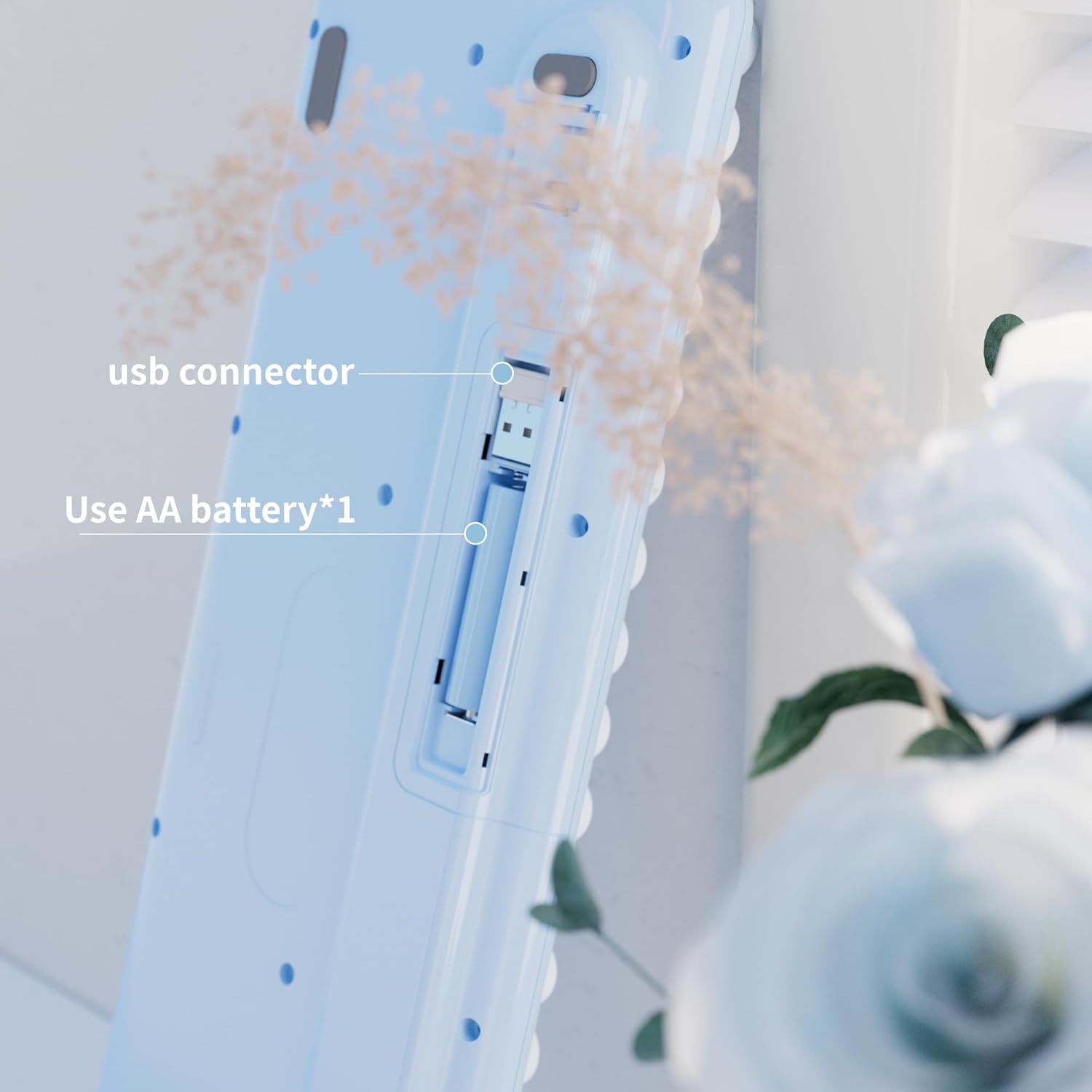
- If your model has a USB-C or Micro-USB port, check whether the keyboard supports wired operation while charging.
- Turn the keyboard’s power switch to ON so it becomes detectable by your device.
Connect With A 2.4 GHz USB Receiver
Many Ubotie keyboards ship with a small USB dongle that provides a plug-and-play connection without drivers or Bluetooth. This method works especially well on Windows PCs, Macs with USB adapters, and Chromebooks.
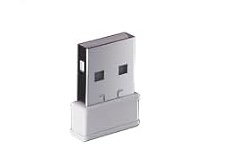
- Insert the USB receiver into an available USB port on your device.
- Wait a moment while the system sets up the keyboard automatically.
- Place the Ubotie keyboard near the device so the receiver maintains a strong signal.
- Start typing in a text field to confirm input is recognized.
If there is no response, remove the receiver, plug it back in, and toggle the keyboard’s power switch.
Connect Using A Wired USB Cable
Certain rechargeable Ubotie keyboards support wired functionality when connected with their charging cable. This setup offers a reliable connection and avoids wireless interference.
- Attach the cable to the keyboard’s USB port.
- Plug the other end into your computer, tablet adapter, or USB hub.
- Wait for your device to register the keyboard as standard input hardware.
- Type in a note or search bar to confirm the wired connection works.
If your model does not support wired typing, the cable may charge only. In that case, use the USB receiver method instead.
Use A USB Adapter For Tablets And Thin Laptops
Devices like iPads, Android tablets, and modern ultrabooks often lack full-size USB ports. A simple adapter makes the Ubotie keyboard compatible through the dongle or wired port.
- Use a USB-C to USB-A adapter for the Ubotie receiver.
- Use a Lightning to USB adapter for older Apple devices.
- Connect the receiver or cable through the adapter and test input.
Most tablets recognize the keyboard automatically through USB without additional setup.
Troubleshooting Common Problems
- Move the USB receiver closer to the keyboard to avoid signal loss.
- Replace or recharge the keyboard batteries if keystrokes do not register.
- Try a different USB port to rule out power or hardware issues.
- Restart your device to refresh the USB controller.
- Clean the receiver’s contacts if the connection feels unstable.
- Check whether your Ubotie model supports wired typing, not just charging.
Tips
- Keep the 2.4 GHz receiver stored inside the keyboard when traveling.
- Use a short USB extension cable if your device’s ports are hard to reach.
- Label the USB dongle so you do not mix it with other wireless devices.
- Charge the keyboard fully before long work sessions for better stability.
FAQ
Can all Ubotie keyboards connect without Bluetooth?
No. Only models with a USB receiver or wired functionality can connect without Bluetooth.
Does the USB dongle need drivers?
No. It works as a plug-and-play device on most modern operating systems.
Can I use a Ubotie keyboard on an iPad using USB?
Yes, if you use a compatible USB adapter and your model supports wired or dongle mode.
Why is the USB receiver not pairing with the keyboard?
Some models bind the receiver at the factory. If it fails, reset the keyboard or try another USB port.
Summary
- Prepare the Ubotie keyboard for dongle or wired mode.
- Use the 2.4 GHz USB receiver for instant plug-and-play input.
- Connect a charging cable if the model supports wired typing.
- Use USB adapters for tablets and thin laptops.
- Troubleshoot by checking power, ports, and distance.
Conclusion
You can connect many Ubotie keyboards without Bluetooth by using the included 2.4 GHz USB receiver or, on supported models, a wired USB cable. These options offer quick setup, stable performance, and compatibility with a wide range of devices. If your device lacks standard ports, simple adapters make the keyboard work just as smoothly. With the right connection method, your Ubotie keyboard becomes a dependable daily typing tool.
Discussion (0)
Be the first to comment.