




"What is the dvorak keyboard?" It’s an alternative layout designed to make typing faster and more comfortable than QWERTY. The Dvorak keyboard layout places common letters on the home row to cut finger travel and reduce strain.
The Dvorak Simplified Keyboard dates back to the 1930s. Advocates like it for efficiency and ergonomics, while skeptics point to the time required for retraining and quirks in shortcuts. Here’s a clear, modern guide that explains how it works, who it helps, and how to try it today.
Quick Answer
The Dvorak Simplified Keyboard rearranges keys so most typing happens on the home row. This can improve comfort and, for some users, speed. QWERTY remains the default on most devices, but you can switch layouts in system settings in a minute.
Background: Why Dvorak Exists
Mechanical typewriters shaped QWERTY, not modern ergonomics. Dvorak rethinks placement based on letter frequency and hand balance. Vowels sit under the left hand’s home row, common consonants under the right, encouraging a steady rhythm and less reach.
Dvorak vs QWERTY
Comfort and flow: Dvorak aims for minimal finger movement. QWERTY spreads frequent letters across rows, which increases travel.
Speed: Some dedicated users type faster on Dvorak, but is Dvorak really faster? Well, that depends on practice time and how much you type daily.
Shortcuts: Common commands like Ctrl+C and Ctrl+V shift position on Dvorak. You can remap keys or use OS features to keep familiar shortcuts.
Access: Every major platform supports Dvorak out of the box, so trying it costs nothing but time.
Dvorak Keyboard Benefits
The main Dvorak keyboard benefits focus on less motion and better hand alternation. Many users report smoother typing, fewer awkward reaches, and reduced fatigue during long sessions.
Writers, coders, and heavy typists often appreciate the consistent rhythm. If you spend hours at the keyboard, even small ergonomic gains add up.
Dvorak Keyboard Disadvantages
You face a learning curve. Expect slower speeds for a few weeks. Shortcut locations change, and shared or work PCs usually default to QWERTY. If you hop between devices, context switching can feel clumsy until muscle memory adapts.
Who Should Try Dvorak
Consider it if your hands tire easily, if you type for hours, or if you want an ergonomic layout that encourages home-row usage. Curious learners can test it for a month and track comfort and words per minute.
How to Switch to Dvorak on Your Devices
Here’s how to switch to Dvorak. Keep QWERTY installed so you can toggle back when needed.
Windows
- Open Settings > Time & Language > Language & Region.
- Select your language > Options > Add a keyboard.
- Choose Dvorak, then use the taskbar language switcher to toggle layouts.
macOS
- Go to System Settings > Keyboard.
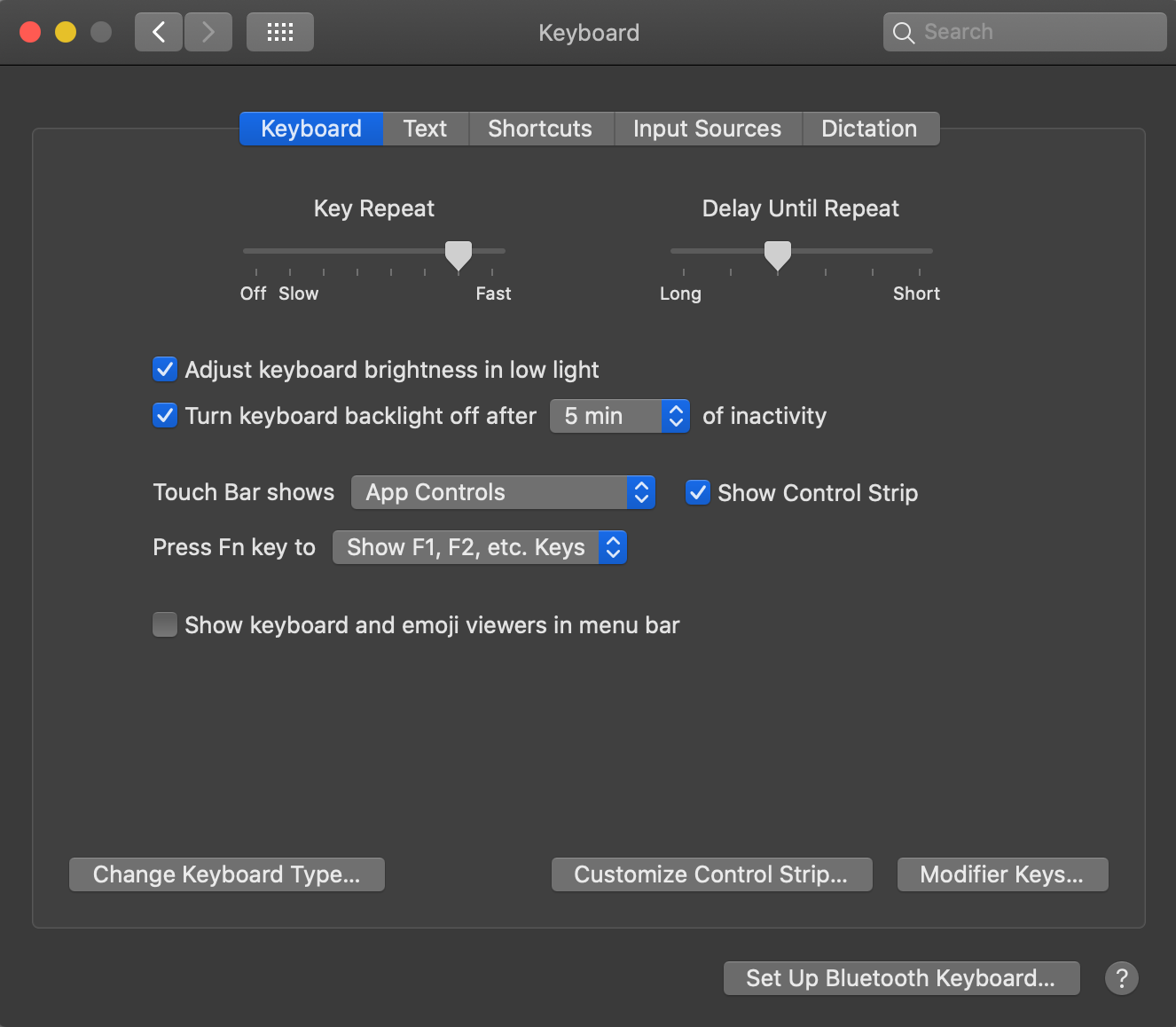
- Select Input Sources
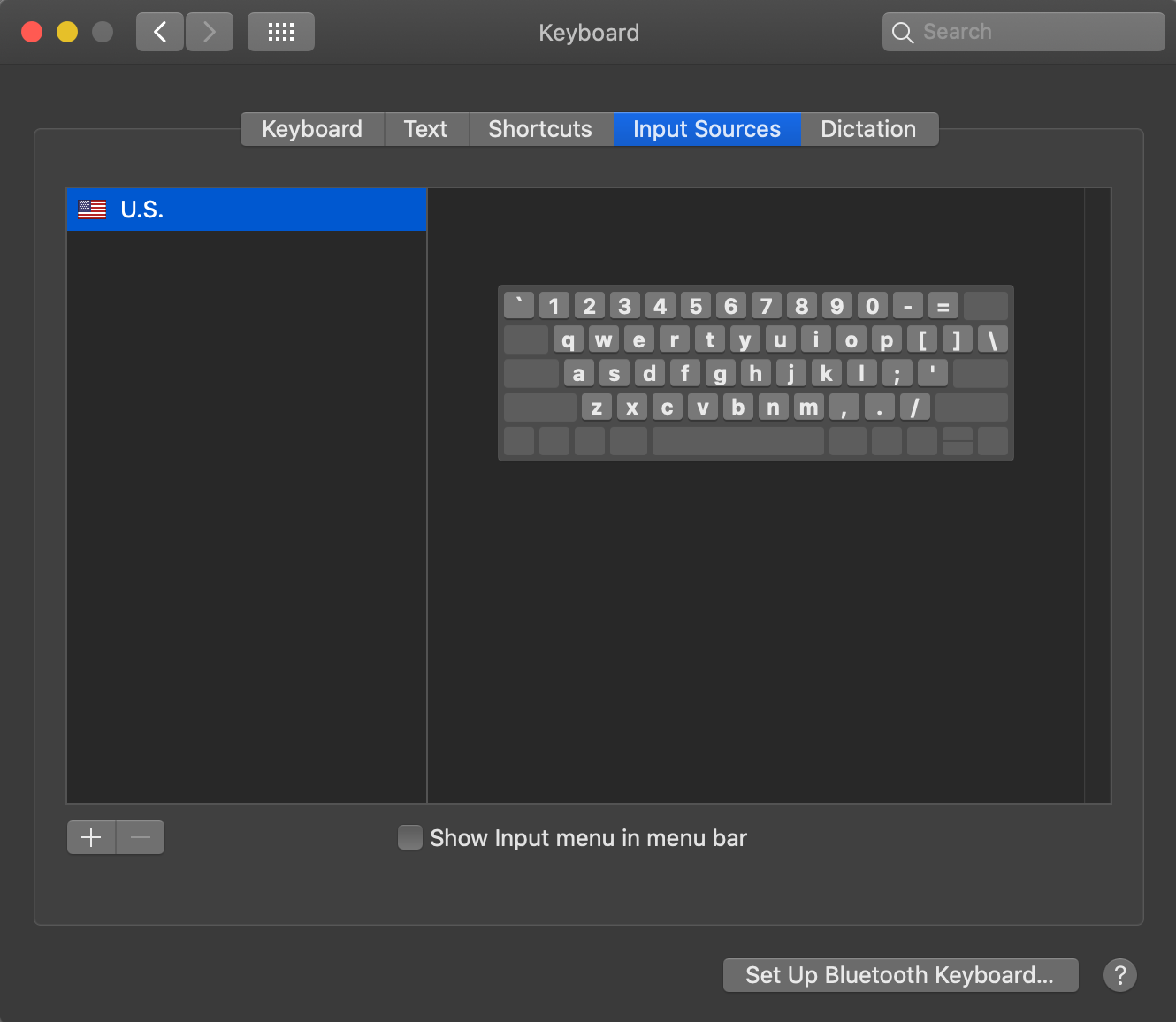
- Next, click the "+" button to Open Keyboard Layout Options. Select Dvorak and click Add.

- Enable the menu bar input switcher to quickly change layouts.
Linux (GNOME/KDE)
- Open Settings > Region & Language or Keyboard.
- Add a new input source and pick Dvorak.
- Set a shortcut to toggle layouts on demand.
iPhone and Android
- Install Gboard or SwiftKey if your default keyboard lacks Dvorak.
- Open the keyboard app settings and select Dvorak under Layout.
- Switch layouts from the globe icon while typing.
How to Use Dvorak Keyboard Effectively
If you’re wondering how to use Dvorak keyboard day to day, treat it like training. Consistency matters more than bursts of practice.
- Start with 20–30 minutes daily on Dvorak-only sessions.
- Use typing tutors that support the layout and track accuracy first.
- Print or stick a key map near your monitor during week one.
- Remap common shortcuts or use an app to keep Ctrl+C, Ctrl+V in reach.
- Increase your Dvorak time each week until it becomes default.
Popular Variants
Programmer Dvorak adjusts punctuation and symbols for coding. Left-Hand Dvorak and Right-Hand Dvorak support one-handed use. If you test alternatives, compare feel and shortcut reach before you commit.
How Dvorak Compares to Other Alternatives
Colemak keyboard layout is another ergonomic option. It keeps more QWERTY positions to shorten retraining, while still cutting finger travel. If you want a middle ground, test both for a week each and measure comfort and consistency.
FAQs
What is the Dvorak keyboard layout? It’s a system that places frequent letters on the home row to reduce movement and improve comfort.
Is Dvorak faster? Many users improve over time, especially with focused practice. Your results depend on dedication and daily typing volume.
Can I use it at work? Yes, if your employer allows layout changes. Keep QWERTY available for shared machines and quick collaboration.
Does it break shortcuts? Positions change. You can remap keys or use tools that preserve standard shortcuts while you type on Dvorak.
Summary
The Dvorak Simplified Keyboard targets efficiency by keeping your fingers on the home row. It can feel smoother, and some people type faster after practice. QWERTY still dominates, but switching back and forth is simple on any platform.
Conclusion
If comfort matters and you enjoy skill-building, try Dvorak for a month and track results. If device switching and instant shortcuts matter more, stick with QWERTY or test a gentler alternative like Colemak keyboard layout. You have options, and you can switch layouts anytime without changing hardware.
Discussion (0)
Be the first to comment.