




Connecting to Hilton WiFi is an essential part of staying at a Hilton property. Whether you're a Hilton Honors member or a first-time guest, Hilton offers convenient WiFi options to help you stay connected during your stay. This guide covers the steps to connect to Hilton WiFi, troubleshoot common issues, and get the most out of your internet connection.
Step 1: Turn on your device and enable WiFi

To begin, make sure your device is powered on and its WiFi feature is enabled. Navigate to your device’s WiFi settings and toggle the WiFi switch to on. This will allow your device to scan for available networks.
Step 2: Select the Hilton WiFi network
Once WiFi is enabled, you will see a list of available networks. Look for the network named Hilton Honors, HH, or something similar, depending on your specific property. Tap or click to select it from the list of available options.
Step 3: Open your web browser to the login page
After connecting to the Hilton WiFi network, open any web browser on your device. The Hilton login page should automatically appear. If the page doesn’t load, try manually visiting any website (such as https://neverssl.com) to trigger the login prompt.
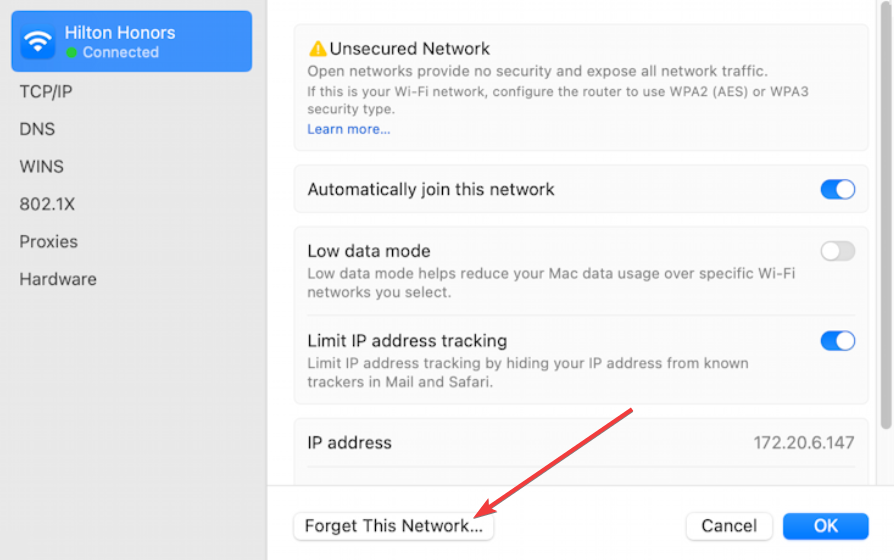
If it still does not bring up the page, try forgetting the network if you have connected before and reconnect again.
Step 4: Enter your details to log in
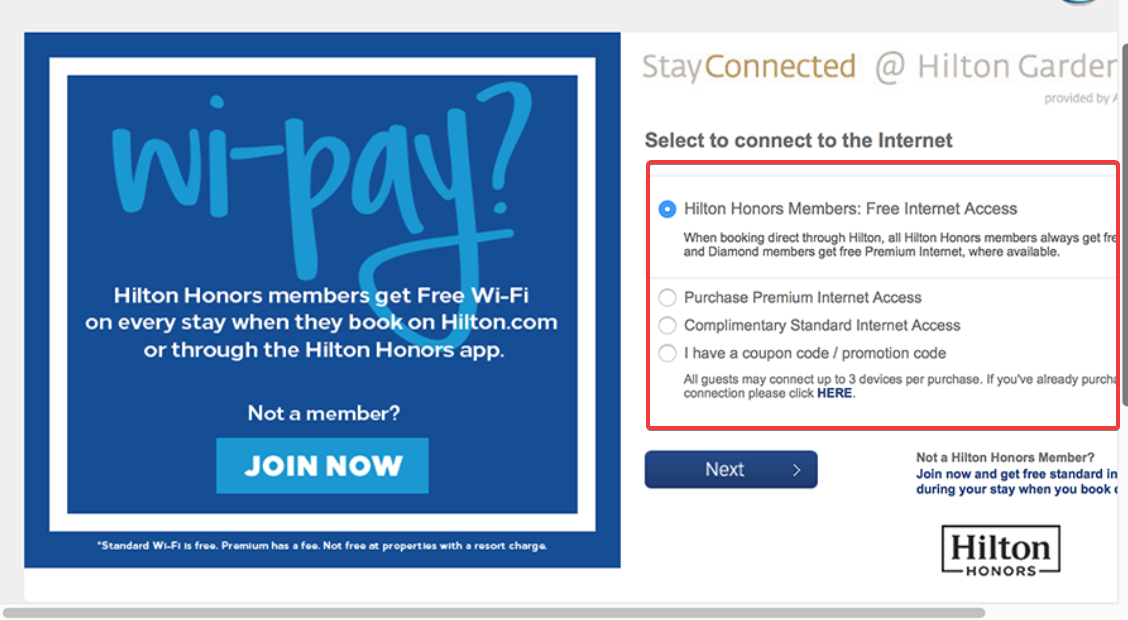
On the login page, you’ll be asked to enter your details. Hilton Honors members can log in using their membership number and password. Non-members can log in using their last name and room number. Once entered, click Login to access the network.
Step 5: Choose your WiFi tier (free vs. premium)
Hilton provides two WiFi options: a free, basic service and a premium, paid service for faster speeds. Choose the option that suits your needs. If you need more bandwidth or plan to stream content, we recommend the premium WiFi option.
Connecting game consoles (PS5, Xbox) to Hilton WiFi
Game consoles like PS5 and Xbox often have trouble connecting to hotel WiFi. If you’re connecting your console, try setting up a static IP address or manually entering DNS settings. You may also need to disable the console’s WiFi firewall for smoother connections.
Troubleshooting: Common Hilton WiFi issues
- What to do if the login page doesn’t appear: Open a different browser or clear the cache of your current browser, manually enter a URL (like https://neverssl.com) to force the portal to appear, and disable any VPN services temporarily, as they might block the login page.
- Reconnect to Hilton WiFi if it drops: Forget the Hilton network from your device’s WiFi settings and reconnect to it. You can also restart your device to reset the network connection. If the network remains unstable, contact the front desk for assistance or check for any service outages.
- Slow internet speeds: Consider upgrading to the premium WiFi service for faster speeds. Ensure no other devices are overloading the network by connecting too many devices at once.
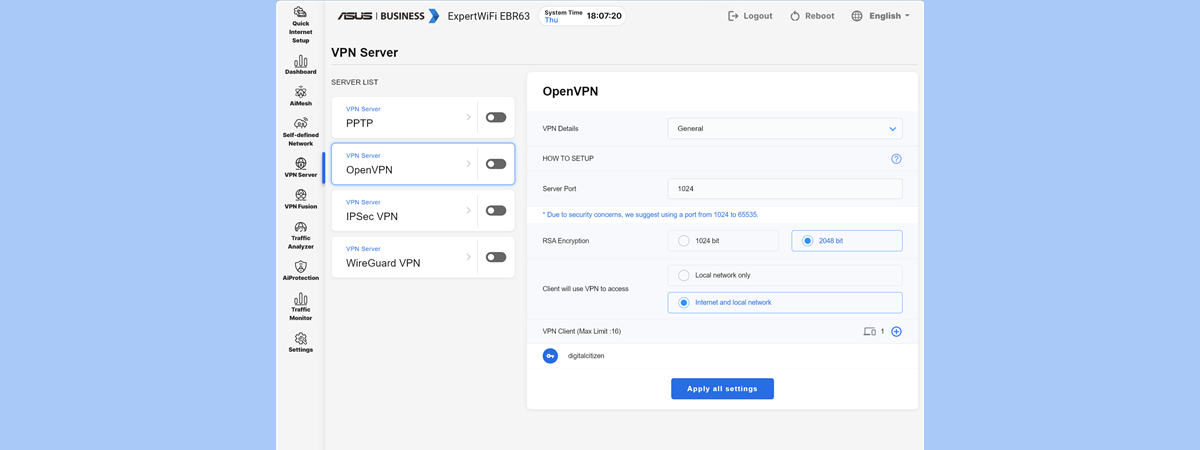
- Troubleshooting VPN issues with Hilton WiFi: VPN users may face connectivity issues with Hilton WiFi. Disconnect your VPN temporarily and attempt to log in again. If you need to use a VPN, try connecting to the network first, then reconnect your VPN after logging in.
FAQs
Can I use Hilton WiFi without being a Hilton Honors member? Yes, you can connect to Hilton WiFi even if you are not a Hilton Honors member. You will need to enter your last name and room number to log in.
Why isn't the Hilton login page showing up on my device? If the login page doesn’t load automatically, try opening a different browser, clearing your browser cache, or manually entering a website URL (e.g., https://neverssl.com) to trigger the login page.
Can I connect multiple devices to Hilton WiFi? Yes, you can connect multiple devices to Hilton WiFi, but keep in mind that bandwidth may be limited depending on the number of devices connected. Log in separately on each device for the best experience.
Summary
- Enable WiFi on your device and select the Hilton WiFi network.
- Open a browser to trigger the login page, then enter your last name and room number (or Hilton Honors credentials).
- Choose your WiFi tier – free basic WiFi or premium for faster speeds.
- If you encounter issues, clear your browser cache or try entering a URL to load the login page.
- For multiple devices, log in separately on each device and manage bandwidth accordingly.
Conclusion
Connecting to Hilton WiFi is simple, whether you're a Hilton Honors member or a guest. By following the steps above, you can easily log in and access the internet. If you run into any issues, these troubleshooting tips should help you get back online. For the best speeds, consider upgrading to the premium WiFi service.

Discussion (0)
Be the first to comment.