




Windows 11 allows you to connect almost any Bluetooth speaker and use it for system sounds, videos, music, and calls. The process is simple and only takes a few minutes.
Most modern laptops and desktop computers already include Bluetooth support. If your computer does not have Bluetooth, you can still connect wireless devices by using a small USB Bluetooth adapter, which is affordable and easy to install.
This guide explains how to connect a Bluetooth speaker to Windows 11 and how to set it as the default audio output device.
What You Need Before You Start
Make sure the following requirements are met before pairing your speaker:
- A computer running Windows 11
- A Bluetooth speaker with pairing support
- Bluetooth turned on in Windows 11
- Speaker placed close to the computer
Bluetooth Requirements at a Glance
| Item | Required |
|---|---|
| Windows version | Windows 11 |
| Bluetooth adapter | Built-in or USB |
| Internet connection | Not required |
| Speaker battery | Charged |
How to Connect a Bluetooth Speaker on Windows 11
Follow these steps to pair a Bluetooth speaker with your Windows 11 computer.
Step-by-Step Instructions
- Turn on your Bluetooth speaker.
- Enable pairing mode on the speaker. This usually involves holding the Bluetooth or power button until a light flashes.
- Open Settings on Windows 11.
- Click Bluetooth & devices.


- Turn on the Bluetooth toggle if it is off.
- Click Add device.
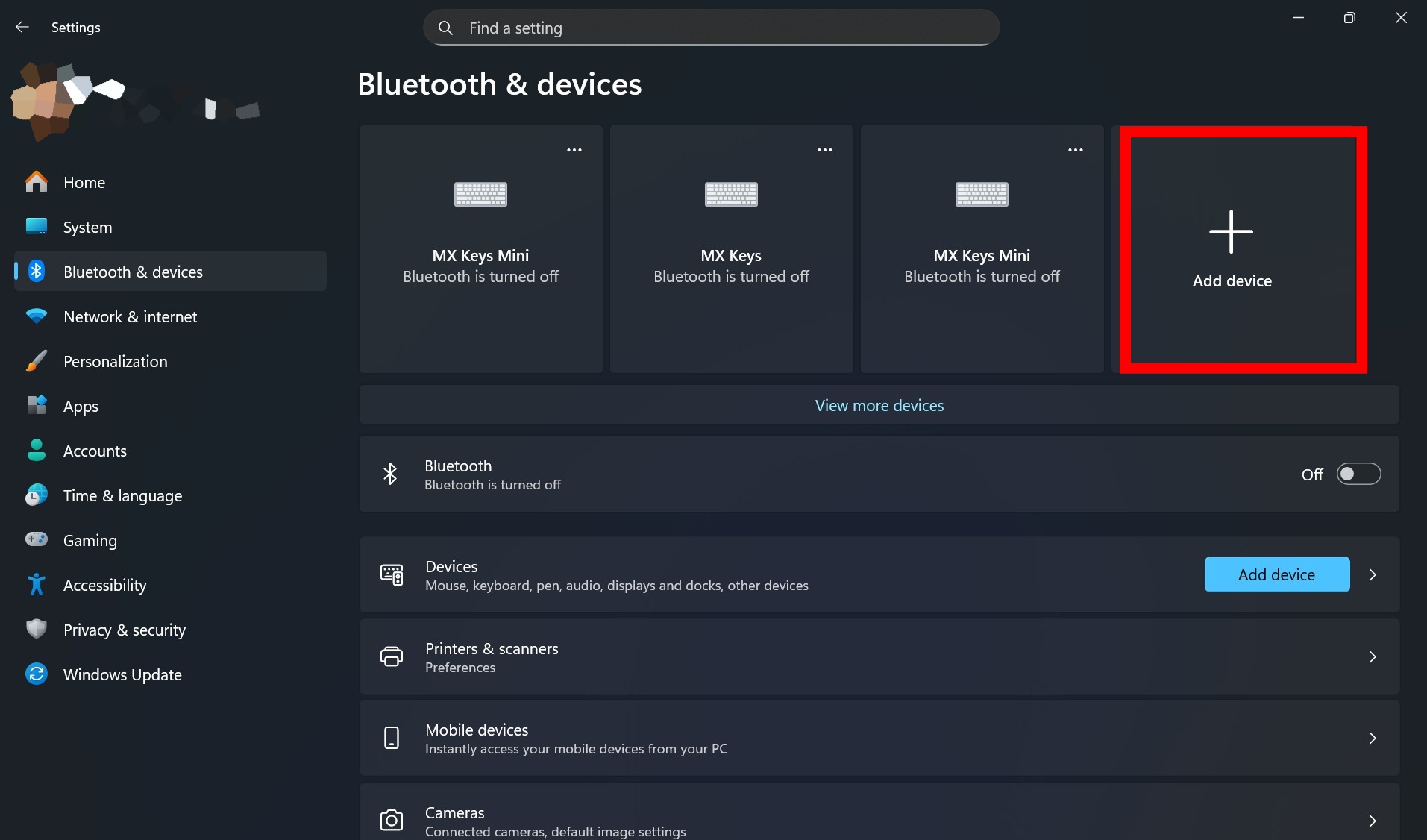

- Select Bluetooth from the list.


- Choose your Bluetooth speaker when it appears.
- Follow any on-screen instructions to complete pairing.
Once connected, Windows 11 will remember the speaker and reconnect automatically when it is turned on and nearby.
How to Set the Bluetooth Speaker as the Default Audio Output
If your computer already has built-in speakers or headphones, you may need to manually change the default sound output.
Change Default Sound Output
- Open Settings.
- Click System.
- Select Sound.
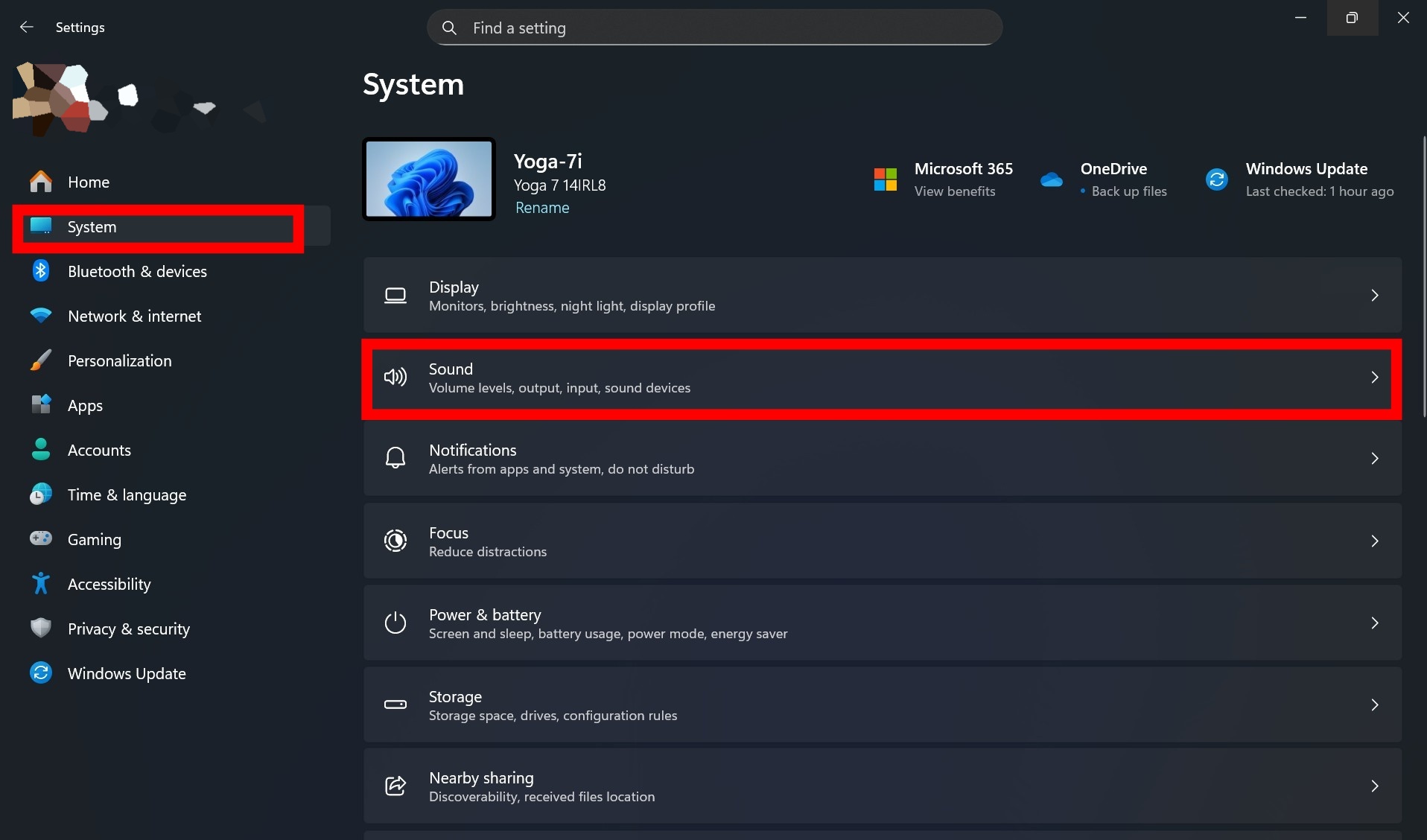
- Under the Output section, find Choose where to play sound.

- Select your Bluetooth speaker from the list.
After this change, all system audio will play through the Bluetooth speaker.
Common Bluetooth Connection Problems and Fixes
If the speaker does not connect, try these quick fixes:
- Restart the Bluetooth speaker and the computer
- Turn Bluetooth off and on again in Settings
- Move the speaker closer to the computer
- Remove the device and pair it again
- Check for Windows 11 updates
Using a USB Bluetooth Adapter
If your computer does not support Bluetooth, a USB Bluetooth adapter is a good solution.
Benefits of a USB Bluetooth Adapter
- Easy plug-and-play setup
- Works with most Windows 11 systems
- Supports speakers, keyboards, and mice
- Low cost and widely available
Once plugged in, Windows 11 usually installs the required drivers automatically.
Frequently Asked Questions
Can I connect more than one Bluetooth speaker to Windows 11?
Windows 11 supports multiple Bluetooth devices, but system audio can only play through one output device at a time unless the speaker itself supports stereo pairing.
Why is my Bluetooth speaker connected but silent?
Check the default audio output settings and make sure the volume is not muted in both Windows and the speaker.
Does Bluetooth audio reduce sound quality?
Bluetooth audio quality depends on the speaker and codec support. For everyday use, sound quality is usually very good.
Will the speaker reconnect automatically?
Yes. Once paired, Windows 11 will reconnect to the speaker when it is turned on and within range.
Connecting a Bluetooth speaker to Windows 11 is quick and user-friendly. Whether you are watching videos, listening to music, or joining meetings, a wireless speaker can improve your audio experience without extra cables.
If your device lacks Bluetooth, a USB adapter ensures you can still enjoy wireless audio with minimal effort.

Discussion (0)
Be the first to comment.