




Changing the color on a Razer Cynosa gaming keyboard gives your setup a more personal look. Most models support full RGB effects through Razer Synapse, while others use limited lighting zones.
This guide walks you through checking your model, installing the right software, applying lighting changes, and fixing issues that prevent color updates.
Before you start, look at the keyboard’s underside for the model name. This helps you confirm whether your version supports per-key lighting or only zone-based effects.
1) Install and set up Razer Synapse
You need Synapse to unlock full lighting controls. Proper installation ensures your keyboard shows up in the device list.
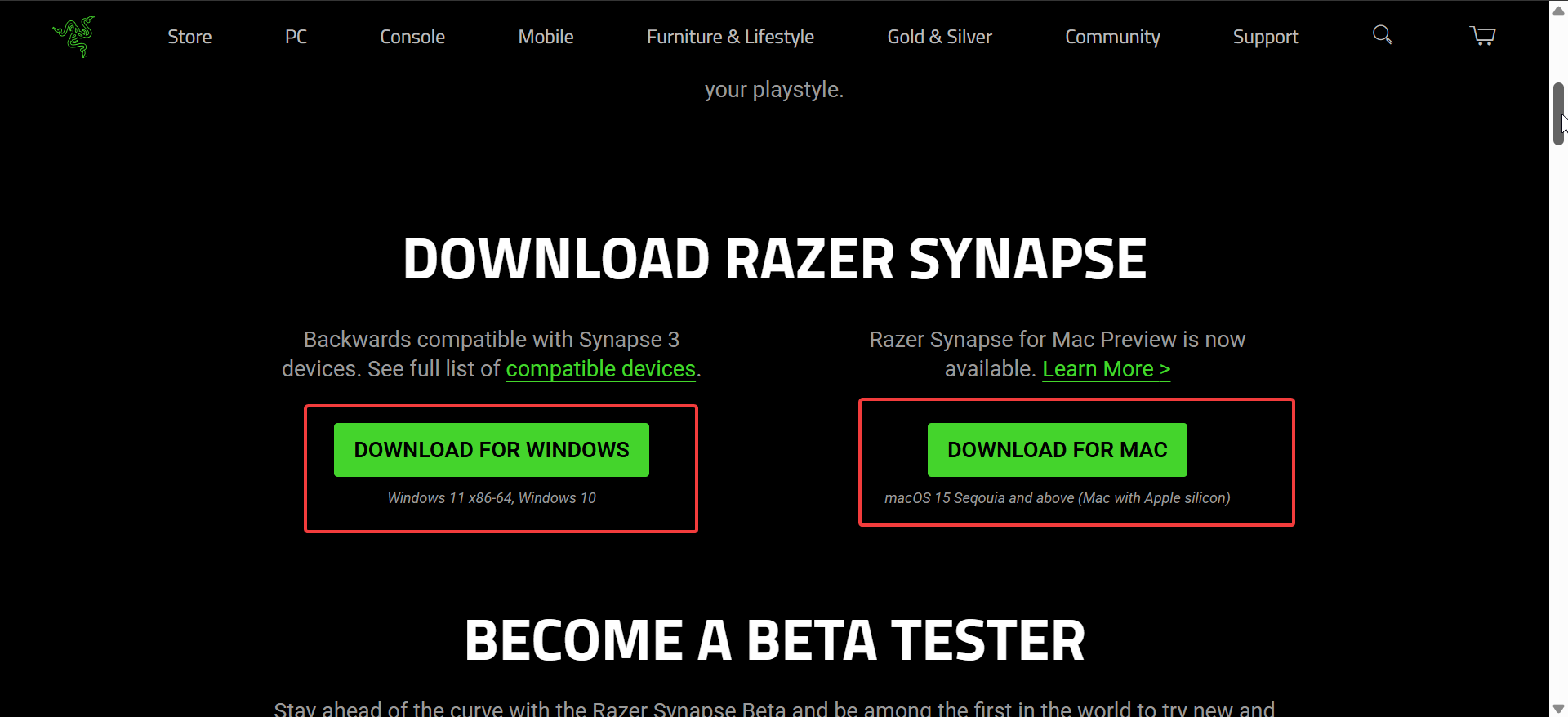
Go to the official website and download the latest version of Synape. Next, double-click the installer in your Downloads folder and follow the onscreen instructions to complete the installation.
Now, sign in to enable profile syncing and lighting settings across devices, then plug the keyboard into a direct USB port. Finally, open Synapse and verify that the Cynosa icon appears on the home screen.
2) Change the keyboard color in Synapse
Use the lighting tab to apply colors, effects, and brightness changes. These settings update in real time.

Select the lighting section to view color pickers and brightness sliders. Choose a preset or set a custom shade for your setup. Next, pick from static, wave, spectrum cycling, reactive, and other built-in effects. These presets make lighting changes fast and simple.
To use advanced effects, open Chroma Studio. You can apply layered effects, zone-based colors, or model-specific animations.
3) Create and save custom lighting profiles
Profiles help you switch between preferred lighting themes with one click. You can keep multiple layouts depending on your workflow.
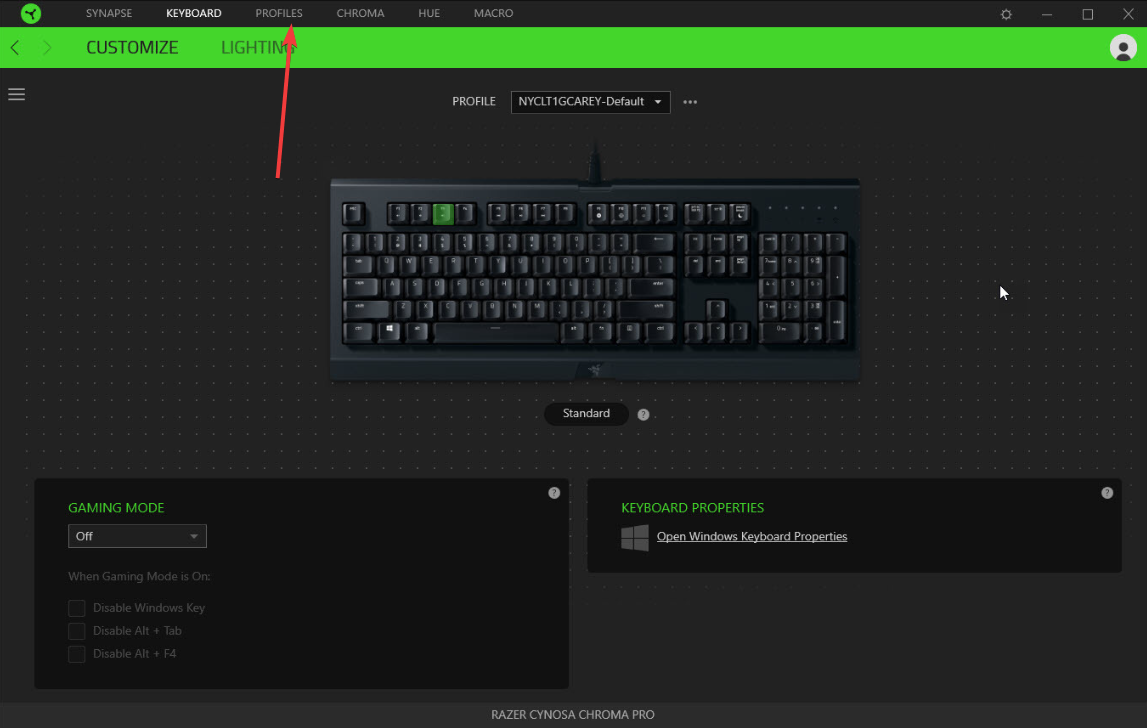
Start by opening Synapse and adding a new profile for your keyboard. Then, give it a name so you can identify it later. Next, use the color grid or zone selector to assign specific colors.
Per-key options appear on models that support advanced lighting.
Tip: Export your lighting setup to save a backup. You can import the same file later or share it with friends.
4) Lighting behavior without Synapse
The keyboard will still show lighting when connected to consoles, but options become limited. PS5 and Xbox use the keyboard’s default lighting pattern. You cannot change effects without Synapse installed on a computer.
Also, it is important to note that some effects may stay active for a short time after moving from PC to console. These fade when the device resets or restarts.
5) Troubleshooting lighting issues
- Keyboard not detected: Try another USB port and avoid hubs. Restart Synapse and confirm that the keyboard shows in the device list.
- Lighting not changing: Make sure no other profile is overriding your settings. Update Synapse and check for firmware updates in the settings menu.
- Reset your keyboard settings: Delete the active profile and create a fresh one. This clears corrupted files that block lighting control.
Tips for better RGB customization
- Match lighting to games
- Use profile switching shortcuts
- Keep firmware updated
FAQs
Why doesn’t my Cynosa show per-key lighting? Most Cynosa models use zone-based lighting only. Per-key control appears only on higher-end Razer keyboards.
Can I sync my keyboard colors with my mouse or headset? Yes. Use Chroma Studio to link lighting effects across supported devices.
Is Synapse required for changing colors? Yes, full customization needs Synapse. Only default effects work without it.
Can lighting turn off automatically? Yes. Use the idle and sleep settings inside the lighting tab.
Summary
- Check your Cynosa model to confirm lighting capabilities.
- Install Synapse and verify the keyboard appears in the device list.
- Use the lighting tab to apply quick or advanced effects.
- Create custom profiles for different setups.
- Know how lighting behaves on consoles without Synapse.
Conclusion
A Razer Cynosa keyboard offers simple RGB customization through Synapse, even on entry-level models. You can apply quick presets or build detailed lighting layouts with Chroma Studio.
If the keyboard does not respond, basic troubleshooting usually restores full control. This creates a stable lighting setup that fits both gaming and everyday use.


Discussion (0)
Be the first to comment.