




You can’t fully replace the system font on an iPhone, but you can change how text looks in several useful ways. iOS lets you adjust font size, weight, contrast, and spacing, and it also supports custom fonts inside specific apps. If you want stylized text everywhere, keyboard-based font apps offer a workaround, with limits.
Below are the real, supported ways to change font appearance on iPhone, ordered from safest to most flexible.
Table of contents
- Can you change the system font on iPhone?
- Change font size and style using iPhone settings
- Use accessibility features to customize text appearance
- Install and use custom fonts on iPhone
- Change fonts using keyboard apps
- Change fonts inside individual apps
- Common myths about changing fonts on iPhone
- Troubleshooting font changes not working
- Tips for better font readability on iPhone
- FAQs about changing fonts on iPhone
- Summary
Can you change the system font on iPhone?
Apple does not allow system-wide font replacement on iOS. The default San Francisco font remains locked for consistency, performance, and security reasons.
Why Apple doesn’t allow full font replacement
Apple designs iOS around predictable layouts and accessibility rules. It allows you to customize your iPhone home screen, change font size, and other customization options. But it does not allow full font swaps, as this could break apps, reduce readability, and create support issues across devices.
Change font size and style using iPhone settings
This method works everywhere on iOS and stays fully supported.
Adjust text size and bold text
- Open Settings.
- Tap Display & Brightness.
- Tap Text Size and move the slider.


- Go back and enable Bold Text if you want thicker lettering.
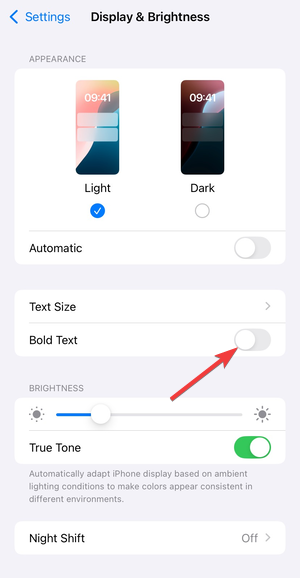
This improves readability across apps, menus, and system screens.
Use display zoom for larger interface text
- Open Settings.
- Tap Display & Brightness.
- Tap Display Zoom.
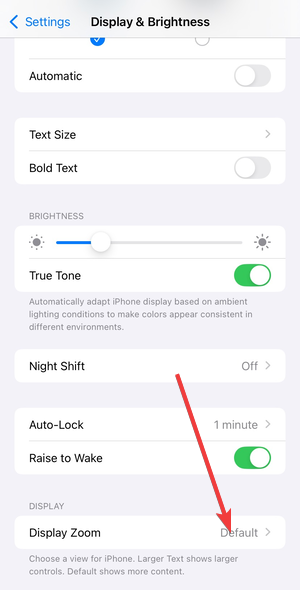

- Select Larger Text, then restart when prompted.

Display Zoom enlarges text and UI elements together, which helps on smaller screens.
Use accessibility features to customize text appearance
Accessibility settings offer deeper control without third-party apps.
Enable bold text, increase contrast, and reduce transparency
- Open Settings.
- Tap Accessibility.
- Open Display & Text Size.
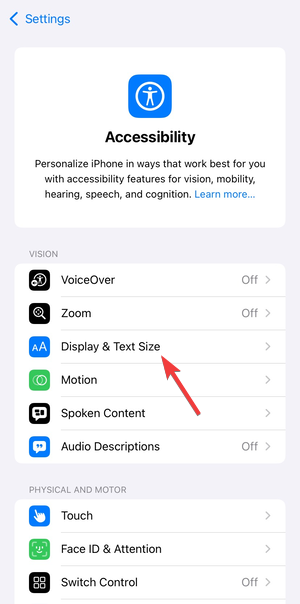

- Enable options like Increase Contrast or Reduce Transparency.
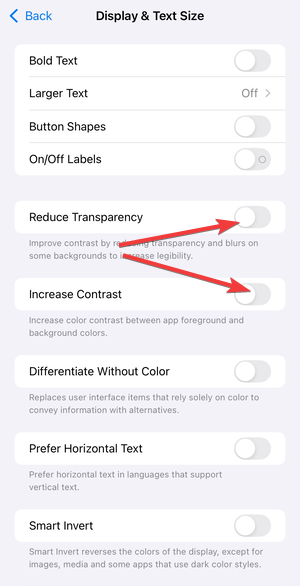

These settings make text stand out more, especially in bright environments.
Per-app text size controls
- Open Settings.
- Tap Accessibility.
- Tap Per-App Settings.
- Add an app, then adjust Larger Text.
This lets you enlarge fonts in apps like Mail or Notes without affecting others.
Install and use custom fonts on iPhone
iOS supports custom fonts, but only inside compatible apps.
Install fonts using the App Store
- Install a font app from the App Store.
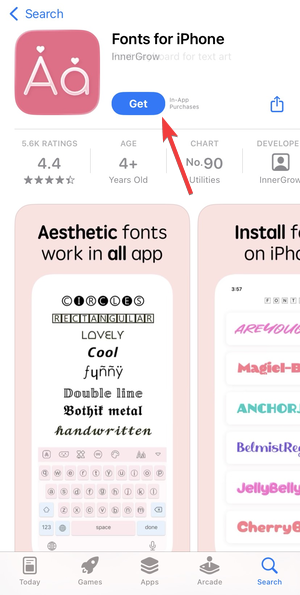

- Open the app and install fonts using the built-in installer.
- Confirm font installation in Settings > General > Fonts.
Installed fonts become available to supported apps only.
Where installed fonts actually work
Custom fonts work in apps like Pages, Keynote, Numbers, and many design or document editors. They do not change fonts in Settings, Messages, or most system apps.
Change fonts using keyboard apps
Font keyboards offer the fastest way to create stylized text.

How font keyboards work
Font keyboards replace letters with Unicode-style characters. The text looks different but remains plain text underneath.
Limitations of keyboard-based fonts
Some apps block or normalize styled characters. Search fields, passwords, and system labels ignore these fonts entirely.
Change fonts inside individual apps
Some apps include their own font controls.
Apps that support built-in font switching
Design, document, and social media apps often include font menus. These settings affect content inside the app only.
Why some apps ignore custom fonts
Many apps lock fonts to protect layout stability. Developers choose whether to support font customization.
Common myths about changing fonts on iPhone
“Jailbreaking is required” – true or false
False. Jailbreaking enables deeper customization, but it breaks security, voids support, and risks system stability.
“Font profiles change iOS everywhere”
False. Configuration profiles can install fonts, but apps decide whether they appear.
Troubleshooting font changes not working
- Fonts not showing in apps: Restart the app first. If the font still doesn’t appear, the app likely doesn’t support custom fonts.
- Keyboard fonts not appearing correctly: Some platforms strip stylized characters. Switch to plain text when formatting matters.
Tips for better font readability on iPhone
- Increase text size before using Display Zoom.
- Enable Bold Text for stronger contrast.
- Use per-app text sizing for reading-heavy apps.
- Avoid font keyboards for professional content.
FAQs about changing fonts on iPhone
Can I change the font in Messages? No, Messages uses the system font and ignores custom fonts.
Do custom fonts affect notifications? No, notifications always use the system font.
Are font apps safe to use? Most App Store font apps are safe, but avoid profile-based installs from unknown sources.
Summary
- iOS does not support system-wide font replacement.
- Settings and Accessibility offer safe font appearance changes.
- Custom fonts work only in supported apps.
- Keyboard fonts provide visual styles with limitations.
Changing fonts on iPhone means working within Apple’s rules. For everyday readability, use built-in settings. For creative text, rely on app-specific fonts or keyboard tools, and keep expectations realistic.



Discussion (0)
Be the first to comment.