




If your iPhone or iPad shows Wi-Fi but pages load slowly, your signal strength likely drops due to distance, interference, or a misbehaving setting. Use the steps below to force a cleaner connection, pick the best band, and remove network conflicts that weaken Wi-Fi.
Table of contents
- Why Wi-Fi signal feels weak on iPhone and iPad
- Quick fixes that improve Wi-Fi signal immediately
- Change iPhone and iPad settings that weaken Wi-Fi
- Improve Wi-Fi signal with router and network changes
- Advanced fixes if the signal stays weak
- iPhone vs iPad Wi-Fi signal differences
- Public Wi-Fi and crowded network tips
- When weak Wi-Fi signal points to hardware
- Tips for keeping Wi-Fi signal strong long term
- FAQs about boosting Wi-Fi signal on iPhone and iPad
- Summary
Why Wi-Fi signal feels weak on iPhone and iPad
Wi-Fi signal strength depends on how well your device hears the router, not only your internet plan. Walls, crowded channels, Bluetooth accessories, and auto-switching between bands can reduce stability even when the Wi-Fi icon stays on.
Quick fixes that improve Wi-Fi signal immediately
Toggle Airplane Mode, then reconnect to Wi-Fi
Turning on and turning Airplane mode before reconnecting to your Wi-Fi resets your wireless radios and forces a fresh connection to the router. It often fixes “sticky” connections where your iPhone or iPad clings to a weak access point.

Restart your iPhone or iPad
A restart clears temporary networking glitches and can stabilize connections that degrade after days of uptime. Do this before deeper resets.

Restart your router and modem
Routers can get congested and broadcast a weaker, less stable connection over time. A power cycle clears memory and forces a clean Wi-Fi session.
Change iPhone and iPad settings that weaken Wi-Fi
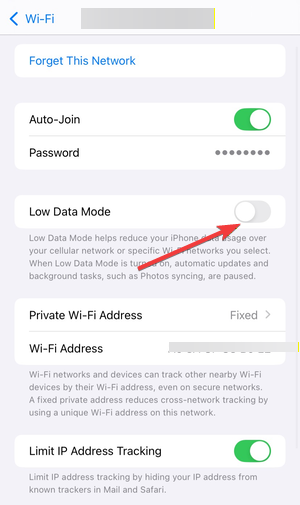
Turn off Low Data Mode for your Wi-Fi network
Low Data Mode can delay background activity and make connections feel unstable, especially on busy networks. Turn it off for your home or office Wi-Fi.
- Open Settings.
- Tap Wi-Fi.
- Tap the i icon next to your Wi-Fi network.


- Turn off Low Data Mode.

Turn off Wi-Fi Assist to stop constant switching
Wi-Fi Assist can switch you to cellular data when Wi-Fi weakens, which makes Wi-Fi feel unreliable. Turning it off helps you judge and fix Wi-Fi signal behavior accurately.
- Open Settings.
- Tap Cellular (or Mobile Data).
- Scroll to the bottom.
- Turn off Wi-Fi Assist.
Forget the Wi-Fi network and reconnect
A saved Wi-Fi profile can go stale and cause poor band selection or authentication hiccups. Forgetting the network forces a clean setup and often improves stability.
- Open Settings.
- Tap Wi-Fi.
- Now, tap the i icon next to your network.
- Next, tap Forget This Network.

- Confirm, then rejoin the network and enter the password.
Improve Wi-Fi signal with router and network changes
Reposition your router for stronger coverage
Router placement impacts signal more than most people expect, especially in apartments or multi-room homes. A higher, central spot reduces walls and metal objects between you and the router.
- Place the router in a central room, not a corner.
- Keep it on a shelf or table, not the floor.
- Move it away from TVs, microwaves, and Bluetooth hubs.
- Avoid hiding it inside cabinets or behind furniture.
Switch between 2.4 GHz and 5 GHz
2.4 GHz reaches farther through walls, while 5 GHz gives better performance up close. If your router shows separate network names, try the other band and compare stability.
- Open Settings on your iPhone or iPad.
- Tap Wi-Fi.


- Select the other network name (often labeled 2.4G or 5G).
- Test in the room where the signal feels weak.
Use a mesh system or extender for dead zones
If signal drops in the same rooms every day, you likely have a coverage problem, not an iPhone problem. Mesh nodes work better than single extenders because they hand off devices smoothly.
- Place a mesh node about halfway between the router and the weak area.
- Keep nodes in open areas, not behind TVs or inside cabinets.
- Use the mesh app to confirm each node shows a strong connection to the main router.
Advanced fixes if the signal stays weak
Reset network settings
This clears saved Wi-Fi networks, VPN profiles, and cellular settings that can conflict with Wi-Fi behavior. Keep your Wi-Fi password ready before you reset.
- Open Settings.
- Tap General.
- Now, tap Transfer or Reset iPhone (or Transfer or Reset iPad).
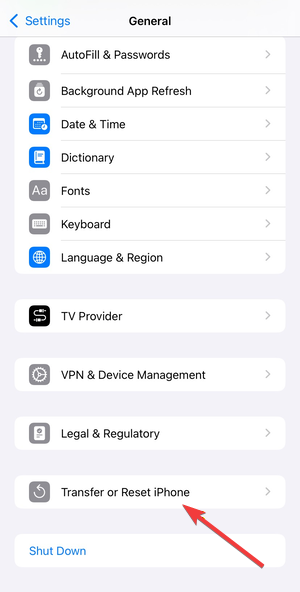

- Next, tap Reset.
- Finally, tap Reset Network Settings and confirm.


Update iOS or iPadOS
Apple ships Wi-Fi fixes in system updates, especially after major iOS releases. Updating can improve compatibility with newer routers and mesh systems.
- Open Settings.
- Tap General.


- Next, tap Software Update.
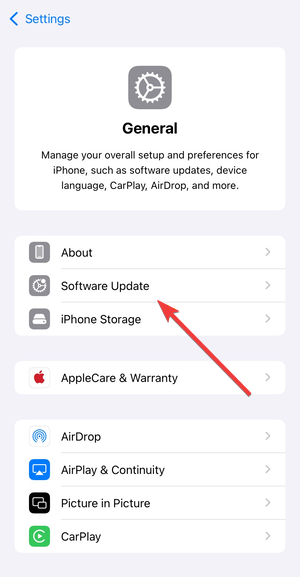

- Finally, tap Download and Install if an update appears.
Update router firmware
Firmware updates can improve signal stability, roaming behavior, and Apple device compatibility. Most modern routers let you update through an app or web dashboard.
- Open your router’s companion app and look for Firmware Update or Router Update.
- If you use a web dashboard, sign in and check Administration or Advanced settings.
- Install the update, then restart the router.
iPhone vs iPad Wi-Fi signal differences
Many iPads hold signal better because they have larger internal antennas. iPhones can lose bars faster when you cover antenna areas with your hand or use thick cases with metal parts.
Public Wi-Fi and crowded network tips
In cafés and apartments, dozens of routers compete on the same channels, which makes Wi-Fi feel weak even when your bars look fine. Moving closer to the access point and switching to 5 GHz often helps more than resetting your phone.
When weak Wi-Fi signal points to hardware
If your iPhone or iPad drops Wi-Fi on multiple networks where other devices stay stable, the device may have a hardware issue. If every device struggles in the same rooms, your router placement or coverage needs an upgrade.
Tips for keeping Wi-Fi signal strong long term
- Keep iOS/iPadOS and your router firmware up to date.
- Separate band names so you can pick 2.4 GHz for range or 5 GHz for performance.
- Use a mesh system for multi-room homes instead of a single extender.
- Restart your router monthly if performance degrades over time.
FAQs about boosting Wi-Fi signal on iPhone and iPad
Wi-Fi booster apps cannot increase signal strength because iOS controls the Wi-Fi radio directly. Only better placement, better coverage hardware, or less interference can improve signal quality.
Summary
- Toggle Airplane Mode, then restart your iPhone or iPad.
- Restart your router and test 2.4 GHz vs 5 GHz Wi-Fi.
- Turn off Low Data Mode and Wi-Fi Assist, then forget and rejoin Wi-Fi.
- Reset network settings, then update iOS/iPadOS and router firmware.
Start with quick radio resets and a router reboot, then lock in the best band and clean up iOS settings that cause unstable switching. If dead zones keep coming back, a mesh system usually delivers the biggest real-world signal improvement.



Discussion (0)
Be the first to comment.