



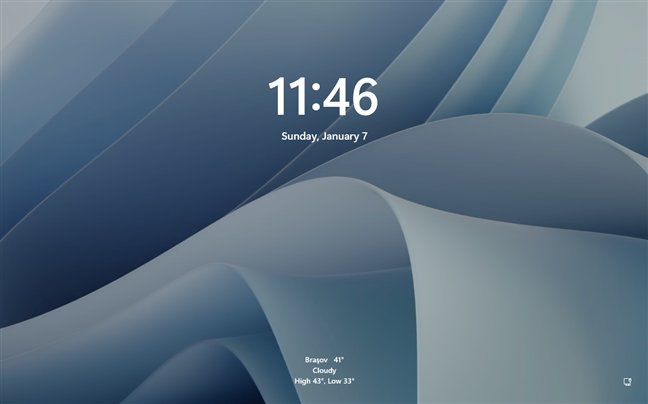
Windows 11 gives you more control over how your lock screen looks, including the ability to automatically rotate the wallpaper instead of keeping a single static image. This feature helps keep your PC visually fresh and engaging each time you lock your device, restart it, or wake it from sleep. Rather than seeing the same background repeatedly, you can enjoy a changing selection of images that adds variety without any extra effort.
Whether you prefer professionally curated wallpapers from Microsoft or want to showcase your own photos and downloaded images, Windows 11 provides built-in options to support both choices. You do not need to install third-party apps or make complex system changes.
This guide explains each available method in detail, walking you through the steps required to enable automatic lock screen wallpaper rotation and customize it to match your personal style.
Method 1: Use Windows Spotlight
Windows Spotlight automatically downloads and rotates high-quality images from Microsoft. This is the easiest option and requires no extra setup.
Steps:
- Press Win key + I to open Windows Settings.
- Click Personalization in the left sidebar.
- Select Lock screen.
- Find the Personalize your lock screen dropdown menu.
- Choose Windows Spotlight.
That’s it. Your lock screen wallpaper will now change automatically, usually every day.
Method 2: Create a Custom Lock Screen Slideshow
If you prefer using your own photos or downloaded wallpapers, a slideshow is the best choice.
Steps:
- Open Settings using Win key + I.
- Go to Personalization > Lock screen.
- In Personalize your lock screen, select Slideshow.
- Click Add a folder and choose the folder containing your images.
- Adjust additional options, such as turning off the screen after a slideshow has played or shuffling pictures.
- Close Settings to save changes automatically.
Windows will now rotate through the images in the selected folder on your lock screen.
Auto-rotating your Windows 11 lock screen wallpaper is a simple way to keep your PC feeling fresh and personalized. Whether you choose Windows Spotlight for effortless, professional images or a custom slideshow for a personal touch, Windows 11 gives you flexible options to match your style. Once set up, your lock screen will update automatically with no extra effort needed.
Discussion (0)
Be the first to comment.