




Amazon keeps your full order history visible by default, which can feel intrusive if you share an account or shop for private gifts. Archiving Amazon orders lets you hide specific Amazon purchases from your main order list without deleting them from your account.
Once archived, an order moves to a separate section called Archived Orders. You can still access, unarchive, or review those purchases at any time.
How To Archive Amazon Orders
Amazon currently allows order archiving only through its desktop website. The Amazon app does not include a direct archive option, but changes made on desktop sync automatically across devices.
Archive Amazon Orders On Android And iPhone
Although the Amazon app does not support archiving, you can use your mobile browser in desktop mode to hide Amazon orders.
- Open a browser such as Chrome or Safari on your phone.
- Go to the Amazon website and sign in to your account.
- Open the browser menu and enable Desktop Site.
- Select Account & Lists, then open Your Orders.
- Find the order you want to hide and select Archive Order.
- Confirm the action when prompted.
The order will disappear from your main order history and move to the archived section.
Archive Amazon Orders On Windows Or Mac
Archiving Amazon orders on a computer follows the same process without workarounds.
- Open a web browser and visit the Amazon website.

- Sign in to your Amazon account.
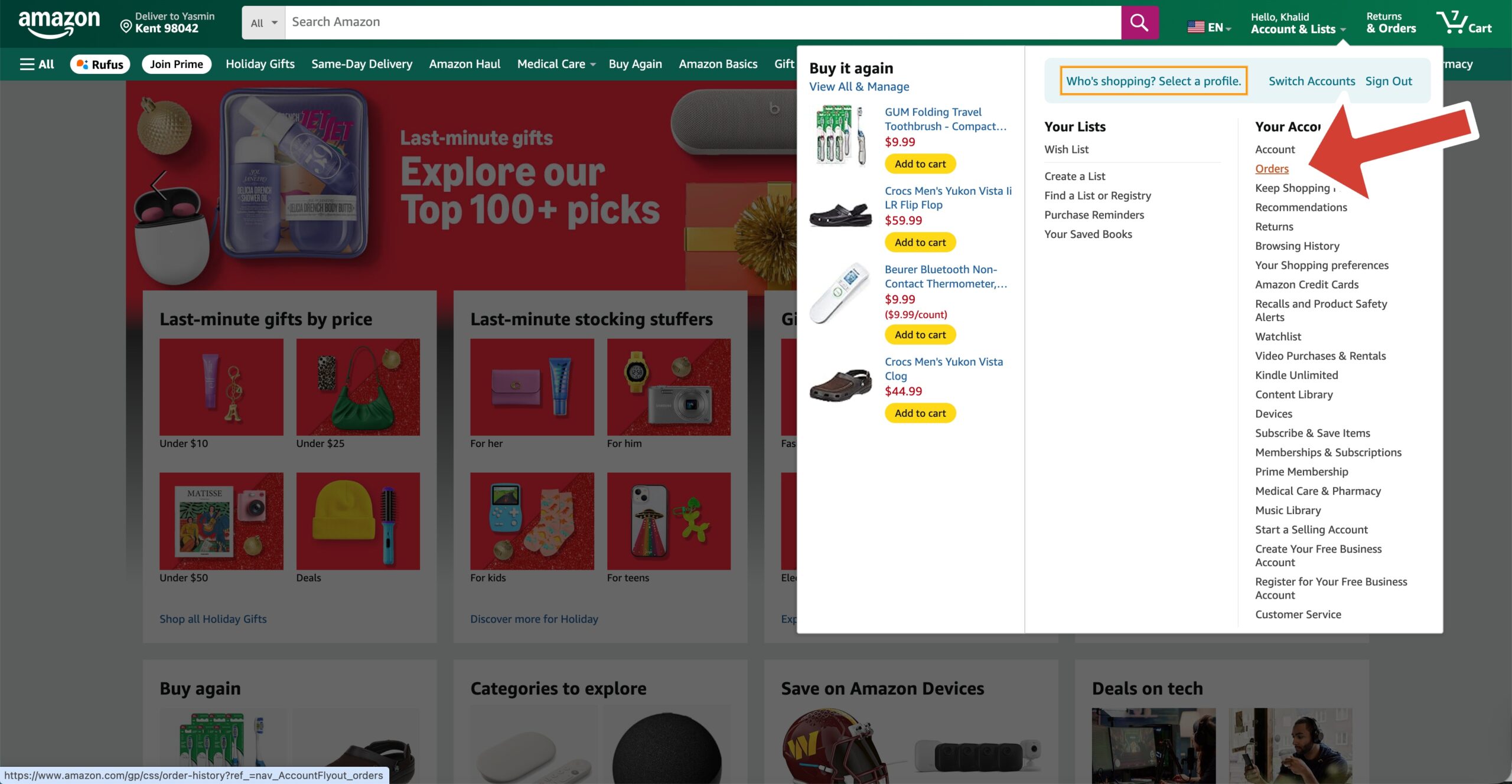
- Hover over Account & Lists and select Orders.
- Locate the order you want to hide.
- Select Archive Order and confirm.
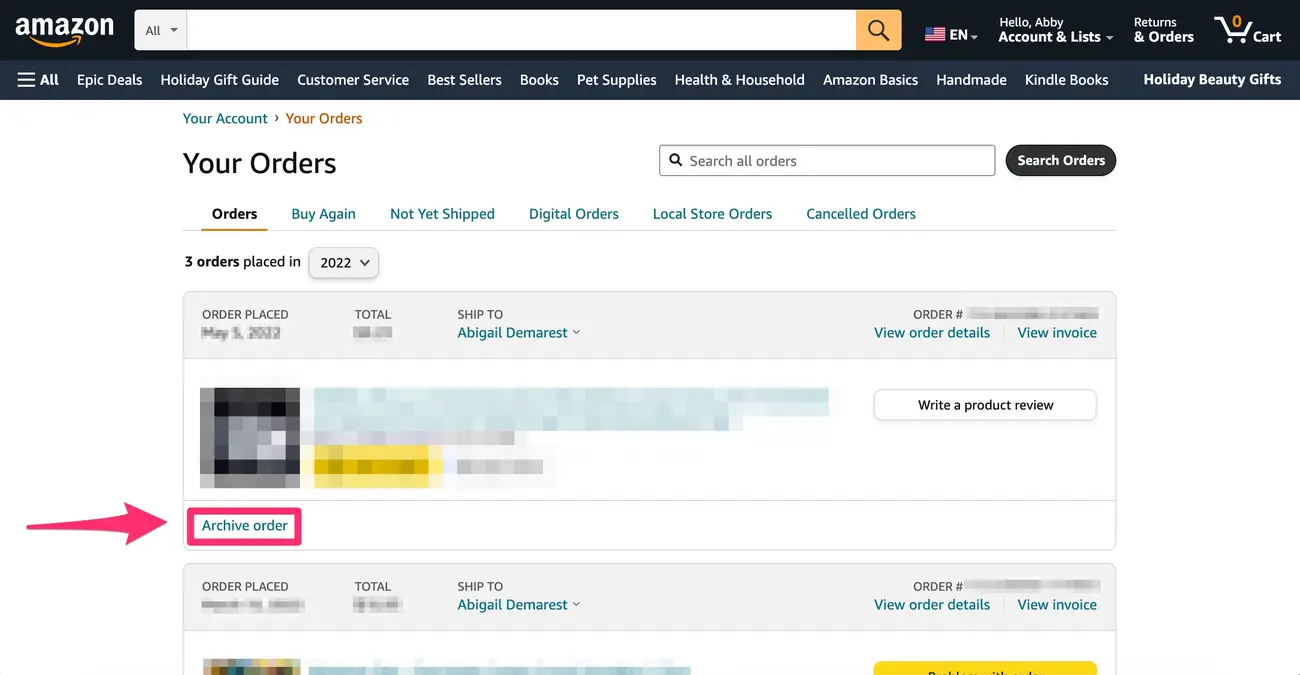
The archived purchase will no longer appear in your default Amazon order history.
How To See Archived Orders And Unarchive Them
Amazon keeps archived purchases accessible through a dedicated filter.
- Sign in to Amazon using any browser.
- Open Account & Lists and go to Your Orders.
- Use the order timeline menu and select Archived Orders.
- Choose Unarchive Order to restore a purchase to your main history.
Unarchiving immediately returns the order to your standard orders list.
Troubleshooting Common Problems
If you do not see the archive option, confirm that you are using the desktop version of Amazon. The mobile app and mobile site do not support archiving.
If archived orders do not appear, refresh the page or sign out and back into your account. Archived orders remain available indefinitely unless manually unarchived.
Tips
- Use archiving to hide gifts, medical purchases, or shared account orders.
- Archived orders still count for warranties, returns, and invoices.
- You can archive multiple orders one by one, but Amazon does not support bulk archiving.
FAQ
Can you archive Amazon orders through the app?
No. At the time of writing, the Amazon app does not include an archive option.
How many orders can you archive on Amazon?
Amazon allows archiving up to 500 orders per account.
Does archiving an Amazon order cancel it?
No. Archiving only hides the order from your main history.
Can you delete Amazon order history permanently?
Amazon does not allow permanent deletion of order history.
Can you hide Amazon orders older than six months?
Yes. Any eligible order can be archived regardless of age.
Summary
- Amazon order archiving hides purchases without deleting them.
- The feature works only on the desktop website.
- Archived orders remain accessible and reversible.
Conclusion
Archiving Amazon orders is the simplest way to protect purchase privacy on a shared account. While the feature remains desktop-only, it works reliably and syncs across devices. If privacy matters, archiving offers control without losing access to past purchases.


Discussion (0)
Be the first to comment.