



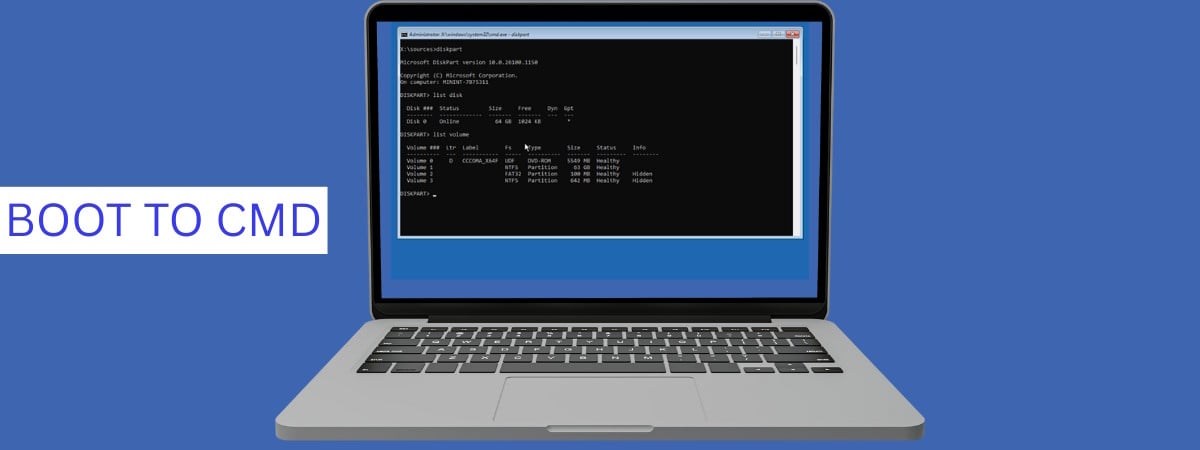
There’s nothing worse than a Windows system that refuses to boot when you really need it. Maybe it’s stuck in a loop, perhaps it crashes outright, or maybe it just hangs. Whatever the case, there’s a good chance you’ll need the Command Prompt to troubleshoot and fix things. Yet… if Windows won’t load, how do you even get to it? Can you still open CMD during Windows installation? What if you want to boot directly to Command Prompt “from BIOS”? And what should you do if Shift + F10 doesn’t work? These are the questions I’ve had to answer for myself more than once. So, I tested several methods on both my desktop PC and laptop, just to make sure everything still works in 2025, including on modern UEFI firmware and with the latest Windows 11 installation media. Based on those tests, here’s what you need to know:

 Boot your PC using some Windows installation media (USB, DVD, etc.)
Wait until your computer boots from the USB drive and loads the Windows setup. You should see something like the screenshot below:
Boot your PC using some Windows installation media (USB, DVD, etc.)
Wait until your computer boots from the USB drive and loads the Windows setup. You should see something like the screenshot below:
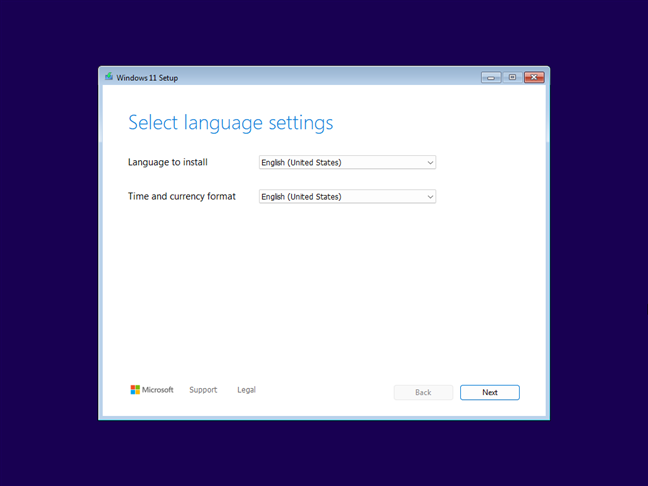 Wait for the Windows Setup to load
To open CMD in Windows Setup, simultaneously press these keys when the installation wizard shows up:
Wait for the Windows Setup to load
To open CMD in Windows Setup, simultaneously press these keys when the installation wizard shows up:

 Press Shift + F10 to open CMD at boot
This method is great because it’s quick and doesn’t require clicking through menus. However, not all Windows laptops behave the same way. On a test laptop I used, the shortcut didn’t work at first. I had to press these keys instead:
Press Shift + F10 to open CMD at boot
This method is great because it’s quick and doesn’t require clicking through menus. However, not all Windows laptops behave the same way. On a test laptop I used, the shortcut didn’t work at first. I had to press these keys instead:
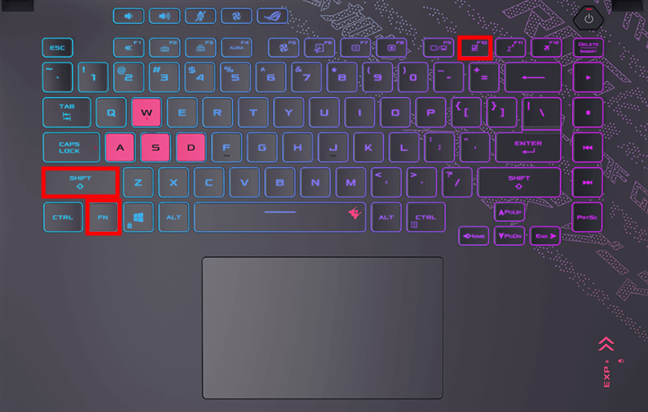
 Press Shift + Fn + F10 to open CMD at boot
Either way, you should now see the Command Prompt window, before you even reach the Install now screen. 🙂
Press Shift + Fn + F10 to open CMD at boot
Either way, you should now see the Command Prompt window, before you even reach the Install now screen. 🙂
 Press Shift + F10 on the keyboard to open Command Prompt on boot
Having said that, if neither Shift + F10 nor Shift + Fn + F10 works or you’re more comfortable clicking through menus, there’s another reliable way to open the Command Prompt during Windows installation. This next method takes a bit longer, but it’s just as effective:
Press Shift + F10 on the keyboard to open Command Prompt on boot
Having said that, if neither Shift + F10 nor Shift + Fn + F10 works or you’re more comfortable clicking through menus, there’s another reliable way to open the Command Prompt during Windows installation. This next method takes a bit longer, but it’s just as effective:
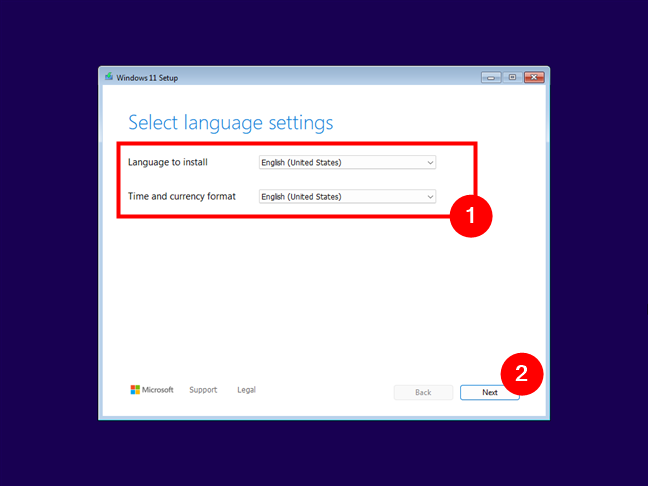 Select language, time and currency format, then press Next
When asked to select a setup option, choose Repair my PC, then press Next.
Select language, time and currency format, then press Next
When asked to select a setup option, choose Repair my PC, then press Next.
 Choosing Repair my PC
Now, select your keyboard layout from the list.
Choosing Repair my PC
Now, select your keyboard layout from the list.
 Choose the keyboard layout
Next, you are asked to choose an option to continue. Select Troubleshoot.
Choose the keyboard layout
Next, you are asked to choose an option to continue. Select Troubleshoot.
 The Troubleshoot option
You see several advanced options, but only the Command Prompt option is of interest: click or tap it to get to CMD at boot.
The Troubleshoot option
You see several advanced options, but only the Command Prompt option is of interest: click or tap it to get to CMD at boot.
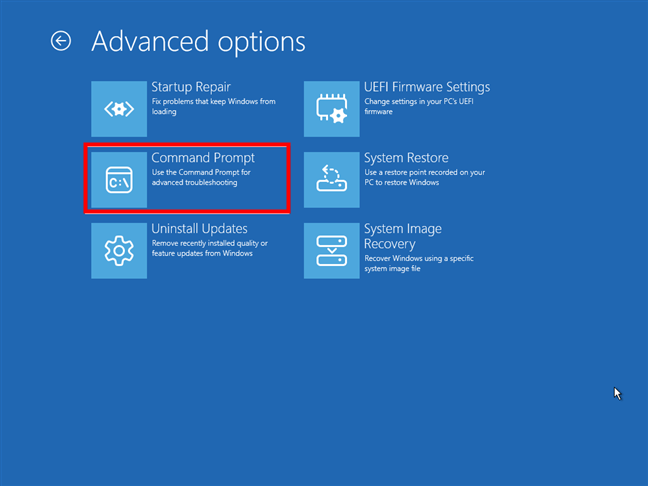 Open Command Prompt before booting Windows
The Command Prompt (cmd.exe) is loaded, and you can use it to repair your non-working Windows system or do anything else you wish.
Open Command Prompt before booting Windows
The Command Prompt (cmd.exe) is loaded, and you can use it to repair your non-working Windows system or do anything else you wish.
 CMD open before startup
This method is especially useful when Shift + F10 fails or when you prefer the graphical interface over keyboard shortcuts. And in case you’re wondering: yes, this works even if your computer doesn’t have Windows installed. As long as the setup media loads, you can access CMD this way.
Now, you know how to open CMD while installing Windows in two different ways. Next, let’s see how to get to Command Prompt “from BIOS” using a Windows repair drive:
CMD open before startup
This method is especially useful when Shift + F10 fails or when you prefer the graphical interface over keyboard shortcuts. And in case you’re wondering: yes, this works even if your computer doesn’t have Windows installed. As long as the setup media loads, you can access CMD this way.
Now, you know how to open CMD while installing Windows in two different ways. Next, let’s see how to get to Command Prompt “from BIOS” using a Windows repair drive:
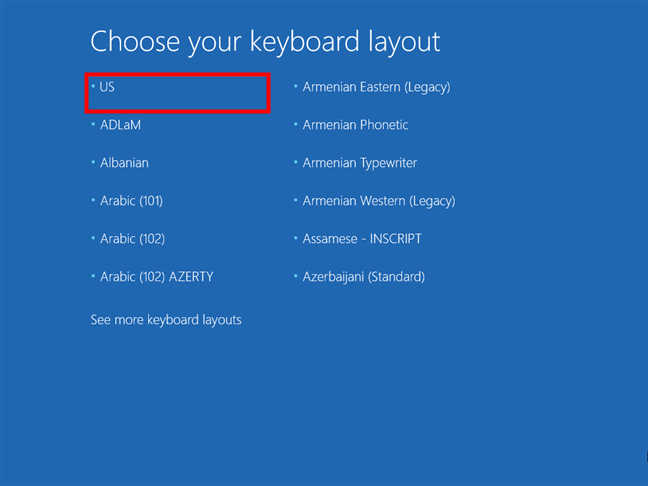 Choose a keyboard layout
Then, you can choose one of several options. Select Troubleshoot.
Choose a keyboard layout
Then, you can choose one of several options. Select Troubleshoot.
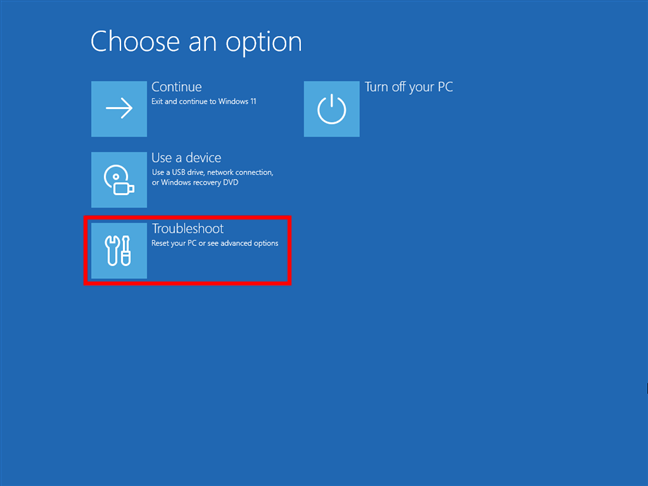 Choose the Troubleshoot option
Now, to boot to Command Prompt, click or tap Command Prompt in the list of Advanced options.
Choose the Troubleshoot option
Now, to boot to Command Prompt, click or tap Command Prompt in the list of Advanced options.
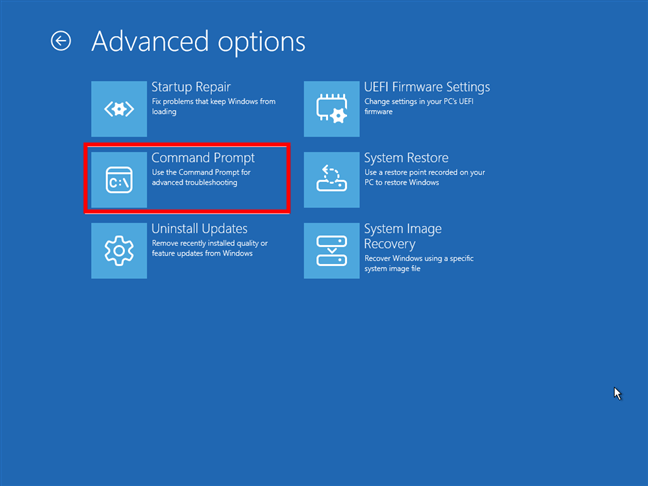 Launch Command Prompt before boot
The Command Prompt is immediately loaded, and you can start using it for whatever you need.
Launch Command Prompt before boot
The Command Prompt is immediately loaded, and you can start using it for whatever you need.
 Using diskpart after opening Command Prompt at boot
If your system won’t boot because the boot sector is damaged, or you’ve cloned a drive and it won’t start properly, these tools can help fix the problem. For step-by-step instructions, you can check out our other guide: Repair the EFI Bootloader or the MBR (Master Boot Record) for Windows.
Using diskpart after opening Command Prompt at boot
If your system won’t boot because the boot sector is damaged, or you’ve cloned a drive and it won’t start properly, these tools can help fix the problem. For step-by-step instructions, you can check out our other guide: Repair the EFI Bootloader or the MBR (Master Boot Record) for Windows.
1. How to open CMD during Windows setup using Shift + F10
The easiest and fastest way to open Command Prompt when Windows won’t boot is using the Shift + F10 keyboard shortcut during the installation process. This works even if there’s no version of Windows currently installed on your PC. Here’s what you need to do: First, create a bootable Windows setup USB stick and plug it into your computer, whether it’s a desktop PC or a laptop. It doesn’t matter if the installation media is for Windows 11 or Windows 10: either one works. Then, use that USB drive to boot your computer.Shift + F10
The keyboard shortcut opens Command Prompt before boot.
Shift + Fn + F10
It makes sense, as many laptops have function keys disabled by default in their BIOS/UEFI.
2. How to boot to Command Prompt using the repair tools in the Windows setup environment
For this to work, you must first start your computer and boot from your Windows USB installation drive. To do that, you have to plug your USB stick into your device, power it on, and open the boot menu (on most computers, that’s F12 or Esc, but it can also be Del or F8, depending on the manufacturer). If you require more detailed instructions, check out this guide: How to boot from a USB drive (4 methods). Then, in the UEFI/BIOS boot menu, choose the drive where you have the Windows 11 or Windows 10 setup files as the boot device. Wait for the Windows Setup to load, select the language and keyboard when prompted, and then press Next.3. How to boot to Command Prompt using a Windows recovery drive
Maybe you’ve created a Windows recovery drive in the past, just in case something ever went wrong. If you did, this is the time to use it. Insert the recovery USB into your computer, power it on, and open the boot menu (on most systems, that’s F12 or Esc, but sometimes it can also be Del or F8, depending on the manufacturer). Choose the USB as your boot device and let it load. When the recovery drive loads, it first asks you to choose the keyboard layout. Select the one you prefer.I’ve managed to boot to Command Prompt at Windows startup. What’s next?
Now that you’ve managed to open Command Prompt, whether during setup or from a recovery drive, you have access to a wide range of tools that can help bring your system back to life. You can use:- chkdsk to scan for file system errors
- diskpart to inspect and manage partitions
- bootrec /fixmbr to repair a damaged Master Boot Record
- bootrec /rebuildbcd to rebuild the Boot Configuration Data
- bcdboot to create a fresh bootloader
Discussion (7)
Shift and F10 just results in clicks and no Command Prompt.
it only work if you can access advanced options
trying to access some old iomega zip 100 discs, used c/net ioware-w32-x86-402.exe. on required restart, computer restarts to BSOD bad pool header. The only paths (in computer or flash drive) that allow computer to start in any mode results in command prompt, including this article. Cannot recover data to usb hd although
I have no dvd or usb, and beside when i start leptop using F8 key, there is missing of “repaire your computer” commands , so how to load window7
This article does not answer the question of how to enter command prompt when you power on the computer and you have no repair or startup disk.
Lol. You can’t do that without such a disk. That’s why it doesn’t cover it.
What command did you use to start the windows 7 disc