




A flickering Chromebook screen usually points to a software glitch, a display setting conflict, or failing hardware. In most cases, you can stop the flicker in minutes by adjusting ChromeOS settings or resetting the device. Start with the quick fixes below, then move to deeper checks only if the problem persists.
Table of contents
- Why Chromebook screens start flickering
- Quick fixes that solve most flickering issues
- Fix flickering caused by ChromeOS settings
- Fix Chromebook screen flickering after an update
- Diagnose external and hardware-related causes
- When to contact support or seek repair
- Tips to prevent Chromebook screen flickering
- FAQs
- Summary
Why Chromebook screens start flickering
Screen flickering often appears after a ChromeOS update, a settings change, or prolonged use. Software bugs, GPU acceleration issues, loose display cables, or a dying panel can all trigger visible flashing.
Understanding the cause helps you avoid unnecessary resets or repairs.
Quick fixes that solve most flickering issues
These steps fix the majority of Chromebook screen flickering cases. Try them in order before moving on.
Restart and power reset your Chromebook
A restart clears temporary display and GPU glitches that cause flashing.
- Click the clock in the bottom-right corner.
- Select Power and shut down the Chromebook.
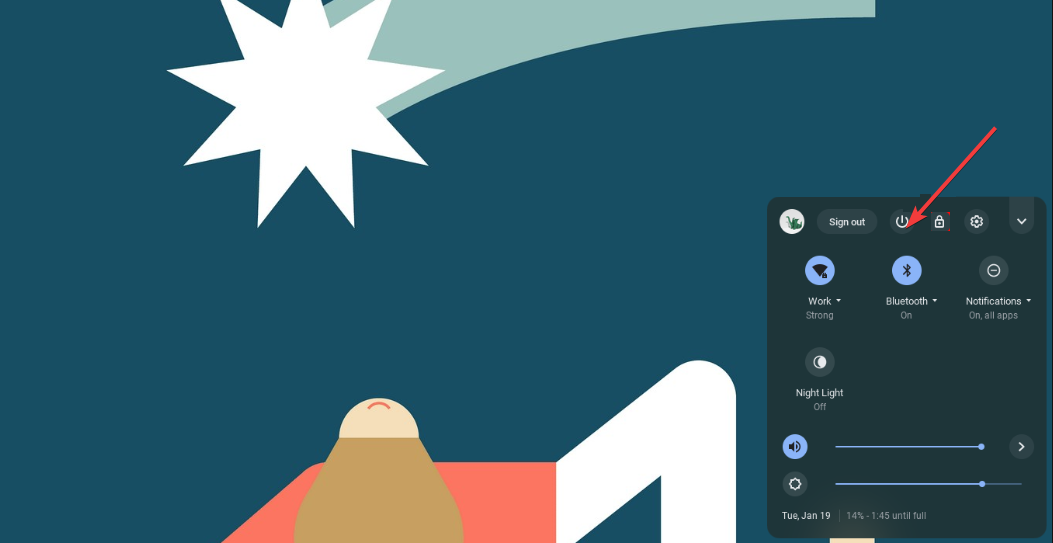

- Unplug the charger and hold the Power button for 10 seconds.
- Turn the Chromebook back on.
Check for ChromeOS updates
ChromeOS updates often include display and graphics fixes.
- Open Settings.
- Go to About ChromeOS.
- Click Check for updates.
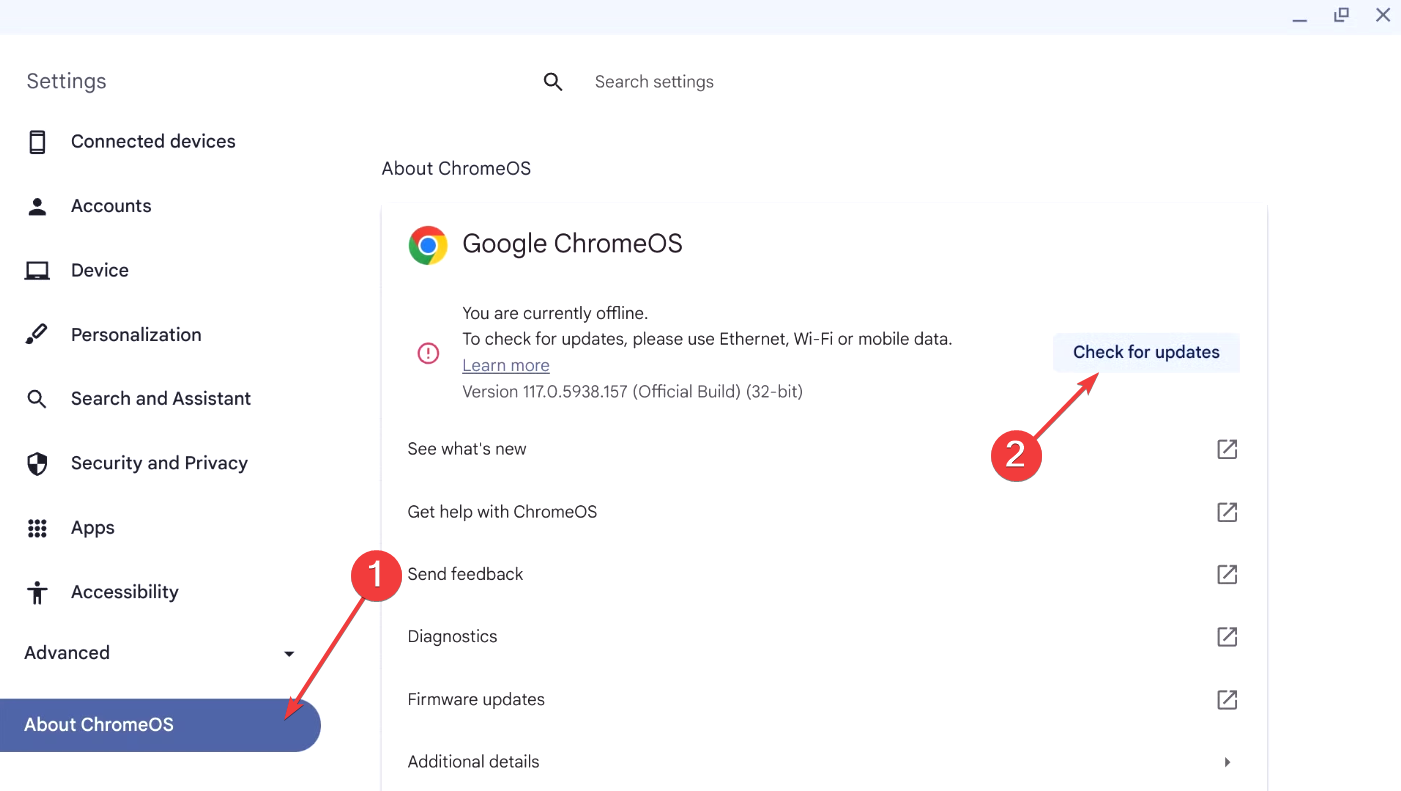

- Restart after the update installs.
Adjust display resolution and refresh rate
Incorrect or auto-selected values can cause visible flicker on some panels.
- Open Settings and select Device, then select Displays.
- Disable Use built-in scaling if available.
- Set the resolution to the recommended option.
- If a refresh rate option appears, select the default value.
Fix flickering caused by ChromeOS settings
If the flicker returns after restarts, a setting or feature likely triggers it.
Disable hardware acceleration in Chrome
GPU rendering can cause flashing on certain Chromebook models.
- Open Chrome and type chrome://settings/system in the address bar.
- Turn off Use graphics acceleration when available.


- Click Relaunch.
Turn off problematic Chrome flags
Experimental flags often break display stability.
- Type chrome://flags in the address bar.
- Click Reset all.
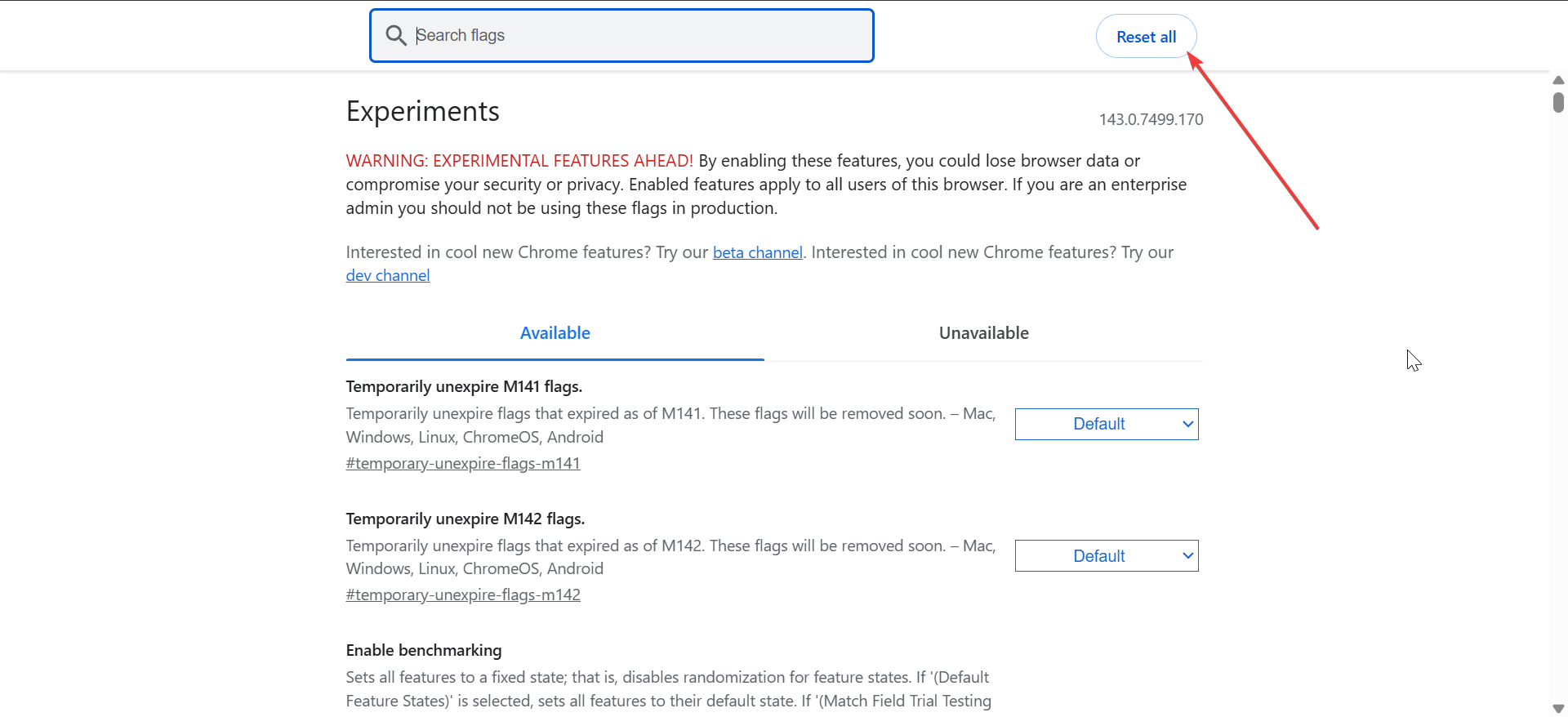
- Restart the Chromebook.
Test with a new user profile
This step confirms whether the issue links to your account or extensions.
- Sign out of your Chromebook.
- Select Add person.
- Sign in with a different Google account.
- Check if the screen still flickers.
Fix Chromebook screen flickering after an update
Some ChromeOS updates introduce temporary display bugs.
Check ChromeOS release notes and wait for a patch
Check what version of the OS is on your Chromebook and install any available update for it by going to Settings > About ChromeOS.
Minor updates often fix flickering within days or weeks. You can also keep auto-updates enabled to prevent future issues.
Powerwash as a last software resort
A Powerwash resets ChromeOS to a clean state.
- Open Settings.
- Go to Advanced and select Reset settings.
- Next, click the Reset button in front of Powerwash.
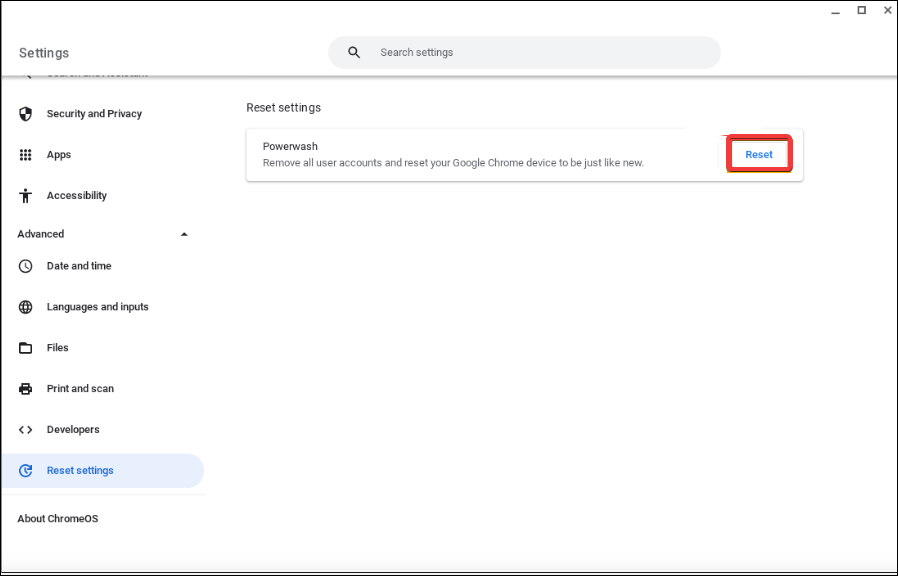

- Now, click Restart.
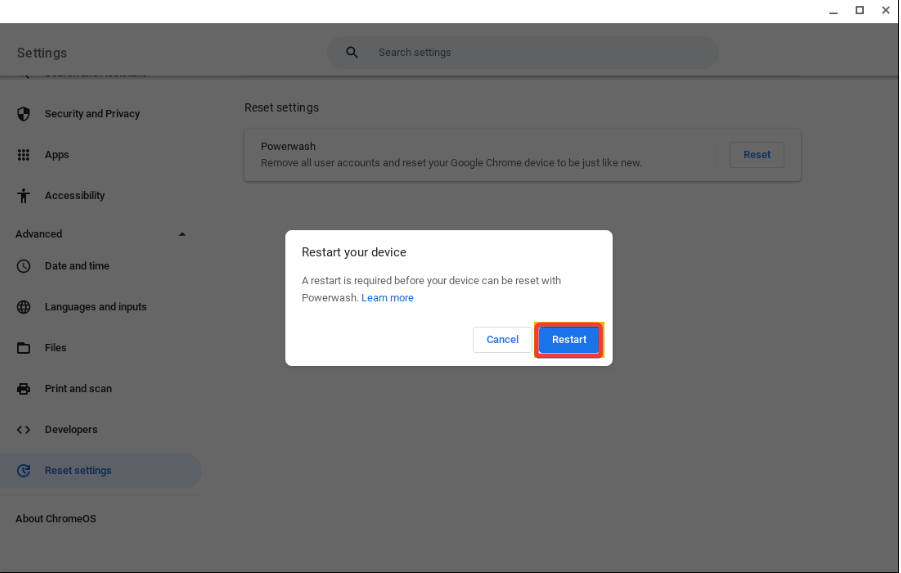

- Sign in again after the reset completes.
Back up important files before continuing.
Diagnose external and hardware-related causes
If software fixes fail, hardware likely causes the flicker.
Connect an external monitor
This test isolates the problem quickly.
- If the external display works fine, the built-in screen or cable likely fails.
- If both screens flicker, the GPU or motherboard may have issues.
Check for loose or damaged display cables
Frequent opening and closing strains internal display cables. Flickering that worsens when moving the lid often signals this issue.
Identify backlight or panel failure symptoms
Random brightness changes, persistent flashing, or colored lines usually indicate a failing screen. Replacement becomes the only reliable fix.
When to contact support or seek repair
Some problems go beyond home troubleshooting.
Check Chromebook warranty and support status
Many Chromebooks include a one-year manufacturer warranty. Schools and workplaces may offer extended coverage.
Decide between repair and replacement
Older Chromebooks often cost more to repair than replace. Newer models with warranty coverage usually justify repair.
Tips to prevent Chromebook screen flickering
- Keep ChromeOS updated at all times.
- Avoid enabling experimental Chrome flags.
- Close the lid gently to reduce cable strain.
- Use the original charger to prevent power-related display issues.
FAQs
Can a Chromebook screen flicker because of the charger?
Yes. Faulty or third-party chargers can cause unstable power delivery and screen flicker.
Does screen flickering mean my Chromebook is dying?
Not always. Software issues cause most cases, but persistent flicker often signals hardware failure.
Will Powerwashing always fix screen flickering?
No. Powerwashing fixes software problems only. Hardware issues remain after the reset.
Summary
- Restart and power reset the Chromebook first.
- Update ChromeOS and adjust display settings.
- Disable hardware acceleration and reset Chrome flags.
- Test with another user profile or Powerwash if needed.
- Use an external monitor to confirm hardware failure.
Screen flickering on a Chromebook usually starts as a minor software issue and resolves quickly with the right fix. If none of the software steps work and external displays look fine, the built-in screen or cable likely needs repair. At that point, check your warranty and decide whether repair or replacement makes more sense for your device.


Discussion (0)
Be the first to comment.