



Keeping your schedule visible at a glance helps you stay organized and on track. Google Calendar remains a popular service for managing events, reminders, and appointments. Knowing how to put my Google Calendar on my desktop saves time and gives instant access without opening a browser tab.
The methods below work reliably at the time of writing. You can create a desktop shortcut, use a browser extension, sync Google Calendar with native desktop apps, or use trusted third-party tools that integrate your Google Calendar directly into your desktop workspace.
Method 1: Create A Desktop Shortcut To Google Calendar
This approach gives quick one-click access to Google Calendar from your desktop or taskbar. It works on Windows and macOS and does not require extra software.
- Open your browser and visit calendar.google.com.
- Sign in to your Google account so Google Calendar loads fully.
- In Chrome, select the three-dots menu, choose More Tools, then Create Shortcut.
- Name it Google Calendar, turn on Open As Window, and choose Create.
- Use the new desktop icon to open Google Calendar in its own window whenever you want.
- Right-click the shortcut, then choose Pin To Taskbar or Pin To Start for even faster access.
This method makes Google Calendar behave like a lightweight desktop app while still using the web version in the background.
Method 2: Use A Browser Extension For Quick Access
If you keep a browser open all day, a Google Calendar extension keeps your schedule a single click away and still supports all primary features.
- Open your browser’s extension or add-ons store and search for Google Calendar.
- Install the official or a well-rated Google Calendar extension.
- Look for the new calendar icon that appears in the browser toolbar.
- Click the icon to check upcoming events, add new entries, or switch views without opening a full tab.
- Open the extension’s options to adjust notifications, default view, or which Google Calendar shows by default.
This keeps Google Calendar close to the desktop environment of your browser and makes checking your schedule feel almost instant.
Method 3: Sync Google Calendar With Your Desktop Calendar App
Windows and macOS both include built-in calendar apps. When you sync them with your Google account, you get real desktop access to Google Calendar events.
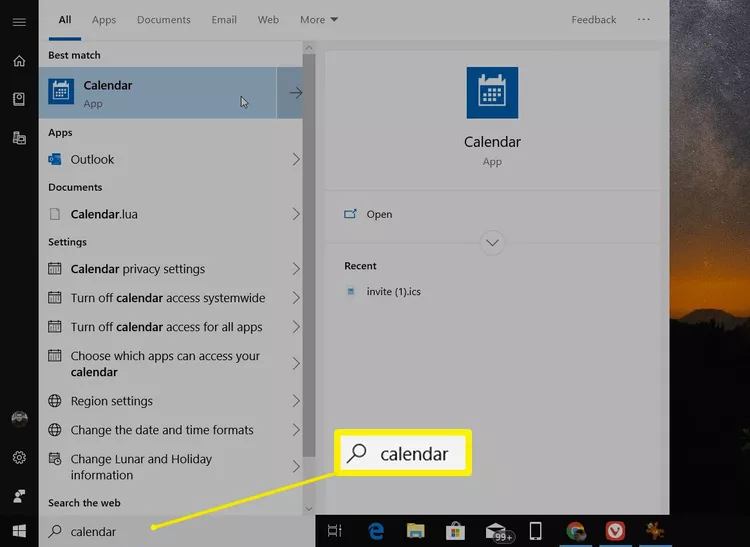
- Windows: Open the Calendar app.
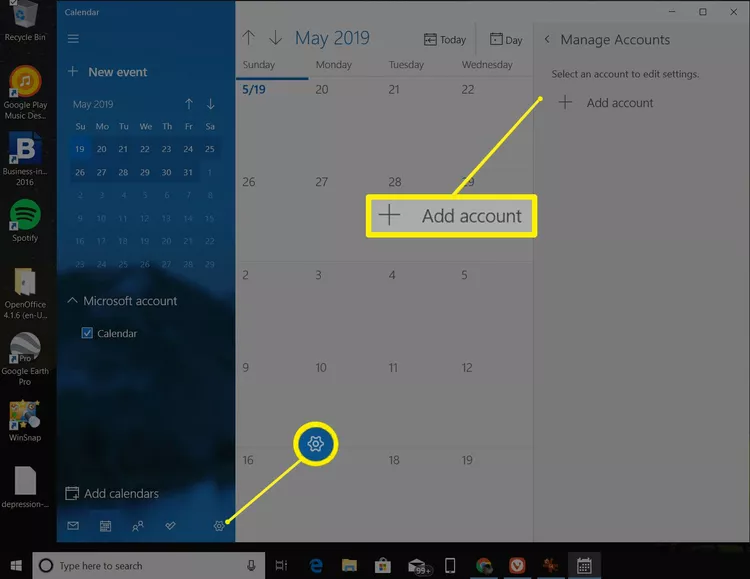
- Go to Settings, choose Manage Accounts, select Add Account.
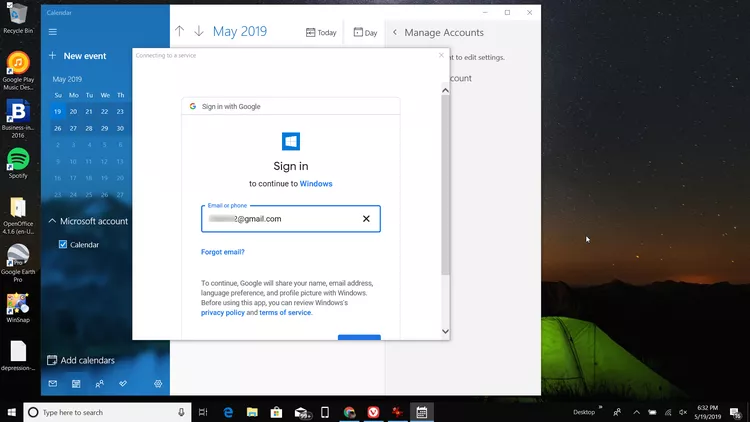
- Pick Google.

- Sign in with your Google credentials.
- macOS: Open System Settings, choose Internet Accounts, add your Google account, and enable the Calendars toggle.
- Wait a moment while the system syncs. Your Google Calendar events now appear in the desktop Calendar app.
- Pin the Calendar app to the taskbar or dock so your Google Calendar on desktop stays easy to access.
This option works especially well if you want system notifications, reminders, or offline access to your Google Calendar events.
Method 4: Use A Third-Party Desktop Calendar Tool
Some users prefer a dedicated desktop widget or a more customizable interface. Several third-party calendar apps support Google Calendar integration and give extra control over how your schedule appears on desktop.
- Choose a trusted third-party calendar app that clearly lists support for Google Calendar.
- Download and install the app on your Windows PC or Mac desktop.
- Open the app, sign in with your Google account, and grant calendar permissions.
- Pick how you want your Google Calendar to show on the desktop, such as a floating window, sidebar, or desktop widget.
- Tweak themes, colors, and which calendars display so your desktop Google Calendar matches your style.
Third-party tools suit you best if you want advanced layouts, multiple views, or extra features like tasks, notes, or weather inside the same Google Calendar desktop view.
Frequently Asked Questions
Can I Put Google Calendar On My Desktop Without Installing Extra Apps?
Yes. Creating a desktop shortcut from Chrome or another supported browser lets you open Google Calendar on desktop with one click and uses only the web app you already have.
Does Google Calendar Update Automatically On Desktop?
Yes. Whether you use a shortcut, a browser extension, a native calendar app, or a third-party tool, changes in Google Calendar sync automatically when you stay signed in and connected to the internet.
Can I Use Multiple Google Calendars On My Desktop?
Yes. Most methods allow you to show multiple Google Calendars at once. In your chosen app or extension, enable the specific calendars you want to see, such as work, personal, or shared calendars.
Is It Safe To Use Third-Party Apps With Google Calendar?
It can be safe as long as you pick reputable apps and review permissions carefully. Always check who developed the tool, read recent reviews, and confirm that you are comfortable with the level of access given to your Google Calendar data.
Summary
- Create a desktop shortcut so Google Calendar opens in its own window.
- Use a browser extension for one-click access to your schedule from the toolbar.
- Sync Google Calendar with the Windows or macOS Calendar app for system-level integration.
- Install a third-party desktop calendar tool for widgets and extra customization.
Conclusion
You have several reliable answers to the question “how do I put my Google Calendar on my desktop.” Shortcuts, extensions, native apps, and third-party tools all bring your schedule closer to where you work. Choose the method that fits your setup, keep your Google Calendar visible on desktop, and stay on top of every event and reminder.
Discussion (0)
Be the first to comment.